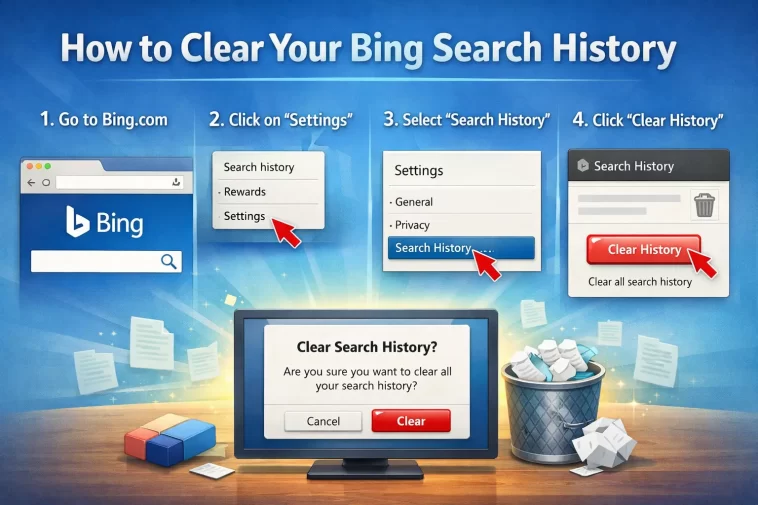
If you want to clear your Bing search history, you’re not alone. Whether you share a device, value your privacy, or just want a fresh start, removing your past searches from Bing takes less than a minute once you know where to look.
This guide covers every method — on desktop, mobile, and even without a Microsoft account.
Why You Might Want to Clear Your Bing Search History
Bing saves your search history to personalize results and power features like search suggestions. But there are plenty of good reasons to wipe it clean:
- You share a computer with family members or colleagues
- You searched for something personal or sensitive
- You want to stop Bing from showing biased suggestions based on old searches
- You’re selling or giving away your device
- You just prefer to keep things clean
Whatever your reason, the steps below will get it done.
Method 1: Clear Bing Search History on Desktop (Web Browser)
This is the most common method and works on any browser — Chrome, Edge, Firefox, or Safari.
Step 1: Go to Bing.com and Sign In
Open your browser and go to bing.com.
Click Sign in in the top-right corner and log in with your Microsoft account. Your search history is tied to your account, so you need to be signed in to manage it.
Step 2: Open the Search History Page
Once signed in, click on the hamburger menu (three horizontal lines) or your profile icon in the top-right corner.
Select Search history from the dropdown menu.
Alternatively, go directly to: https://www.bing.com/profile/history
Step 3: Delete Individual Searches or All at Once
On the Search History page, you have two options:
- Delete a single search – Click the X next to any individual search entry to remove just that one.
- Clear all search history – Click Clear all at the top of the page to delete everything at once.
A confirmation prompt will appear. Click Clear to confirm.
Your Bing search history is now deleted.
Method 2: Clear Bing Search History on iPhone or Android
If you use Bing on your phone — either through the Bing app or a mobile browser — here’s how to clear your history.
Using the Bing App (iOS & Android)
- Open the Bing app on your phone.
- Tap your profile icon in the top-right corner.
- Tap Search history.
- Tap Clear all to delete everything, or tap individual entries to remove them one by one.
Using a Mobile Browser
If you use Bing through Chrome or Safari on your phone, the process is the same as desktop. Just visit bing.com/profile/history while signed in and clear from there.
Method 3: Turn Off Bing Search History Completely
Don’t want Bing to save future searches at all? You can disable history tracking entirely.
- Go to bing.com/profile/history while signed in.
- Click Turn off next to “Search history is on.”
- Confirm your choice.
From this point on, Bing will stop saving your searches. Keep in mind that turning off history also disables personalized suggestions, so search recommendations may feel less relevant over time.
You can turn it back on at any time from the same page.
Method 4: Clear Bing Suggestions from the Search Bar
You may notice that as you type in Bing’s search box, it shows suggestions based on your past searches. These are separate from your saved history.
To stop these from appearing:
- Start typing in the Bing search bar.
- Hover over a suggestion you want to remove.
- Click the X on the right side of that suggestion.
This removes it from your suggestion list without deleting your full history.
Method 5: Clear Bing History Without a Microsoft Account
If you use Bing without signing in, your searches aren’t saved to a personal account — but your browser still keeps a local record.
To clear this, you need to clear your browser’s history:
On Chrome:
- Press Ctrl + H (Windows) or Cmd + Y (Mac) to open history.
- Click Clear browsing data.
- Select Browsing history and choose a time range.
- Click Clear data.
On Edge:
- Press Ctrl + Shift + Delete.
- Check Browsing history.
- Click Clear now.
On Firefox:
- Press Ctrl + Shift + Delete.
- Select the time range and check Browsing & Download History.
- Click Clear Now.
This removes any local trace of your Bing searches from that browser.
How to Clear Bing History in Microsoft Edge Specifically
Edge has a tight integration with Bing, so it’s worth knowing one extra setting.
In Edge, your typed URLs and search queries can be saved both in your browser history and in your Microsoft account if you’re signed in. To clear both:
- In Edge, press Ctrl + Shift + Delete.
- Check Browsing history and Search history (if visible).
- Click Clear now.
- Then also visit bing.com/profile/history to clear the account-level history.
Doing both ensures nothing is left behind.
Does Clearing Bing History Affect Microsoft Rewards?
This is a common concern for Rewards users. The short answer: no.
Deleting your search history does not remove your earned Rewards points. Your points balance is stored separately from your search history. You can safely clear your history without losing any rewards.
FAQ
Does Bing share my search history with anyone?
Microsoft may use your search history to personalize ads and improve services, but it is not sold to third parties. You can review Microsoft’s privacy policy at privacy.microsoft.com for full details.
Will clearing Bing history log me out of my Microsoft account?
No. Clearing your Bing search history only removes your past searches. It does not affect your account login, saved passwords, or any other Microsoft services.
How often should I clear my Bing search history?
There’s no set rule. Some people clear it monthly as a routine privacy habit, others only do it when needed. If you’re on a shared device, it’s a good idea to clear it after each session.
Can I recover deleted Bing search history?
No. Once you clear your Bing search history, it cannot be recovered. If you want to save any searches before deleting, copy them manually before clearing.
Does clearing Bing history also clear my browser history?
No. Bing search history (stored in your Microsoft account) and browser history (stored locally) are two separate things. You need to clear both if you want to remove all traces of your searches.
Why is my Bing history still showing after I cleared it?
This can happen if your browser is showing cached data. Try doing a hard refresh with Ctrl + Shift + R (Windows) or Cmd + Shift + R (Mac). If the problem persists, clear your browser cache as well.
Final Thoughts
Clearing your Bing search history is straightforward once you know where to go. Whether you want to delete everything at once, remove a single search, or stop Bing from saving future queries entirely, all of it is just a few clicks away.
For the most complete privacy cleanup, clear both your Bing account history at bing.com/profile/history and your browser’s local history. That way, nothing gets left behind.
