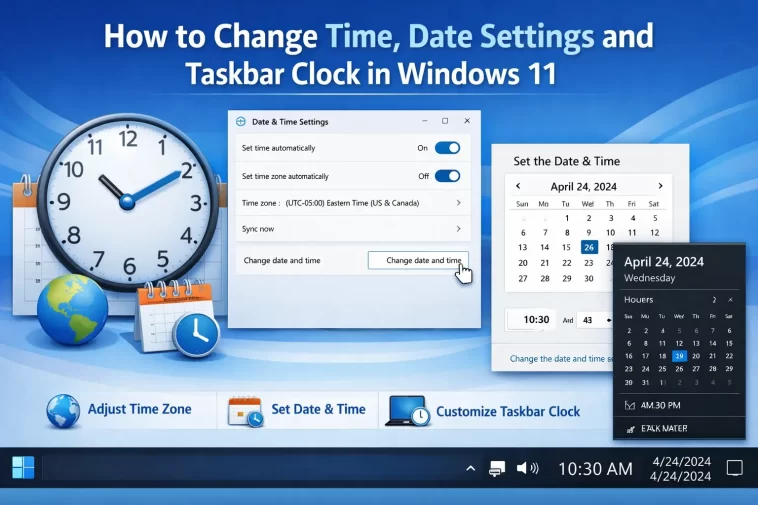
Windows 11 time and date settings are one of those things most people never think about — until something goes wrong. Maybe your clock is showing the wrong time, your taskbar looks different after an update, or you just want to customize how the date appears.
Whatever the reason, changing the time and date in Windows 11 is straightforward once you know where to look. This guide covers everything from basic adjustments to advanced taskbar clock customization.
How to Access Windows 11 Time and Date Settings
The fastest way to open time and date settings is by right-clicking directly on the clock in your taskbar. A small menu will pop up — click Adjust date and time and you’re there instantly.
You can also get there through Settings:
- Press Windows + I to open Settings
- Go to Time & Language
- Click Date & Time
Both methods take you to the same place. From here, you control everything related to your system clock.
How to Change the Date and Time Manually
By default, Windows 11 keeps your clock synced automatically using internet time servers. This works well most of the time, but there are situations where you need to set the time manually — like when you’re offline or your time is consistently drifting.
Turn Off Automatic Time
- Open Settings > Time & Language > Date & Time
- Toggle off Set time automatically
- Click the Change button under “Set the date and time manually”
- Enter the correct date and time
- Click Change to save
After doing this, Windows will stop syncing to online time servers and use your manual setting instead.
Turn Off Automatic Time Zone
Right below the time setting, you’ll also find Set time zone automatically. If Windows keeps picking the wrong region, turn this off and select your time zone manually from the dropdown list.
How to Sync Your Clock with an Internet Time Server
If your clock is running behind or ahead, the quickest fix is to resync it with a time server.
Here’s how:
- Go to Settings > Time & Language > Date & Time
- Scroll down and click Sync now under “Additional settings”
Windows will immediately contact Microsoft’s time server and correct the clock. This usually takes just a few seconds.
If syncing fails repeatedly, there may be an issue with the Windows Time service. You can restart it through Task Manager or Services (more on that below).
How to Change the Time Zone in Windows 11
Getting the time zone right is just as important as the time itself. A wrong time zone will throw off every timestamp on your system, including emails, files, and calendar events.
To change your time zone:
- Open Settings > Time & Language > Date & Time
- Under Time zone, click the dropdown
- Select the correct time zone from the list
If you travel frequently or use a VPN, Windows might automatically switch your time zone. To prevent this, turn off Set time zone automatically.
How to Change the Date and Time Format in Windows 11
Windows 11 lets you customize how the date and time are displayed throughout the system. This is especially useful if you prefer a 24-hour clock or a different date format.
Open Region Settings
- Go to Settings > Time & Language > Language & Region
- Click on your region (e.g., United States)
- Then click Change formats
From here you can adjust:
- Short date (e.g., 6/10/2026 or 10/06/2026)
- Long date (e.g., Wednesday, June 10, 2026)
- Short time (12-hour or 24-hour)
- Long time (includes seconds)
- First day of week
Changes here affect how dates and times appear across Windows, including File Explorer and certain apps.
Windows 11 Taskbar Clock: What You Can Customize
The taskbar clock in Windows 11 is more flexible than it looks. You can change what information it shows, how it’s displayed, and even add a seconds counter.
Show or Hide the Taskbar Clock
If your clock has disappeared from the taskbar:
- Right-click on an empty part of the taskbar
- Click Taskbar settings
- Scroll to System tray icons
- Toggle Clock to on
Show the Date in the Taskbar
By default, Windows 11 shows only the time in the taskbar. The date appears in a smaller font below it. If your taskbar is too narrow or the date isn’t visible:
- Make sure your taskbar isn’t set to Auto-hide (this can shrink the display area)
- Avoid having too many open apps — a crowded taskbar may hide the date
Unfortunately, Windows 11 doesn’t have a native option to show the full date in large text on the taskbar without third-party tools.
Show Seconds in the Taskbar Clock
Windows 11 now supports showing seconds in the system clock without any registry hacks. Here’s how to enable it:
- Right-click the clock in the taskbar
- Click Adjust date and time
- Scroll down to Additional settings
- Toggle on Show time with seconds in the system tray clock
This was added in a Windows 11 update, so make sure your system is up to date if you don’t see the option.
How to Add Multiple Clocks for Different Time Zones
If you work with people in different countries, Windows 11 lets you add up to two extra clocks to your taskbar.
To set this up:
- Go to Settings > Time & Language > Date & Time
- Scroll down and click Additional clocks
- In the window that opens, check Show this clock
- Select the time zone and give it a display name (e.g., “New York” or “London”)
- Click OK or Apply
When you hover over the taskbar clock, a tooltip will appear showing all your configured clocks. You can also click the clock to open the full calendar view, which displays all time zones at once.
Fixing Common Windows 11 Time and Date Problems
Clock Keeps Resetting After Restart
This usually means your CMOS battery (on your motherboard) is dead or dying. The BIOS clock loses its setting without power. Replacing the CMOS battery typically costs just a few dollars and fixes the problem permanently.
Windows Time Service Not Working
If clock sync keeps failing, the Windows Time service might be stopped.
To fix it:
- Press Windows + R, type
services.msc, and hit Enter - Scroll down to Windows Time
- Right-click it and select Start (or Restart if it’s already running)
- Also set Startup type to Automatic
Time Is Correct but Date Is Wrong
This is less common but can happen. Go to Settings > Time & Language > Date & Time, turn off automatic time, manually correct the date, then turn automatic sync back on.
Clock Out of Sync After Using VPN
Some VPN services redirect your time server requests or change your detected location, which can confuse Windows. Manually set your time zone and turn off automatic detection if this keeps happening.
Using the Control Panel for Advanced Time Settings
For more detailed options, the old Control Panel still works in Windows 11.
- Press Windows + S and search for Control Panel
- Go to Clock and Region > Date and Time
From here you can:
- Adjust the clock directly
- Set additional clocks (mentioned above)
- Change the internet time server (useful if Microsoft’s default server is blocked on your network)
To change the time server:
- Click the Internet Time tab
- Click Change settings
- Enter a different server (e.g.,
time.google.comorpool.ntp.org) - Click Update now
Frequently Asked Questions
How do I change the time on Windows 11? Right-click the taskbar clock, click “Adjust date and time,” turn off “Set time automatically,” then click Change and enter the correct time manually.
Why is my Windows 11 clock showing the wrong time? The most common causes are an incorrect time zone, a stopped Windows Time service, or a dead CMOS battery. Start by clicking “Sync now” in the Date & Time settings.
How do I show seconds in the Windows 11 taskbar clock? Go to Settings > Time & Language > Date & Time, scroll to Additional Settings, and toggle on “Show time with seconds in the system tray clock.”
Can I display multiple time zones in the Windows 11 taskbar? Yes. Go to Settings > Time & Language > Date & Time > Additional clocks and add up to two extra time zones.
How do I change the date format in Windows 11? Go to Settings > Time & Language > Language & Region, click your region, then click “Change formats” to adjust how the short date, long date, and time are displayed.
Why did my taskbar clock disappear? Right-click the taskbar, go to Taskbar settings, then check System tray icons and make sure the Clock toggle is turned on.
How do I sync Windows 11 clock with an internet time server? Go to Settings > Time & Language > Date & Time and click “Sync now” under Additional settings.
Getting your time and date settings right in Windows 11 takes only a few minutes, but it makes a real difference. Accurate time keeps your files, emails, and scheduled tasks working correctly. And a customized taskbar clock makes your desktop feel more like your own.
