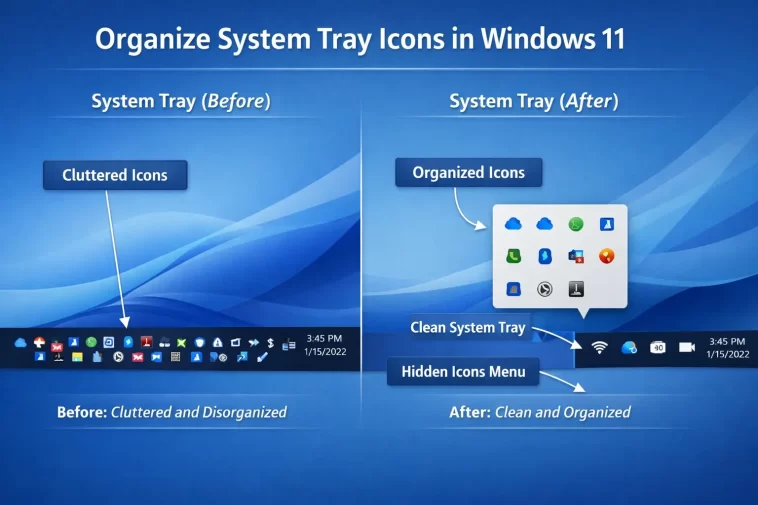
A complete guide to taking back control of your taskbar’s notification area, one icon at a time.
I used to ignore the bottom-right corner of my screen entirely. It was just a pile of icons I never understood — some blinking, some doing nothing, most just sitting there taking up space. One day I counted them: seventeen icons, and I regularly used maybe four. That clutter wasn’t just ugly. It was slowing me down, hiding the apps I actually needed, and making my taskbar feel chaotic.
Once I learned how to organize system tray icons in Windows 11, the whole experience changed. The process is easier than most people think, and you don’t need any third-party tools to do it well. In this guide, I’ll walk you through every method, step by step, so you can clean up your system tray and keep it that way.
What Is the System Tray in Windows 11?
The system tray — also called the notification area or taskbar corner — is the cluster of small icons sitting on the far right of your taskbar, just to the left of the clock. It shows background apps and system functions like your network connection, volume, battery status, and any software running quietly in the background.
Windows 11 hides many of these icons behind a small upward-pointing arrow (^). Click that arrow and a pop-up menu appears, called the taskbar corner overflow menu or hidden icons menu. The icons in there are running just fine — they’re just tucked out of sight.
The goal of organizing your system tray is to:
- Keep frequently used icons permanently visible
- Hide ones you rarely need
- Remove icons for software you don’t want running at all
- Reorder things so the most important tools are easiest to reach
Step 1: Open the Hidden Icons Menu and See What You’re Working With
Before you change anything, you need a full picture of what’s actually in your system tray.
You do this by clicking the small upward arrow (^) at the right side of the taskbar. If you don’t see an arrow, all your icons may already be visible, or the hidden icons menu might be turned off.
Here’s what you’ll find:
- Icons visible directly on the taskbar — These show up all the time, even when the overflow menu is closed.
- Icons in the overflow menu — These are hidden behind the arrow. They’re still active; Windows just chose to tuck them away.
Take a moment to scroll through both areas. Make a mental note of which icons you actually use every day and which ones you’ve never intentionally clicked.
Step 2: Drag Icons to Rearrange or Reveal Them
The fastest way to organize system tray icons in Windows 11 is simple drag and drop. No settings menus, no registry tweaks — just click, hold, and move.
To move an icon from the overflow menu to the main tray:
- Click the up-arrow (^) to open the hidden icons menu.
- Click and hold the icon you want to make permanently visible.
- Drag it down onto the visible taskbar area, near the clock.
- Release it. The icon now stays visible all the time.
To move an icon back into the overflow menu:
- Click and hold the icon directly on the taskbar.
- Drag it upward into the overflow pop-up menu area.
- Release it. It’s now hidden behind the arrow again.
You can rearrange icons within the tray the same way — just drag them left or right to change their order. Put the icons you use most often closest to the clock, where they’re easiest to spot.
Step 3: Use Settings to Toggle Icons On or Off
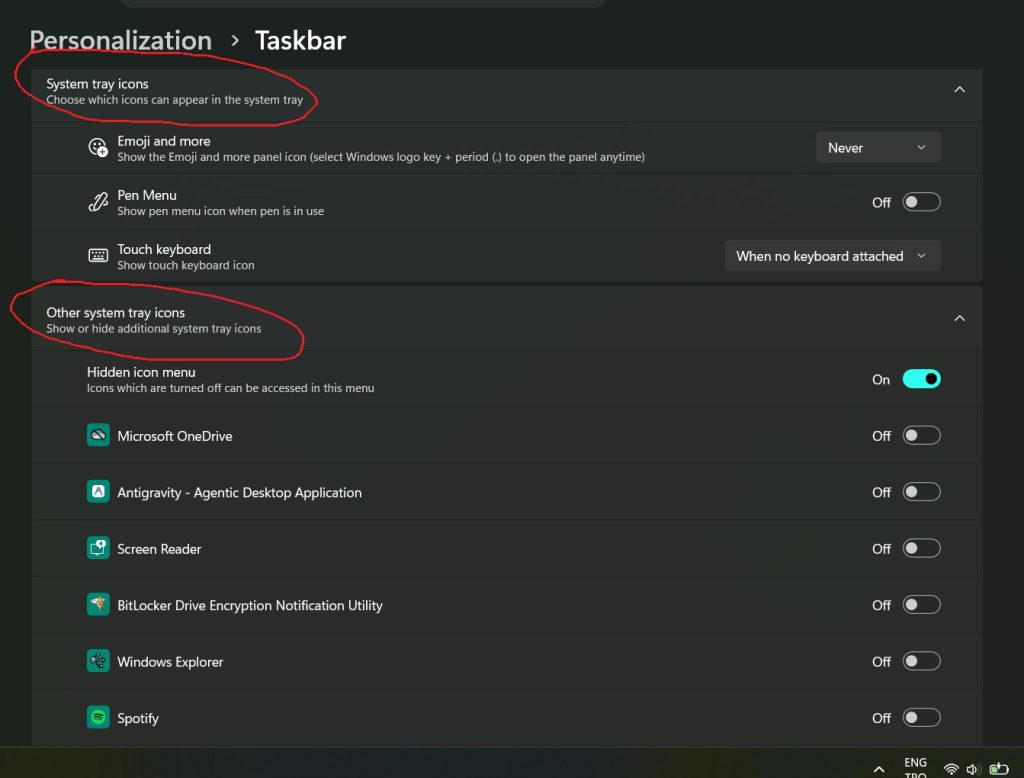
If you want more control without dragging things around manually, Windows 11 Settings gives you a clean list of every icon that can appear in your tray, with toggles for each one.
Here’s how to get there:
- Press Windows + I to open Settings.
- Click Personalization in the left sidebar.
- Scroll down and click Taskbar.
- Scroll to the bottom of the Taskbar page and click Other system tray icons to expand it.
- You’ll see a list of all apps that have a tray icon. Toggle each one on (to make it visible on the taskbar) or off (to push it into the overflow menu).
This method is especially useful if you want to bulk-manage several icons at once. You can flip through the list and quickly decide what deserves a permanent spot and what doesn’t.
Pro tip: Keep these icons visible at all times for practical reasons:
- Antivirus / security software
- VPN (if you use one)
- Cloud backup tools like OneDrive or Google Drive
- Network/Wi-Fi status
- Volume control
Step 4: Manage the “Taskbar Corner Overflow” Section Separately
Windows 11 has a second relevant section in Taskbar settings called Taskbar corner icons. This controls specific built-in Windows elements — not third-party apps — that can appear in the taskbar corner.
To access it:
- Open Settings (Windows + I).
- Go to Personalization → Taskbar.
- Look for Taskbar corner icons near the top of the Taskbar settings page.
- Here you can toggle items like:
- Pen menu (for stylus devices)
- Touch keyboard
- Virtual touchpad
- Hidden icon menu (the arrow itself)
If you want to turn off the overflow arrow entirely and force all icons to show permanently, toggle the Hidden icon menu switch to off. This removes the upward arrow from your taskbar and keeps everything visible at once. Whether that’s better depends on how many apps you have running — if it’s a long list, the arrow is actually useful.
Step 5: Stop Unwanted Apps from Adding Icons in the First Place
Organizing your current icons is only half the job. If you don’t deal with the root cause, new icons will keep appearing.
Most apps add themselves to the system tray because they’re set to launch at startup. Here’s how to manage that:
- Press Ctrl + Shift + Esc to open Task Manager.
- Click the Startup apps tab (in Windows 11, this may appear directly in the left sidebar).
- You’ll see a list of everything that runs when Windows boots up.
- Right-click any item you don’t need running in the background and select Disable.
Disabling a startup app doesn’t uninstall it. It just stops it from launching automatically. You can still open the app manually whenever you want it.
Apps to consider disabling if you don’t actively use them:
- Gaming launchers (Steam, Epic Games, EA App, Xbox) — you can open these manually when you need them
- Cloud sync tools you rarely use
- Manufacturer utilities (audio panels, webcam software, printer managers)
- Update checkers for software you don’t update frequently
Step 6: Use the Registry to Force All Icons Visible (Advanced)
If you want every single icon to always show on the taskbar — no overflow menu, no hidden arrow — there’s a registry tweak that handles this at a deeper level.
Warning: Editing the registry can cause system issues if done incorrectly. Back up the registry before making changes.
- Press Windows + R, type
regedit, and press Enter. - Navigate to:
HKEY_CURRENT_USER\Software\Classes\Local Settings\Software\Microsoft\Windows\CurrentVersion\TrayNotify - In the right pane, find the DWORD value named SystemTrayChevronVisibility.
- Double-click it and change the value:
1= Show the overflow arrow (default behavior)0= Hide the arrow and show all icons permanently
- Click OK and restart your PC.
This is the most thorough way to keep everything visible, but it only makes sense if you have a manageable number of tray icons. If you’re running a dozen background apps, forcing them all visible will look messier than the arrow it replaces.
Step 7: Reset Your System Tray Icons If Things Go Wrong
If your tray icons aren’t displaying correctly — icons missing, wrong icons appearing, changes not sticking — a registry reset can often fix it.
Here’s how:
- Press Windows + R, type
regedit, and press Enter. - Navigate to:
HKEY_CURRENT_USER\Software\Classes\Local Settings\Software\Microsoft\Windows\CurrentVersion\TrayNotify - Delete the values named IconStreams and PastIconsStream if they exist.
- Close Registry Editor.
- Open Task Manager (Ctrl + Shift + Esc), find Windows Explorer in the Processes tab, right-click it, and select Restart.
Windows will rebuild the icon cache from scratch. Most display glitches clear up after this.
How to Keep Your System Tray Organized Long-Term
Getting it clean once is easy. Keeping it clean requires a small habit shift.
Here’s a simple rule: every time you install new software, check whether it adds itself to the startup and system tray. During installation, many apps include a checkbox like “Run at startup” or “Show in system tray.” Uncheck those if you don’t need constant background access.
Every few months, run through your startup apps list in Task Manager. Remove anything you no longer use regularly. It takes about five minutes and keeps your tray from gradually filling back up.
Think of your system tray the same way you’d think of your desktop: a small, purposeful space. Only keep what you actually need there. Everything else can live in the app drawer until you call for it.
FAQ: Organizing System Tray Icons in Windows 11
Q: Why do my system tray icon settings keep resetting after updates? Windows updates can occasionally reset notification area preferences, particularly major feature updates. After any big update, re-check Settings → Personalization → Taskbar and confirm your icon toggles are still set the way you want.
Q: Can I reorder system tray icons in Windows 11? Yes. You can drag and drop icons directly within the visible tray area to change their order. Just click and hold an icon, then slide it left or right to a new position.
Q: What does hiding an icon actually do — does it close the app? No. Hiding an icon only removes it from view. The app continues running in the background. To actually stop the app, right-click its tray icon and look for an Exit, Quit, or Close option before hiding it.
Q: How do I completely remove an icon from the system tray permanently? The cleanest way is to disable the app from launching at startup using Task Manager’s Startup apps tab. You can also right-click most tray icons directly and choose an option like “Exit” or “Don’t show this icon.” For stubborn icons, check the app’s own settings for a startup or tray option.
Q: Is there a way to show all system tray icons at once without dragging them one by one? Windows 11 doesn’t offer a single “show all” toggle in the Settings app for third-party apps. Your best options are either dragging icons individually, toggling them in the Other system tray icons section of Taskbar settings, or using the registry method described in Step 6.
Q: Why are some icons missing from my system tray settings list? An app only appears in the system tray settings list if it has registered itself as a tray icon application. Some lightweight or older apps may run in the background without showing up in that list. If an icon is missing, check the app’s own settings for tray or startup preferences.
Q: Does organizing the system tray improve PC performance? Directly, no — moving an icon doesn’t change how much CPU or RAM the app uses. But if you use the startup management step to disable background apps you don’t need, that does free up resources and can noticeably speed up boot times.
Final Thoughts
Organizing system tray icons in Windows 11 is one of those small tasks that pays off every single day. A cleaner tray means faster access to the tools you actually use and fewer distractions pulling your attention away from what matters.
Start with the drag-and-drop method if you want quick wins. Then spend a few minutes in Settings to fine-tune the full list. If you’re comfortable with it, the startup management step will keep things tidy going forward without any ongoing effort.
The whole thing takes maybe fifteen minutes the first time you sit down to do it. After that, your taskbar works for you instead of against you.
