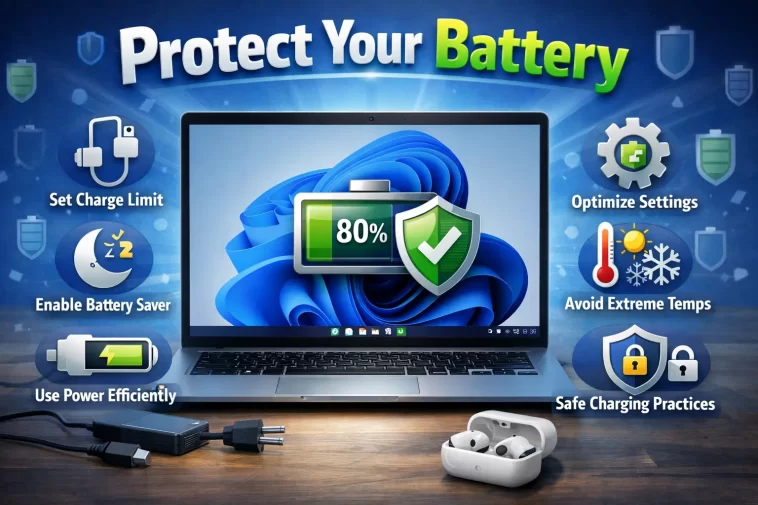
Your laptop battery doesn’t last forever — but how long it lasts depends a lot on how you treat it. Most people never think about battery health until their laptop barely makes it through two hours on a charge.
The good news is that Windows 11 has several built-in tools to help you protect your battery. Combined with a few smart habits, you can significantly slow down battery degradation and keep your battery healthy for years longer than average.
Why Laptop Batteries Degrade
Before jumping into the tips, it helps to understand why batteries wear out in the first place.
Laptop batteries are lithium-ion. They have a limited number of charge cycles — typically between 300 and 500 full cycles before capacity starts to drop noticeably. Every time you drain your battery from 100% to 0% and charge it back up, that counts as one cycle.
Heat is the other major factor. High temperatures accelerate chemical breakdown inside the battery. A laptop that runs hot constantly will have a degraded battery much sooner than one that stays cool.
The goal of battery protection is simple: reduce unnecessary charge cycles and keep temperatures reasonable.
1. Enable Battery Saver Mode
Battery Saver is one of the easiest things you can do. When enabled, Windows 11 limits background activity, reduces screen brightness, pauses syncing, and cuts down on non-essential processes — all of which reduce power draw and slow down battery drain.
To turn it on manually:
- Click the battery or volume icon in the taskbar
- Click Battery saver in Quick Settings
To set it to turn on automatically:
- Go to Settings > System > Power & battery
- Click Battery saver
- Set the automatic trigger — 20% is the default, but 30% or 40% gives you more protection
Running Battery Saver whenever you’re not plugged in is a simple habit that adds up over time.
2. Use the Right Power Mode
Windows 11 Power Mode controls how hard your hardware works. Running on Best Performance all the time burns through your battery fast and generates more heat — both of which accelerate battery wear.
For everyday tasks like browsing, documents, and email, switch to Best Power Efficiency:
- Go to Settings > System > Power & battery
- Click the Power mode dropdown
- Select Best power efficiency when on battery
Save Best Performance for when you’re plugged in and doing something that actually needs it — like gaming or video editing. There’s no point running your hardware at full speed to write an email.
3. Avoid Keeping Your Battery at 100% All the Time
This surprises a lot of people. Keeping your laptop plugged in and charged to 100% constantly is actually bad for lithium-ion batteries.
Lithium-ion batteries experience stress at both extremes — fully charged and fully empty. The sweet spot for long-term health is somewhere between 20% and 80%.
Use Battery Limit / Charge Limit Features
Many modern laptops have a built-in charge limit feature that stops charging at 80% to protect the battery. Check your laptop manufacturer’s software:
- Dell — Dell Power Manager, set charging to “Primarily AC” or custom limit
- Lenovo — Lenovo Vantage, enable Conservation Mode (charges to 60%)
- ASUS — MyASUS app, Battery Care Mode (charges to 80%)
- HP — HP Command Center or HP Support Assistant, Adaptive Battery Optimizer
- Samsung — Samsung Settings, Maximum Battery Charge set to 85%
- MSI — MSI Center, Battery Master feature
If your laptop has one of these tools, use it. Limiting charge to 80% is one of the single most effective ways to extend battery lifespan.
Windows 11 Smart Charging
Some devices also support Smart Charging directly through Windows 11. Check under Settings > System > Power & battery — if your hardware supports it, you’ll see a Smart charging option that intelligently manages charge levels based on your usage patterns.
4. Don’t Let Your Battery Drop to 0%
Fully discharging a lithium-ion battery puts it under significant stress. Doing this repeatedly shortens its lifespan noticeably.
Try to plug in before your battery drops below 15–20%. If you’re going to store your laptop unused for a long period, charge it to around 50% first — not 100% and not empty.
A completely dead battery that sits uncharged for weeks can suffer permanent capacity loss.
5. Manage Screen Brightness
The display is usually the single biggest power consumer on a laptop. Reducing brightness directly reduces battery drain — which means fewer charge cycles over time.
A few ways to control this in Windows 11:
- Press Windows + A to open Quick Settings and use the brightness slider
- Go to Settings > System > Display and adjust brightness manually
- Enable Auto brightness if your laptop has an ambient light sensor — this adjusts brightness automatically based on your environment
Even dropping from 100% to 70% brightness makes a measurable difference in how long your battery lasts per charge.
6. Control Background Apps and Processes
Apps running in the background consume power even when you’re not using them. Over the course of a day, background activity from a dozen apps adds up to real battery drain — and more drain means more charging cycles.
Limit Background App Activity
- Go to Settings > Apps > Installed apps
- Click the three dots next to any app
- Select Advanced options
- Under Background apps permissions, set it to Never for apps that don’t need to run in the background
Manage Startup Apps
Apps that launch automatically at startup run in the background all day whether you use them or not.
- Press Ctrl + Shift + Esc to open Task Manager
- Go to the Startup apps tab
- Disable anything you don’t need launching automatically
Common offenders: Spotify, Discord, Teams, OneDrive, Steam, and various manufacturer apps.
7. Keep Windows and Drivers Updated
Battery performance improvements and power management fixes often come through Windows Update. Outdated drivers — especially chipset, graphics, and battery drivers — can cause your system to consume more power than it should.
To check for updates:
- Go to Settings > Windows Update
- Click Check for updates
- Also click Advanced options > Optional updates and install any driver updates available
This is a simple step that many people skip, but it genuinely matters for power efficiency.
8. Manage Your Display and Sleep Settings
A laptop that never sleeps is a laptop that never stops draining its battery. Setting aggressive sleep and screen timeout settings keeps power consumption low during idle periods.
To adjust these:
- Go to Settings > System > Power & battery
- Click Screen and sleep
- Set your screen to turn off after 2–3 minutes on battery
- Set sleep to kick in after 5–10 minutes on battery
These are short timers, but they make a big difference over the course of a day — especially if you frequently walk away from your laptop for short periods.
9. Avoid Excessive Heat
Heat is one of the fastest ways to destroy a battery. High temperatures speed up the chemical reactions inside the battery cells, causing permanent capacity loss over time.
Practical ways to keep your laptop cool:
- Don’t use your laptop on soft surfaces like beds, pillows, or sofas — they block the ventilation vents underneath
- Use a hard flat surface or a laptop stand with good airflow
- Clean the vents periodically — dust buildup forces the cooling system to work harder
- Avoid leaving your laptop in a hot car or in direct sunlight
- Don’t charge and do heavy work simultaneously if you can avoid it — charging already generates heat, and running demanding tasks on top of that makes it worse
If your laptop consistently runs very hot, check Task Manager for processes using high CPU in the background. A misbehaving app can keep your system hot all day without you realizing it.
10. Use Hibernate Instead of Sleep for Long Breaks
Sleep mode keeps your RAM powered to preserve your session — which means it slowly drains your battery. For short breaks, sleep is fine. But if you’re stepping away for an hour or more, Hibernate is better.
Hibernate saves your session to disk and completely powers off the laptop. Battery drain during hibernation is essentially zero.
To enable Hibernate in Windows 11:
- Go to Control Panel > Power Options
- Click Choose what the power buttons do
- Click Change settings that are currently unavailable
- Check Hibernate to add it to your shutdown menu
You can then hibernate your laptop from Start > Power > Hibernate.
11. Run the Built-In Battery Report Regularly
Windows 11’s built-in battery report shows you your battery’s current health — including how much capacity it has lost compared to when it was new. Checking this every few months helps you spot degradation early.
To generate the report:
- Open Command Prompt as administrator
- Type:
powercfg /batteryreport /output "C:\battery-report.html" - Press Enter, then open the file from your C: drive
Look at Design capacity vs Full charge capacity. If your full charge capacity is below 75–80% of the original design capacity, your battery has aged significantly and you may want to start planning a replacement.
Quick Summary: Best Habits for Battery Protection
Here’s a fast reference for the most impactful things you can do:
- Keep charge between 20% and 80% whenever possible
- Use your manufacturer’s charge limit tool to cap at 80%
- Run Best Power Efficiency mode when on battery
- Enable Battery Saver at 30–40% threshold
- Set screen timeout to 2–3 minutes on battery
- Keep your laptop cool and well-ventilated
- Disable unnecessary startup apps
- Hibernate instead of sleep for long breaks
- Keep Windows and drivers updated
- Run a battery report every few months
Frequently Asked Questions
What is the best way to protect laptop battery health in Windows 11? Keep your battery between 20% and 80% charge, use Best Power Efficiency mode, limit background apps, and keep your laptop cool. If your manufacturer offers a charge limit tool, use it.
Should I keep my laptop plugged in all the time? Not ideal for long-term battery health. Constantly staying at 100% stresses lithium-ion batteries. Use a charge limit of around 80% if your laptop supports it, or unplug once it’s charged.
How do I stop my laptop from overheating to protect the battery? Use your laptop on hard flat surfaces, keep vents clear of dust, avoid soft surfaces that block airflow, and close unnecessary apps running in the background.
Does lowering screen brightness help battery life? Yes significantly. The display is usually the largest power draw on a laptop. Reducing brightness extends each charge, which means fewer total charge cycles over time.
What percentage should I charge my laptop to for long-term storage? Charge to around 50% before storing a laptop you won’t use for a while. Don’t store it fully charged or completely empty.
How do I check if my battery is degraded in Windows 11? Run powercfg /batteryreport /output "C:\battery-report.html" in an admin Command Prompt and compare your battery’s design capacity to its current full charge capacity.
Is it bad to let your laptop battery die completely? Yes, repeatedly draining to 0% stresses lithium-ion batteries and shortens their lifespan. Try to plug in before dropping below 15–20%.
Battery health is one of those things that’s easy to ignore until it becomes a real problem. A few small habits — keeping charge in the right range, managing heat, and using Windows 11’s built-in power tools — can keep your battery performing well for years longer than if you just left everything on default.
