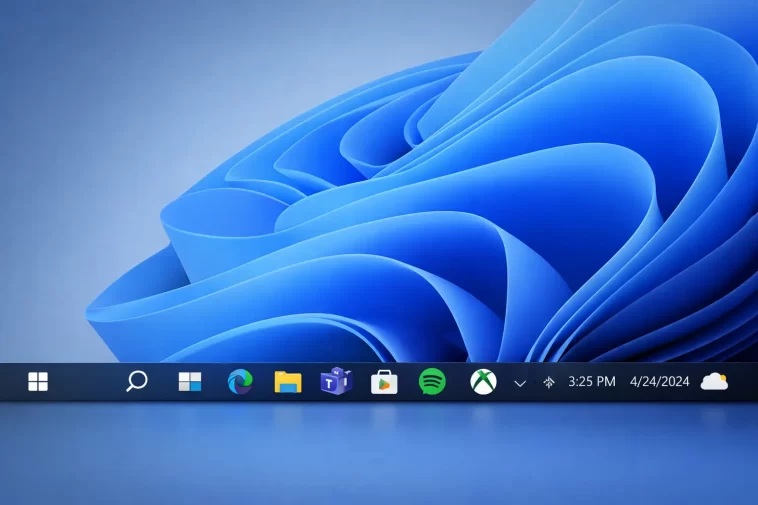
If you’ve ever glanced at your Windows 11 taskbar clock and wished it showed more — like the exact seconds ticking by, or the current time in another country — you’re in the right place.
Both features are built right into Windows 11. No third-party apps, no registry edits. This guide walks you through both setups clearly and quickly.
Why Customize Your Taskbar Clock?
The default Windows 11 clock shows hours and minutes. That’s enough for most people, but not for everyone.
Developers and traders often need seconds visible at a glance. Remote workers and international teams need to track time across multiple time zones without constantly doing mental math. Windows 11 handles both cases natively — you just need to know where to look.
Part 1: How to Show Seconds in the Windows 11 Taskbar Clock
For years, showing seconds in the taskbar required a registry tweak. Microsoft finally added a proper toggle in a Windows 11 update, making it much easier.
Step-by-Step: Enable Seconds in the Taskbar Clock
- Right-click on the clock in the bottom-right corner of your taskbar
- Click Adjust date and time
- Scroll down to the Additional settings section
- Find the option that says Show time with seconds in the system tray clock
- Toggle it On
That’s it. Your taskbar clock will immediately start displaying seconds in real time — no restart needed.
What If the Option Is Missing?
If you don’t see the seconds toggle, your Windows 11 is likely out of date. This feature was introduced in a post-launch update.
To update Windows:
- Press Windows + I to open Settings
- Go to Windows Update
- Click Check for updates and install anything available
- Restart your PC and check again
After updating, the toggle should appear under Settings > Time & Language > Date & Time > Additional settings.
Does Showing Seconds Affect Performance?
Technically yes, but barely. The taskbar has to redraw the clock every second instead of every minute. On any modern PC, this has zero noticeable impact on performance. You won’t see slower apps, higher CPU usage, or battery drain worth worrying about.
Part 2: How to Show Multiple Time Zones in the Windows 11 Taskbar
Windows 11 lets you add up to two additional clocks alongside your main system clock. This is perfect if you regularly communicate with colleagues, clients, or friends in other countries.
Step-by-Step: Add Extra Clocks for Other Time Zones
Method 1 — Through Settings:
- Press Windows + I to open Settings
- Go to Time & Language > Date & Time
- Scroll down and click Additional clocks (under the Additional settings section)
- A separate window will open
Method 2 — Through Control Panel:
- Press Windows + S, search for Control Panel, and open it
- Click Clock and Region, then Date and Time
- Click the Additional Clocks tab
Both methods open the same window.
Setting Up Your Additional Clocks
In the Additional Clocks window:
- Check the box that says Show this clock under Clock 1
- Select the time zone you want from the dropdown (e.g., Eastern Time, London, Tokyo)
- Type a display name for the clock — something short and recognizable like New York or Tokyo
- Repeat the same steps for Clock 2 if you need a third time zone
- Click Apply, then OK
You can add a maximum of two extra clocks, giving you three time zones total (your main clock plus two additional ones).
How to View Your Extra Clocks
Once set up, you have two ways to see your additional clocks:
Hover over the taskbar clock — A tooltip pops up showing all configured clocks with their labels and current times.
Click the taskbar clock — The calendar flyout opens, and all your configured time zones appear at the top with their names and current times displayed clearly.
This makes it easy to check multiple time zones in one glance without opening any apps.
Part 3: Using Both Features Together
There’s no conflict between showing seconds and displaying multiple clocks — both work at the same time.
With seconds enabled and two extra clocks configured, your taskbar setup gives you:
- Your local time with a live seconds counter
- Two additional cities or time zones shown on hover or click
- No extra apps running in the background
- No performance impact
This is the ideal setup for anyone who works across time zones and needs precise time tracking.
Tips for Managing Multiple Time Zones in Windows 11
Here are a few things worth knowing when working with multiple clocks:
- Name your clocks clearly. Labels like “Client – London” or “Team – NYC” are more useful than just city names, especially in a work context.
- Check daylight saving time. Windows handles DST automatically for each time zone. If a country doesn’t observe DST (like most of the Middle East or Japan), Windows adjusts for that too.
- You can only add two extra clocks. If you need more than three time zones visible, you’ll need a third-party app like ElevenClock or World Clock & Weather from the Microsoft Store.
- Changing your main clock’s time zone affects all relative times across Windows, so make sure your primary time zone is always set correctly first.
How to Remove Additional Clocks
If you no longer need the extra clocks, removing them is just as simple:
- Open Control Panel > Clock and Region > Date and Time
- Go to the Additional Clocks tab
- Uncheck Show this clock for any clock you want to remove
- Click Apply and OK
The extra clocks disappear from the hover tooltip and calendar flyout immediately.
Frequently Asked Questions
How do I show seconds in the Windows 11 taskbar clock? Go to Settings > Time & Language > Date & Time, scroll to Additional settings, and toggle on “Show time with seconds in the system tray clock.”
How many time zones can I add to the Windows 11 taskbar? You can add up to two extra clocks, giving you three time zones total — your main system clock plus two additional ones.
How do I see my extra clocks in Windows 11? Either hover over the taskbar clock to see a tooltip, or click it to open the calendar view where all configured clocks are displayed with their names and times.
Does showing seconds in the taskbar slow down Windows 11? No. The performance impact is negligible on any modern PC. The clock redraws every second instead of every minute, which has no real effect on speed or battery life.
Can I label my additional clocks with custom names? Yes. When setting up additional clocks in the Additional Clocks tab, you can type any display name you want — like a city name, team name, or client name.
Where is the Additional Clocks option in Windows 11? Go to Settings > Time & Language > Date & Time > Additional settings, or through Control Panel > Clock and Region > Date and Time > Additional Clocks tab.
What if the seconds toggle is missing from my settings? Your Windows 11 is likely outdated. Go to Settings > Windows Update, install all available updates, restart, and the toggle should appear.
Both of these features are small but genuinely useful quality-of-life improvements. Once you set them up, you’ll wonder how you managed without them.
