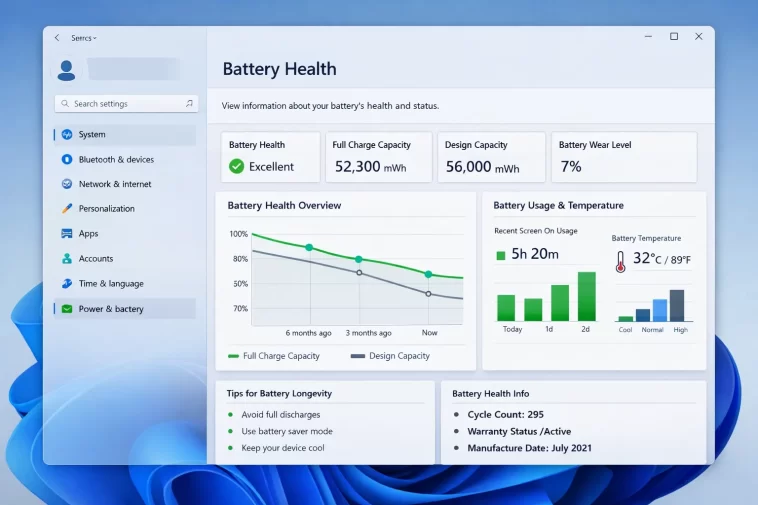
If your laptop battery doesn’t last as long as it used to, there are two things you need to know: which apps are eating your battery, and how healthy your battery actually is.
The good news is that Windows 11 gives you both answers — no third-party software required. Everything you need is already built into the operating system.
Why Battery Life Gets Worse Over Time
Every rechargeable battery has a limited number of charge cycles. Over time, its maximum capacity drops below the original design capacity. A battery that once lasted 8 hours might now only last 5 — not because Windows is slow, but because the battery itself has degraded.
On top of natural wear, certain apps and background processes can drain your battery much faster than normal. Identifying and managing these is the quickest way to get more life out of each charge.
Part 1: How to Find Which Apps Are Draining Your Battery in Windows 11
Windows 11 has a built-in battery usage tracker that shows exactly how much each app has consumed over the last 24 hours or 7 days. No extra tools needed.
Method 1: Check Battery Usage in Settings
This is the easiest way to see which apps are using the most power.
- Press Windows + I to open Settings
- Go to System > Power & battery
- Scroll down to the Battery usage section
- Click on it to expand the view
You’ll see a list of apps with a percentage showing how much of your total battery each one has consumed. At the top, you can switch between Last 24 hours and Last 7 days to see usage over different periods.
Understanding the Results
The list shows two types of usage for each app:
- In use — battery consumed while you were actively using the app
- Background — battery consumed while the app was running in the background without you touching it
Background usage is the one to pay attention to. An app draining your battery while you’re not even using it is a problem worth fixing.
What to Do With High-Usage Apps
Once you’ve identified the culprits, you have a few options:
- Limit background activity — click on the app in the list and restrict its background permissions
- Close apps you’re not using — some apps stay running after you close the window; check Task Manager to fully quit them
- Uninstall apps you don’t need — if an app is draining power and you rarely use it, removing it is the cleanest solution
- Update apps — sometimes high battery drain is caused by a bug that a newer version has already fixed
Method 2: Use Task Manager for Real-Time Power Usage
If you want to see which apps are consuming power right now, Task Manager gives you a live view.
- Press Ctrl + Shift + Esc to open Task Manager
- Click the Processes tab
- Find the Power usage and Power usage trend columns
If you don’t see these columns, right-click on any column header and add them from the list.
The Power usage column rates each process as Very low, Low, Moderate, High, or Very high. The Power usage trend column averages this over time, which is more reliable than a single snapshot.
Sort by Power usage trend to see which processes are consistently heavy on your battery. This is especially useful for catching misbehaving background apps or browser tabs.
Common Battery-Draining Culprits
From experience, these are the most frequent offenders on Windows 11 laptops:
- Web browsers — especially with many tabs open or video playing
- Microsoft Teams and Zoom — video calls are extremely power-intensive
- OneDrive and cloud sync apps — constant background syncing adds up
- Antivirus software — full scans running in the background can spike usage
- Windows Update — while updating or downloading in the background
- Games and game launchers — even when minimized, some keep running processes
Part 2: How to Check Battery Health in Windows 11 Without Any Software
Windows 11 includes a powerful built-in tool called the Battery Report. It generates a detailed HTML file with everything you need to know about your battery’s condition — including its current maximum capacity compared to its original design capacity.
This is the most accurate way to check battery health on Windows 11 without installing anything.
How to Generate a Battery Report
You’ll use the Command Prompt or PowerShell to generate the report. It takes about 10 seconds.
Using Command Prompt:
- Press Windows + S and search for cmd
- Right-click Command Prompt and select Run as administrator
- Type the following command and press Enter:
powercfg /batteryreport /output "C:\battery-report.html"- Windows will generate the report and save it to your C: drive
- Open File Explorer, go to This PC > Local Disk (C:), and open battery-report.html
Using PowerShell:
- Press Windows + X and click Windows Terminal (Admin) or PowerShell (Admin)
- Enter the same command as above and press Enter
The report opens in your default web browser as a clean, readable HTML page.
How to Read the Battery Report
The battery report contains several sections. Here’s what matters most:
Installed batteries This section shows your battery’s name, manufacturer, chemistry, design capacity, and — most importantly — full charge capacity.
- Design capacity = the capacity your battery had when it was brand new (measured in mWh)
- Full charge capacity = the maximum charge your battery can hold today
The difference between these two numbers tells you how much your battery has degraded. For example:
- Design capacity: 45,000 mWh
- Full charge capacity: 38,000 mWh
- That’s roughly 84% health remaining
Battery life estimates This section compares your estimated battery life at full charge vs. what the manufacturer originally designed the battery to deliver. A big gap here confirms significant degradation.
Usage history Shows your charging history over time — when the battery was active, in suspend, and what percentage it was at. Useful for spotting patterns.
Capacity history This is one of the most useful sections. It shows how your battery’s full charge capacity has changed over weeks and months, so you can see the rate of degradation over time.
Battery drain Shows the most recent discharge sessions — how long the battery lasted and how fast it drained during use.
What Battery Health Numbers Mean
Use this as a general reference:
| Health Remaining | Status |
|---|---|
| 90% – 100% | Excellent — battery is nearly new |
| 75% – 89% | Good — normal wear, no action needed |
| 50% – 74% | Fair — noticeable capacity loss, monitor it |
| Below 50% | Poor — consider replacing the battery |
Most laptops start showing noticeable battery life reduction somewhere between 70% and 80% health. If you’re below 60%, a replacement is worth considering.
Quick Battery Health Check via Settings
For a simpler overview without the full report, Windows 11 also shows a basic battery status in Settings:
- Go to Settings > System > Power & battery
- Scroll down to Battery health (available on some devices)
Not all laptops show this section — it depends on your hardware and drivers. If it’s there, it gives you a quick health indicator without needing to generate a report.
Part 3: Tips to Improve Battery Life on Windows 11
Once you know which apps are draining your battery and how healthy your battery is, here are practical steps to extend your battery life:
Enable Battery Saver mode Go to Settings > System > Power & battery and turn on Battery saver. This reduces background activity, lowers screen brightness, and limits syncing.
Use Recommended or Power Saver power plan In the same Power & battery section, set your Power mode to Best power efficiency when you’re unplugged.
Reduce screen brightness The display is often the single biggest power draw on a laptop. Even reducing brightness by 20–30% makes a measurable difference.
Turn off Bluetooth and Wi-Fi when not needed Both radios consume background power even when not actively transferring data.
Disable startup apps Press Ctrl + Shift + Esc, go to the Startup apps tab, and disable anything you don’t need running automatically. Fewer background processes means less battery drain.
Keep Windows and drivers updated Battery performance improvements and power management fixes often come through Windows Update and driver updates.
Frequently Asked Questions
How do I check which app is draining my battery in Windows 11? Go to Settings > System > Power & battery > Battery usage. You’ll see a list of apps with their battery consumption over the last 24 hours or 7 days.
How do I check battery health on Windows 11 without software? Open Command Prompt as administrator and run powercfg /batteryreport /output "C:\battery-report.html". Open the file in a browser and check the design capacity vs. full charge capacity figures.
What is a good battery health percentage? Above 80% is generally considered good. Below 60% means you’ve lost a significant portion of your battery’s original capacity and may want to consider a replacement.
Can I check battery health in Windows 11 Settings? Some devices show a basic battery health indicator under Settings > System > Power & battery. If it’s not there, use the powercfg battery report command for a full analysis.
How do I stop apps from draining my battery in the background? Go to Settings > System > Power & battery > Battery usage, click on any high-usage app, and restrict its background activity. You can also manage this through Settings > Apps > Installed apps.
Does Task Manager show battery usage in Windows 11? Yes. Open Task Manager, go to the Processes tab, and add the “Power usage” and “Power usage trend” columns to see real-time power consumption per app.
How often should I check battery health? Checking every 3–6 months gives you a good picture of how your battery is aging over time.
Knowing how to read your battery health report and spot power-hungry apps puts you back in control of your laptop’s battery life. Both tools are free, built into Windows 11, and take just a few minutes to use. Run the battery report today — the numbers might surprise you.
