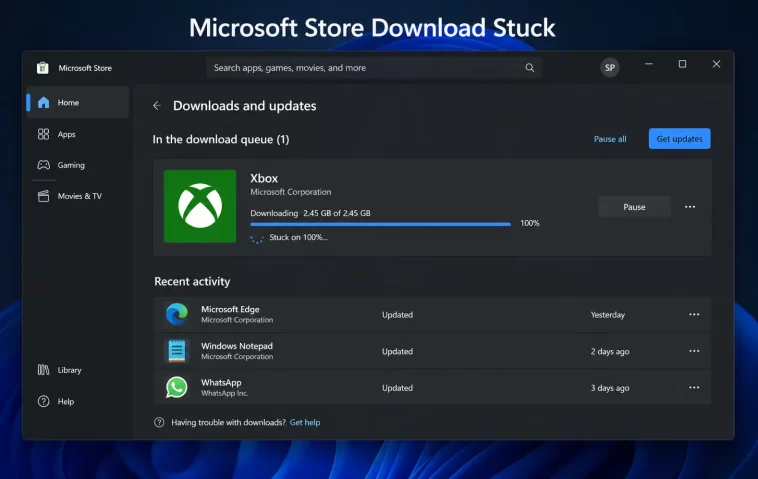
Microsoft Store downloads stuck on pending is one of those frustrating Windows problems that hits you at the worst possible time — right when you need an app installed fast.
I ran into this myself last month. I opened the Microsoft Store, clicked “Install” on an app I needed for work, and watched it just sit there. “Pending.” For 20 minutes. No progress bar. No error message. Nothing. I restarted the download, and it went straight back to pending. Sound familiar?
The good news is that this is almost always fixable without reinstalling Windows or losing any data. In this guide, you’ll find every working solution — from the 30-second quick fix to the deeper repairs — so you can get your downloads moving again today.
Why Does Microsoft Store Get Stuck on Pending?
Before jumping into fixes, it helps to understand what’s actually going wrong. Microsoft Store downloads get stuck for a handful of common reasons:
- Corrupted cache files — The Store’s local cache holds metadata about apps, download progress, and licenses. When it gets bloated or corrupted, downloads stall.
- Network or proxy issues — VPNs, proxy servers, or slow connections can block Store traffic silently.
- Wrong date and time settings — Windows won’t authenticate Store requests if your system clock is off.
- Outdated Windows — Missing updates can leave Store components broken or out of sync.
- Storage space problems — Microsoft Store will pause downloads if your drive is nearly full.
- Account session issues — An expired or glitched Microsoft account session can freeze the download queue.
Understanding the cause makes it easier to pick the right fix. That said, start from the top — most people solve this in Step 1 or Step 2.
Step 1: Run WSReset — The 30-Second Fix
Microsoft Store download stuck on pending is most commonly caused by a corrupted cache. The built-in WSReset tool clears it without touching your apps, settings, or account.
Here’s how to run it:
- Press Windows + R to open the Run dialog.
- Type
wsreset.exeand press Enter. - A blank Command Prompt window will appear — this is normal. Don’t close it.
- After about 30–60 seconds, the window will close automatically and Microsoft Store will reopen.
- Try your download again.
That’s it. For many people, this single step is all it takes. The process essentially does what clearing your browser cache does for websites — it forces the Store to rebuild its data from scratch.
If the app that was stuck on “Pending” still won’t move, keep reading.
Step 2: Sign Out and Sign Back Into Microsoft Store
Sometimes the issue is not the cache — it’s your account session. A stale or disconnected Microsoft account session can quietly freeze the entire download queue.
Here’s how to refresh it:
- Open Microsoft Store.
- Click your profile icon in the top-right corner.
- Select Sign out.
- Close Microsoft Store completely.
- Reopen Microsoft Store.
- Click the profile icon again and choose Sign in.
- Select your Microsoft account and complete the sign-in.
- Try the download again.
This takes less than two minutes and often clears downloads that WSReset couldn’t fix. Think of it as refreshing your session token — the Store re-authenticates with Microsoft’s servers and clears any stuck queue items.
Step 3: Check Your Network Connection and Disable VPN or Proxy
Your internet connection might look fine in the browser but still be causing problems for the Microsoft Store. VPNs and proxy servers are especially common culprits — they can block or throttle Store traffic without throwing any visible error.
To disable a proxy server:
- Press Windows + I to open Settings.
- Go to Network & Internet → Proxy.
- Toggle off Use a proxy server (if it’s on).
- Try your download again.
To disable a VPN:
- Open your VPN software.
- Disconnect from any active VPN session.
- Try your download again.
If downloads start working after disabling your VPN, you’ll either need to add a Store exception in your VPN settings or keep it off while downloading. Also try switching to a different network (like a mobile hotspot) to rule out an ISP-level issue.
Step 4: Run the Windows Store Apps Troubleshooter
Windows has a built-in troubleshooter for exactly this kind of problem. It scans for issues with Microsoft Store components and attempts automatic repairs.
On Windows 10:
- Open Settings → Update & Security → Troubleshoot.
- Click Additional troubleshooters.
- Find Windows Store Apps and click Run the troubleshooter.
- Follow any on-screen prompts.
On Windows 11:
- Open Settings → System → Troubleshoot → Other troubleshooters.
- Find Windows Store Apps and click Run.
- Wait for it to complete and apply any suggested fixes.
Note: Microsoft has been gradually removing classic troubleshooters from newer Windows 11 builds. If you don’t see this option, skip ahead to the next steps.
Step 5: Check Date and Time Settings
This one surprises people. If your system clock is set to the wrong date or time zone, the Microsoft Store can’t properly validate your license or authenticate download requests. The result is often a silent “Pending” loop.
Here’s how to fix it:
- Right-click the clock in the system tray (bottom right).
- Select Adjust date/time.
- Make sure Set time automatically is turned on.
- Make sure Set time zone automatically is also on.
- Click Sync now to force an immediate update.
- Restart Microsoft Store and try again.
This is a quick check that takes 30 seconds — don’t skip it.
Step 6: Free Up Disk Space
Microsoft Store can silently pause or cancel downloads if your system drive doesn’t have enough free space. It needs not just the final app size, but also temporary space during the download process.
As a rule of thumb, aim to keep at least 10–15 GB free on your Windows drive (usually C:).
To free up space quickly:
- Open Settings → System → Storage.
- Click Temporary files.
- Check the boxes for items you want to delete (Downloads cache, Recycle Bin, etc.).
- Click Remove files.
You can also use the classic Disk Cleanup tool: press Windows + S, search for “Disk Cleanup,” and run it on your C: drive.
Step 7: Reset Microsoft Store Through Settings
If WSReset didn’t work, a full reset through Settings goes deeper. It wipes the Store’s local data and configuration, resetting it to default. You won’t lose installed apps, but you’ll need to sign back in.
- Press Windows + I to open Settings.
- Go to Apps → Installed apps (or Apps & features on Windows 10).
- Search for Microsoft Store in the list.
- Click the three-dot menu next to it and select Advanced options.
- Scroll down to the Reset section.
- Click Repair first — this fixes issues without wiping data.
- If Repair doesn’t help, click Reset and confirm.
- Restart your PC and try the download again.
Try Repair before Reset — Repair is less disruptive and solves the problem for many users.
Step 8: Re-register Microsoft Store via PowerShell
If the Store itself is broken at a deeper level — corrupted package registry, damaged installation files — you can re-register it using PowerShell. This essentially reinstalls the Store’s core components without affecting your other apps.
- Click the Start menu and search for PowerShell.
- Right-click Windows PowerShell and choose Run as administrator.
- Copy and paste the following command, then press Enter:
Get-AppXPackage *WindowsStore* -AllUsers | Foreach {Add-AppxPackage -DisableDevelopmentMode -Register "$($_.InstallLocation)\AppXManifest.xml"}- Wait for the command to complete. You may see some red text — that’s usually normal.
- Restart your PC and check if downloads work.
This command re-registers the Store with Windows without uninstalling anything. It’s one of the more powerful fixes and often resolves errors that nothing else touches.
Step 9: Check for Windows Updates
An outdated Windows installation can leave Store components mismatched or broken. Keeping Windows updated ensures that both the Store and its dependencies are current and compatible.
- Open Settings → Windows Update.
- Click Check for updates.
- Install all available updates, including optional ones.
- Restart your PC.
- Open Microsoft Store and try your download again.
This is worth doing even if you think Windows is up to date — sometimes updates are available but not yet downloaded automatically.
Step 10: Run System File Checker (SFC)
If your Windows system files are corrupted, the Microsoft Store may behave erratically regardless of what else you do. The System File Checker scans and repairs corrupted Windows system files.
- Search for Command Prompt in the Start menu.
- Right-click it and select Run as administrator.
- Type the following command and press Enter:
sfc /scannow- Wait — this can take 10–20 minutes.
- Once complete, restart your PC.
If SFC finds and repairs files, your Store issues will likely be resolved afterward. If it reports corruption it couldn’t fix, you may need to run the DISM tool as well:
DISM /Online /Cleanup-Image /RestoreHealthRun this before SFC for best results.
Quick Summary: Which Fix to Try First
| Situation | Best First Step |
|---|---|
| Downloads just stopped working | WSReset (Step 1) |
| VPN or proxy is active | Disable it (Step 3) |
| Wrong clock in taskbar | Fix date/time (Step 5) |
| Drive is nearly full | Free up space (Step 6) |
| WSReset didn’t work | Reset via Settings (Step 7) |
| Store error codes appear | SFC scan (Step 10) |
Frequently Asked Questions (FAQ)
Why is my Microsoft Store stuck on “Pending” with no error message?
A “Pending” status with no error usually means the Store is waiting — either for the download queue to clear, for authentication to complete, or for a corrupted cache issue to resolve. Running WSReset (Step 1) and signing out then back in (Step 2) fixes this in most cases.
Will resetting Microsoft Store delete my installed apps?
No. Resetting the Microsoft Store through Settings removes its cached data and configuration but does not uninstall apps you’ve already installed. You’ll just need to sign back in.
Does using a VPN affect Microsoft Store downloads?
Yes, it can. VPNs route your traffic through different servers, and some VPN configurations block or throttle Microsoft Store requests. Try disconnecting your VPN before downloading and see if that resolves the issue.
Can I download multiple apps at the same time from Microsoft Store?
Yes. Microsoft Store supports queued and parallel downloads. However, downloading many apps simultaneously depends on your network speed and available storage. If the queue gets stuck, pause all downloads, restart the Store, then resume one at a time.
Why do downloads get stuck at a specific percentage?
Getting stuck at a fixed percentage (like 0% or 99%) usually indicates a corrupted partial download or a network interruption. Cancel the download, run WSReset, then start the download fresh. Make sure you have a stable connection before retrying.
Is “wsreset” safe to run?
Completely safe. WSReset only clears Microsoft Store’s local cache files — it doesn’t uninstall apps, change settings, or affect your personal files. It’s a built-in Microsoft tool designed specifically for this purpose.
What if nothing works and Microsoft Store still won’t download?
If all the steps above fail, the issue may be on Microsoft’s server side — service outages do happen occasionally. Check the Microsoft Service Status page to see if the Store is experiencing widespread problems. You can also try downloading the app in question from an alternative source, like the developer’s own website, as a temporary workaround.
How do I know if it’s a Windows issue or a Microsoft server issue?
Try downloading two or three different apps. If all of them are stuck, the problem is likely local (your device or network). If only one specific app is stuck while others download fine, the issue may be with that app’s listing on Microsoft’s servers, and waiting a few hours often resolves it.
Final Thoughts
The Microsoft Store download stuck on pending problem looks scary, but it almost always has a simple fix. Start with WSReset — it solves the majority of cases in under a minute. If that doesn’t work, work through the steps above in order; each one addresses a different root cause.
The key is not to panic and jump straight to drastic measures. Most of the time, clearing the cache, refreshing your account session, or fixing your network settings is all it takes to get things moving again.
If you found a specific step that fixed your issue, that’s worth noting for the future — the same fix tends to work again when the same problem comes back.
