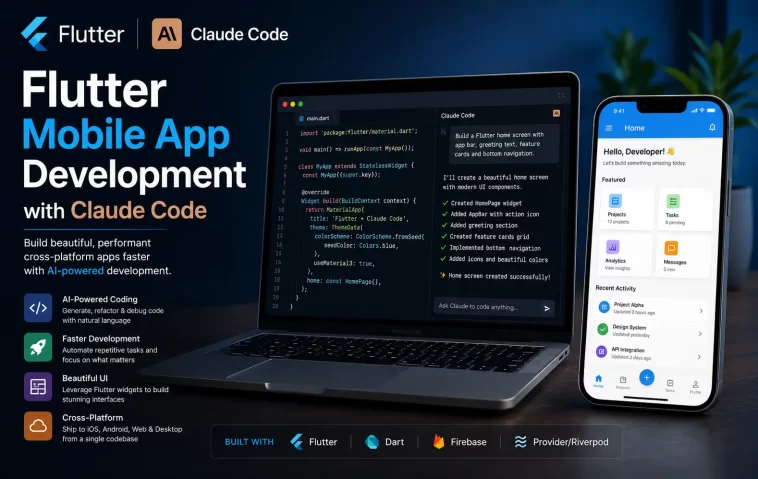
I want to be straight with you: I was skeptical the first time someone told me Claude Code could help build a Flutter app.
I’ve been writing Dart for a few years. I know how BLoC works. I know how to wire up GoRouter, set up clean architecture, and manage Riverpod providers. So when people started saying Claude Code was changing Flutter development, I assumed it was hype for people who didn’t really know Flutter.
Then I had a client deadline — a full MVP in two days. Firebase auth, Firestore backend, clean architecture, local notifications. I decided to actually try it. Not for a toy project. For a real deliverable.
It wasn’t magic. But it was genuinely fast. Claude Code generated 12 files — folder structure, repository interfaces, BLoC events and states, UI pages — all in one prompt. All matching my conventions. All because I had a proper CLAUDE.md set up.
That’s the thing no one tells you: Claude Code for Flutter isn’t about replacing what you know. It’s about multiplying it. The better your setup, the better your output.
In this guide, you’ll learn how to set up Claude Code for Flutter the right way, what prompts actually work, and how to build a real feature from scratch — without fighting the tool the whole way.
What Is Flutter and Why It Works Well with Claude Code
Flutter is Google’s open-source framework for building cross-platform apps from a single codebase. You write Dart once and ship to iOS, Android, web, and desktop. As of 2026, it’s one of the most widely used mobile frameworks — known for its 60–120fps rendering, strong community, and Material 3 design support.
Flutter’s biggest strength as a framework is also what makes it an excellent fit for Claude Code: it’s opinionated. Widgets, providers, routers, data layers — they all follow predictable patterns. And Claude Code is extremely good at recognizing and reproducing patterns.
The result is a combination that works well in practice. Claude Code can generate entire Flutter features — widgets, state management, data layers, and tests — with a single focused prompt, as long as it understands your architecture upfront.
What You Need Before Starting
Before you open a terminal, make sure you have the following:
- Flutter SDK installed (3.x or later, with Dart 3.x)
- Claude Code installed — requires Claude Pro ($20/month), Max, Team, or Enterprise. The free plan doesn’t include Claude Code.
- An existing Flutter project or a new one created with
flutter create - Your stack decided — state management (Riverpod, BLoC, Provider), routing (GoRouter), HTTP client (Dio), and architecture style (clean architecture, feature-first, etc.)
Don’t skip that last point. Claude Code works best when it knows your stack. If you haven’t decided yet, Riverpod + GoRouter + Clean Architecture is a common, well-supported combination in 2026.
Step 1: Create Your Flutter Project
If you’re starting from scratch, open your terminal and run:
flutter create my_app
cd my_app
Then open Claude Code in your project directory:
claudeYou’re now inside a Claude Code session, rooted in your Flutter project.
Step 2: Set Up CLAUDE.md — The Most Important Step
This is the part most guides skip, and it’s the reason most people get mediocre results from Claude Code.
Without a CLAUDE.md file, Claude Code guesses your architecture, naming conventions, and preferred packages. With it, every file it generates matches your patterns — widget structure, state management approach, folder organization, all of it.
Run /init inside your Claude Code session first:
/initThis scans your project and creates a starter CLAUDE.md. Then open it and expand it with your Flutter-specific rules. Here’s a working template for a Riverpod + GoRouter + Clean Architecture setup:
markdown
# Flutter Project — Claude Code Rules

## Stack
- Flutter 3.x / Dart 3.x
- State management: Riverpod (flutter_riverpod + riverpod_annotation)
- Routing: go_router
- HTTP: Dio with Retrofit
- Local storage: Hive / shared_preferences
- Code generation: build_runner (freezed, riverpod_generator, json_serializable)
- Architecture: Clean architecture, feature-first folder structure

## Folder Structure
lib/
  features/
    auth/
      data/
      domain/
      presentation/
  core/
  shared/

## Dart Rules
- Use sound null safety at all times
- Prefer final over var
- Use const constructors wherever possible
- No late unless genuinely necessary
- Named parameters over positional

## Do NOT
- Use setState inside feature widgets — use Riverpod providers
- Access BuildContext across async gaps
- Create new packages without asking first
- Modify generated files (*.g.dart, *.freezed.dart)

## Commands
- flutter analyze — run after every change
- dart run build_runner build --delete-conflicting-outputs — regenerate code
- flutter test — run before committing
- dart format . — format code
Keep your CLAUDE.md under 200 lines. Every instruction should be concrete and verifiable. Vague guidance like “write clean code” does nothing. Specific rules like “use const constructors everywhere possible” shape actual output.
Step 3: Use Plan Mode Before Making Changes
Before asking Claude Code to build anything significant, switch to Plan Mode. Press Shift+Tab twice inside your session. The footer will confirm “plan mode on.”
In Plan Mode, Claude Code will:
- Read the relevant files in your Flutter project
- Think through what it plans to change
- Write a numbered, plain-English plan — which files it will create or edit, what logic it will add, any side effects
- Wait for your approval before touching anything
This is especially useful in Flutter because a single feature often touches four or more directories. Seeing the full plan before execution lets you catch architectural mistakes early — before they cascade across your codebase.
Once you review and approve the plan, Claude Code executes it step by step.
Step 4: Scaffold the Project Structure
Once your CLAUDE.md is in place and Plan Mode is on, start with the project scaffold. This is where Claude Code shines — it can set up an entire folder structure and base configuration in one pass.
Try this prompt:
Set up a Flutter project with Riverpod state management, GoRouter for navigation,
and a clean architecture folder structure under lib/features, lib/core, and lib/shared.
Create an AuthFeature folder with the standard data/domain/presentation structure.
Register a ProviderScope at the app root and configure GoRouter with an initial route
that checks auth state.
Claude Code will generate the folder structure, create the routing file, wire up ProviderScope, and build the auth redirect logic — all matching the conventions in your CLAUDE.md.
After it runs, check the output:
flutter analyzeFix any issues before moving on. Claude Code may occasionally introduce unused imports or minor type warnings — running flutter analyze immediately after each session keeps things clean.
Step 5: Build Features One at a Time
Once the scaffold is ready, build features individually. Don’t ask Claude Code to build the entire app in one prompt — break it into focused, single-feature tasks.
Here’s a prompt pattern that works well for a feature like user authentication:
Build the auth feature. Create:
- A User domain entity
- A repository interface (AuthRepository)
- A login use case
- A Firebase Auth data source
- A repository implementation
- A Riverpod provider for auth state
- A login page with email/password fields and a submit button
Follow the folder structure and conventions in CLAUDE.md.
This level of specificity gives Claude Code exactly what it needs. It knows the architecture, it knows the tools, and it knows where each file goes. The output will be coherent and consistent with the rest of your project.
After each feature, run:
flutter analyze
dart run build_runner build --delete-conflicting-outputs
flutter test
Make these three commands part of your routine after every Claude Code session.
Step 6: Handle State Management Correctly
State management is where most AI-generated Flutter code falls apart. Without clear instructions, Claude Code may default to setState — which is fine for demo code but not for production apps.
Your CLAUDE.md should already prevent this with an explicit “Do NOT use setState inside feature widgets” rule. But your prompts can reinforce it too.
When building a feature that needs state, be explicit:
Build a product list screen using Riverpod. Create an AsyncNotifierProvider that
fetches products from the ProductRepository. The UI should handle loading, error,
and data states using AsyncValue. Do not use setState anywhere.
Claude Code handles Riverpod, BLoC, Provider, and GetX — whichever you’ve specified in CLAUDE.md. Be consistent across your project and Claude Code will stay consistent too.
Step 7: Generate Widgets and UI Screens
Flutter UI involves a lot of boilerplate — widget trees, responsive layouts, theme-aware styling. Claude Code handles this well, especially when you describe the intent clearly.
A useful approach is to describe the screen in terms of what the user sees and does, not just the code you want:
Build a product detail screen. It should show:
- A large hero image at the top (takes up 40% of screen height)
- Product name in headline style below
- Price in a highlighted chip
- A scrollable description section
- An Add to Cart button pinned to the bottom of the screen

Use Material 3 components. Follow the theme colors from the app ThemeData.
Claude Code will generate a complete widget file. Review it visually with flutter run, not just analytically. UI code needs to be seen to be properly evaluated.
Step 8: Write and Run Tests
Claude Code is strong at generating test code, but only if you tell it exactly what kind of tests you need.
Flutter has three types:
- Unit tests — test pure Dart logic, use cases, repositories
- Widget tests — test individual UI components in isolation
- Integration tests — test full user flows end-to-end
When asking for tests, be specific:
Write unit tests for the LoginUseCase. Mock the AuthRepository using Mockito.
Test the happy path (valid credentials) and two error cases: invalid email and
wrong password. Use flutter_test and put the file in test/features/auth/.
After Claude generates the test file, run it:
flutter test test/features/auth/If tests fail, paste the error output back into Claude Code and ask it to fix them. It can read error output and iterate — this is one of the most useful things about an agentic tool versus a simple autocomplete.
Step 9: Debug with Claude Code
When something breaks, Claude Code is genuinely useful for debugging — because it can read your actual files, not just the snippet you paste into a chat window.
When you hit an error, try:
I'm getting the following error when I run the app. Read the relevant files and find the cause.
[paste the full stack trace here]
Don't make any changes yet — explain what's wrong first.
That last line is important. Ask Claude Code to explain before it fixes. This way you understand the issue, and you can decide whether its proposed fix is actually the right one.
Once you agree with the diagnosis:
Now fix it. Only change the files that are causing the error.Keeping the explanation and fix steps separate gives you more control and leads to better results.
Prompts That Work Well for Flutter Development
Here are prompt patterns that consistently produce clean, architecture-aware output:
For a new feature:
“Build the [feature name] feature following clean architecture. Create the domain entity, repository interface, use case, data source, repository implementation, Riverpod provider, and the presentation layer (one or two screens). Follow the conventions in CLAUDE.md.”
For a screen:
“Build a [screen name] screen. It shows [describe UI]. Handles [describe interactions]. Uses [provider name] for state. Uses Material 3 components and follows the app theme.”
For a bug:
“I’m seeing [error message]. Read [filename] and [filename]. Explain what’s causing this before making any changes.”
For refactoring:
“Refactor [feature name] to use Riverpod AsyncNotifier instead of StateNotifier. Keep the same UI behavior. Don’t touch files outside the auth feature folder.”
Common Mistakes to Avoid
Working with Claude Code on Flutter projects brings a few pitfalls worth knowing upfront:
- Skipping CLAUDE.md. Without it, Claude Code will produce generic, inconsistent code that breaks your architecture.
- Asking for too much in one prompt. Asking Claude Code to build the entire app at once produces tangled, hard-to-review output. One feature at a time is faster in practice.
- Not running
flutter analyzeafter sessions. Claude Code may introduce unused imports, deprecated APIs, or minor type issues. Catch them immediately. - Forgetting to regenerate code after Freezed or Riverpod changes. Claude Code generates the annotated Dart files, but you need to run
build_runnerto produce the.g.dartand.freezed.dartoutputs. - Letting Claude Code touch generated files. Add
*.g.dartand*.freezed.dartto your CLAUDE.md “Do NOT” list.
FAQ
Does Claude Code know Flutter and Dart natively?
Yes. Claude Code has solid knowledge of Flutter widgets, Dart syntax, Riverpod, BLoC, GoRouter, Dio, Freezed, and most of the major packages in the pub.dev ecosystem. That said, its knowledge of very new package versions can lag slightly — always pin your versions in pubspec.yaml and specify them in CLAUDE.md.
Which state management package works best with Claude Code?
All major ones — Riverpod, BLoC, Provider, and GetX — are supported. Riverpod is the most consistently generated in the current 2026 tooling. BLoC works well too if your CLAUDE.md specifies the event/state pattern clearly.
Can Claude Code generate UI from a design mockup?
Not directly from an image, but you can describe a design in detail and Claude Code will produce the widget code. You can also use Claude Design (on claude.ai) to generate Flutter UI code from visual mockups, then bring that code into your Claude Code session for integration.
Does Claude Code work with Firebase?
Yes. Firebase Auth, Firestore, Firebase Storage, and Firebase Messaging all work well. Specify Firebase as your backend in CLAUDE.md and reference it in your prompts — Claude Code will generate the appropriate initialization code, repository implementations, and error handling.
What models should I use for Flutter development?
As of 2026, Sonnet 4.6 handles most Flutter tasks well — widget generation, feature scaffolding, bug fixes. Switch to Opus 4.6 or Opus 4.8 for complex architectural decisions, large-scale refactoring across many files, or designing a new clean architecture pattern from scratch. Use /model inside a session to switch.
Can I use Claude Code alongside other Flutter tools like Cursor?
Yes. Many developers use Cursor for fast inline autocomplete while writing new code, and Claude Code for larger tasks — refactoring, test generation, feature scaffolding, and debugging. They complement each other well.
How do I handle code generation (build_runner) with Claude Code?
Claude Code generates the annotated source files (with @riverpod, @freezed, etc.), but it doesn’t run build_runner for you automatically. After any session where Claude creates or edits annotated files, run dart run build_runner build --delete-conflicting-outputs yourself.
Editors Final Thoughts
Friends, I used Claude Code in my Platter project. I used it for a completely new Flutter Android application from scratch. If you give the correct ROTs from beginning to end, it produces really great results. It creates beautiful visuals, menus, and colors, and writes fantastic code. Friends, I think you should use Claude Code in your Flutter projects.
