If you’re trying to convert bullet points to SmartArt in PowerPoint and the result looks like a mangled mess instead of a clean diagram, you’re not doing it wrong — the tool just behaves differently depending on layout and bullet structure. I’ve turned a tidy six-bullet slide into something resembling alphabet soup more than once. So let’s get into what actually works, and what trips people up along the way.
Quick Answer
- Select your bullet text box, then go to Home → Paragraph → Convert to SmartArt.
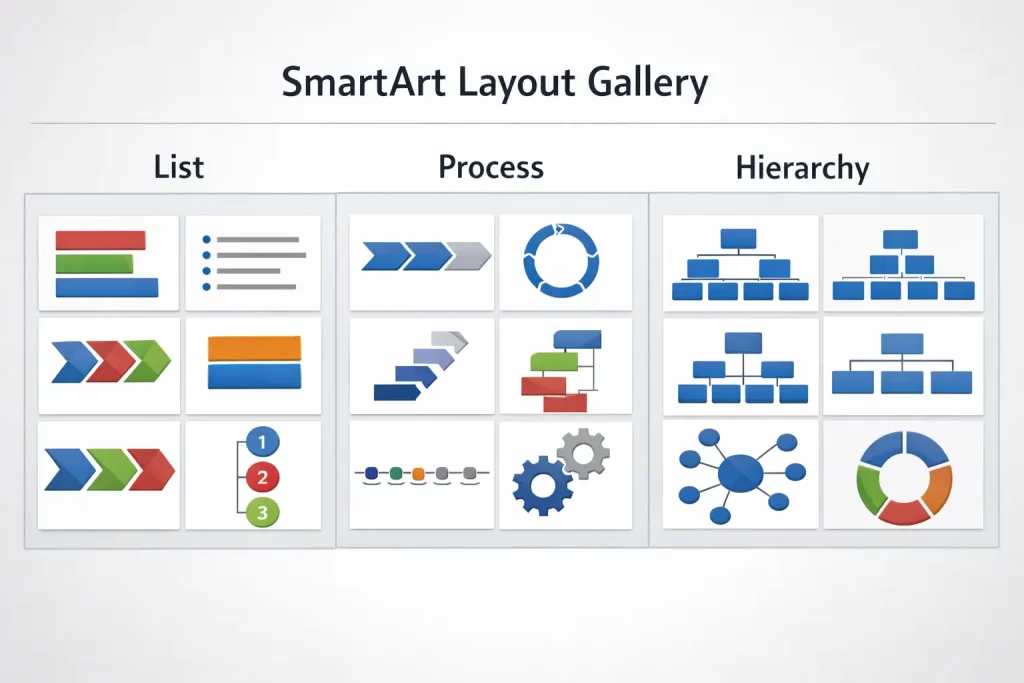
- Pick a layout that matches your content’s actual shape — List for flat items, Process for sequences, Hierarchy for org structures.
- If the button’s greyed out, the text isn’t in a standard placeholder or text box — fix that first.
- Sub-bullets only carry over cleanly in layouts built to support nesting (basic List, Process, some Hierarchy options).
- Edit everything afterward through the Text Pane, not by clicking into individual shapes one at a time.
Why the Conversion Goes Wrong
There’s no single cause here — it’s usually one of a handful of things, and figuring out which one is happening to you saves a lot of guessing.
Layout mismatch with your bullet structure. Some SmartArt layouts simply don’t have room for sub-bullets. Pick a Cycle or Relationship layout for a list that has nested sub-points, and PowerPoint either drops the sub-levels entirely or crams them somewhere unexpected. This is, by far, the most common reason a conversion “looks wrong” — the content and the layout just don’t match.
Too much text per bullet. SmartArt shapes autofit text by shrinking it, and once you cross a certain character count, the font gets small enough that the slide becomes unreadable from the back of a room. PowerPoint won’t warn you about this — it just quietly shrinks everything until it fits the shape.
The button is greyed out. This one’s annoying. It usually happens when your text lives in a table cell, a grouped object, or a text box that isn’t a “real” content placeholder. Convert to SmartArt only works on actual bullet-list text boxes or placeholders — not on arbitrary shapes with text typed into them.
Compatibility Mode strips features. If your file’s still in .ppt format (opened from an old template, or saved that way years ago), some SmartArt layouts won’t be available at all, and the ones that are can behave oddly. Not super well documented by Microsoft, but it’s a real thing — I’ve hit it more than once with inherited templates.
Sub-bullet levels getting flattened. Even in a compatible layout, going more than two or three levels deep often collapses extra levels into the same visual tier, which looks like data loss even though the text is technically still there.
SmartArt Layout Types Compared
| Layout Category | Best For | Handles Sub-Bullets? | Common Pitfall |
|---|---|---|---|
| List | Flat lists, feature rundowns | Yes, 1–2 levels | Gets cluttered past 6–7 items |
| Process | Sequential steps, workflows | Yes | Arrows imply order even if your bullets don’t have one |
| Hierarchy | Org charts, parent/child structures | Partially | Deep nesting (4+ levels) gets visually cramped |
| Cycle | Repeating processes | Rarely | Sub-bullets usually vanish or get squeezed out |
| Relationship | Comparing or connecting ideas | No | Tempting to use for plain lists — don’t |
I left a few cells loose on purpose. Cycle and Relationship layouts just don’t have a clean answer for sub-bullets — that’s not a setting you can toggle, it’s a structural limit of the layout itself.
Step-by-Step: Converting Bullets to SmartArt
Step 1: Select your bullet text
Click into the text box, then select all the bullet text you want converted — Ctrl+A works if the box only contains the bullets.
Step 2: Open Convert to SmartArt
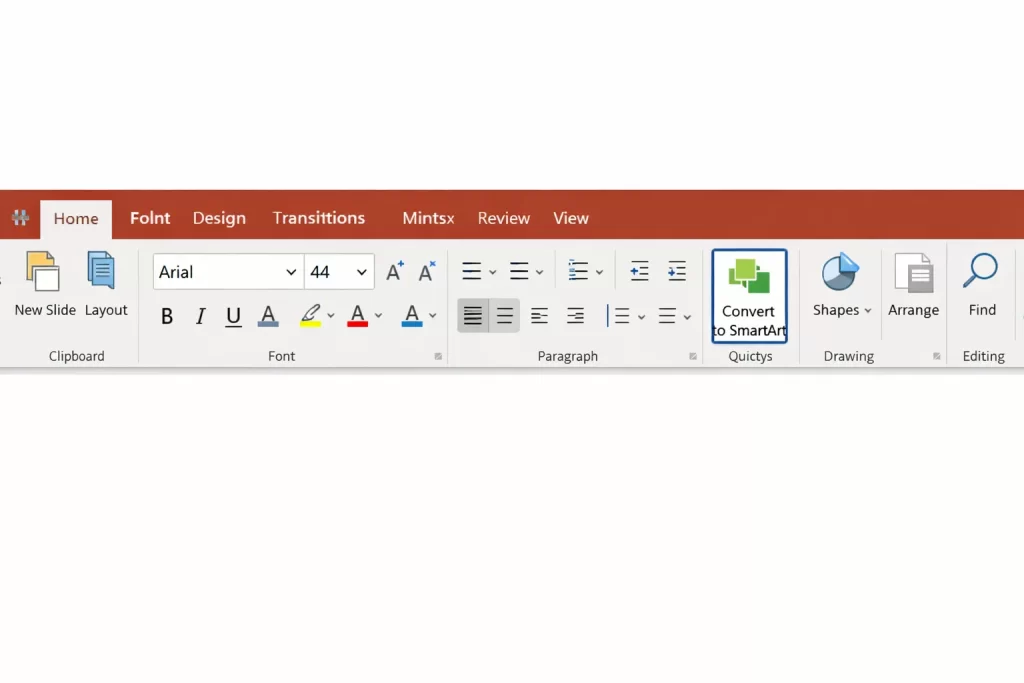
Go to Home → Paragraph group → Convert to SmartArt (the icon looks like a few connected boxes). You can also right-click the selected text and choose Convert to SmartArt from the context menu.
Step 3: Pick a layout that matches your content
Don’t just grab the first option that looks nice. Match the layout category to what your bullets actually represent — steps in order get Process, flat features get List, reporting structure gets Hierarchy.
Step 4: Fix vanished sub-bullets
Open the Text Pane (small arrow on the SmartArt’s left edge) and check whether your sub-points are still there but just hidden visually. Use Tab to demote a bullet, Shift+Tab to promote it — that alone fixes a surprising number of “my sub-bullets disappeared” situations.
Step 5: Adjust text size and shape sizing
If text shrank too much, either trim the wording per bullet or manually resize the shapes (drag the shape border) so AutoFit has more room to work with. Sometimes it’s faster to just shorten the bullet than to fight the shape sizing.
Step 6: If the button’s greyed out
Copy your bullet text into a fresh content placeholder (not a manually drawn text box) and try again from there. So if you’re working from a custom template, this step alone solves it more often than people expect.
What Actually Worked For Me
I had a slide with three main bullets, each with two sub-points, that I needed turned into something more visual for a client review. Picked a Cycle layout because it looked the cleanest in the gallery preview — and immediately lost both sets of sub-bullets. Tried switching to Hierarchy next, thinking that would obviously fix it, but the structure didn’t match what I actually had (it’s not a parent/child relationship, just a flat list with detail).
That’s not entirely accurate, actually — let me back up. What fixed it wasn’t a fancier layout at all. It was going back to the most basic List layout and just using the Text Pane to manually demote the sub-points with Tab. Took less time than the two failed attempts combined, and I felt a little silly for not trying it first.
Advanced Fixes and Edge Cases
SmartArt disappearing or rasterizing oddly after exporting to PDF. This usually traces back to font embedding settings, not the SmartArt itself. Check File → Options → Save → “Embed fonts in the file” before exporting, especially if you’re using a non-standard font in the SmartArt text.
Animations applying to the wrong shapes. If you’ve animated a SmartArt graphic and the sequence plays in a strange order, check the Animation Pane’s “Effect Options” — SmartArt animations follow the Text Pane’s outline order, not visual left-to-right position, which trips people up constantly.
SmartArt breaking when files move between PowerPoint and Google Slides. Google Slides doesn’t fully support all SmartArt layouts — some convert to static images on import, losing editability entirely. Your mileage may vary depending on which layout you used; basic List and Process tend to survive the round-trip better than Relationship or Matrix types.
Older PowerPoint versions (2010 and earlier) and limited layout sets. If a colleague opens your file in an old version, some newer layout variants simply won’t render — they often fall back silently to a default style, which can look completely different from what you designed.
Prevention Tips
- Decide your layout category before you even type the bullets — it changes how you should structure the text.
- Keep bullet text short going into the conversion; trimming after the fact is more annoying than writing tight from the start.
- Save files as
.pptx, not.ppt, to keep the full SmartArt layout library available. - Avoid going more than two levels of sub-bullets deep if you’re using a Hierarchy or Process layout.
- Test the exported PDF or shared file on another machine before a real presentation — SmartArt rendering issues show up exactly when you don’t want them to.
FAQ
Can I convert SmartArt back into a plain bullet list? Yes — right-click the SmartArt graphic and choose Convert to Text.
Why is the Convert to SmartArt button greyed out for me? Your text usually isn’t in a standard content placeholder. Tables, grouped shapes, and manually drawn text boxes won’t trigger the option.
Does converting to SmartArt keep my original bullet formatting? Not exactly — SmartArt applies its own style template, so custom fonts and colors often get overridden unless you adjust them afterward through SmartArt Styles.
Can I add new bullets directly into existing SmartArt instead of starting over? Yes, open the Text Pane and press Enter at the end of a line — it adds a new shape automatically.
Why does my SmartArt look different on a colleague’s computer? Different PowerPoint versions or missing fonts. Embedding fonts before sharing helps but doesn’t fix layout availability differences across versions.
Editor’s Opinion
Honestly SmartArt is one of those features that looks more flexible than it actually is. The gallery makes every layout seem interchangeable, but they’re not — pick based on your content’s actual shape, not which preview looks nicest. Once you get that part right the rest is just Text Pane fiddling, which is way less painful than fighting individual shapes one by one.
