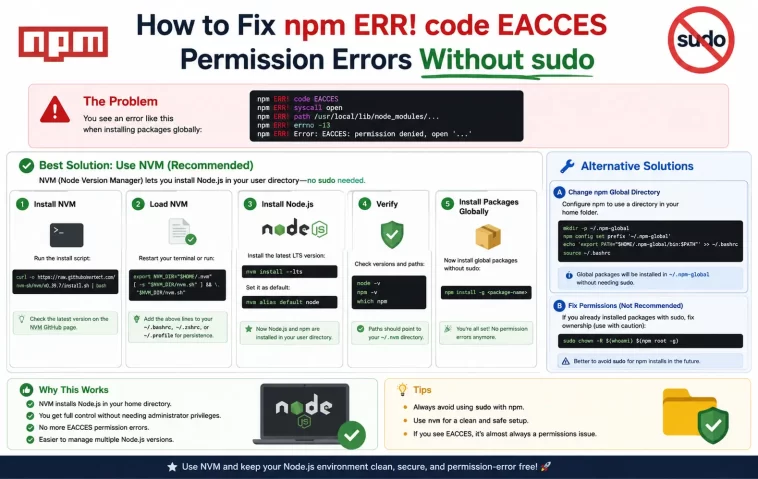
If you’ve ever typed npm install -g and gotten slapped with npm err code eacces, you already know the instinct everyone has: just throw sudo in front of it. Don’t. I broke a global npm setup doing exactly that years ago, and I’m still occasionally untangling permission messes that trace back to it. So let’s fix this the right way — no sudo, no broken folder ownership, no surprises six months from now.
Quick Answer
If you just want the fastest safe fix, here it is:
- Don’t run
sudo npm install— it creates root-owned files in your npm folders and causes more EACCES errors later - Change the owner of your global npm directory back to your user account
- Or, better, switch to a Node version manager (nvm/fnm) so npm never touches system-protected folders at all
- If you’re on a shared or corporate machine, redirect npm’s global folder to somewhere in your home directory instead
That covers about 90% of cases. The rest of this post is for when it doesn’t.
Why This Actually Happens
EACCES means “permission denied” at the OS level — npm tried to write a file somewhere your user account doesn’t have write access to. It’s not an npm bug, really. It’s Unix doing exactly what it’s told.
There are a handful of distinct causes, and they don’t all get fixed the same way:
1. npm’s global folder is owned by root. This is the most common one by far. On macOS and most Linux distros, Node.js installers (especially the ones from nodejs.org or your OS package manager) install npm’s global packages into /usr/local/lib/node_modules or /usr/lib/node_modules, both of which are owned by root by default. Your user isn’t root. npm tries to write there. Denied.
2. A previous sudo npm install -g left root-owned files behind. This is the sneaky one. Maybe you only ran sudo once, months ago, in a panic. That one command can leave a handful of files owned by root scattered inside a folder you otherwise own. Now some installs work and others don’t, which makes the error look random when it isn’t.
3. The npm cache folder has mixed ownership. Less common, but it happens — usually after switching between multiple Node installs (system Node, nvm Node, a Docker container’s Node) that all pointed at the same ~/.npm cache at different points.
4. You’re on a corporate-managed machine with restricted home directory permissions. Sometimes IT locks down parts of the filesystem you’d expect to be writable. Not your fault, not really fixable with the usual advice either.
And one that catches people off guard: switching between Node versions installed via different methods. If you installed Node once with the macOS installer, then again with Homebrew, then again with nvm, each of those can leave its own footprint with different ownership. From what I’ve seen, this is the scenario where people post “I’ve tried everything” threads — because they have, technically, but across three different Node installations without realizing it.
Common Scenarios Where This Shows Up
- Running
npm install -g <package>on a fresh Mac, right after using the official Node.js installer - Running it on Ubuntu/Debian after installing Node via
apt - CI pipelines where a previous step ran as root and a later step doesn’t
- WSL2 setups where Windows and Linux file permissions interact in ways that make zero intuitive sense
- After upgrading macOS, which sometimes resets permissions on
/usr/local
Technical Comparison: Fix Approaches
| Approach | Fixes root cause? | Survives Node upgrades? | Risk level |
|---|---|---|---|
sudo npm install -g (the “fix” to avoid) | No — masks symptom | No | High — creates more EACCES later |
chown the npm directories | Yes, for now | No, can recur | Low |
Change npm’s global prefix to ~/.npm-global | Yes | Yes | Low |
| Use nvm or fnm | Yes, sidesteps it entirely | Yes | Lowest |
I’ll be honest, the chown fix is the one most tutorials lead with, and it’s fine. But it’s a patch, not a structural fix. nvm is more setup upfront and solves the category of problem permanently.
Step-by-Step Fixes
Step 1: Confirm you actually have an ownership problem
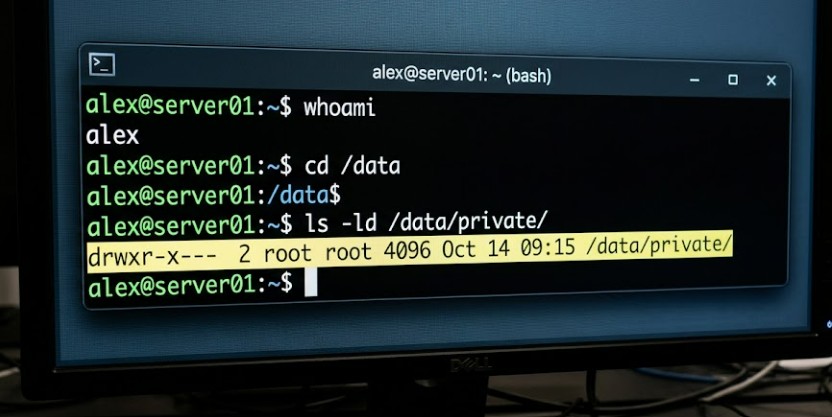
Before changing anything, check who owns the folder npm is mad about. The error message usually tells you the exact path, something like:
npm ERR! code EACCES
npm ERR! syscall mkdir
npm ERR! path /usr/local/lib/node_modules/some-package
Run:
bash
ls -ld /usr/local/lib/node_modulesIf the owner listed is root and you’re not running as root, that’s your problem confirmed.
Step 2: The official npm-recommended fix — change ownership
This is npm’s own documented fix, and it works for most single-user machines:
bash
sudo chown -R $(whoami) ~/.npm
sudo chown -R $(whoami) /usr/local/lib/node_modules
sudo chown -R $(whoami) /usr/local/bin
sudo chown -R $(whoami) /usr/local/share
Wait — yes, that uses sudo. That’s not contradictory. You’re using sudo once, as a one-time admin action to fix ownership, not as your daily npm workflow. After this, every future npm install -g runs without sudo at all. That distinction matters and gets lost in a lot of forum answers.
Step 3: Better long-term fix — redirect npm’s global directory
This is the one I actually use now. Instead of fighting over /usr/local, tell npm to install global packages somewhere in your own home folder where you already have full permissions.
bash
mkdir ~/.npm-global
npm config set prefix '~/.npm-global'
Then add this to your ~/.bashrc, ~/.zshrc, or whatever shell config you’re using:
bash
export PATH=~/.npm-global/bin:$PATHReload your shell config (source ~/.zshrc or just open a new terminal), and test it:
bash
npm install -g some-packageNo sudo, no errors, and it stays clean even after Node updates.
Step 4: The actually-best fix — use a Node version manager
If you install Node through nvm (or fnm, which is faster and newer), npm’s global folder lives inside your nvm directory under your home folder by default. Root never enters the picture.
bash
curl -o- https://raw.githubusercontent.com/nvm-sh/nvm/v0.39.7/install.sh | bash
nvm install --lts
nvm use --lts
Now npm install -g just works, every time, regardless of which Node version you’re on. This is genuinely the fix I recommend to anyone setting up a new machine, even before they hit the error once.
Step 5: Clear and fix the npm cache, if ownership issues persist
Sometimes after fixing the global folder, you still get EACCES on cache operations. Check the cache:
bash
sudo chown -R $(whoami) ~/.npmIf that still doesn’t clear it, nuke and rebuild the cache:
bash
npm cache clean --forceThis one rarely fixes the original problem on its own, by the way — it’s more of a “make sure nothing else is also broken” step.
What Actually Worked For Me
So here’s what actually happened on my end, because the clean version of this story isn’t how it went.
I hit this on a work laptop that had Node installed by IT before I got it — no idea how, no idea when. First thing I tried was the obvious wrong move: sudo npm install -g typescript. It worked. Felt great for about a day. Then two weeks later, a different global package failed with EACCES, and I was confused because “I literally just installed something global and it worked fine.”
That’s the trap. The sudo install succeeded and created a few root-owned files in a folder I otherwise owned. Future non-sudo installs hit those specific files and failed, while others succeeded, which made it look inconsistent and almost impossible to reason about from the error message alone.
I tried the chown fix from npm’s docs first. It worked, technically, but I didn’t trust it — partly because I didn’t fully understand why it worked, which is its own kind of bad. A coworker mentioned, almost as an aside in a totally unrelated conversation, that he just uses nvm for everything and “never thinks about npm permissions anymore.” That stuck with me more than any Stack Overflow answer did. I switched to nvm that afternoon and haven’t had this error since, on any machine, for any project.
Not exactly a satisfying technical deep-dive of an origin story, but that’s genuinely how it went — a half-remembered comment from a coworker, not a systematic debugging session.
Advanced Fixes and Edge Cases
Mixed permissions from multiple Node installations. Run which -a node and which -a npm to see if you’ve got more than one Node install fighting for the same PATH. If you’ve got Homebrew Node, system Node, and nvm Node all installed, things get messy fast — and partially fixing permissions on one install while still actively using another is, in my experience, the single biggest reason people say “I followed the steps and it still doesn’t work.”
Checking npm’s actual config vs. assumed config. Run:
bash
npm config get prefixThis tells you where npm actually thinks its global folder is — and it’s not always where you expect, especially if a previous .npmrc file set something custom and forgotten. Check for stray .npmrc files in your home directory and project directories too; a project-level .npmrc can override your global settings without you realizing it.
WSL2-specific quirks. If you’re on Windows using WSL2, file permissions get translated between Windows NTFS and the Linux filesystem in ways that don’t always map cleanly, particularly if your project folder lives somewhere under /mnt/c/. Moving your project into the native Linux filesystem (your WSL home directory, not the Windows-mounted drive) resolves a surprising number of “random” permission errors that look exactly like a standard EACCES issue but aren’t really about npm at all.
Corporate-managed machines with locked-down home directories. If IT policy restricts write access even within parts of your own home folder, none of the standard fixes will fully work, and you’ll need to talk to whoever manages the machine about an exception for your npm prefix folder specifically. This is the one edge case where “just use nvm” doesn’t save you, because nvm still needs to write somewhere.
Prevention Tips
- Set up an npm-global prefix or install nvm before you ever hit this error, not after
- Never run
sudo npm install -gas a routine habit, even when it “fixes” things temporarily - If you inherited a machine with Node already set up, check folder ownership before your first global install
- Periodically run
npm doctor— it flags permission inconsistencies before they turn into confusing errors - Keep project-level installs (
npm installwithout-g) as your default mental model; reach for global installs only when you genuinely need a CLI tool system-wide
Frequently Asked Questions
Will running sudo npm install just once cause permanent problems? Often yes, even just once. It can leave a small number of root-owned files behind that cause inconsistent EACCES errors on unrelated future installs.
Is it safe to chmod 777 the npm folder instead of fixing ownership properly? Technically it’ll stop the error. But it’s a bad idea — it makes the folder writable by literally any user or process on the system, which is a real security concern on shared machines. Use chown, not chmod 777.
Does reinstalling Node.js fix EACCES errors? Sometimes, by accident, because the reinstall might reset folder ownership. But it’s not a reliable fix and you can hit the exact same issue again on the next update. Not something I’d recommend as an actual strategy.
Why does this happen on Mac and Linux but not Windows? Windows handles file permissions differently and doesn’t typically require elevated privileges for npm’s default global install location, which is usually inside your user’s AppData folder already. Your mileage may vary depending on antivirus software and corporate Windows policies, though — I’ve seen Windows EACCES-equivalent errors too, just less often.
Is nvm overkill if I only use Node occasionally? No, honestly it’s still worth it. It takes a few minutes to set up and you avoid this entire category of problem going forward, even for light use.
Editor’s Opinion
honestly this is one of those errors that’s way more annoying than it is hard. the fix itself takes five minutes once you know which one applies to your setup. the annoying part is that so many guides online still tell people to just slap sudo in front of everything, which works in the moment and quietly sets up the next three errors. if you take one thing from this — stop using sudo with npm install, set up nvm instead, move on with your life.
