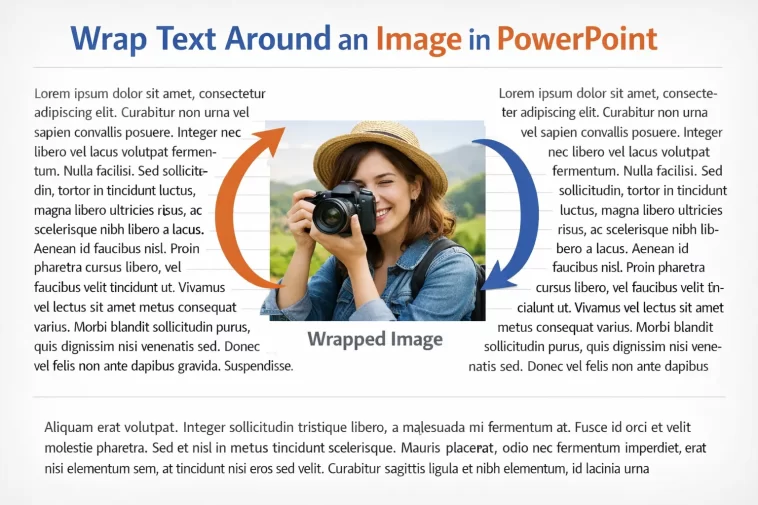
If you’ve tried to wrap text around an image in PowerPoint the way you would in Word, you’ve probably already figured out the bad news — there’s no built-in button for it. I spent a solid twenty minutes right-clicking everything on a slide before accepting that PowerPoint just doesn’t think about images the way Word does. So this isn’t a “click here” fix. It’s a workaround, and a decent one once you know the trick.
Quick Answer
- PowerPoint has no native text-wrap feature for images, unlike Word
- The fix is to manually split your text into separate text boxes positioned around the image
- For more control, use a transparent custom shape to “carve out” space for the image
- Inserting from Word with wrapped text and pasting won’t carry the wrap formatting over
- For curved or irregular wraps, a third-party add-in or manual shape editing is your only real option
Why It Doesn’t Wrap on Its Own
This trips people up because Word and PowerPoint look similar enough on the surface that you’d assume they share formatting logic. They don’t, not for this.
PowerPoint treats slides as a canvas, not a document. Word has an actual text-flow engine — paragraphs reflow around floating objects because that’s literally what the layout engine is built for. PowerPoint slides are positioned objects on a fixed canvas. Text boxes don’t know or care what’s near them.
There’s no “wrap text” option in the Format menu for a reason. If you go looking for it under Picture Format or Arrange, you won’t find it, because the feature was never built. It’s not hidden somewhere — it’s just absent.
Text boxes in PowerPoint are independent containers. Each one renders its own text within its own boundary. They don’t detect overlapping shapes and adjust their margins. So when your text box overlaps an image, the text just runs straight through it or gets covered, depending on layering order.
And one thing people don’t expect — even copying wrapped content from Word into PowerPoint doesn’t preserve the wrap. The text comes in as a static block. The wrap was a Word rendering behavior, not a property attached to the text itself, so it has nothing to attach to once it lands on a slide.
Common Scenarios Where This Comes Up
This usually shows up when someone’s building a newsletter-style slide, a magazine-layout title page, or trying to make an infographic look less blocky. It’s also common in PowerPoint templates pulled from design marketplaces — the preview image shows nice wrapped text, but when you open the actual .pptx file, it’s just several manually positioned text boxes pretending to wrap. That’s the secret nobody tells you up front.
Step-by-Step Fix: Manual Text Box Wrapping
This is the method that works in every version of PowerPoint, including 2016, 2019, 2021, and the Microsoft 365 subscription build.
Step 1: Insert your image first. Place the image where you want it on the slide. Resize it to its final size before doing anything else — moving it later means redoing your text boxes too.
Step 2: Break your text into separate text boxes. Instead of one paragraph, split your content into 2–4 text boxes that sit in the available space around the image — one above, one below, one or two beside it depending on the shape.
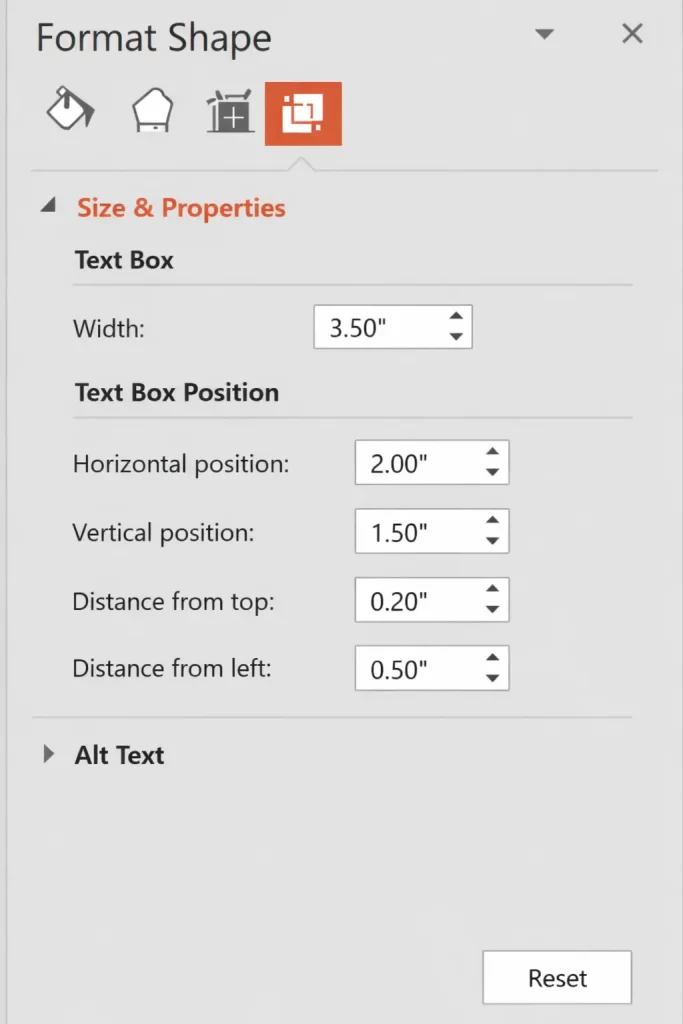
Step 3: Adjust each text box’s width manually. This is the part that takes patience. You’re eyeballing where the image edge falls and shrinking the text box width so the text doesn’t overlap. There’s no snap-to-image-edge feature, so you’ll be dragging and checking, dragging and checking.
Step 4: Use Align and Distribute for consistency. Select your text boxes and use Arrange > Align to keep their left or right edges consistent. It won’t fix the wrap problem, but it stops the layout from looking sloppy once you’re done.
Step 5: Group everything once it’s positioned. Select the image and all text boxes, right-click, and group them. This way if you need to move the whole layout later, it moves as one unit instead of you having to reposition five separate elements.
What Actually Worked For Me
Honestly, my first attempt was to just resize the text box around the image and hope PowerPoint would “figure it out.” It didn’t. Text just sat behind the image, invisible, like it had given up.
My second attempt was trying to use a picture as a text box fill, thinking maybe the text would route around a transparent area. That didn’t work either — it just stretched the image weirdly and ignored the text positioning entirely.
What actually fixed it was something I half-remembered from a forum post years ago about magazine-style PowerPoint templates: split the paragraph manually and treat each chunk as its own object. It’s tedious, not elegant, but it’s the only thing that reliably looks right. From what I’ve seen, almost every “PowerPoint wrap text” template you can buy is built this exact way under the hood — it’s just hidden well enough that you don’t notice unless you go digging through the layers.
Advanced Fixes and Edge Cases
Irregular or curved wraps around non-rectangular images. If your image is a circle or has transparent edges (like a PNG cutout), rectangular text boxes will leave awkward gaps. You can get closer by using multiple smaller text boxes stacked vertically, each one slightly narrower or wider to follow the curve — basically simulating wrap with a staircase effect. It’s not perfect, and your mileage may vary depending on how aggressive the curve is.
Using Word as an intermediate step. Some people build the wrapped paragraph in Word first, then take a screenshot of the rendered text-and-image block and insert that screenshot into PowerPoint as a single image. This works for static slides but breaks if you need to edit the text later, since it’s now just a picture. Not ideal for anything that needs ongoing edits, but fine for a one-off title slide.
Add-ins. There are a few PowerPoint add-ins that claim to add Word-style text wrapping. From what I’ve tested, results are inconsistent across PowerPoint versions, and some don’t survive a file being opened on a different machine. I wouldn’t build a critical presentation around one without testing it on the actual machine it’ll be presented from.
Master slide layering issues. If your text boxes are sitting on a custom slide master, layering order can get weirdly inconsistent — a text box that’s “in front” in Normal view sometimes renders behind the image in Slide Show view if the master has its own z-order rules. Check View > Slide Master if your wrap looks fine in editing mode but breaks during presentation.
What Rarely Works (But Gets Recommended a Lot)
People often suggest using SmartArt or a table layout to “force” a wrap effect. In practice this usually creates more alignment headaches than it solves, because SmartArt has its own internal text-fitting rules that fight with manual positioning. I’ve tried it twice and abandoned it both times.
Prevention Tips
- Decide on image size and placement before writing your text, not after
- Keep wrapped-text layouts on a small number of slides — they’re maintenance-heavy if your content changes often
- If you’re handing the file off to someone else to edit, leave a note about which text boxes belong together, since grouped objects can get ungrouped accidentally
- Test the layout in actual Slide Show view, not just Normal view, before finalizing
FAQ
Does PowerPoint have a text wrap feature like Word? No. It’s never had one, and there’s no setting hiding somewhere for it.
Can I copy a wrapped Word paragraph into PowerPoint and keep the wrap? No — it pastes as static text, and the wrap effect disappears the moment it leaves Word’s layout engine.
Will this work the same in PowerPoint Online? Mostly, yes, though text box resizing can feel slightly less precise in the browser version. Desktop is more reliable for fine adjustments.
Is there a way to make this automatic for every slide? Not really. Each layout has to be manually positioned because the image size and shape change the math every time.
Does Google Slides have the same limitation? Yes, same story — no native text wrap around images there either.
Editor’s Opinion
Look, this is one of those things Microsoft just never built, probably because slides aren’t meant to behave like documents. The workaround works fine once you’ve done it two or three times, but it’s annoying that there’s no shortcut. If you’re doing this often, just build yourself a template with the text boxes pre-positioned and reuse it — saves you from reinventing the layout every time.
