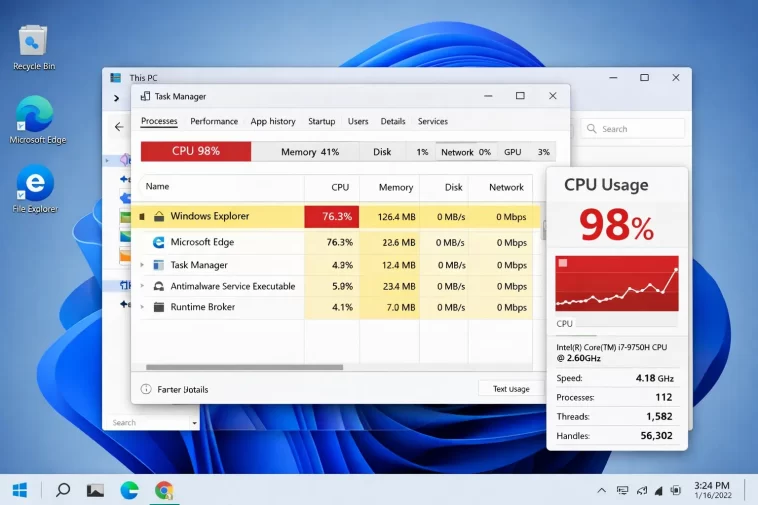
I noticed my fan spin up for no reason one afternoon, opened Task Manager out of habit, and there it was — Windows Explorer sitting at 25-40% CPU usage while I wasn’t even doing anything in a folder window. High CPU usage by Windows Explorer in Windows 11 is one of those issues that looks scary because explorer.exe runs your whole desktop, taskbar, and Start menu, not just file windows. So if it misbehaves, everything feels sluggish at once. Here’s what’s actually going on and what fixed it for me, plus the other fixes that tend to work for most people.
Quick Answer
- Most common cause: a corrupted thumbnail cache or a problematic shell extension (especially from cloud storage or antivirus apps)
- Fastest first fix: restart explorer.exe from Task Manager — temporary relief, not a real fix
- Most reliable fix: clear the thumbnail/icon cache and disable third-party context menu extensions one at a time
- Less obvious cause: search indexing rebuilding after an update, or a network drive that’s gone offline but Explorer keeps trying to reach
- When it’s not Explorer’s fault: sometimes it’s a background process (OneDrive, antivirus) disguised as Explorer activity in Task Manager’s grouped view
Why Explorer Eats CPU in Windows 11
There isn’t one single cause here, and that’s honestly part of what makes this annoying to troubleshoot — you can fix one thing and still have the problem because something else was contributing too.
The thumbnail cache is the first suspect almost every time. Windows 11 generates and stores preview thumbnails for images, videos, and documents, and when that cache database gets corrupted or bloated, Explorer can burn CPU regenerating thumbnails over and over instead of just reading from cache. Shell extensions are the second big one — these are the little add-ons that show up in your right-click context menu, usually installed by things like 7-Zip, antivirus software, cloud storage clients (OneDrive, Dropbox, Google Drive), or older utility software that never got updated for Windows 11’s new context menu system. A poorly written or outdated extension can hang or loop every time Explorer tries to render a menu or refresh a folder view.
And then there’s search indexing. Windows Search rebuilds its index after major updates, after adding new drives, or sometimes just because the index got corrupted, and Explorer’s search box ties directly into that indexing service. If indexing is stuck in a loop, Explorer shares the blame even though the real offender is SearchIndexer.exe running underneath it.
A less obvious one — and this tripped me up the first time I saw it — is a network location or mapped drive that’s gone offline. Explorer keeps the sidebar populated with quick access and network locations, and if it’s repeatedly trying (and failing) to reach an unavailable network path, you’ll see CPU spikes that look random but actually correlate with network timeouts.
Common Scenarios
This shows up a bit differently depending on setup.
Laptops with OneDrive Files On-Demand enabled: explorer.exe spikes often line up with sync activity, especially right after waking from sleep or reconnecting to Wi-Fi.
Desktops with large media libraries: thumbnail generation for photo or video folders is the most frequent trigger here, especially the first time you open a folder with hundreds of unviewed files.
Machines with older antivirus shell integration: some antivirus products inject deeply into Explorer’s context menu and file preview pane, and older versions not updated for current Windows 11 builds are a known troublemaker.
Systems with a recently removed external drive or NAS: Explorer can keep referencing a path that no longer exists until you clear pinned/quick access entries.
Step-by-Step Fixes
Step 1: Restart Explorer.exe (temporary, but rules things out)
Open Task Manager (Ctrl+Shift+Esc), find Windows Explorer under Processes, right-click, and select Restart.
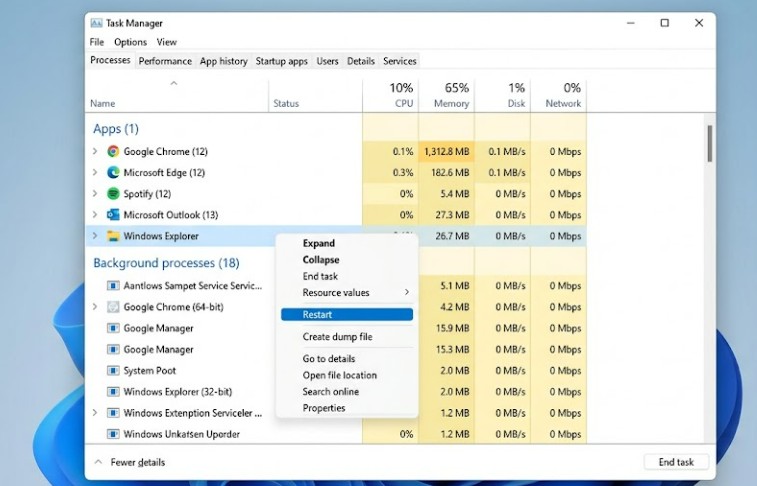
This won’t fix anything long-term but it’s useful to confirm CPU drops immediately afterward — if it climbs right back up within a minute or two, you’re dealing with something actively triggering it, not a one-time glitch.
Step 2: Clear the thumbnail cache
Run Disk Cleanup, select your system drive, and check “Thumbnails” specifically. Or, more directly, close all Explorer windows and delete the contents of:
%LocalAppData%\Microsoft\Windows\ExplorerReboot afterward. The cache rebuilds automatically and usually behaves better.
Step 3: Disable shell extensions one at a time
This is tedious but it’s the step that actually narrows down the cause. A free tool called ShellExView (NirSoft) lists every registered shell extension and lets you disable them individually without digging through the registry.
Disable anything related to cloud sync clients or antivirus first, reboot, and check if CPU usage settles. Re-enable one at a time if you need the functionality back and want to isolate the exact culprit.
Step 4: Rebuild the search index
Settings → Privacy & Security → Search Windows → Searching Windows, then choose Advanced Search Indexer Settings → Rebuild. Fair warning, this can spike CPU and disk usage temporarily while it rebuilds, sometimes for a while if you have a lot of files — that’s expected, not a new problem.
Step 5: Check for an unreachable network location
Open Explorer, look at the sidebar for any network drives or quick access items, and remove ones pointing to drives or NAS devices that are currently offline or disconnected.
What Actually Worked For Me
So my first move was restarting explorer.exe, because that’s everyone’s first move. It helped for about ninety seconds before climbing right back up, which told me something was actively re-triggering it rather than it being a stuck one-off process.
I went down the thumbnail cache path next since that’s the most commonly cited fix online, cleared it, rebooted — no change at all. A little annoying, honestly, since that’s the fix every forum post leads with.
What actually did it, somewhat by accident, was opening Task Manager’s Details tab and sorting by CPU while leaving it running in the background for a few minutes. I noticed OneDrive’s sync engine kept flaring up right alongside Explorer’s spikes, not separately. Turned out a folder I’d recently moved was still half-tracked by OneDrive’s old sync database, and Explorer was getting dragged into repeated re-indexing attempts tied to that sync conflict. Resetting OneDrive (there’s a built-in reset command, not a full reinstall) cleared it up within a few minutes.
Not saying that’s everyone’s cause — from what I’ve seen on forums, the shell extension angle catches more people overall. But it’s worth checking what’s actually correlating with the spikes before assuming it’s a clean Explorer-only problem.
Advanced Fixes and Edge Cases
Resource Monitor for thread-level detail: Task Manager groups explorer.exe activity loosely. Resource Monitor (resmon) breaks down CPU by individual thread and handle, which can show you exactly what Explorer is doing during a spike — file I/O, network calls, or just spinning.
Event Viewer for Explorer crash-restart loops: check Windows Logs → Application for repeated Explorer.exe crash entries. If Explorer is silently crashing and auto-restarting in a loop, you’ll see consistent CPU usage that looks like a hang but is actually a restart cycle, and that points toward a corrupted user profile or a faulty add-on rather than a cache issue.
OneDrive reset command: running %localappdata%\Microsoft\OneDrive\onedrive.exe /reset from Run (Win+R) resets the sync engine without removing your files, and it’s worth trying before a full uninstall/reinstall if OneDrive seems tangled up in the problem.
Checking for a corrupted user profile: if nothing else works, creating a new local user profile and testing Explorer behavior there isolates whether it’s a system-wide issue or something specific to your profile’s settings and cached data. It’s a pain to set up just to test, but it’s the most definitive way to rule out profile corruption.
Prevention Tips
- Don’t let OneDrive or other sync clients track folders you’re actively reorganizing — pause sync first, move things, then resume
- Periodically review installed shell extensions, especially after installing utility software you don’t use often
- Keep antivirus software updated, since outdated shell integration is a recurring offender
- Avoid pinning network locations that go offline frequently
- Run Disk Cleanup occasionally rather than letting the thumbnail cache grow indefinitely
FAQ
Why does Explorer.exe use so much CPU right after I open Task Manager? Often it’s just that you finally noticed it — the spike was likely already happening intermittently. Task Manager doesn’t cause it, it just makes it visible.
Will resetting my PC fix high Explorer CPU usage? It can, but it’s overkill for most cases here. Try the shell extension and cache fixes first.
Is this a virus? Usually not, but it’s worth a scan if you’ve never checked. Legitimate explorer.exe runs from System32 — if Task Manager shows it running from a different location, that’s a red flag worth investigating separately.
Does this happen more after a Windows update? Yes, fairly commonly. Updates can reset some shell extension registrations or trigger a search index rebuild, both of which temporarily spike CPU until things settle.
Should I just disable the search indexer entirely? You can, and it’ll stop indexer-related spikes, but you’ll lose fast file search. Worth trying temporarily as a diagnostic step rather than a permanent fix.
Editor’s Opinion
This one’s annoying because so many “fixes” floating around just restart explorer.exe and call it solved, when it usually creeps back. Worth actually watching what correlates with the spike before clearing caches blindly. In my case it wasn’t even really an Explorer problem, it was OneDrive dragging it along. Not 100% sure that’s the most common cause overall, but it’s the one nobody mentions first, and that’s exactly why it’s worth checking.
