Bluetooth headphones showing as connected in Windows 11 but producing zero audio is one of those problems that makes you question your sanity. Everything looks right — the device is paired, the indicator light is solid, Windows says “Connected” — and yet nothing comes out. I’ve hit this exact issue twice, on two different machines, with two different headphones, which tells me it’s not a hardware fluke.
Why This Happens
The connection and the audio stream are actually two separate things in Windows. Bluetooth has different “profiles” — HFP/HSP for calls and mic use, A2DP for stereo audio playback. Your headphones can be fully connected on one profile while Windows hasn’t switched the audio output to the right one, or hasn’t switched profiles at all.
That’s not entirely accurate — let me explain. It’s not just a profile issue. There are at least four distinct failure points:
Wrong default audio device. Windows connected your headphones but kept the default playback device set to your speakers or monitor. The headphones are “there” but nothing is routing to them.
Bluetooth service glitch. The Windows Bluetooth Audio service can get into a state where it registers the connection but doesn’t actually open the audio stream. This happens more after sleep/wake cycles than fresh boots, from what I’ve seen.
A2DP vs HFP profile conflict. If your headphones have a microphone, Windows often defaults to the Hands-Free Profile (HFP) for audio output instead of A2DP. HFP audio quality is noticeably worse, and sometimes it just fails to produce any sound at all.
Stale device entry. Windows keeps old Bluetooth device entries in the sound panel even after you’ve repaired. The active connection ends up mapped to a ghost entry, and audio goes nowhere.
And there’s one more that almost nobody mentions — the Bluetooth driver and the audio driver occasionally fall out of sync after a Windows Update. The connection handshake completes but the audio pipeline breaks silently.
Quick Fix Checklist
Before going deep, run through these first:
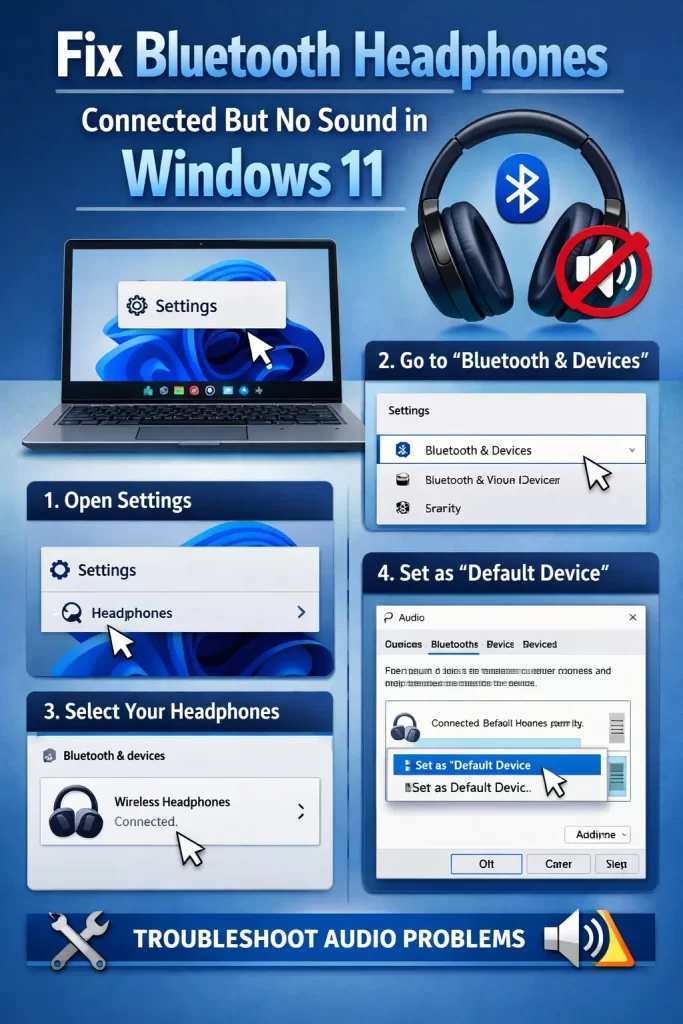
- Open Sound Settings and manually set your headphones as the default playback device
- Right-click the speaker icon in taskbar → Open Sound Settings → scroll down, check “More sound settings”
- Disconnect and reconnect the headphones (don’t just unpair — remove device completely, then re-pair)
- Restart the Bluetooth Support Service via services.msc
- Check Volume Mixer — the app you’re playing audio from might be muted specifically for that output
Step-by-Step Fixes
Step 1: Set the Correct Default Playback Device
Right-click the speaker icon in the system tray → Sound Settings. Under “Output,” click the dropdown and select your headphones. If you see them listed twice (which happens with headphones that have a mic), pick the one that says “Stereo” or “A2DP” — not the “Hands-Free” entry.
If the application you’re using still doesn’t route audio there, open Volume Mixer (in Sound Settings, scroll down → “Volume mixer”) and change the output device per-app. Chrome, Spotify, and media players sometimes hold onto the old output device even after you change the system default.
Step 2: Remove and Re-Pair the Headphones Completely
Not just disconnect. Go to Settings → Bluetooth & devices → find your headphones → click the three dots → Remove device. Then put your headphones back into pairing mode and re-pair from scratch.
This clears the stale device mapping that causes the “connected but silent” state. It’s annoying to redo but it fixes the issue more reliably than anything else in my experience.
Step 3: Restart the Bluetooth Audio Services
Open Run (Win + R) → type services.msc → find these two:
- Bluetooth Support Service
- Bluetooth Audio Gateway Service
Right-click each → Restart. Then reconnect your headphones. The audio stream should initialize cleanly.
So if restarting services doesn’t work on its own, do it before reconnecting the headphones — order matters here. Reconnecting while the service is in a bad state just recreates the same broken session.
Step 4: Force Windows to Use the A2DP Profile
Open Device Manager → View → Show hidden devices. Expand “Sound, video and game controllers.” You’ll likely see your headphones listed here. If you see a “Bluetooth Hands-Free Audio” entry alongside a “Bluetooth A2DP” entry, the wrong one might be active.
Disable the Hands-Free Audio entry, disconnect your headphones, then reconnect. Windows should fall back to A2DP for audio output. This trades mic functionality for proper stereo output — you can re-enable it later if you need the mic.
Step 5: Run the Audio Troubleshooter (Actually Useful Here)
I know, I know — the Windows troubleshooter feels like a waste of time. But for Bluetooth audio specifically, it sometimes catches the “output device not initialized” state and kicks it back into life. Settings → System → Troubleshoot → Other troubleshooters → Playing Audio. Run it with your headphones connected.
Not 100% sure why it works when it does, but it’s a 30-second check before doing anything more involved.
Step 6: Update or Reinstall the Bluetooth Driver
Open Device Manager → Bluetooth → right-click your Bluetooth adapter → Update driver → Search automatically. If nothing comes up, go to your PC or motherboard manufacturer’s site and grab the latest Bluetooth driver manually.
If the issue started right after a Windows Update, roll back the driver: right-click the adapter → Properties → Driver tab → Roll Back Driver.
What Actually Worked for Me
First time I hit this, I spent about 20 minutes cycling through the Sound Settings dropdown, restarting audio services, checking Volume Mixer. Nothing. I was close to just rebooting when I noticed the headphones were listed as “Hands-Free AG Audio” in the playback devices, not as the stereo device.
Disabling the Hands-Free entry in Device Manager and reconnecting fixed it immediately. Felt a little lucky — I’d stumbled into it while looking for something else entirely.
Second time was on a different laptop, post Windows Update. Complete remove-and-repair cycle is what finally worked, but only after I restarted the Bluetooth Support Service first. If I’d done the re-pair without the service restart, I’m fairly confident it would have just recreated the broken state.
Advanced Fixes
Check the Windows Audio Event Log
Open Event Viewer → Windows Logs → System. Filter by source “AudioEndpointBuilder” or “BthA2dp.” If you see repeated errors around the time your audio fails, they’ll give you a specific failure code. Error 0xC00D36FA points to a stream initialization failure — usually the A2DP/HFP profile conflict. Error 0x8007001F typically means the audio service can’t reach the device, which points to a driver or Bluetooth stack issue.
Registry Fix for Bluetooth Audio Stream Delay
Some Intel Bluetooth adapters have a known issue where the A2DP stream times out before it fully opens. There’s a registry tweak that increases the stream timeout:
HKEY_LOCAL_MACHINE\SYSTEM\CurrentControlSet\Control\Bluetooth\Audio\AVRCP\CTLook for DisableAbsoluteVolume — create it as a DWORD and set it to 1 if it doesn’t exist. This doesn’t fix all timeout issues but it resolves the absolute volume negotiation failure that blocks A2DP initialization on some setups.
Check for Conflicting Audio Software
Third-party audio software — Dolby Access, DTS Sound Unbound, Nahimic, Sonic Studio — can intercept the audio pipeline and block Bluetooth output without any obvious error. Open Apps → search for these, and temporarily disable or uninstall them to test. Nahimic specifically is known to conflict with Bluetooth A2DP on certain ASUS and MSI machines. Your mileage may vary, but it’s worth ruling out.
Fixes That Get Recommended but Rarely Work
Disabling audio enhancements (right-click the device in Sound Settings → device properties → “Enhancements” tab → Disable all) gets suggested constantly and almost never fixes the “no sound” issue. It’s more relevant for distortion or quality problems.
Same with clearing the Bluetooth cache files in %AppData% — that’s Android troubleshooting advice that made its way into Windows guides somehow. It does nothing here.
Prevention Tips
- Don’t leave headphones “connected” during sleep if you’re not using them — the wake cycle is where most of these audio stream failures originate
- After Windows Updates, check your Bluetooth driver version immediately if audio starts misbehaving
- If you regularly switch between headphones and speakers, use the Quick Settings panel (Win + A) to switch outputs instead of letting Windows auto-switch — it’s more reliable
- Keep only one Bluetooth audio device connected at a time if you can; multiple connected devices increases the chance Windows routes audio to the wrong one
FAQ
Why do my Bluetooth headphones show as connected but still no audio after restarting?
The connection persisting through restart usually means the device entry is stale. Do a full remove and re-pair — don’t just restart with them connected.
My headphones work for calls but not music. What’s wrong?
Classic A2DP vs HFP conflict. Windows defaulted to the Hands-Free profile. Go to Sound Settings and make sure the stereo/A2DP output is set as default, not the Hands-Free entry.
Does this happen more with specific Bluetooth versions?
Bluetooth 4.x adapters seem to hit the stream initialization issues more frequently than 5.0+, but honestly I’ve seen 5.0 adapters fail the same way after a bad driver update. The version matters less than driver quality.
Will a USB Bluetooth dongle fix this if my built-in adapter is the problem?
Sometimes, yes. If your built-in adapter has a consistently bad driver situation, a USB dongle with a fresh driver stack can sidestep the whole issue. Intel AX-series adapters tend to have better Windows driver support than the generic adapters that come on cheaper boards.
I re-paired and it worked once, then the problem came back after sleep. What now?
Power management is putting the Bluetooth adapter to sleep aggressively. Device Manager → Bluetooth adapter → Properties → Power Management → uncheck “Allow the computer to turn off this device to save power.”
Can a Windows Update actually break Bluetooth audio that was working fine?
Yes, and it happens more than it should. Check the driver rollback option in Device Manager first — it’s faster than hunting for a manual driver download.
Is there a way to default to A2DP permanently so Windows stops picking HFP?
Disabling the Hands-Free AG Audio device in Device Manager is the closest thing to a permanent fix. It survives reboots. You lose mic functionality through the headphones, but for music-only use it’s a clean solution.
Editor’s Opinion
honestly the A2DP vs Hands-Free profile thing is what gets most people and it’s barely documented anywhere useful. windows just quietly picks the wrong profile and gives you no indication that’s what happened. the remove-and-repair fix works reliably but you have to do the service restart first or you’re just recreating the same broken state. if your headphones worked yesterday and stopped after an update, check the driver rollback before anything else — saves a lot of time.
