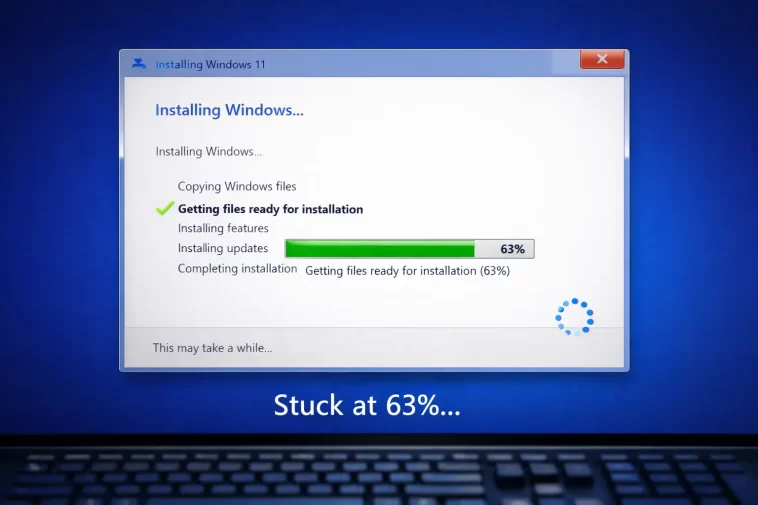
Windows 11 freezing at “Getting Files Ready for Installation” is one of those errors that looks minor until you’ve been staring at the same progress bar for two hours. I hit this myself during an in-place upgrade — the percentage crept to 43%, stopped, and just sat there until I killed it.
What’s Actually Happening at That Screen
Before getting into fixes, it helps to know what Windows is doing at this stage. When you see “Getting files ready for installation,” the setup process is unpacking the installation files, verifying their integrity, and staging them to a temporary directory — usually something like $WINDOWS.~BT or $WINDOWS.~WS on your system drive. It’s not installing anything yet. It’s just preparing.
So when it freezes here, the problem is almost always one of these:
- Corrupted or incomplete ISO/upgrade files — the media itself is bad
- Not enough free space on the system drive — setup needs at least 20 GB, and in practice 30–40 GB is safer
- Antivirus or security software blocking file extraction — this one catches a lot of people off guard
- Background Windows Update activity — two update processes fighting each other
- Bad sectors on the drive — the staging write fails silently and setup just hangs
- Conflicting temporary files from a previous failed upgrade attempt
And yeah, sometimes it’s just slow. But if you’ve been waiting more than 45 minutes at the same percentage with zero disk activity, that’s a hang, not a delay.
Quick Checks First
Before running through the full fix list, open Task Manager and check the Disk column. If you see consistent disk activity — even 1–5 MB/s — the process might just be genuinely slow. Some systems with slower HDDs or USB 2.0 flash drives take 60–90 minutes at this screen.
But if disk activity is at 0% and has been for more than 10–15 minutes, something’s stuck.
Also check available space on your C: drive. Open File Explorer, right-click the system drive, and check free space. If you’re under 25 GB, that’s probably your problem right there.
Fix 1: Disable Antivirus Before Running Setup
This is the fix that actually worked most often in my experience, and it’s the one that gets skipped because nobody thinks their AV is the problem. But security software — especially third-party products like Bitdefender, Malwarebytes, or ESET — can intercept file extraction operations and either slow them to a crawl or cause silent failures.
You don’t need to uninstall it. Just disable real-time protection before launching the Windows 11 installer:
- Open your antivirus software
- Find the real-time protection or active shield option
- Disable it temporarily (most apps let you set a 30-minute window)
- Run the setup again
- Re-enable it after the installation completes
Windows Defender doesn’t usually cause this issue, but if you’re running only Defender and still seeing the problem, try disabling it via Windows Security > Virus & Threat Protection > Manage Settings.
Fix 2: Free Up Disk Space and Clear Old Upgrade Files
Windows 11 setup needs room to stage files, and previous failed attempts leave behind hidden temporary folders that eat into that space without being obvious.
Delete leftover upgrade folders:
Open an elevated Command Prompt and run:
rd /s /q "C:\$WINDOWS.~BT"
rd /s /q "C:\$WINDOWS.~WS"
These folders can be several gigabytes. If they don’t exist, the command just fails silently — that’s fine.
Then run Disk Cleanup:
- Press Win + S, search for Disk Cleanup
- Select your C: drive
- Click Clean up system files (this requires admin rights)
- Check Windows Update Cleanup, Temporary files, and Previous Windows installation(s) if present
- Click OK
After cleanup, you’ll want at least 30 GB free before retrying.
Fix 3: Run Setup From a Clean Reboot, No Background Processes
This sounds obvious, but it matters more than you’d expect. Background Windows Update downloads, OneDrive sync, and scheduled tasks can all interfere with the staging process.
- Restart your PC completely (not Fast Startup — actually restart)
- As soon as it boots, run setup before anything else syncs or updates
- Temporarily disable OneDrive by right-clicking the tray icon and selecting Pause syncing
- Open Task Manager and end any non-essential processes before launching the installer
If you’re using the Media Creation Tool, consider downloading the ISO file separately and mounting it instead. Running setup from a mounted ISO tends to be more stable than running it directly through the tool.
Fix 4: Check the Drive for Errors
If the staging process is trying to write files to a sector that’s failing, setup will stall. This doesn’t trigger any visible error — it just hangs.
Run a quick CHKDSK:
chkdsk C: /f /r /xYou’ll be prompted to schedule this for the next restart. Do it, reboot, and let it finish. On a healthy SSD this takes a few minutes. On a larger HDD with bad sectors, it can take an hour or more.
After CHKDSK completes and your system comes back up, check Event Viewer under Windows Logs > Application for any entries from “Wininit” — that’s where CHKDSK logs its results.
Fix 5: Pause Windows Update Before Installing
Windows Update running in the background while you’re trying to upgrade is a legitimate conflict that Microsoft hasn’t fully solved. Two separate update mechanisms competing for the same files and services causes all kinds of weird behavior.
Pause it first:
- Go to Settings > Windows Update > Advanced Options
- Set Pause Updates to the maximum available duration (usually 5 weeks)
- Restart
- Then run your Windows 11 installation
After the upgrade finishes successfully, go back and resume updates.
Fix 6: Use a Fresh USB or Re-Download the ISO
This one I dismissed for too long. I was convinced the USB drive I’d used was fine because it had worked before. It hadn’t changed. But when I used Rufus to create a new one from a freshly downloaded ISO and ran setup again, the hang at 43% just didn’t happen.
Corrupted ISOs and bad USB writes are more common than they should be. SHA-256 verification is your friend here. After downloading the ISO from Microsoft, verify the hash before you trust it.
If you’re using Windows Update or the Media Creation Tool directly, there’s less you can control — but re-running the tool to force a fresh download is worth trying.
What Actually Worked For Me
I spent an embarrassing amount of time on this. First I tried clearing the staging folders — no change. Then I ran CHKDSK, which came back clean. I even went through Device Manager looking for driver conflicts because someone on a forum suggested that causes hangs at this stage. Not 100% sure that’s accurate, but I went down that road anyway.
What actually fixed it was a combination of two things: disabling Malwarebytes before setup, and deleting the $WINDOWS.~BT folder that had been left behind from a previous failed attempt. Either one alone might have done it — I’ll never know — but after both, the installation ran through without stopping.
So the fix that tends to work most often in practice: disable third-party antivirus + clear old upgrade temp files. That combination resolves this for more people than anything else.
The fix that gets recommended constantly but rarely helps: restarting the Windows Update service. Every guide mentions it. From what I’ve seen, it almost never makes a difference for this specific hang.
Advanced: Check Setup Logs for the Real Error
If none of the basic fixes work, stop guessing and read the logs. Windows stores detailed setup logs in C:\$WINDOWS.~BT\Sources\Panther\ — the key file is setupact.log.
Open it in Notepad or a text editor that can handle large files, then search for “Error” or “Warning”. You’re looking for entries right before the log stops progressing. Common things you might find:
- 0x8007025D — I/O device error, usually means bad sectors or failing drive
- 0x80070070 — not enough disk space
- 0x8007001F — general hardware failure during file copy
- 0x80240031 — Windows Update database corruption
Each of these has a specific fix path. The log won’t always be easy to read, but it’ll tell you whether you’re dealing with a hardware problem, a space problem, or a software conflict — and that narrows things down fast.
If the $WINDOWS.~BT folder doesn’t exist, check C:\Windows\Panther\ instead — post-upgrade logs land there.
Comparison: Common Causes vs. What Actually Fixes Them
| Cause | Likely Fix | Commonly Recommended? | Actually Works? |
|---|---|---|---|
| Antivirus blocking file extraction | Disable AV before setup | Sometimes | Yes, frequently |
| Leftover staging folders | Delete $WINDOWS.~BT | Rarely | Yes |
| Low disk space | Free up 30+ GB | Yes | Yes |
| Bad sectors on drive | CHKDSK /f /r | Sometimes | Yes (if that’s the cause) |
| Background Windows Update | Pause updates | Occasionally | Moderate |
| Corrupted ISO or USB | Re-download, re-create media | Sometimes | Yes |
| Windows Update service issues | Restart WU service | Very often | Rarely |
Prevention Tips
- Always verify you have 40+ GB free before starting a major Windows upgrade
- Clear
$WINDOWS.~BTand$WINDOWS.~WSbetween failed attempts — these don’t clean themselves - Disable third-party security software for the duration of setup, not just at launch
- Use a wired network connection if you’re upgrading via Windows Update — Wi-Fi dropouts during file download cause partial downloads that fail silently
- Run CHKDSK proactively on any machine that hasn’t had a disk check in a while, especially HDDs
- Don’t run setup while another update is actively downloading
FAQ
How long should “Getting Files Ready for Installation” take? On an SSD with a decent CPU, usually 10–20 minutes. On an HDD, it can legitimately take 45–60 minutes. If you’re past that and disk activity has flatlined, it’s hung.
Can I safely cancel the installation at this point? Yes. At the “Getting Files Ready” stage, nothing has been written to your Windows installation yet. You can cancel and your current system is untouched. Just don’t cancel mid-installation after it restarts — that’s where things can go wrong.
Does this happen more with in-place upgrades or clean installs? In-place upgrades. Clean installs from bootable USB skip most of the staging issues because they’re not trying to work within the existing Windows environment.
My progress bar moved from 0% to 43% then stopped — is that specific number meaningful? Not really. The percentage counter during this stage isn’t reliably accurate. It reflects estimated completion based on file count, not actual data written. Some files are bigger than others.
Will running Windows 11 setup from a USB make this less likely? In my experience, yes — slightly. Booting from USB and doing a clean install bypasses a lot of the in-session conflicts that cause this. But it’s not a guarantee.
What if the log file shows 0x8007025D? That’s an I/O error, which usually points to a failing drive. Run a more thorough scan — CrystalDiskInfo can read S.M.A.R.T. data and tell you if the drive is showing early failure indicators. If it is, back up immediately and replace the drive before doing anything else.
Is this more common on older hardware? Yeah, honestly. TPM and Secure Boot compatibility aside, older mechanical drives and lower-end CPUs just struggle with the staging phase. Your mileage may vary, but on machines from 2015 or earlier, I’d budget significantly more time and expect a few failed attempts before it sticks.
Editor’s Opinion
Honestly the most annoying thing about this error is how non-descriptive it is. “Getting files ready” just… stops. No error code, no message, nothing. You’re left guessing whether it’s slow or broken. The log files help but most people don’t know they exist. Microsoft could surface a simple “here’s what’s happening” message and save everyone hours. Until then — check AV first, clear the temp folders, verify disk space. That combo solves it more often than not.
