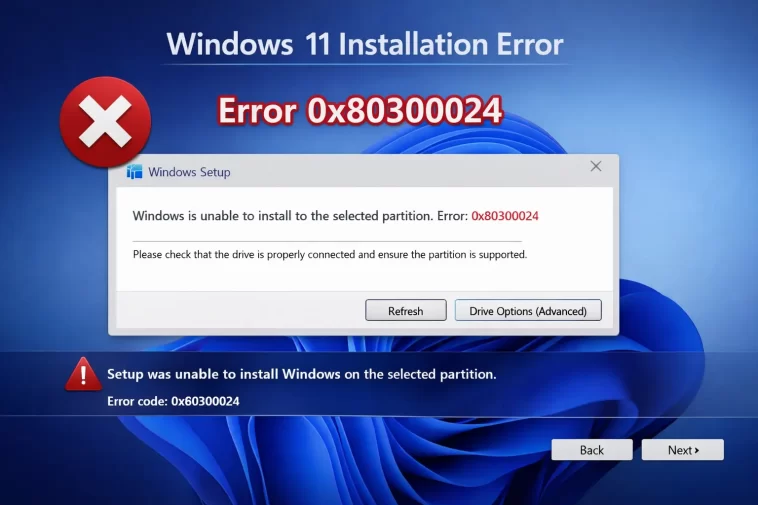
I hit this one trying to do a clean install on a spare SSD that had an old Linux partition table left on it from years back. Windows 11 installation error 0x80300024 shows up right at the “where do you want to install Windows” screen, and it basically means Setup looked at the drive you picked and decided it couldn’t write to it. Annoyingly generic message, but the actual causes are pretty narrow once you know what to check.
Quick Answer
- Unplug every other drive except the one you’re installing to
- Use Diskpart to clean the target drive and remove old partition tables
- Make sure the installer’s boot mode (UEFI vs Legacy) matches the drive’s partition style (GPT vs MBR)
- Try a different USB port for the installation media
- Check that the target partition has enough free space and isn’t a recovery/system partition
Why This Error Happens
So this one isn’t really a single bug — it’s Setup running a handful of checks against the selected drive before it lets you proceed, and any one of those checks failing throws the exact same code regardless of which one it actually was. That’s the annoying part: the code doesn’t tell you which check failed.
Multiple drives confusing the installer. If you’ve got more than one drive connected — a second SSD, an external drive, even another USB stick — Setup sometimes gets confused about which one should hold the boot files, especially in dual-boot setups. This is probably the single most common cause.
Partition style mismatch. Your installer USB is built for either UEFI (GPT) or Legacy BIOS (MBR), and if your target drive’s partition style doesn’t match the mode you’re booting the installer in, Setup will refuse to install there. This trips people up constantly when they’ve used Rufus or a similar tool to make the USB and picked the wrong option.
Leftover or corrupted partitions on the target drive. Old partition tables — from a previous OS, a different file system, or just a drive that’s been repurposed a few times — can leave behind structures Setup doesn’t know how to handle cleanly.
RAID or unusual SATA controller modes in BIOS. If your SATA controller is set to RAID mode and Setup doesn’t have the matching driver loaded, it sometimes can’t properly initialize the drive even though it’s visible in the list.
A genuinely failing drive. Less common, but it happens — bad sectors or a dying controller on the drive itself can cause writes to fail partway through, and Setup reports that failure as this same generic code.
Common Scenarios
| Scenario | Likely Cause | Notes |
|---|---|---|
| Installing on a second/secondary drive | Boot priority conflict, multiple drives detected | Most frequent overall |
| Drive previously had Linux or another OS | Leftover partition table mismatch | Diskpart clean usually fixes this |
| New SSD, never used before | Wrong partition style for boot mode | Check GPT vs MBR and UEFI vs Legacy |
| Older PC with RAID-mode SATA controller | Missing RAID driver during Setup | Switch SATA mode to AHCI in BIOS |
Step-by-Step Fixes
Step 1: Disconnect Every Other Drive
Unplug anything that isn’t the drive you’re installing Windows on — extra internal drives, external drives, USB sticks (other than the installer itself). Setup is far less likely to get confused about boot priority when there’s only one option to choose from. Reconnect everything after the install finishes.
Step 2: Check Boot Mode vs Partition Style
Restart into BIOS/UEFI and confirm you’re booting the installer in the right mode. If your target drive uses GPT, you want to boot the USB installer in UEFI mode, not Legacy/CSM. If you made the install USB with Rufus, double check you picked GPT + UEFI when creating it — picking the wrong combination here is a really common, really avoidable cause.
Step 3: Clean the Target Drive With Diskpart
This wipes the drive’s partition table, so back up anything you need first.
- At the partition selection screen, press
Shift + F10to open Command Prompt - Type
diskpartand press Enter - Type
list diskand identify the correct disk number — be careful here, picking the wrong disk wipes the wrong drive - Type
select disk X(replacing X with your target disk’s number) - Type
clean - Close Command Prompt and click Refresh on the install screen, then try again
Step 4: Format the Target Partition Through Setup
If you’d rather not drop to the command line, you can do something similar through the GUI: at the drive selection screen, click Drive options (Advanced), select the partition, and click Format. Confirm, then continue. This clears out leftover data on that specific partition without touching the whole disk.
Step 5: Switch SATA Mode to AHCI
In BIOS, find the SATA Operation / Configuration setting and check whether it’s set to RAID. If it is, and you don’t specifically need RAID for this system, switch it to AHCI. This is the standard mode for single drives and avoids the missing-driver issue entirely.
Step 6: Try a Different USB Port (and Recreate the Media If Needed)
Sometimes it really is just a flaky USB port or a slightly corrupted install media. Try a different port — ideally a USB 2.0 port rather than 3.0 if you’ve got the option, since some systems have quirks reading installer media through 3.0 controllers during boot. If that changes nothing, recreate the installer USB from scratch with Rufus or the Media Creation Tool.
What Actually Worked For Me
I went straight for the Diskpart clean first because I figured the old Linux partitions were obviously the problem. Cleaned the drive, tried again — same error. That threw me off completely, because I was sure that was it.
Turned out the actual issue was something I’d half-forgotten about: I had an old mechanical drive still plugged in from a previous build, completely unrelated to the install, and Setup kept getting confused about boot priority because of it. Unplugged it, tried again, installed without a hitch. Kind of a frustrating one to land on after doing the “correct” fix first and having it not work.
So if you’ve cleaned the drive and you’re still hitting this, check what else is physically connected before you go further down the troubleshooting list. It’s an easy thing to overlook when the extra drive isn’t even the one you’re trying to use.
Advanced Fixes and Edge Cases
Manually convert between MBR and GPT. If you need to keep data and can’t just clean the drive, you can use mbr2gpt /convert (run from the recovery command prompt) to convert an existing MBR disk to GPT without wiping it — though this only works under specific conditions Microsoft documents, and it’s worth reading those before relying on it.
Check for a hidden recovery or system partition eating your target. Run list partition inside diskpart after selecting your disk. If there’s a small recovery partition sitting where you expected free space, that can throw off Setup’s space calculations.
Run a SMART check on the drive. If you suspect drive failure specifically, use wmic diskdrive get status from the command prompt during setup, or boot a SMART diagnostic tool. A drive reporting anything other than “OK” is a real lead, not a false alarm.
Update your BIOS if you’re on an older board. Outdated firmware occasionally has compatibility bugs with newer Windows 11 installers, particularly around how it reports drive information to Setup. Not the most common cause, but worth checking if everything else looks clean.
Fixes That Are Commonly Recommended But Rarely Work
Replacing the hard drive gets suggested as a fallback a lot, and it’s genuinely the right call if SMART data shows actual failure — but most people hit this error from a partition or boot-mode mismatch, not failing hardware, so jumping straight to new hardware skips past the actual fix for most cases. Third-party “PC repair” tools that promise to auto-fix install errors are also a mixed bag; some do essentially the same Diskpart clean you can do yourself for free.
Prevention Tips
- Wipe old drives with Diskpart before repurposing them for a new install, rather than letting Setup encounter leftover partition tables
- Match your installer USB’s partition scheme (GPT/UEFI or MBR/Legacy) to your target drive before you start
- Disconnect unrelated drives any time you’re doing a from-scratch install
- Keep BIOS firmware reasonably current, especially before a major OS install
FAQ
Will this error cause me to lose data on my drive? Only if you choose to clean or format the drive as part of fixing it — the error itself doesn’t destroy data, but several of the fixes do.
Does this happen with Windows 10 too? Yes, it’s the same underlying mechanism and shows up identically on Windows 10 installs.
Is my SSD dead if I’m seeing this error? Usually not. Drive failure is one possible cause but a less common one — partition and boot-mode issues account for most cases.
Can I avoid Diskpart entirely? Sometimes — formatting the partition through Setup’s GUI option works for less severe cases. Diskpart’s clean command is the more thorough version.
Why does unplugging other drives actually help? Setup uses drive priority during boot file placement, and extra drives can introduce ambiguity about which one should hold those files, even if you’ve clearly selected your intended target in the menu.
Editor’s Opinion
This error’s a pain mainly cause the message doesn’t tell you which check actually failed, so you end up working through causes one by one. Mine ended up being an unrelated drive I forgot was even plugged in, which in hindsight should’ve been step one instead of step three. Worth checking what’s physically connected before you start wiping partition tables.
