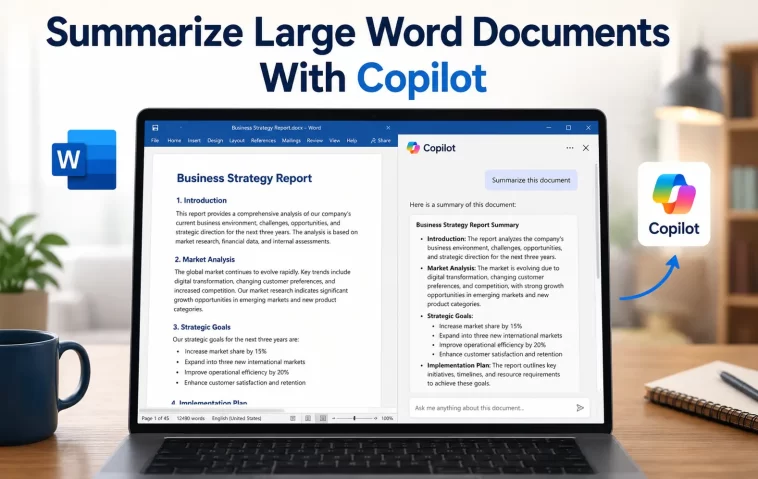
I had a 60-page vendor contract land in my inbox on a Friday afternoon, and the only thing I wanted to know was whether the renewal terms had changed. That’s the exact situation where you want to summarize large Word documents with Copilot instead of scrolling for twenty minutes. So I opened the file, fired up Copilot in Word, and asked for the short version.
It worked. Mostly. There’s a catch with longer files that nobody really explains up front, and that’s what this post is actually about.
Quick Answer
- Open the document in Word for the web (desktop works too, but the web version gets features first)
- Click the Copilot icon in the Home tab, or check for the automatic summary above the document
- Ask “Summarize this document” or something more specific like “summarize the financial terms in this contract”
- If the doc is very long, Copilot may only fully process part of it — split it or summarize section by section
- Review the summary against the original before you act on anything in it, especially numbers and dates
Why Copilot Struggles With Really Long Documents
From what I’ve seen, Copilot handles a 10-15 page report without any drama. The wheels start to come off somewhere past that, and there are a few reasons why.
There’s a word limit per prompt. Copilot is currently limited in the number of words it can process per prompt, and Microsoft says this outright in its own documentation rather than burying it somewhere. That’s not a soft suggestion — once a document crosses that threshold, Copilot is working from a partial view of the content whether it tells you that or not.
Formatting confuses the model more than people expect. Copilot may not work well with content containing SmartArt, tables, or charts. If your “large document” is actually a 40-page report stuffed with embedded Excel tables and SmartArt diagrams, the summary you get back might skip entire sections that happen to live inside those elements.
The automatic summary feature has its own threshold, separate from the chat-based one. For Copilot to automatically generate summaries, the reference content needs to have at least 200 words, and that auto-summary only shows up if the doc is saved in OneDrive or SharePoint with the right license attached. So if you’re working from a document saved locally on your laptop, don’t expect to see that little summary box appear above the ribbon — you’ll need to trigger it manually instead.
And there’s a fourth thing people don’t think about: structure matters more than length. A messy 30-page doc with no headings can confuse Copilot more than a clean 80-page one. It uses headings, paragraph structure, and repeated terms to figure out what your document is even about, so a wall of unstructured text gives it less to work with than you’d guess.
Where This Actually Comes Up
I’ve run into this with three pretty different file types, and the behavior isn’t identical across them.
Long contracts and policy documents. These usually have decent heading structure, which helps. But they’re dense, and a single missed clause in a summary is a bigger deal than in most other document types.
Research papers and academic drafts. Citations and footnotes seem to throw things off occasionally — not every time, but often enough that I double-check anything Copilot says came from a specific section near the end of a long paper.
Multi-contributor project plans. These tend to have inconsistent formatting because five different people edited five different sections. That inconsistency is, in my experience, the single biggest reason a summary comes back vague or generic.
Step-by-Step: Summarizing a Large Word Document With Copilot
Step 1: Check where the document lives
If it’s saved to OneDrive or SharePoint and you have a Microsoft 365 Copilot work license, you might already see an automatic summary preview at the top when you open it. Select “View More” to expand it. If you don’t see anything, that’s expected for personal accounts or local files — you’ll go through chat instead.
Step 2: Open the Copilot pane
Click the Copilot icon in the Home tab ribbon. This opens a chat panel on the side of the document, separate from the auto-summary box.
Step 3: Start with a broad prompt, then narrow it
Type “Summarize this document.” Don’t overthink the first prompt. See what comes back, then refine.
Step 4: Ask for what you actually need, not just a generic summary
This is the part most people skip. Instead of accepting a generic overview, follow up with something specific — “list the deadlines mentioned in this document” or “summarize only the budget section.” Specific requests pull more accurate detail than open-ended ones, especially in longer files.
Step 5: For documents over roughly 25-30 pages, break it up
If the file is genuinely massive, ask Copilot to summarize it in sections — by heading, by chapter, whatever structure it already has. Then ask for a combined summary of those section summaries. It’s an extra step, but it sidesteps the per-prompt word limit instead of fighting it.
Step 6: Cross-check anything with a number, date, or name attached
Copilot will provide references with citations to where it retrieved its information, so use those citations. Click through and confirm the source line actually says what the summary claims it says. This matters more on long documents because there’s more room for something to get flattened or generalized incorrectly.
What Actually Worked For Me
My first attempt was the lazy version — I just typed “summarize this” on the full 60-page contract and hoped. The summary I got back was fine for the first half of the document and noticeably thinner for the back half, which is exactly the word-limit issue from earlier, though I didn’t clock that at the time.
So I tried asking more pointed follow-up questions instead, figuring Copilot just needed direction. That helped a little, but the renewal-terms section I actually cared about lived near the end of the document, and the answers stayed vague no matter how I phrased the question.
What ended up working — and I’ll admit this was half a guess based on something I’d read in a Microsoft support thread a while back — was splitting the document into two requests: “summarize pages 1 through 30” and then “summarize pages 31 through 60,” before asking Copilot to combine both into one overview. That gave me a summary that actually covered the renewal clause accurately. Not elegant. But it worked, and it’s the approach I default to now for anything over 40 pages.
Advanced Fixes and Edge Cases
Check the file’s actual word count, not just page count. A 50-page document with wide margins and big fonts might be under the practical limit, while a dense 25-page technical spec might already be over it. Select all text and check Word’s word count tool before assuming length is or isn’t the problem.
Strip out embedded objects before summarizing. If your document has SmartArt diagrams, embedded spreadsheets, or charts, try copying the text-only version into a new document and running the summary on that instead. It’s not pretty, but it removes the formatting noise that seems to derail Copilot most often.
Use Copilot Chat with file attachment for cross-document comparisons. If you need a summary spanning multiple related Word files, the Word-embedded Copilot pane isn’t really built for that. Compile information from multiple documents and generate a combined summary using the Microsoft 365 Copilot chat interface instead, referencing each file directly.
Watch for the “Check for new summary” prompt after edits. If you’re summarizing a document that’s actively being edited by others, the auto-summary feature includes a refresh button that appears after changes. It doesn’t refresh automatically, which catches people off guard when they share an old summary by mistake.
Common Fixes That Sound Good But Rarely Help
Re-typing the same “summarize this document” prompt over and over with slightly different wording rarely fixes a thin or generic summary — that’s not a phrasing problem, it’s a length or formatting problem underneath. Similarly, closing and reopening the document doesn’t reset anything meaningful on Copilot’s end; it just re-triggers the same process with the same limitations.
Comparison: Manual Review vs. Copilot Summary
| Approach | Time Required | Accuracy on Long Docs | Best For |
|---|---|---|---|
| Manual skim-read | 15-30+ min | High, but depends on attention | Legal/contract review where every clause matters |
| Copilot single-prompt summary | Under a minute | Drops off past ~25-30 pages | Quick overview, meeting prep |
| Copilot section-by-section summary | 5-10 min | Noticeably better on long docs | Reports, contracts over 40 pages |
| Auto-summary (OneDrive/SharePoint) | Instant | Decent for well-structured docs | First-glance triage before a deeper read |
Prevention Tips
Keep your documents structured with proper headings if you’re the one writing them — Copilot leans on heading hierarchy heavily, and so does anyone else trying to skim it later. Save important documents to OneDrive or SharePoint if your license supports it, since that’s what unlocks the automatic summary feature without extra prompting. And don’t treat any AI summary, on a long document especially, as a substitute for reading the actual section that matters most to your decision. The summary is a shortcut to figure out where to look, not a replacement for looking.
FAQ
Does Copilot read the entire document, or just part of it? It depends on length. Copilot takes the whole document into account in principle, but there’s a per-prompt word limit, so very long files get processed in a way that may not capture everything evenly.
Why didn’t my summary mention something I know is in the document? Probably formatting. Tables, SmartArt, and charts are known weak spots, and content near the end of very long documents is more likely to get thin treatment than content near the start.
Can I summarize a PDF instead of a Word doc with the same tool? Yes, Copilot can summarize PDFs too, though the experience runs through Copilot Chat rather than the in-Word pane in most cases.
Is the automatic summary the same as asking Copilot to summarize in chat? No. The automatic summary box is a separate feature with its own requirements — OneDrive/SharePoint storage, a 200-word minimum, and a specific license tier. Chat-based summarizing works more broadly.
Will Copilot summaries get more accurate over time? Not 100% sure, but given how often Microsoft has been shipping updates to this feature, the word-limit issue is one of the more likely candidates to improve. No promise on timing though.
Editor’s Opinion
honestly this feature is genuinely useful for the “do i need to read this whole thing” question, but it’s not a replacement for actually reading the part that matters. i learned that the hard way on a contract clause. if your doc is over 30-40 pages, just split it into sections from the start instead of trying one big prompt and getting annoyed when it’s thin near the end. saves you a step.
