Nothing quite matches the specific panic of double-clicking a .pptx file the night before a presentation and getting “PowerPoint found a problem with content” instead of your slides. I’ve had this happen twice — once from a bad shutdown mid-save, once from a file that got mangled during an email transfer — and the fixes aren’t the same both times. If your presentation won’t open right now, skip to Step 1, everything else can wait.
Quick Answer
- Try PowerPoint’s built-in “Open and Repair” first — it fixes a surprising number of corruption cases in under a minute
- If that fails, rename the .pptx to .zip and manually extract the XML contents — PowerPoint files are just zip archives underneath
- Check for a AutoRecover version before assuming the file is a total loss
- Corruption from cloud sync conflicts (OneDrive/SharePoint) needs a different fix than corruption from a bad shutdown
- Large embedded media (video, high-res images) is a common but often-overlooked cause of corruption during save
Why PowerPoint Files Get Corrupted
A .pptx file is really a zip archive full of XML files describing your slides, and corruption usually means one of those internal XML files got written incompletely or damaged. From what I’ve seen, it happens for a handful of specific reasons:
1. Interrupted save operations. Power loss, a crash, or force-quitting PowerPoint mid-save leaves the zip archive partially written. This is the most common cause by a wide margin, and it’s also the one “Open and Repair” handles best.
2. Cloud sync conflicts. If a file is syncing to OneDrive or SharePoint while it’s being saved locally, you can end up with two processes writing to the same file at slightly different times. The result is a zip archive with mismatched or duplicate internal entries — PowerPoint can’t parse it, but the file size looks totally normal.
3. Corruption during transfer. Email attachments, USB drives with bad sectors, or interrupted downloads can truncate or scramble bytes in the file. This one usually shows up as PowerPoint refusing to even attempt a repair, since the zip structure itself is broken, not just the content inside it.
4. Embedded media pushing file size limits. Not talked about enough — presentations with large embedded videos or dozens of high-resolution images are more prone to corruption during save, especially over network drives or slow connections, because there’s simply more data that can go wrong mid-write.
There’s also a cause that’s easy to overlook entirely: third-party add-ins interfering with the save process. If you’ve got a PowerPoint add-in (some translation tools and design plugins are known for this) actively modifying the file structure during a save, and it crashes or hangs partway through, you get a corrupted file that has nothing to do with PowerPoint itself.
Comparison: Recovery Methods by Corruption Type
| Corruption Cause | Best First Fix | Success Rate | Notes |
|---|---|---|---|
| Interrupted save/crash | Open and Repair | High | Usually works in one try |
| Cloud sync conflict | Check version history first | Moderate to high | Don’t repair before checking versions |
| File transfer corruption | ZIP extraction method | Moderate | Depends how badly bytes got scrambled |
| Large media causing issues | Extract media, rebuild slides | Low to moderate | Often only partial recovery possible |
Step-by-Step Fixes
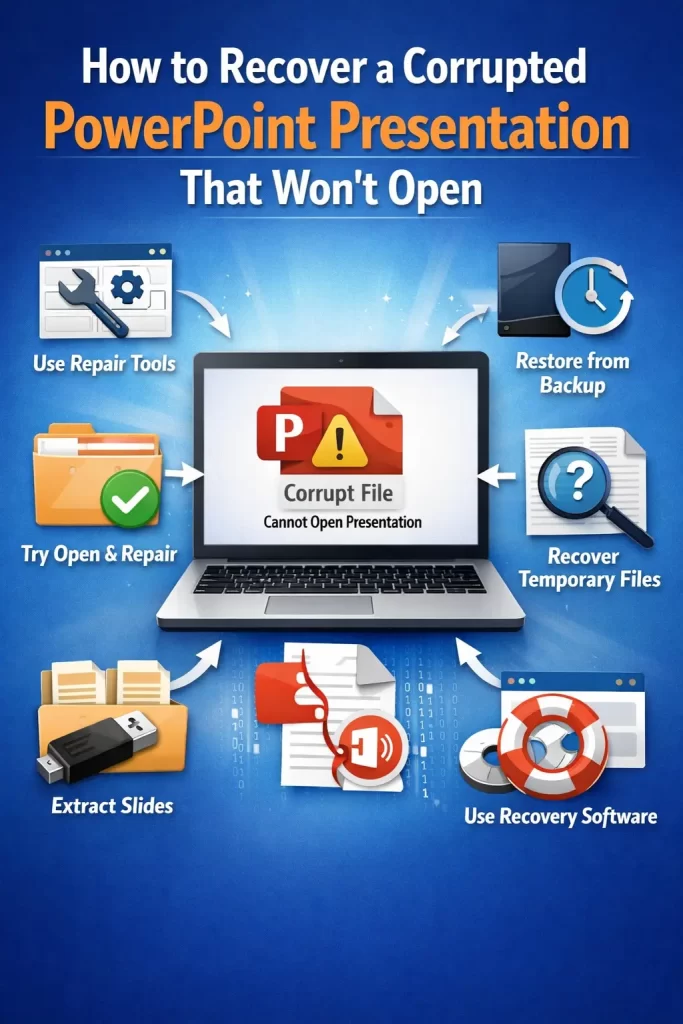
Step 1: Try Open and Repair First
- Open PowerPoint (not the file directly — open the application itself)
- File → Open → Browse
- Select the corrupted file, but instead of clicking “Open,” click the small dropdown arrow next to the Open button
- Choose “Open and Repair”
This works more often than people expect, especially for the interrupted-save scenario. But if you get a message saying repair isn’t possible, don’t panic yet — there’s more to try.
Step 2: Check for a Cloud Version History
If the file lives in OneDrive or SharePoint, right-click it in File Explorer (or in the web interface) and look for “Version History.” Cloud storage keeps periodic snapshots, and there’s a decent chance an earlier version from before the corruption is sitting there untouched. This is worth checking before you spend time on manual repair — it’s often faster and gives you a fully intact file instead of a partial recovery.
Step 3: Look for an AutoRecover File
PowerPoint’s AutoRecover saves temporary backups, usually in:
C:\Users\[YourUsername]\AppData\Roaming\Microsoft\PowerPoint\Look for files with a .ppt or .pptx extension you don’t recognize, or check File → Info → Manage Presentation → Recover Unsaved Presentations directly inside PowerPoint. Not guaranteed to have your most recent edits, but it’s saved more than one deadline for me.
Step 4: Extract the File Manually as a ZIP Archive
If repair fails and there’s no usable version history or AutoRecover file, this is the deeper fix:
- Make a copy of the corrupted file first — always work on a copy
- Rename the copy’s extension from
.pptxto.zip - Extract the zip archive to a folder
- Navigate to
ppt/slides/inside the extracted folder — you’ll see individual XML files namedslide1.xml,slide2.xml, and so on - Open each in a text editor to check whether the XML looks intact (readable tags, no truncated content at the end) or clearly broken (cuts off mid-tag, garbled characters)
Slides with intact XML can sometimes be manually reassembled into a new presentation, though this is genuinely tedious and works best for recovering a handful of specific slides rather than an entire deck.
Step 5: Extract Just the Embedded Media
Even when the slide structure itself is unrecoverable, you can usually pull out your images and videos. Inside the extracted zip folder, check ppt/media/ — your embedded pictures and video files are usually sitting there completely intact, since media files don’t get corrupted the same way XML text does. Rebuilding a presentation from scratch with the original media is a lot faster than starting from zero.
What Actually Worked For Me
The first time this happened to me, it was the classic bad-shutdown scenario — laptop battery died mid-save, and the file wouldn’t open afterward. Open and Repair fixed it in about fifteen seconds. Honestly kind of anticlimactic after the mild panic beforehand.
The second time was messier. The file had been syncing through OneDrive while I was editing it on a spotty hotel Wi-Fi connection, and it came out the other end completely unreadable — Open and Repair just gave up immediately with no useful error. I tried the AutoRecover folder first, found nothing recent enough to matter. So I went the ZIP extraction route, and that’s where I got a little lucky: most of the slide XML files were intact, only two were actually broken. I ended up building a brand new presentation and manually copying content back in slide by slide for the two broken ones, using the media files pulled directly from ppt/media/ for the images I couldn’t otherwise recover. Not elegant, took about an hour, but I didn’t lose the deck.
Advanced Fixes and Edge Cases
Using a hex editor for zip header corruption. If the file won’t even extract as a zip (you get an error saying the archive is invalid or corrupted), the very beginning of the file — the zip header — may be damaged. In genuinely stubborn cases, comparing the header bytes against a known-good .pptx file in a hex editor can reveal whether just the header is broken while the rest of the archive is intact; this is advanced territory and honestly not something I’d recommend unless you’re already comfortable with hex editors.
Checking Event Viewer for the root cause. If this keeps happening repeatedly on the same machine, check Windows Event Viewer under Application logs around the timestamp of the last successful save. Disk errors, sudden application crashes, or storage driver issues often show up here and point to a hardware problem rather than a one-off PowerPoint glitch.
Third-party recovery tools. There are dedicated .pptx repair tools beyond what’s built into Office. Your mileage may vary significantly with these — some handle zip-level corruption better than PowerPoint’s own repair function, but quality varies a lot between tools, and free versions usually only preview the recovery rather than let you export it.
Recovering from a truncated file. If the file size looks suspiciously small compared to what you’d expect (say, a 40MB presentation that’s now showing 2MB), the file was likely cut off during transfer rather than internally corrupted. In this case, no repair method will fully restore it — you’re looking at a partial file, and your best bet is checking if a complete copy exists somewhere else (sent email, backup, a colleague’s inbox) rather than trying to repair what’s there.
Prevention Tips
- Turn on AutoRecover and set the interval to something aggressive, like every 5 minutes, under File → Options → Save
- Avoid editing files directly from a syncing cloud folder over unstable Wi-Fi — save locally first, then let it sync once you’re done
- Don’t force-quit PowerPoint during a save operation, even if it seems frozen — give it at least a minute before killing the process
- Keep large media files linked rather than embedded when the presentation is going to be edited frequently, this reduces the amount of data at risk during any single save
FAQ
Can a corrupted PowerPoint file be recovered if it won’t even open in Open and Repair mode? Sometimes, yes — the ZIP extraction method works independently of PowerPoint’s built-in repair and can salvage slides even when Open and Repair completely fails.
Does saving as .ppt instead of .pptx make files less prone to corruption? Not really, and the older .ppt format has its own separate set of quirks. Sticking with .pptx and enabling AutoRecover is a better use of your time.
Why does my file open fine on one computer but show as corrupted on another? Usually a font or add-in mismatch, not true corruption — try opening it in PowerPoint Online through OneDrive/SharePoint as a sanity check, since it ignores local machine quirks.
Is there a way to prevent OneDrive sync from causing corruption in the first place? Enabling “Files On-Demand” and avoiding simultaneous edits from two synced devices helps a lot. Real-time co-authoring inside PowerPoint itself is actually safer than editing the same file separately on two machines.
I recovered some slides but lost my custom animations. Is that normal? Yeah, unfortunately animations are some of the more fragile XML data in a .pptx file, and they’re often the first thing lost even in a partial recovery. Text and images tend to survive better.
Editor’s Opinion
honestly the zip trick is the one thing i wish i knew years ago instead of just panicking and assuming the file was gone for good. it’s not pretty and it takes some patience but it works more often then people think. turn on agressive autosave and save yourself the headache next time, future you will thank you.
