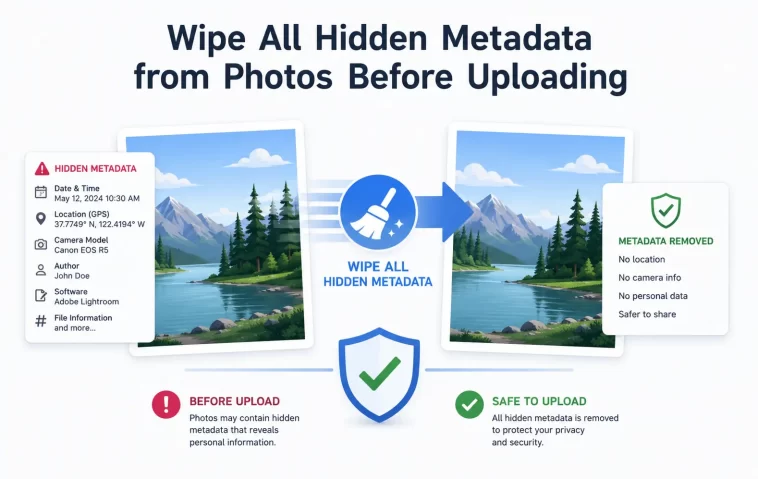
Most people think right-clicking a photo and hitting “Remove Properties” in Windows clears everything, and it doesn’t — not even close. I found this out the hard way after uploading what I thought was a “cleaned” photo and later checking it with a proper metadata viewer, only to find GPS coordinates still sitting right there in the EXIF data. If you’re uploading photos anywhere public, here’s what actually gets rid of everything.
Quick Answer
- Windows’ built-in “Remove Properties and Personal Information” only strips a limited set of fields, not full EXIF/IPTC/XMP data
- GPS location data is the most commonly missed field, since it’s buried deeper than basic metadata most tools check
- Screenshots and messaging apps often strip metadata automatically, but direct camera/phone exports usually don’t
- The most reliable method is a dedicated metadata-stripping tool or re-exporting the image through a fresh save, not editing existing metadata fields
- Cloud storage and social platforms vary wildly in what they strip automatically — don’t assume the platform will do it for you
Why Basic Removal Methods Don’t Actually Work
Photos carry three separate metadata layers that most casual removal tools don’t fully address: EXIF (camera settings, GPS, timestamp), IPTC (captions, copyright, keywords — common in professional workflows), and XMP (Adobe’s extensible format, often added by editing software). A tool that only touches one layer can leave the others completely intact.
1. Windows’ “Remove Properties” dialog is selective by design. It lets you check boxes for specific fields, but if you don’t manually select every single category — and some categories aren’t even shown by default — data gets left behind. GPS data specifically tends to hide under “Details” rather than the main properties view, so people miss it constantly.
2. Editing software often adds new metadata instead of removing old. Opening a photo in Lightroom or Photoshop and exporting it can actually add XMP metadata related to the editing software itself, on top of whatever original EXIF data survived the process.
3. “Save As” doesn’t guarantee a clean copy. Depending on the software, a simple Save As can preserve the original EXIF block wholesale, just repackaged into the new file. This one surprises people — they assume any re-save is basically a fresh file, and it isn’t always.
There’s an overlooked cause too: thumbnail caching within the image file itself. Some JPEG files store an embedded thumbnail separately from the main image, and that thumbnail can retain its own metadata even after the main image’s metadata gets scrubbed — so a “clean” photo can still leak a smaller version with the original data intact.
Common Scenarios Where This Matters
- Selling items online (Marketplace, eBay) — GPS data in product photos can reveal your home address
- Sharing photos of kids publicly — location and timestamp data combined can reveal patterns about where a child regularly is
- Journalists or activists sharing sensitive images — metadata can expose location, device identifiers, or timing information that puts sources at risk
- Real estate or rental listings — timestamp metadata occasionally reveals when a property was actually vacant, which isn’t always something people want public
Step-by-Step: Removing Metadata Properly
Step 1: Check What’s Actually There First
Before stripping anything, look at what you’re dealing with. On Windows, right-click the photo → Properties → Details tab shows the basic fields, but for a full picture including GPS, a dedicated tool like ExifTool (free, command-line) or an online EXIF viewer gives you the complete picture. Don’t skip this — you can’t confirm removal worked if you didn’t check the starting point.
Step 2: Use a Dedicated Stripping Tool, Not Just Built-In Options
On Windows: Right-click → Properties → Details tab → “Remove Properties and Personal Information” → select “Create a copy with all possible properties removed.” This is better than picking individual checkboxes, since “all possible” actually goes further than the manual selection option, somewhat counterintuitively.
Using ExifTool (most thorough option, free): Run this from the command line:
exiftool -all= yourphoto.jpgThis strips essentially everything — EXIF, IPTC, XMP, GPS, the works. It’s the option pros actually rely on when metadata removal genuinely matters.
On Mac: Preview app doesn’t fully strip metadata reliably. Use ImageOptim (free) instead, which has metadata stripping built into its compression process.
Step 3: Check for Embedded Thumbnail Data
If you’re being thorough, run your metadata tool a second time specifically checking for embedded thumbnails — ExifTool will show a ThumbnailImage field if one exists. Strip it separately if your main removal pass didn’t catch it:
exiftool -ThumbnailImage= yourphoto.jpgStep 4: Re-Verify After Stripping
Run the same viewer tool from Step 1 again on the cleaned file. If fields are still showing data, especially GPS, something in your removal process missed a layer — go back and try the ExifTool full-strip command rather than relying on a partial tool.
Step 5: Consider a Screenshot as a Last-Resort Method
If you don’t want to install anything, taking a screenshot of the photo (rather than uploading the original file) strips essentially all metadata automatically, since screenshots generate a brand new file with no inherited EXIF data. Not ideal for image quality, but it works in a pinch and is genuinely more reliable than most people expect.
What Actually Worked For Me
I initially trusted Windows’ basic “Remove Properties” checkbox method, unchecking what I could see in the standard dialog and assuming that covered it. It didn’t — GPS coordinates were still fully intact when I checked the file afterward with an online EXIF viewer, which honestly caught me off guard since I thought I’d covered the obvious stuff.
So I switched to the “create a copy with all possible properties removed” option instead of manually selecting checkboxes, and that got rid of the GPS data along with everything else in one pass. But out of caution I ran ExifTool on the result anyway just to double check, and there was still a tiny bit of XMP data left over — nothing sensitive, just some software tagging info from an old edit, but it confirmed to me that layering two methods together is worth the extra two minutes if the photo actually matters for privacy reasons.
Advanced Fixes and Edge Cases
Batch stripping multiple files at once. ExifTool handles entire folders in one command:
exiftool -all= -r /path/to/folderThe -r flag processes subfolders too, which is useful if you’re cleaning out an entire photo dump before uploading rather than one image at a time.
RAW files carry additional embedded data. Camera RAW formats often store more extensive metadata than JPEGs, including lens data, camera serial numbers, and sometimes location data in a different structure than standard EXIF. If you’re exporting from RAW, verify the final exported JPEG or PNG doesn’t inherit this data by checking it separately — don’t assume export settings automatically strip it.
PNG files handle metadata differently than JPEG. PNGs use text chunks for metadata rather than EXIF blocks, and not every stripping tool checks PNG-specific chunks the same way it checks JPEG EXIF data. If you’re working with PNGs specifically, confirm your tool explicitly supports PNG metadata removal rather than assuming JPEG-focused tools cover it equally.
Social platforms that don’t strip everything. Some platforms strip GPS data automatically on upload but leave other EXIF fields (camera model, timestamp) intact in the file people can download from your post. Don’t assume “the platform handles it” without checking — this varies a lot and changes without much notice.
Prevention Tips
- Disable location tagging at the camera/phone level for photos you know you’ll eventually share publicly — easier than stripping it after the fact
- Build a habit of running a quick metadata check before uploading anything sensitive, rather than only after something goes wrong
- Keep ExifTool or a similar tool installed permanently rather than hunting for an online tool each time — online metadata viewers sometimes retain uploaded images on their own servers, which somewhat defeats the purpose
FAQ
Does uploading to Google Photos or iCloud strip metadata automatically? No, these services typically preserve full metadata for your own organizational purposes (like map view by location) — stripping only tends to happen when you actually share or export publicly, and even then it’s inconsistent.
Is there a way to strip metadata without any software at all? Taking a screenshot of the image works as a basic no-software method, though it does reduce image quality slightly and isn’t ideal for anything requiring full resolution.
Will stripping metadata affect the image quality itself? No, metadata and pixel data are separate — removing metadata doesn’t touch compression, resolution, or visual quality at all.
Can metadata be added back after I’ve already uploaded a stripped photo? Not unless someone has the original file with metadata intact — once it’s stripped and uploaded, there’s nothing left to recover from that specific copy.
Do messaging apps like WhatsApp strip metadata automatically? Mostly yes for photos sent through the app’s normal compression process, but sending as a “file” or “document” instead of a regular photo often preserves the original metadata, so the method of sending matters.
Editor’s Opinion
genuinely surprised how many “clean” photos still have gps data buried in them after just the basic windows removal option. if privacy actually matters for the image your uploading, dont trust the quick built in option alone, run exiftool or something similar and actually check the result instead of assuming it worked.
