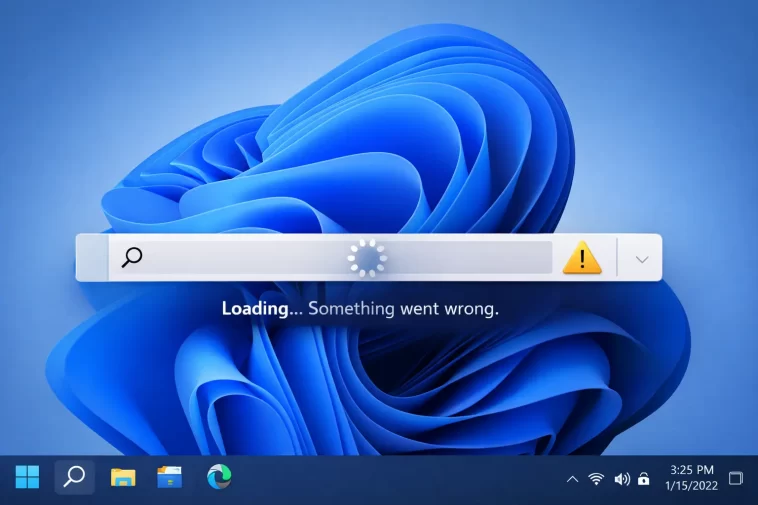
Had this one hit me right after a routine update — clicked the taskbar search, typed something, and just watched the little loading animation spin with nothing ever showing up. Not frozen exactly, since the box itself still responded to clicks, it just never returned a single result. If you’re in the same spot, the fix is usually faster than the troubleshooting rabbit hole makes it feel.
Quick Answer
- End the
SearchHost.exeprocess in Task Manager — Windows relaunches it automatically the next time you search - If that doesn’t help, restart Windows Explorer, which resets the taskbar and search UI together
- Run the Search and Indexing troubleshooter from Settings, or the official Microsoft reset script if the troubleshooter doesn’t fix it
- Check for a suspended
SearchHost.exeorSearchIndexer.exeprocess specifically — a lot of cases come down to one of these getting stuck in a Suspended state rather than actually crashing - If nothing else works, deleting the Windows Search AppData folder and re-registering the search app package is the deeper fix, though it’s the most involved option here
Why It Fails
Windows 11’s taskbar search isn’t one single process — it’s a chain of components: the Windows Search service in the background, the SearchIndexer that maintains the index database, and SearchHost.exe, which is the actual UI you’re typing into. When search hangs on “loading” indefinitely rather than failing outright, it usually means one link in that chain stopped responding while the others are still technically running, so the UI just waits forever for a response that’s never coming.
A few specific things cause this in practice:
- SearchHost.exe getting stuck in a Suspended state. This is genuinely one of the most common causes reported, and it’s an easy one to miss because the process still shows up in Task Manager looking normal at a glance — you have to check the Status column specifically to catch it suspended rather than running.
- A corrupted or bloated search index database. If the index itself got corrupted, possibly after an interrupted update or an abrupt shutdown, searches can hang waiting on a query that the index can’t actually fulfill.
- A recent Windows Update changing search behavior. Multiple users have reported this starting right after a specific cumulative update installed, which points to a regression rather than anything specific to their machine — annoying, because it means the “fix” is sometimes just waiting for the next patch, not something you did wrong.
- Corrupted user profile data specific to search. From what I’ve seen, this shows up as one user account on a machine having the issue while other accounts on the same PC search normally — that’s a strong signal it’s profile-level corruption, not a system-wide problem.
- A misbehaving background process feeding into the search queue. Some users have traced this to Edge’s WebView2 process getting stuck in a loop and clogging the search subsystem, which is a weirder cause than you’d expect but shows up often enough to be worth checking.
Common Scenarios
| Scenario | Likely Cause | Test |
|---|---|---|
| Search hangs on every machine after a specific update | Update regression | Check for a newer cumulative update, or roll back if possible |
| Search hangs on one user account only | Profile-level corruption | Test the same search on another local account |
| Search hangs, but eventually returns results after 20-30+ seconds | Indexing backlog, not a true hang | Let indexing finish, check Indexing Options status |
| Search hangs permanently, doesn’t self-resolve | SearchHost.exe suspended or index corrupted | Check Task Manager status, then rebuild index |
Step-by-Step Fixes
Step 1: End SearchHost.exe and Let It Relaunch
This is the fastest fix and it works often enough that it’s worth trying first every time.
- Press Ctrl+Shift+Esc to open Task Manager
- Go to the Details tab
- Find
SearchHost.exe— check its Status column specifically, since a Suspended entry is the tell here - Right-click → End task
- Click the search box again — Windows relaunches the process automatically
Step 2: Restart Windows Explorer
If ending SearchHost alone doesn’t help, Explorer itself may be holding onto a stuck UI state that’s affecting search along with the rest of the taskbar.
- In Task Manager, find Windows Explorer under Processes
- Right-click → Restart
- Your desktop and taskbar will flash briefly — that’s normal
- Test search again
Step 3: Run the Search and Indexing Troubleshooter
- Go to Settings → System → Troubleshoot → Other troubleshooters
- Find Search and Indexing and run it
- Select the problem description closest to what you’re seeing
- Let it run through its checks and apply any fixes it finds
Step 4: Rebuild the Search Index
If the index itself is the problem, rebuilding it clears out corruption at the cost of some temporary slowdown while it re-indexes.
- Open Control Panel → Indexing Options
- Click Advanced
- Under Troubleshooting, click Rebuild
- This can take a while depending on how much content you have indexed — search may return incomplete results until it finishes
Step 5: Reset Windows Search With the Official Script
If the steps above haven’t fixed it, Microsoft maintains an official PowerShell reset script for exactly this scenario.
- Open PowerShell as Administrator and check your execution policy:
Get-ExecutionPolicy- If it’s not Unrestricted, set it temporarily:
Set-ExecutionPolicy -Scope CurrentUser -ExecutionPolicy Unrestricted- Download and run
ResetWindowsSearchBox.ps1from Microsoft’s official troubleshooting documentation - Once it completes, restore your original execution policy if you changed it
- Restart and test search again
Step 6: Delete the Search AppData Folder and Re-register (Advanced)
This is the deepest fix and worth trying only if everything above failed.
- Close all apps and open File Explorer
- Navigate to and delete:
%USERPROFILE%\AppData\Local\Packages\MicrosoftWindows.Client.CBS_cw5n1h2txyewy- Open the registry editor and navigate to
HKEY_CURRENT_USER\SOFTWARE\Microsoft\Windows\CurrentVersion\Search, and delete the Search key - Open PowerShell as Administrator and run:
Add-AppxPackage -Path "C:\Windows\SystemApps\MicrosoftWindows.Client.CBS_cw5n1h2txyewy\Appxmanifest.xml" -DisableDevelopmentMode -Register- Restart the computer and test
What Actually Worked For Me
Killed SearchHost.exe first, since that’s always my first move with this one — didn’t help, it just relaunched and hung the exact same way within a few seconds. So I moved on assuming it was something deeper, probably index corruption, and started down the Rebuild Index path.
And that’s when I actually looked closely at Task Manager instead of just glancing at it. SearchHost.exe wasn’t crashed or missing — it was sitting there Suspended, which Windows apparently does sometimes as a power-saving behavior, and then just… never un-suspends itself properly. Ending it again while paying attention to that status column, rather than just blindly killing and reopening search, was the actual fix. Not a satisfying story, but sometimes the difference between “tried the fix” and “the fix working” is just being more careful about which process state you’re actually looking at.
Your mileage may vary here — plenty of people report this needing the full index rebuild or even the deeper AppData reset before it sticks. Mine happened to be the simple version, but I wouldn’t assume yours will be too.
Advanced Fixes and Edge Cases
Checking for a stuck WebView2 process. Some users have traced repeated search hangs to multiple msedgewebview2.exe instances stacking up and clogging the search queue — expand the Search entry in Task Manager’s process tree and check whether it’s dragging along an unusual number of WebView2 child processes. If so, this points at Edge integration rather than the indexer itself.
Corrupted WebCache file. A less common but documented cause — the WebCacheV01.dat file under %LOCALAPPDATA%\Microsoft\Windows\WebCache\ occasionally causes exactly this symptom when corrupted. Move it (don’t delete outright) to a backup location and let Windows rebuild it, then retest.
Testing on a second local account. If search hangs on one account and works normally on another, you’re dealing with profile-level corruption rather than a system-wide search problem, and the AppData/registry reset in Step 6 targeted at the affected profile specifically is the right path — no need to touch the whole system.
Checking Windows Update history. If this started right after a specific update and it’s happening across multiple otherwise-unrelated machines, it may genuinely be a Microsoft-side regression rather than something fixable locally. Worth checking the Feedback Hub or community forums for that specific build number before spending hours troubleshooting something that isn’t actually fixable client-side yet.
What Rarely Works
A full Windows reinstall or factory reset is the fix people jump to when nothing else works, and in more than a few documented cases it genuinely didn’t resolve the problem at all — because the root cause was profile-specific or update-specific, not something baked into the installation itself. It’s a lot of disruption for something that often turns out to be a stuck process or a corrupted index, both of which are far less drastic to fix.
Prevention Tips
- Don’t force-shutdown your PC during active indexing if you can avoid it — abrupt power loss during index writes is a common corruption trigger
- Keep Windows Update current, since several search-hanging reports trace back to bugs that later cumulative updates fixed
- If you exclude large folders (email archives, big media libraries) from indexing, search stays lighter and less prone to backlog-related hangs
- Periodically check Indexing Options to confirm indexing is actually caught up, not perpetually behind
FAQ
Does ending SearchHost.exe lose any data or settings? No, it’s just a UI process. Ending it doesn’t touch your files, search history, or index data.
Why does search work fine for a few seconds and then hang again? That pattern usually points to SearchHost.exe repeatedly suspending rather than crashing outright — worth watching the Status column in Task Manager across a few search attempts to confirm.
Will rebuilding the index delete my files? No, it only rebuilds the search database, not your actual files or folders.
Is this related to Cortana? Not directly on current Windows 11 builds — Cortana was decoupled from search some time ago, though the underlying app package name still carries some old naming from that era, which throws people off when they see it in file paths.
Editor’s Opinion
killing searchhost is always step one for me now, but actually checking if its suspended vs just relaunching it blindly made the difference in my case. if that doesnt work dont jump straight to reinstalling windows, rebuild the index first, its way less drastic and fixes more of these than people give it credit for
A sensitive note: some troubleshooting steps involve editing the Windows registry. Back up your registry or create a system restore point before making changes if you’re not comfortable with this.
