My laptop fan sounded like a leaf blower for three days straight before I even bothered opening Task Manager. I figured it was just “getting old.” Turns out a single background service was quietly pinning my CPU at 60% the entire time, and I didn’t notice until my battery started dying by lunchtime. High CPU usage in Windows 11 is one of those problems that creeps up on you slowly, then suddenly your whole machine feels like it’s wading through mud.
If your fans are screaming, your apps are stuttering, and Task Manager shows your processor sitting way higher than it should, you’re in the right place.
Quick Answer
High CPU usage in Windows 11 is almost always caused by a specific background process — Windows Search, Windows Update, antivirus scanning, or a misbehaving app. Open Task Manager (Ctrl+Shift+Esc), sort by CPU, identify the culprit, and work through the fixes below in order, starting with the simplest ones first.
Why It Happens: The Root Cause
Windows 11 runs more background processes than Windows 10 did, and that’s by design, not by accident. Microsoft added extra security layers like virtualization-based security, more aggressive telemetry, and richer visual effects, and all of that quietly competes for the same CPU cycles your apps need.
On top of that baseline load, a few common triggers push usage from “a little high” into “unusable”:
- A stuck or looping Windows Update download
- Windows Search rebuilding its index after a big update
- Antivirus software scanning your entire drive at the wrong time
- A browser tab, extension, or web app leaking CPU in the background
- Outdated or corrupted drivers forcing constant hardware polling
- Malware, including cryptomining scripts, running silently
The key thing to understand is that high CPU usage is a symptom, not a diagnosis. Task Manager will almost always point you toward the actual cause if you know where to look.
Common Culprits Compared
| Process Name | What It Does | Usually Safe to Limit? |
|---|---|---|
| SearchIndexer.exe | Builds the search database | Yes, can limit indexed locations |
| Antimalware Service Executable | Windows Defender scanning | Yes, can schedule scans |
| SysMain (Superfetch) | Preloads apps into RAM | Yes, especially on SSDs |
| RuntimeBroker.exe | Manages app permissions | Usually resolves on its own |
| Windows Update (wuauserv) | Downloads/installs patches | Only pause temporarily |
| Desktop Window Manager | Renders visuals, transparency | Yes, reduce effects |
| System Interrupts | Hardware/driver communication | No, fix the driver instead |
10 Ways to Fix High CPU Usage in Windows 11
1. Restart Your PC First
It sounds too simple, but a full restart clears out stuck background processes and temporary memory leaks that build up over days of uptime. Save your work and reboot before touching any settings. A surprising number of CPU spikes never survive a clean restart.
2. Find the Actual Culprit in Task Manager
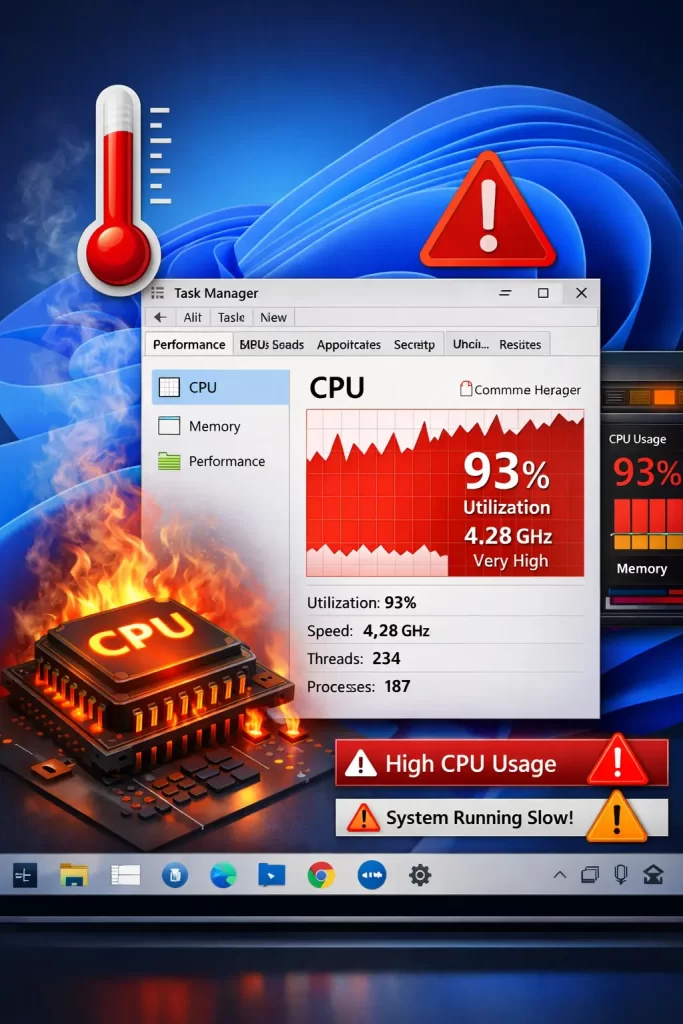
Press Ctrl+Shift+Esc, click the Processes tab, then click the CPU column header so the highest usage sits at the top. Watch it for a full minute rather than judging off a quick glance, since opening Task Manager itself can cause a brief spike.
If the process isn’t obvious, open Resource Monitor from the Performance tab for a more detailed breakdown of exactly what’s demanding CPU time.
3. Let Windows Update Finish (or Pause It)
Windows Update can legitimately hammer your CPU for 15 to 60 minutes while downloading and installing patches. If it’s been running for hours, go to Settings → Windows Update → Pause updates for a week, which forces the service to stop and lets you resume it later on your own schedule.
4. Rebuild or Limit Windows Search Indexing
A corrupted or endlessly rebuilding search index is one of the most common causes of sustained high CPU. Go to Settings → Privacy & security → Searching Windows → Advanced indexing options and limit which folders get indexed, or rebuild the index if it seems stuck.
5. Reschedule Antivirus Scans
Windows Defender’s Antimalware Service Executable can spike hard during full scans or when analyzing files in real time. Schedule scans for times you’re not using the PC, and consider adding trusted, large folders (like game libraries) to the exclusions list.
6. Disable SysMain If You’re on an SSD
SysMain, formerly known as Superfetch, preloads frequently used apps into memory to speed up load times. That’s genuinely useful on old hard drives, but on an SSD the benefit is minimal while the CPU cost can still be real.
- Press Win + R, type
services.msc, and hit Enter - Find SysMain in the list
- Right-click, choose Stop, then set Startup Type to Manual
7. Clean Up Your Browser
Browsers are frequent offenders, especially with dozens of tabs, autoplay video, or a misbehaving extension running in the background. Press Shift+Esc inside Chrome or Edge to open the browser’s own task manager, sort by CPU, and close whatever’s eating resources.
- Close tabs you’re not actively using
- Disable extensions one at a time to isolate the problem
- Turn on your browser’s memory or efficiency saver mode
- Keep the browser itself updated
8. Update Your Drivers
Outdated graphics, chipset, network, or audio drivers can force your CPU to work overtime just communicating with hardware. Check Settings → Windows Update → Advanced options → Optional updates for driver updates Windows has already found, or visit the manufacturer’s website for the latest versions directly.
9. Run a Clean Boot to Isolate Third-Party Software
If nothing above solves it, a clean boot starts Windows with only essential Microsoft services running, which helps you identify whether a third-party app is the real problem.
- Press Start, type
msconfig, and open System Configuration - Go to the Services tab
- Check Hide all Microsoft services
- Click Disable all, then restart
- If CPU usage drops, re-enable services one at a time to find the culprit
10. Scan for Malware, Including Hidden Miners
If CPU usage stays high with nothing obvious running, run a full scan with Windows Defender and a second opinion scanner like Malwarebytes. Cryptocurrency mining malware in particular is built to run quietly in the background and disguise itself as a legitimate process.
What Actually Worked For Me
I want to be honest about how messy my own troubleshooting actually was. I started by blaming Chrome, because I always blame Chrome, and I spent almost an hour disabling extensions one by one and getting nowhere. CPU usage barely moved.
Then I finally sorted Task Manager by CPU properly instead of just glancing at it, and Antimalware Service Executable was sitting at 35-45% almost constantly, not just during scheduled scans like I assumed. I’d added a game folder to my drive months earlier and never excluded it from real-time scanning, so Defender was quietly re-checking gigabytes of files every time anything touched that folder.
I excluded the folder, rescheduled my full scans for 3 AM, and my baseline CPU usage dropped back to single digits within minutes. The lesson for me was that “the obvious suspect” (my browser) wasted my time, and the real fix was something I’d set up myself months earlier and completely forgotten about.
Advanced Fixes for Persistent Cases
If you’ve worked through the list above and CPU usage is still stubbornly high, a few deeper issues might be at play:
- System Interrupts running high: This points to a driver or hardware conflict, not a process you can end directly. Disconnect non-essential USB devices one at a time and watch if usage drops.
- Power plan mismatches on laptops: Switching to the Balanced or Power Saver plan can reduce unnecessary CPU boosting under light loads.
- Corrupted system files: Run
sfc /scannowin an elevated Command Prompt to repair damaged Windows files that can cause processes to misbehave. - Failing storage drive: A dying hard drive or SSD can cause the CPU to work overtime compensating for slow read/write speeds. Check drive health with
wmic diskdrive get statusor a tool like CrystalDiskInfo.
How to Prevent High CPU Usage Going Forward
- Keep Windows and drivers updated on a regular schedule instead of letting updates pile up
- Review your startup programs every few months and disable anything you don’t need
- Exclude large, trusted folders from real-time antivirus scanning
- Uninstall browser extensions you’re not actively using
- Restart your PC at least once a week instead of only ever sleeping it
Frequently Asked Questions
What is a normal CPU usage percentage on Windows 11?
Idle CPU usage should typically sit between 1% and 10%. If your CPU regularly sits at 50% or higher with nothing demanding open, something is worth investigating.
Is it safe to disable SysMain?
Yes, especially on systems with an SSD. SysMain preloads apps into memory, which mattered more on traditional hard drives. Disabling it or setting it to manual is a common, low-risk fix.
Why does Antimalware Service Executable use so much CPU?
It’s Windows Defender’s real-time protection engine. It spikes during scheduled scans, after installing new software, or when analyzing a file it considers suspicious. Scheduling scans for off-hours usually helps.
Can too many browser tabs really cause high CPU usage?
Yes. Each open tab, especially ones with video, animations, or scripts, uses CPU resources. A cluttered browser with several extensions is one of the most common everyday causes.
Should I worry that malware is causing my high CPU usage?
It’s worth ruling out, especially if usage stays high with no clear process responsible in Task Manager. A full scan with Windows Defender plus a second scanner like Malwarebytes is a reasonable precaution.
Does Windows 11 use more CPU than Windows 10 did?
Generally, yes, somewhat. Windows 11 added extra background security features and visual effects that increase baseline CPU activity slightly, though the difference shouldn’t be dramatic on properly maintained hardware.
Editor’s Opinion
ok real talk, 90% of the time when ppl say “windows 11 is just slow” its not windows, its some background process nobody ever checked. task manager is right there, its free, and it tells you exactly whats wrong most of the time. i used to just restart and hope for the best too lol, but actually sorting by CPU column takes like 10 seconds and saves you hours of guessing. also yes defender scanning your whole drive at random times is annoying as hell, schedule that stuff.
