My MacBook microphone not working problem showed up right before a client call, and for a second I genuinely thought the mic was dead. It wasn’t. Turns out the fix took less than ten minutes once I knew where to look, and I want to walk you through exactly what worked, in the order that makes sense, so you don’t waste time clicking around randomly like I did.
Quick Answer
If your MacBook microphone isn’t working, the fastest fix is usually checking System Settings > Sound > Input to confirm the built-in mic is selected, then checking Privacy & Security > Microphone to make sure the app you’re using actually has permission. Most cases are solved by one of these two steps. If neither works, restarting the Core Audio process or resetting NVRAM usually clears it up.
Why Your MacBook Microphone Stops Working
Before you start clicking through menus, it helps to know what’s actually going on. A silent mic almost always comes down to one of a handful of causes, and none of them require a repair shop visit.
- Wrong input device selected – macOS sometimes switches away from the built-in mic after you unplug a headset or run a system update
- Missing app permission – The app was never approved for microphone access, or an update quietly revoked it
- A stalled Core Audio process – The background service that manages all sound input can freeze, especially after your Mac wakes from sleep
- App-specific audio settings – Apps like Zoom or Teams sometimes point to a different device than the one set in System Settings
- Third-party audio software – Tools like Krisp or Loopback can intercept your mic signal before it reaches the app
- Physical blockage or hardware damage – Dust, spills, or a drop can physically damage the mic
Here’s the thing I learned the hard way: don’t assume it’s hardware right away. Nine times out of ten, it’s a setting.
Step 1: Check the Input Device in System Settings
You’ll want to start here every single time, because this is the single most common cause.
- Click the Apple menu in the top-left corner and open System Settings
- Scroll down and click Sound
- Select the Input tab
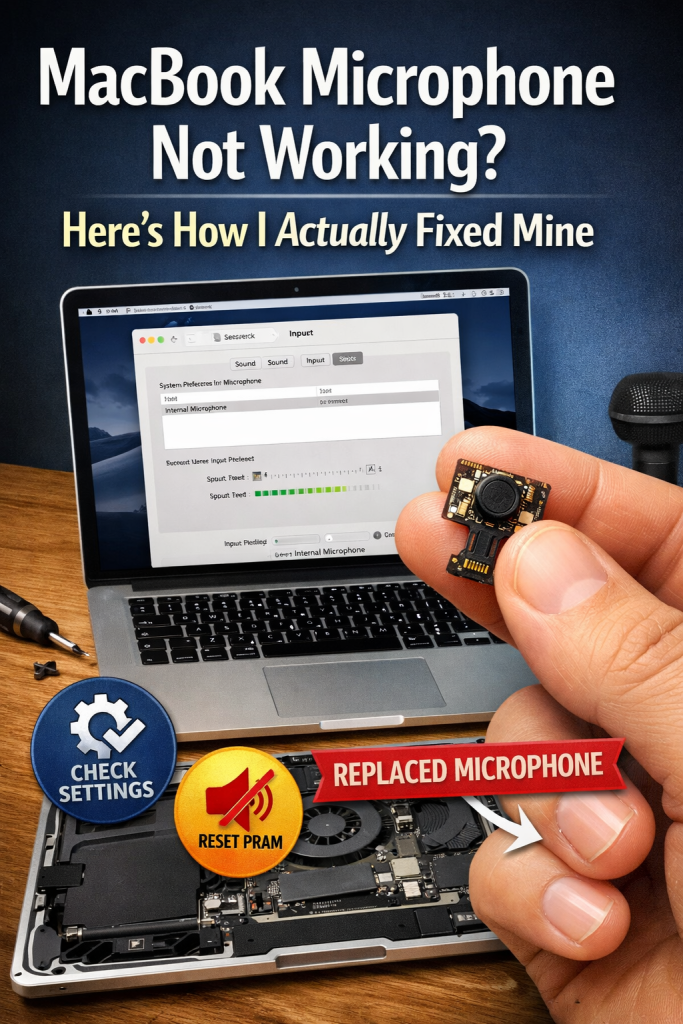
- Confirm that “MacBook Microphone” or “Built-in Microphone” is highlighted
- If a different device is selected — like a Bluetooth headset that isn’t even connected anymore — click the built-in mic to switch it back
While you’re there, check the Input Volume slider. If it’s dragged down near zero, your mic could be perfectly fine but essentially muted. Push it up to around 75% and speak toward your Mac. You should see the input level bar move as you talk.
Step 2: Grant Microphone Permission to the App
If the input device looks correct but a specific app still shows no sound, permissions are the next thing to check.
- Open System Settings
- Go to Privacy & Security
- Click Microphone
- Find the app you’re trying to use — Zoom, FaceTime, Teams, whatever it is
- Make sure the toggle next to it is switched on
If the toggle was already on, try switching it off, waiting a few seconds, then switching it back on. This forces macOS to re-check the permission and can clear up quiet glitches that a simple toggle inspection won’t catch.
Step 3: Check the App’s Own Audio Settings
This is the step people skip, and it’s the one that actually fixed my problem. Many apps keep a separate internal audio setting that ignores whatever you picked in System Settings.
For Zoom, for example:
- Open Zoom and click your profile picture
- Go to Settings
- Click the Audio tab
- Confirm the correct microphone is selected in the dropdown, not a virtual device or a disconnected headset
Do the same check in Teams, Google Meet, or whatever app is giving you trouble. If the app shows a completely different mic name than what you set in System Settings, that mismatch is your answer.
Step 4: Restart Core Audio
If the settings all look right and the mic still won’t pick up sound, the Core Audio background process may have stalled. This happens more often after waking your MacBook from sleep or plugging in USB audio gear.
You can restart it without rebooting your whole Mac:
- Open Terminal (search for it with Spotlight)
- Type
sudo killall coreaudiodand press Enter - Enter your admin password when prompted
- Wait a few seconds for the audio system to relaunch automatically
Test your mic again after this. It sounds like a small thing, but it resolves more mic issues than people expect.
Step 5: Test With Voice Memos
Before you go further down the troubleshooting path, isolate whether the problem is your Mac or the specific app you were using.
- Open the built-in Voice Memos app
- Record a short clip
- Play it back
If your voice comes through clearly here, the hardware and system settings are fine, and the issue lives inside whatever app you were originally using. If Voice Memos also picks up nothing, keep going with the steps below.
Step 6: Quit Conflicting Apps
Some apps grab exclusive control of the microphone, which blocks everything else from using it. This is common with:
- Recording software like Loopback or Audio Hijack
- Noise-cancellation tools like Krisp
- DAWs like Logic Pro or GarageBand running in the background
Quit anything audio-related that you’re not actively using, then retry the app that was having trouble.
What Actually Worked For Me
I’ll be honest, my first instinct was to blame a hardware failure, since my MacBook mic had been fine the day before. I went straight to booking a Genius Bar appointment, which in hindsight was way too fast.
Before the appointment, I tried the Core Audio restart from Step 4, and nothing changed at first. It wasn’t until I actually opened Zoom’s own audio settings that I found the real problem: Zoom was still pointed at a Bluetooth headset I hadn’t used in weeks. Once I switched it to Built-in Microphone inside the app itself, the input level bar jumped to life immediately. Cancelled the appointment, saved myself a trip.
Advanced Fixes and Edge Cases
If none of the steps above worked, there are a couple of deeper resets worth trying.
For Intel-based MacBooks, resetting the SMC and NVRAM can resolve stubborn hardware recognition issues:
- Shut down your Mac completely
- Hold Shift + Control + Option and the power button for about 10 seconds to reset the SMC
- To reset NVRAM, restart and immediately hold Command + Option + P + R for about 20 seconds
For Apple Silicon MacBooks (M1, M2, M3, M4 and newer), these manual resets aren’t available in the same way, since the system manages this automatically. A simple restart handles most of what SMC resets used to fix.
If your built-in mic is missing entirely from the Input device list — not just silent, but not listed at all — that’s a stronger sign of a physical issue. Check for visible dust or debris near the microphone grille, and if you’ve recently dropped or spilled liquid on your MacBook, it may be time to have it looked at professionally.
Prevention Tips
A few small habits keep this from happening again:
- Keep macOS updated, since Apple regularly patches audio bugs
- Avoid running more than one audio-capture app at the same time
- Double-check app-level audio settings after connecting or disconnecting any external mic or headset
- Keep your MacBook’s mic grille free of dust with a soft, dry brush
FAQ
Why is my MacBook microphone not working in Zoom but fine everywhere else? This usually means Zoom’s internal audio settings are pointed to the wrong device. Check the Audio tab inside Zoom’s settings separately from your Mac’s System Settings.
How do I test if my MacBook microphone is actually working? Open Voice Memos, record a short clip, and play it back. If your voice sounds clear, the hardware is fine and the issue is app-specific.
Does restarting my MacBook fix microphone problems? Often, yes. A restart clears temporary glitches and refreshes the Core Audio process, which resolves a good chunk of mic issues without any deeper troubleshooting.
Can a software update break my MacBook’s microphone? Yes. macOS updates occasionally reset privacy permissions or change default input settings, which can make a previously working mic appear broken.
Is it ever a hardware problem? Sometimes. If the built-in mic doesn’t appear at all in the Input list after trying every software fix, and especially if your Mac has been dropped or exposed to liquid, it’s worth getting it checked by a professional.
Editor’s Opinion
honestly this happens way more then it should for a laptop this expensive lol. every time i think its finally broken for real, its just some setting that got flipped by an update or a bluetooth device i forgot about. my advice, dont panic and dont book a repair appointment right away, just go thru the steps one by one first, it takes like 5 mins and saves you a trip. apple really needs to make these settings less confusing tbh.
