A 504 gateway timeout nginx reverse proxy error is one of those messages that tells you almost nothing while quietly pointing at a very specific problem. I first ran into this on a Node.js app sitting behind Nginx, and my instinct was to assume Nginx itself was broken. It was not. Nginx was working perfectly. It was simply waiting for my backend to respond, and giving up after sixty seconds because my backend never did.
Once you understand what this error actually means, fixing it becomes a lot less mysterious. Below, I will walk you through exactly why this happens in reverse proxy setups and how to resolve it step by step, whether your upstream is Node.js, PHP-FPM, Python, or another Nginx instance.
What a 504 Gateway Timeout Actually Means
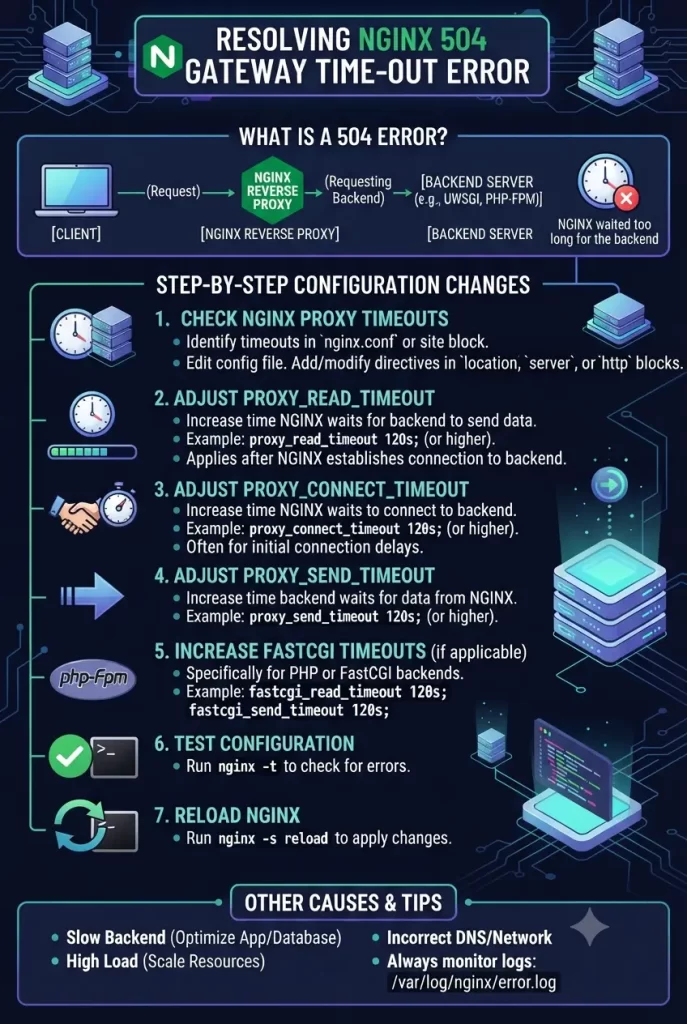
A 504 error means Nginx, acting as your reverse proxy, successfully received the request from the client but never got a timely response back from your upstream server. The request reached Nginx just fine. The problem sits behind Nginx, not inside it.
Three causes account for the overwhelming majority of these errors.
- The upstream server is genuinely too slow. Heavy database queries, slow API calls, or resource-heavy processing can easily exceed Nginx’s default wait time.
- The upstream server is unreachable or down. If the backend process has crashed or is not listening on the expected port, Nginx has nothing to talk to.
- Nginx’s own timeout settings are too short. By default, most of Nginx’s proxy timeout directives sit around sixty seconds, which is not always enough for legitimately slow operations.
Step-by-Step: How to Resolve the 504 Gateway Timeout Error
Work through these steps in order rather than jumping straight to increasing every timeout value you can find.
Step 1: Check Your Nginx Error Logs First
Before changing any configuration, you should open your Nginx error log, usually located at /var/log/nginx/error.log, and look for lines mentioning “upstream timed out.” This confirms the error is genuinely timeout-related and often tells you which specific upstream or location block is involved.
tail -f /var/log/nginx/error.logStep 2: Confirm the Upstream Server Is Actually Running
You should verify that your backend application is running and listening on the port Nginx expects. For example, if your app should be running on port 3000, you can check with:
sudo netstat -tulpn | grep 3000If nothing is listening on that port, the fix has nothing to do with Nginx timeouts at all, since your backend is simply down.
Step 3: Identify Which Timeout Directive Actually Applies
Different backend types use different timeout directives, and increasing the wrong one will not fix anything.
- HTTP backends like Node.js, Python, or another Nginx instance use
proxy_read_timeout. - PHP-FPM backends use
fastcgi_read_timeoutinstead. - Connection establishment issues use
proxy_connect_timeout, which should stay under 75 seconds per Nginx’s own recommendation.
Step 4: Increase the Read Timeout for HTTP Backends
If your upstream is an HTTP application like Node.js, Python, or Ruby, you should adjust the relevant location block in your Nginx configuration file:
location / {
    proxy_pass http://127.0.0.1:3000;
    proxy_read_timeout 120s;
    proxy_connect_timeout 60s;
    proxy_send_timeout 120s;
}
You should only increase these values as far as your backend genuinely needs, since a very long timeout can leave a slow endpoint quietly consuming server resources instead of failing fast.
Step 5: Increase fastcgi_read_timeout for PHP-FPM Backends
If your upstream is PHP through PHP-FPM, the directive you actually need to change is different from the HTTP proxy settings above:
location ~ \.php$ {
    fastcgi_pass unix:/var/run/php-fpm/php-fpm.sock;
    fastcgi_read_timeout 120s;
}
You should also make sure PHP itself is not set to time out before Nginx does, by checking max_execution_time in your php.ini or PHP-FPM pool configuration.
Step 6: Handle Streaming or Long-Lived Connections Separately
If a specific endpoint handles streaming responses or long-lived connections, such as server-sent events, apply dedicated settings just for that location block rather than raising timeouts globally:
location /api/stream {
    proxy_pass http://backend;
    proxy_buffering off;
    proxy_cache off;
    proxy_read_timeout 3600s;
    proxy_set_header Connection '';
    proxy_http_version 1.1;
    chunked_transfer_encoding off;
}
Step 7: Reload Nginx to Apply Your Changes
After editing your configuration, always test it before reloading, since a syntax error will prevent Nginx from restarting properly.
sudo nginx -t
sudo systemctl reload nginx
Step 8: Investigate and Fix the Real Backend Bottleneck
If you find yourself needing timeout values well beyond a minute or two, treat that as a warning sign rather than a solution. You should investigate slow database queries, inefficient code paths, or under-resourced servers, since a backend that routinely needs several minutes usually has a performance problem worth fixing at the source.
How to Catch This Error Before Users Do
A little proactive monitoring saves you from finding out about a 504 error the same way your users do.
- Set up uptime monitoring on key endpoints so you get alerted the moment response times spike, rather than hours later.
- Log request timing in Nginx using a custom log format that includes upstream response time, making slow endpoints easy to spot.
- Review slow query logs regularly on your database, since slow queries are one of the most common root causes behind timeout errors.
- Load test new endpoints before they go live, especially anything involving heavy processing or external API calls.
- Set sensible per-location timeouts from the start, rather than relying on one global default across your entire configuration.
Common Mistakes to Avoid
A few habits make this error harder to fix rather than easier.
- Increasing every timeout directive at once without confirming which one actually applies to your backend type.
- Setting extremely long timeouts globally in the http block instead of scoping them to the specific location that needs them.
- Ignoring the upstream server entirely and assuming the fix is always on the Nginx side.
- Forgetting to check whether the backend has crashed, which no amount of timeout tuning will fix.
- Skipping the configuration test command before reloading Nginx, risking downtime from a typo.
What Actually Worked For Me
When I hit this error on my own Node.js setup, increasing proxy_read_timeout felt like the obvious fix, and it did stop the 504 from appearing. But the deeper issue was a slow database query running on every request to that specific endpoint.
You should treat a timeout increase as a temporary patch rather than a real solution unless your backend genuinely needs the extra time for legitimate reasons. Once I optimized the query itself, I was able to lower the timeout back down, and the whole endpoint responded far more reliably under load.
FAQ
1. What is the difference between a 502 and a 504 error in Nginx? A 502 usually means Nginx received an invalid or malformed response from the upstream server, while a 504 means Nginx never received a response at all within the allowed time, which points more directly at a timeout issue.
2. What is Nginx’s default timeout value? Most of Nginx’s proxy timeout directives default to around sixty seconds, which is often enough for typical requests but can be too short for heavier backend operations.
3. Should I just set all my timeouts to a very high number to be safe? No, setting timeouts extremely high can mask real performance problems and leave slow requests tying up server resources for far longer than necessary instead of failing quickly.
4. Does this error mean something is wrong with Nginx itself? Not usually. In most cases, Nginx is working correctly and simply waiting on a slow or unresponsive upstream server, meaning the real problem sits behind Nginx rather than within it.
5. Which timeout directive should I change for a PHP application? For PHP-FPM backends, fastcgi_read_timeout is almost always the directive that needs adjusting, rather than the proxy_read_timeout directive used for standard HTTP backends.
6. Can a firewall cause a 504 gateway timeout error? Yes, network issues like blocked firewall rules or unstable connections between Nginx and the upstream server can prevent a timely response, producing the same 504 error as a slow backend.
7. How do I know if the problem is Nginx or my backend application? Checking your Nginx error logs for “upstream timed out” messages, combined with confirming your backend is actually running and responsive, will usually make the source of the problem clear.
8. Is it normal to need different timeout settings for different endpoints? Yes, applying specific timeout values to individual location blocks, rather than one setting for your entire server, is a common and recommended practice for endpoints with different performance needs.
Editor’s Opinion
The first time i saw a 504 error i honestly thought i broke nginx completly lol. Turns out nginx was doing exactly what its suppose to do, it was just waiting on my slow backend the whole time. Once you understand thats basicaly all this error means, it stops being scary and just becomes a normal debugging task. My only real advice is dont just blindly bump every timeout number up, actualy check your logs first, it saves alot of guessing.
