Had a client’s staging VM that just would not accept traffic on 8080 no matter what I did. Firewall rule said allow, port was open on the instance itself, and traffic still got dropped. Spent a solid chunk of an afternoon on it before realizing the actual problem had nothing to do with the port number at all — it was a target tag mismatch, which is one of those GCP quirks that catches almost everyone at least once.
Why It Fails
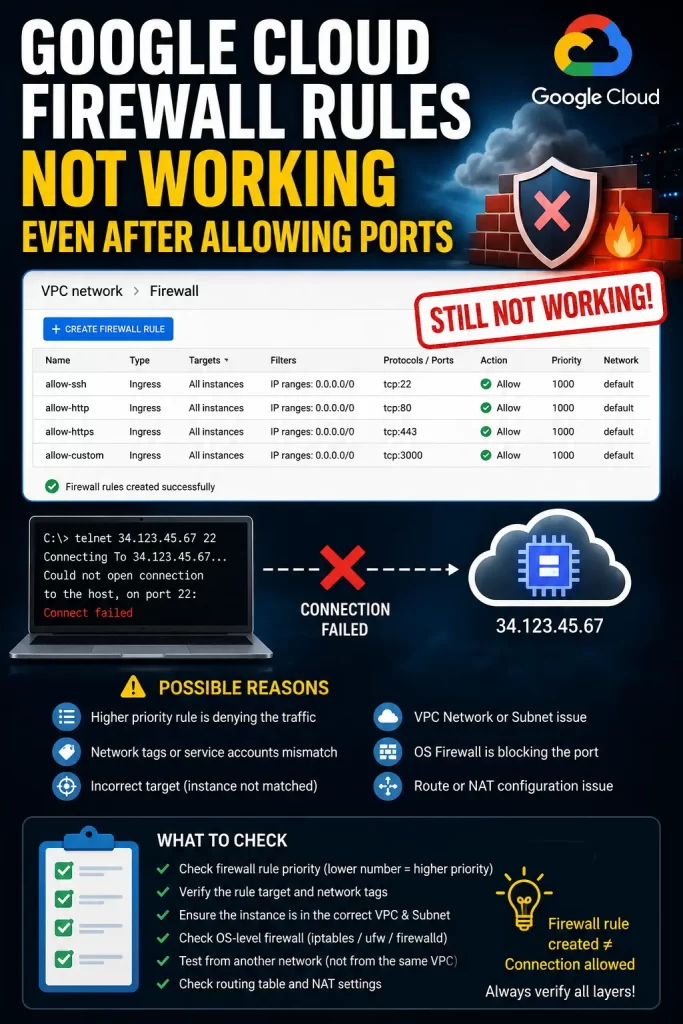
GCP firewall rules look simple on the surface — allow, deny, port, done — but there are several moving parts that all have to line up, and most “rule not working” situations trace back to one of these:
- Priority conflicts. Rules are evaluated from the lowest priority number to the highest, and the first matching rule for that specific protocol/port combination wins. If you have a deny rule at priority 900 and your new allow rule sits at priority 1000, the deny rule still wins for anything it covers, even though 1000 feels like it should be “more specific” or “more recent.”
- Target tag or service account mismatch. If your allow rule is scoped to instances with a specific network tag, and the VM you’re testing against doesn’t actually have that tag attached, the rule simply doesn’t apply to it. This is quietly the most common cause of “I added the rule and it still doesn’t work.”
- Wrong network or subnet. In a project with multiple VPC networks, it’s easy to create a firewall rule in the wrong network entirely. The rule exists, it’s valid, it’s just attached to a VPC your VM isn’t in.
- Source range too narrow or wrong. An allow rule scoped to a specific CIDR block won’t help if your traffic is actually coming from somewhere else — a load balancer’s IP range, a different subnet, or (very commonly) Google’s health check ranges, which have their own dedicated source blocks.
- The instance’s own OS-level firewall is still blocking it. GCP’s VPC firewall and the guest OS firewall (iptables, ufw, Windows Firewall) are two completely separate layers. Fixing one does nothing for the other.
- Less obviously, the implied deny-all-ingress rule at priority 65535 is still sitting underneath everything. Custom VPC networks start with zero allow rules, so if your allow rule doesn’t match for some reason, you fall straight through to that default deny.
Quick Answer
- List all firewall rules sorted by priority and check for a deny rule with a lower number blocking your allow rule
- Confirm the VM actually has the network tag your firewall rule targets — this is the single most common miss
- Run a GCP Connectivity Test between source and destination to see exactly which rule applies
- Check that the rule is attached to the correct VPC network, not just “a” VPC in the project
- Verify the OS-level firewall on the instance itself isn’t also blocking the port
Technical Comparison Table
| Cause | Symptom | Fix |
|---|---|---|
| Priority conflict | Traffic blocked despite an allow rule existing | Lower the allow rule’s priority number, or raise the deny rule’s |
| Target tag mismatch | Rule exists but “doesn’t apply” | Add the matching tag to the VM, or fix the rule’s target scope |
| Wrong VPC network | Rule seems ignored entirely | Recreate or move the rule to the correct network |
| OS-level firewall still active | GCP allows it, connection still refused | Update iptables/ufw/Windows Firewall on the instance |
Step-by-Step Fixes
Step 1: List All Rules Sorted by Priority
gcloud compute firewall-rules list \
  --format="table(name,priority,direction,sourceRanges[],targetTags[],allowed[],denied[])" \
  --sort-by=priority
Scan for anything with a lower priority number than your allow rule that denies the same protocol and port range. Remember: lower number means higher priority, which trips people up constantly since it’s the opposite of what feels intuitive.
Step 2: Verify Target Tags Actually Match
Check what your rule targets:
gcloud compute firewall-rules describe RULE_NAME --format="yaml(targetTags)"Then check what tags the VM actually has:
gcloud compute instances describe VM_NAME --format="yaml(tags)"If these don’t line up, that’s your answer. Either add the missing tag to the instance or adjust the rule’s target scope to match what’s actually on the VM.
Step 3: Confirm the Rule Is on the Right Network
gcloud compute firewall-rules describe RULE_NAME --format="yaml(network)"Compare that against the VPC network your VM’s NIC is actually attached to. In projects with more than one VPC — which happens more than you’d think once a team’s been running for a while — this mismatch is easy to create and genuinely tedious to spot just by eyeballing the console.
Step 4: Run a Connectivity Test
This is the fastest way to get a definitive answer instead of guessing:
gcloud network-management connectivity-tests create test-http \
  --source-instance=projects/my-project/zones/us-central1-a/instances/source-vm \
  --destination-instance=projects/my-project/zones/us-central1-a/instances/dest-vm \
  --protocol=TCP \
  --destination-port=80 \
  --project=my-project

gcloud network-management connectivity-tests describe test-http \
  --project=my-project \
  --format=json
The output shows the entire path the packet would take and tells you exactly which rule it hits and whether that rule allows or denies it. No guessing which of your fifteen firewall rules is actually the one deciding the outcome.
Step 5: Check Source Ranges Against the Real Traffic Source
If you’re troubleshooting a load balancer health check specifically, make sure your rule allows traffic from Google’s health check ranges (130.211.0.0/22 and 35.191.0.0/16), not just your own IP or office CIDR. This one gets missed constantly on new load balancer setups where someone tested the rule from their own laptop, saw it work, and didn’t account for where the actual health checker traffic comes from.
Step 6: Check the Instance’s Own OS Firewall
SSH into the VM and check what’s actually listening and whether the local firewall is interfering:
ss -tlnp
sudo iptables -L -n
GCP’s firewall being wide open doesn’t mean anything if ufw or iptables on the instance itself is still dropping the connection. This is a completely separate layer and one of the more common things people forget to check after confirming the VPC-level rule looks fine.
What Actually Worked For Me
I went through the priority check first since that’s the textbook answer, and everything looked clean — no conflicting deny rule at a lower priority anywhere near the port I cared about. So that wasn’t it, which meant I’d burned twenty minutes ruling out the “obvious” cause.
What actually turned out to be wrong was the target tag. The allow rule was scoped to instances tagged web-server, and the VM I was testing against had been created from a slightly different template that never got that tag applied — an oversight from whoever set up the instance group originally, not something I’d done. I only caught it because I ran the connectivity test out of frustration more than any real diagnostic instinct, and the output flat out told me the packet was hitting the implicit deny rule instead of my allow rule at all. That’s the moment it clicked: the allow rule wasn’t being evaluated against this VM in the first place, because it didn’t match on tags. Once I added the tag, it worked immediately.
Advanced Fixes and Edge Cases
- Same priority allow and deny rules. If an allow rule and a deny rule share the exact same priority number, the deny rule wins by design. This is documented but easy to forget, and it’s a sneaky one because nothing about the console visually flags this as a conflict.
- VPC Flow Logs can show you exactly which connections are being accepted or rejected at the network level, which is worth turning on temporarily if Connectivity Tests alone aren’t giving you a clear enough picture of ongoing traffic (as opposed to a single simulated test).
- VPC peering doesn’t inherit firewall rules. If you’re troubleshooting traffic across a peered VPC, remember that peering only exchanges routes — each VPC still needs its own firewall rules allowing the peer’s CIDR range. And peering is non-transitive, so A-to-B and B-to-C peering does not give you A-to-C connectivity.
- Private Google Access vs Cloud NAT. If a private VM can reach Google APIs but not the general internet (or vice versa), that’s not a firewall issue at all — it’s a routing/NAT configuration question, and no amount of firewall rule tweaking will fix it.
Prevention Tips
Use Connectivity Tests as a first diagnostic step rather than a last resort — it saves the guesswork of manually tracing priority and tag logic every time something doesn’t connect. Keep a consistent tagging convention across instance templates so newly created VMs don’t silently miss the tags your firewall rules expect. And document which VPC network each firewall rule belongs to if your project has more than one, since that context disappears fast once a few people have touched the setup.
FAQ
Why does my firewall rule show as “enabled” but traffic still gets blocked? Enabled just means the rule is active and being evaluated — it doesn’t mean it matches your traffic. Check priority, targets, and source ranges specifically.
Do firewall rules apply to traffic between VMs in the same VPC? Yes. GCP firewall rules govern all traffic including internal VM-to-VM communication, not just traffic from the internet.
Can I have both allow and deny rules at the same priority? You can, but the deny rule wins in that case by design, regardless of which one you created first.
Does deleting a firewall rule take effect immediately? Yes, generally within seconds — there’s no propagation delay comparable to DNS here.
Why does everything work from my laptop but not from the load balancer? Almost always a source range issue — your rule likely allows your IP but not the load balancer’s or health checker’s actual source range.
Editor’s Opinion
nine times out of ten when someone says “i allowed the port and its still not working” the port was never the problem — its priority ordering or a target tag that doesnt match whats actually on the vm. run the connectivity test before you touch anything else, it just tells you flat out which rule is deciding the outcome instead of you manually tracing priorities by hand like its 2015.
