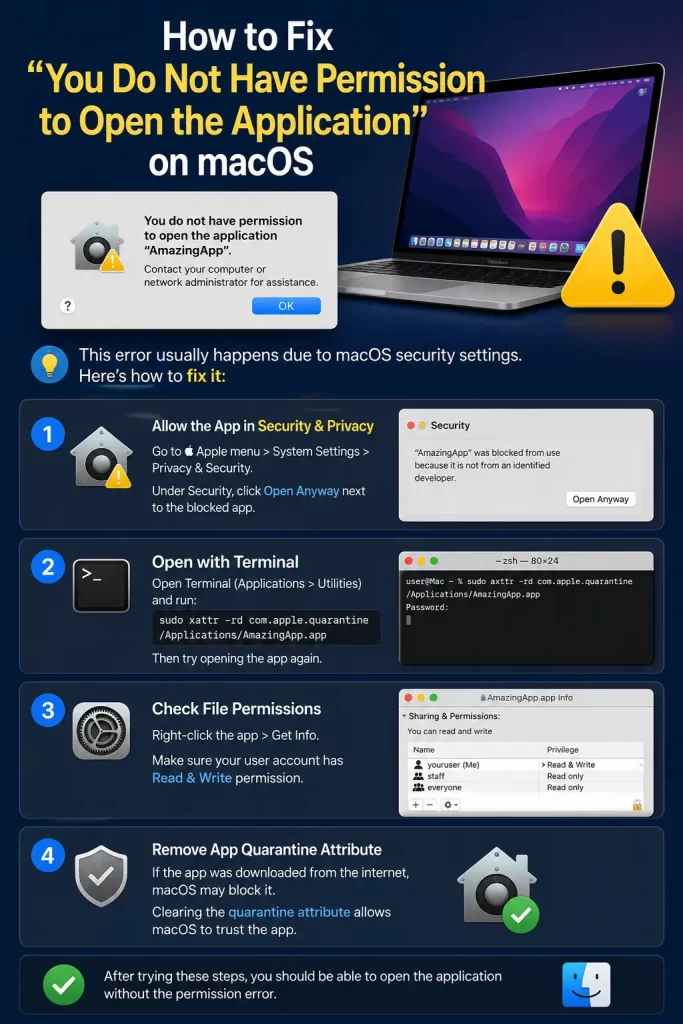
I clicked on an app I’d used for months without issue and got hit with “You do not have permission to open the application [AppName]. Contact your computer or network administrator for assistance.” No admin, no network, just me and my own laptop, so that message is objectively unhelpful. This error confuses a lot of people because it sounds like a corporate IT problem, but it’s almost always something local — permissions, ownership, or a broken code signature.
Why This Happens
This error blew up specifically during macOS Big Sur, where Apple even acknowledged it as a known bug tied to scanner drivers and certain app launches, and fixed part of it in macOS 11.6. But it didn’t disappear after that update — the underlying causes are broader than one OS version, and people still run into it regularly on current macOS.
The real causes, in rough order of how often I’ve seen them:
- File ownership or permission mismatches, especially after migrating from an old Mac, restoring from a Time Machine backup, or copying an app between user accounts. The app’s files end up owned by a user ID that doesn’t match your current account.
- A broken or missing code signature. Apps get re-signed when developers push updates, and if that process breaks somewhere along the line — a bad build, an interrupted download — macOS can’t verify the app enough to grant it permission to launch.
- Corrupted extended attributes, similar to the quarantine flag issue but distinct — this is about actual file permission bits, not just the download-source flag.
- The app is on an external drive or network volume where permissions work differently than your internal storage, particularly if that drive is formatted for Windows or shared across multiple machines.
- Less obviously, a decompression tool mangling permissions during extraction. I’ve seen this specifically with certain .zip/.dmg combos where the archiver strips execute permissions it shouldn’t.
Quick Answer
- Right-click the app > Get Info > expand Sharing & Permissions > make sure your account shows Read & Write
- If Get Info doesn’t fix it, force a permissions reset via Terminal with
chmod -R 755on the app - Try re-signing the app locally with
codesign --force --deep --sign - /path/to/App.app - Check if the app is on an external or network drive — permissions there behave differently
- If nothing works, delete and reinstall from the original source rather than a backup copy
Step-by-Step Fixes
Step 1: Check Permissions in Get Info
Select the app in Finder, press Command+I (or right-click > Get Info), and expand “Sharing & Permissions” at the bottom. Look at what your account shows next to it. If it’s not “Read & Write,” click the lock icon to unlock (you’ll need an admin password), then change the setting for your username.
Step 2: Fix Permissions via Terminal
If Get Info doesn’t stick or doesn’t show the option clearly, open Terminal and run:
chmod -R 755Leave a trailing space, drag the app from Finder into the Terminal window to auto-fill the path, then hit Enter. This sets read/write/execute for the owner and read/execute for everyone else, which is the standard permission set for a working app bundle.
Some people reach straight for chmod -R 777, which opens everything up to everyone. It’s not the right call here — it’s overly permissive, and from what I’ve seen it doesn’t actually fix this particular error any more reliably than 755 does.
Step 3: Check Ownership
If permissions look right but it’s still blocked, ownership might be off. Run:
sudo chown -R $(whoami)Drag the app in after the space, same as before. This forces your current user account to own every file inside the bundle, which matters if the app came from a different user profile or an old backup.
Step 4: Force Re-Sign the App Locally
This one fixes it when the code signature itself is the problem, not the file permissions:
codesign --force --deep --sign -This isn’t the same as getting a real Apple-issued signature — it’s a local ad-hoc signature that satisfies macOS’s launch check without actually verifying the developer. Only do this on apps you trust, since you’re the one vouching for it now, not Apple.
Step 5: Remove Quarantine Too
Since this error sometimes overlaps with the “damaged” quarantine issue, it’s worth running the quarantine removal alongside the permission fix:
xattr -crI’d do this after the chmod and codesign steps, not before — permissions first, signature second, quarantine last, in that order.
Step 6: Reinstall From the Original Source
If none of the above works, stop troubleshooting the copy you have. Delete it, empty the Trash, and download a completely fresh copy directly from the developer’s site — not a backup, not a copy from another Mac. A surprising number of these cases turn out to be a subtly corrupted file that no amount of permission fiddling will resolve.
What Actually Worked For Me
I fixed the permissions through Get Info first, since that’s the obvious first move, and the app still wouldn’t launch. So I moved to Terminal and ran the chmod command, still nothing. At that point I was fairly annoyed, because I’d already spent twenty minutes on something that used to just work.
The thing that actually did it was the codesign command, not because I had any particular reason to think the signature was the issue — I just worked down the list of things people online said had worked for them, and that one happened to be it for my case. Not 100% sure why the signature had broken in the first place; the app hadn’t been updated recently as far as I could tell. Your mileage may genuinely vary here depending on which of these three (permissions, ownership, signature) is actually broken for your specific app.
Advanced Fixes and Edge Cases
- Try a different archive utility if the app came from a .zip. Some users have traced this specifically to how certain third-party unzip tools handle execute permissions during extraction — switching to macOS’s built-in Archive Utility instead of whatever they’d been using resolved it without touching permissions at all.
- Check if the app requires Full Disk Access. Go to System Settings > Privacy & Security > Full Disk Access and confirm the app (or its underlying process) is listed and enabled, particularly for backup tools, security software, or anything that reads broadly across your filesystem.
- Test from a new admin user account. Create a throwaway admin account and try launching the app there. If it opens fine in the new account, the issue is isolated to something in your original user profile rather than the app itself — which points you toward account-level permission corruption instead of an app problem.
- Check the parent folder’s permissions, not just the app bundle. A restrictive parent folder can block access to something inside it even when the app’s own permissions look completely fine.
Prevention Tips
Download apps fresh from official sources rather than copying installers between Macs or pulling them out of old backups — permission and ownership metadata doesn’t always travel cleanly. Keep macOS updated, since several permission-handling bugs (the Big Sur one especially) got patched in later releases. And if you’re migrating to a new Mac, reinstall major apps from scratch rather than relying entirely on Migration Assistant to carry everything over perfectly.
FAQ
Does this mean someone else has admin control over my Mac? No. Despite mentioning “network administrator,” this is a local permissions issue on a personal Mac, not an actual network restriction.
Is chmod 777 ever the right fix? Rarely, and not really for this specific error. It’s overly broad and mostly just masks the actual permission problem rather than fixing it properly.
Will reinstalling macOS fix this permanently? Usually unnecessary. This is almost always isolated to specific files, not a system-wide fault that needs a full reinstall.
Why does this happen mostly with apps from outside the App Store? App Store apps go through Apple’s own signing and permission pipeline, so they rarely hit this. Apps installed manually depend on the developer’s build process being clean, which isn’t always the case.
Can antivirus software cause this error? Yes, occasionally — some third-party security tools alter file permissions or quarantine flags as part of their scanning process, which can trigger this even on legitimate apps.
Editor’s Opinion
this error’s wording is genuinely bad, telling a home user to “contact your network administrator” when theres no network and no administrator besides them is just confusing for no reason. the actual fix is almost always boring — permissions, ownership, or a signature thats gone stale — so work through those three in order before assuming somethings deeply broken. and skip chmod 777, its lazier than it is effective.
