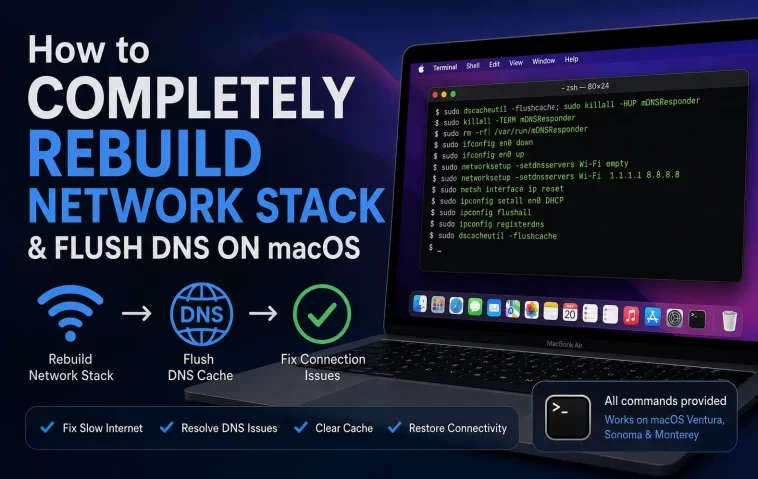
Wi-Fi that connects but won’t load anything, DNS that resolves the wrong IP for a site you just changed servers on, a VPN that leaves your network in a half-broken state after disconnecting — if you’ve hit any of that on a Mac, flush dns mac is probably the search that got you here, and honestly it’s usually only step one. Sometimes flushing DNS fixes it in five seconds. Sometimes the whole network stack needs a proper rebuild, and that’s a longer job than most guides let on.
Quick Answer
- Flush DNS first with
sudo dscacheutil -flushcache; sudo killall -HUP mDNSResponder— takes five seconds, fixes stale records - If that doesn’t help, delete the network config files in
/Library/Preferences/SystemConfiguration/and restart to force macOS to regenerate them - Back up those files before deleting anything — you’ll thank yourself if it doesn’t help
- A VPN client or corporate MDM profile is often the actual root cause, not DNS itself
- This resets Wi-Fi passwords and saved networks, so know that going in
Why Your Mac’s Network Stack Gets Stuck
DNS caching and the deeper network stack are two different layers, and conflating them is how people end up flushing DNS five times before realizing that’s not the problem. Here’s what’s actually going on underneath:
- Stale DNS records genuinely do build up. Your Mac caches domain-to-IP mappings so it doesn’t have to ask a resolver every single time. So when a site changes servers, or you edit
/etc/hostsfor local dev, the old answer can stick around longer than it should. - The SystemConfiguration preference files get corrupted or bloated over time. These plists store your saved Wi-Fi networks, interface priorities, and location profiles, and after enough network switches, VPN connects/disconnects, or macOS updates, they can end up in a state that doesn’t match reality anymore.
- VPN clients frequently leave routing tables or DNS settings behind after disconnecting. This one’s underrated — I’ve seen more “my internet is broken” tickets traced back to an old VPN profile than to actual DNS corruption.
- A corporate MDM or antivirus network filter can silently override your DNS settings, especially on work-issued Macs. If you’re on a managed device, this is worth checking before you nuke your preferences.
- Less commonly, a bad network location profile (yes, those still exist and yes, people still forget they created one two years ago).
Step-by-Step Fixes
Step 1: Flush DNS
Open Terminal and run:
sudo dscacheutil -flushcache; sudo killall -HUP mDNSResponderYou’ll be prompted for your password — nothing shows on screen while you type it, that’s normal, not a bug. This works across Sequoia, Sonoma, Ventura, and Tahoe; the underlying mDNSResponder service hasn’t changed enough to need version-specific commands the way it did years ago.
If it runs and returns you to the prompt with no output, it worked. No confetti, no confirmation message — that’s just how it is.
Step 2: Renew Your DHCP Lease
Sometimes the problem isn’t DNS at all, it’s that your Mac is holding onto a stale IP lease. Go to System Settings > Network, select your active connection, click Details (or the “i” icon depending on your macOS version), and hit “Renew DHCP Lease” under TCP/IP.
Step 3: Toggle the Network Interface Off and Back On
This sounds too simple to matter but it clears a decent chunk of transient states. Turn Wi-Fi off, wait about 10 seconds, turn it back on. And if you’re on Ethernet, unplug the cable and plug it back in — same idea.
Step 4: Create a Fresh Network Location
Go to System Settings > Network > Location dropdown > Edit Locations, and create a new one. This gives you a clean slate without touching your existing saved configuration, so it’s worth trying before the full file deletion below.
Step 5: Rebuild the Network Stack (Full Reset)
This is the actual “rebuild,” and it’s more involved than a DNS flush, so don’t jump here first.
- Quit any VPN clients and disconnect from Wi-Fi.
- Open Finder, press Command+Shift+G, and go to
/Library/Preferences/SystemConfiguration/ - Copy the whole folder somewhere safe — your Desktop, an external drive, wherever. This step is not optional if you want an easy way back.
- Delete these files specifically (not the whole folder, unless you’re comfortable rebuilding everything from scratch):
NetworkInterfaces.plistpreferences.plistcom.apple.airport.preferences.plistcom.apple.network.identification.plistcom.apple.wifi.message-tracer.plist
- Restart the Mac.
- macOS regenerates these files automatically on boot with default settings. Reconnect to your Wi-Fi network and re-enter the password — this part’s unavoidable since deleting the files wipes saved network credentials.
If you’re comfortable with Terminal, the equivalent is sudo rm -r /Library/Preferences/SystemConfiguration after backing the folder up, though I’d only recommend that if you actually know what you’re removing.
Technical Comparison Table
| Method | What It Fixes | What It Doesn’t Fix | Data Loss Risk |
|---|---|---|---|
| Flush DNS | Stale domain lookups, wrong site loading after a DNS change | VPN routing leftovers, corrupted Wi-Fi profiles | None |
| Renew DHCP lease | Stuck or expired IP address | DNS cache, saved network settings | None |
| New network location | Config conflicts without touching existing setup | Deep corruption in the interface list itself | None |
| Full SystemConfiguration reset | Corrupted Wi-Fi profiles, broken interface priorities | Hardware faults, ISP-side issues | Saved Wi-Fi passwords wiped |
What Actually Worked For Me
I had a MacBook that would connect to Wi-Fi, show full signal, and then just… not load anything. Flushed DNS, nothing. Renewed the DHCP lease, nothing. Restarted twice, still nothing, which was the point where I started getting genuinely annoyed because every guide online just says “flush DNS” like it’s a universal fix and it very much is not.
What ended up mattering was a VPN client I’d used for a client project weeks earlier. I hadn’t opened the app in a while, but a launch agent from it was apparently still running in the background and quietly rerouting traffic through a dead server. So — that’s not quite right either, let me back up: it wasn’t actively running, but it had left a network extension installed that was still intercepting traffic on boot. Removing the VPN app entirely (not just quitting it) and then doing the SystemConfiguration file reset cleared it.
So the DNS flush wasn’t wrong, exactly. It just wasn’t touching the actual problem, which was sitting one layer deeper.
Advanced Fixes and Edge Cases
- Check for leftover VPN or proxy configuration profiles under System Settings > VPN & Network, and also check System Settings > Privacy & Security > Profiles for anything MDM-related you don’t recognize.
- Use
scutil --dnsin Terminal to see exactly which DNS resolvers your Mac is currently using per-interface. If it’s showing a resolver you didn’t set, something (VPN, proxy, router DHCP) is injecting it. - Check
/etc/resolv.confand/etc/hostsfor manual entries that might be overriding normal resolution — leftover local dev entries are a common, boring cause. - Run
netstat -rnto inspect your routing table if traffic seems to be going somewhere it shouldn’t. A VPN that didn’t clean up properly often leaves a default route pointing at a dead gateway.
Prevention Tips
Uninstall VPN clients properly instead of just deleting the app — most have a proper uninstaller that removes network extensions and launch agents cleanly. Avoid creating new network locations you don’t need; extra locations are one of those things that accumulate silently and confuse troubleshooting later. And if you manage multiple network profiles for work versus home, name them clearly so you’re not guessing which one is active when something breaks.
FAQ
Will flushing DNS disconnect me from Wi-Fi? No, it doesn’t touch your connection at all — it only clears cached lookups.
Do I need to restart after flushing DNS? No. The command takes effect immediately.
Will the SystemConfiguration reset delete my saved Wi-Fi passwords? Yes. You’ll need to reconnect and re-enter passwords for every network afterward.
Is this the same as resetting network settings on iPhone? Conceptually similar, but the files and process are completely different since it’s a different OS.
Why does my Mac keep reverting to the wrong DNS server? Usually a VPN, proxy config, or router-assigned DHCP DNS setting overriding whatever you manually set. Check scutil --dns to confirm.
Editor’s Opinion
flush dns is the “have you tried turning it off and on again” of mac networking — worth doing, rarely the actual fix. if your problem is genuinely stubborn, its almost always something sitting one layer up, usually a vpn or proxy thing nobody remembers installing. back up that SystemConfiguration folder before you delete anything, i say this because i didnt the first time and had a mildly stressful ten minutes googling how to get my wifi list back.
