I remember staring at my screen last week, completely baffled when my self-hosted app refused to load. My Cloudflare Tunnel was active, yet every attempt to reach my local server resulted in a frustrating timeout error. If you are dealing with the exact same issue right now, you know how annoying it is to troubleshoot networking gremlins when you just want your services to work. Fortunately, after hours of digging through logs, testing configurations, and isolating variables, I managed to pinpoint the root causes and get everything running smoothly again.
Understanding How Cloudflare Tunnels Work
Before diving into the fixes, it helps to understand what is happening behind the scenes. A Cloudflare Tunnel creates an outbound-only connection from your local server to Cloudflare’s edge network using a daemon called cloudflared. Because your server reaches out to Cloudflare rather than opening inbound ports on your router, you do not need to mess with port forwarding or dynamic DNS.
However, this architecture also means that if any link in the chain breaks—from the local service health to the authentication certificate—the whole connection drops. Let us walk through the most effective troubleshooting steps to resolve your connectivity issues step by step.
Step 1: Verify That the Cloudflared Service Is Running
The very first thing you should check is whether the tunnel daemon is actually active on your machine. Sometimes the service crashes unexpectedly, or it simply failed to start after a system reboot.
- Open your terminal or command prompt on the machine hosting your local server.
- Check the status of the service based on your operating system:
- If the service is stopped or inactive, start it immediately using
sudo systemctl start cloudflaredor your platform’s equivalent command.
If the service refuses to stay running, inspect the logs immediately. You can view live logs on Linux by running journalctl -u cloudflared -f to catch any immediate crash errors.
Step 2: Check Your Local Service and Port Configuration
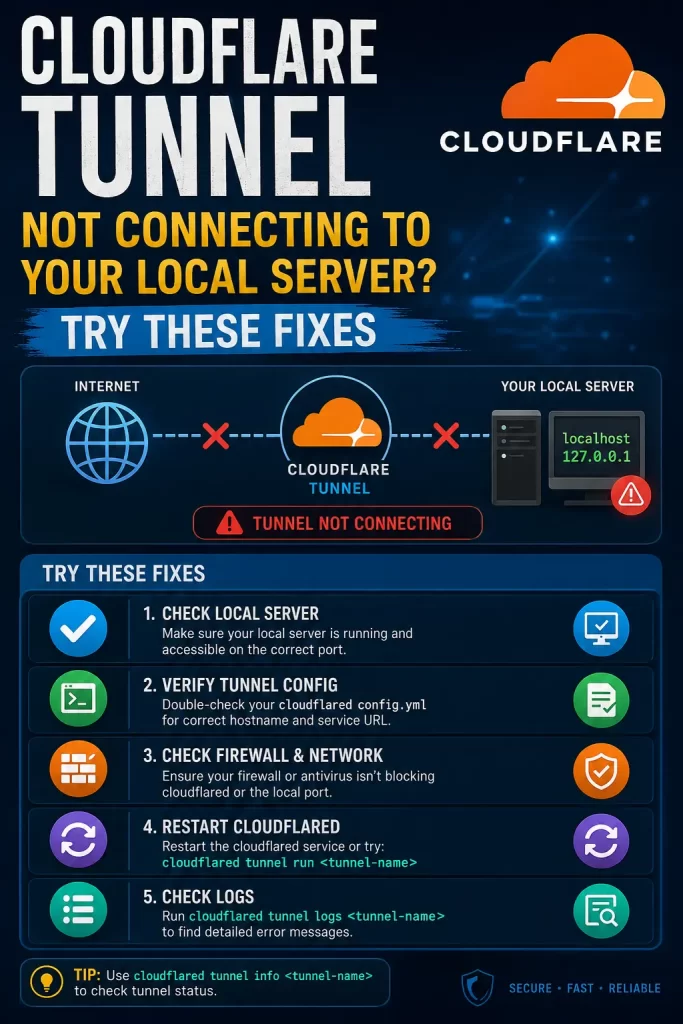
A very common mistake is having the cloudflared service running fine, but pointing to the wrong local IP address or port number. Your tunnel configuration file dictates where traffic goes once it hits your machine.
- Locate your configuration file, typically found at
/etc/cloudflared/config.ymlon Linux or inside your installation directory on Windows. - Look at the ingress rules section to verify your mappings.
- Ensure that the local URL uses the correct protocol (http or https) and matches your actual server setup.
- Example correct configuration snippet:YAML
ingress: - hostname: app.yourdomain.com service: http://localhost:8080 - service: http_status:404 - If you recently changed your local app’s port or moved it to a different container, update this file and restart the tunnel daemon.
Step 3: Inspect DNS and CNAME Records in Your Cloudflare Dashboard
If your tunnel daemon is healthy and your routing configuration looks correct, the problem might lie inside your Cloudflare DNS management panel. The external requests need a proper pointer to reach your tunnel.
- Log into your Cloudflare dashboard and navigate to your website’s DNS settings.
- Look for the CNAME record associated with your tunnel hostname.
- Verify that the target matches your unique tunnel ID followed by
cfargotunnel.com. - Ensure that the proxy status is turned ON (the orange cloud icon). If it is set to DNS only (grey cloud), edge routing might fail for specific tunnel configurations.
Step 4: Validate Your Tunnel Authentication and Certificates
Sometimes authentication tokens expire, or the machine gets disconnected from your Cloudflare account due to credential mismatches. If you see certificate errors in your logs, you need to re-authenticate.
- Run the login command again in your terminal:
cloudflared tunnel login. - Open the generated link in your browser, log in to your Cloudflare account, and select your domain to authorize the machine.
- If your tunnel was deleted or corrupted in the dashboard, delete the local credentials file and recreate the tunnel from scratch using
cloudflared tunnel create.
Step 5: Test Local Connectivity and Firewall Rules
Before blaming Cloudflare, make sure your local machine can actually reach the application you are trying to expose. Firewall rules or local binding issues often block internal traffic.
- Open a browser or run a
curlcommand locally to test the service:curl http://localhost:your-port. - Check if your firewall (like UFW on Linux or Windows Defender Firewall) is blocking local loopback connections or internal bridge networks if you are running Docker.
- Ensure that your application is binding to
0.0.0.0or127.0.0.1properly rather than an old network interface IP that no longer exists.
Frequently Asked Questions
Why does my Cloudflare Tunnel work for a few minutes and then disconnect?
This is usually caused by network instability, aggressive power-saving settings on your server’s network adapter, or strict NAT timeouts on your home router. Keeping a persistent ping or updating your cloudflared version often resolves stability drops.
Do I need to open port 80 and port 443 on my router?
No. One of the greatest benefits of a Cloudflare Tunnel is that it uses outbound connections only. Your home router does not need any port forwarding rules configured for the tunnel to function properly.
How do I update the cloudflared daemon to the latest version?
You can update it by running your system package manager upgrade command, or by downloading the latest binary directly from the official Cloudflare repository and replacing your existing executable file.
Editor’s Opinion
Im not a networking expert realy, but cloudflared gave me realy hard time last week. I spend like 3 hours just trying to figure out why local server was not responding. Turn out my config file had wrong port number because i changed it in docker compose before. The documentation is sometimes confusing and logs doesnt always say what is actualy wrong. But once you fix it, its realy stable and works great. Just check your yaml file first before doing anything else, it saves alot of time.
