Database connection error WordPress Bluehost problems have a very specific way of ruining your morning. I opened my site once to check a scheduled post and instead got a blank white screen with one blunt line of text telling me my database could not be reached. No design, no menu, nothing. Just a wall of white and a heart rate spike.
The good news is that this error looks far scarier than it actually is. In the vast majority of cases, it comes down to a handful of predictable causes, and you can usually fix it yourself in fifteen minutes or less without touching a single line of real code. Below, I will walk you through exactly what causes this error on Bluehost specifically and how to fix it step by step.
What Causes This Error on Bluehost
This error simply means WordPress cannot talk to its database, so nothing on your site can load, whether that is your homepage or your admin dashboard. On Bluehost, a handful of causes show up far more often than others.
- Incorrect database credentials. Around seventy percent of the time, this error comes down to a wrong database name, username, password, or host inside your wp-config.php file.
- A recently changed database password. If you or your host reset your database password recently, your wp-config.php file may still be pointing to the old one.
- A corrupted database table. Plugins, themes, and everyday site activity can occasionally corrupt a table without warning.
- Too many simultaneous connections. Shared hosting plans like many Bluehost packages share server resources across many customers, and a traffic spike can temporarily overload the database.
- Corrupted WordPress core files. This is less common, but damaged core files can sometimes trigger the same error message.
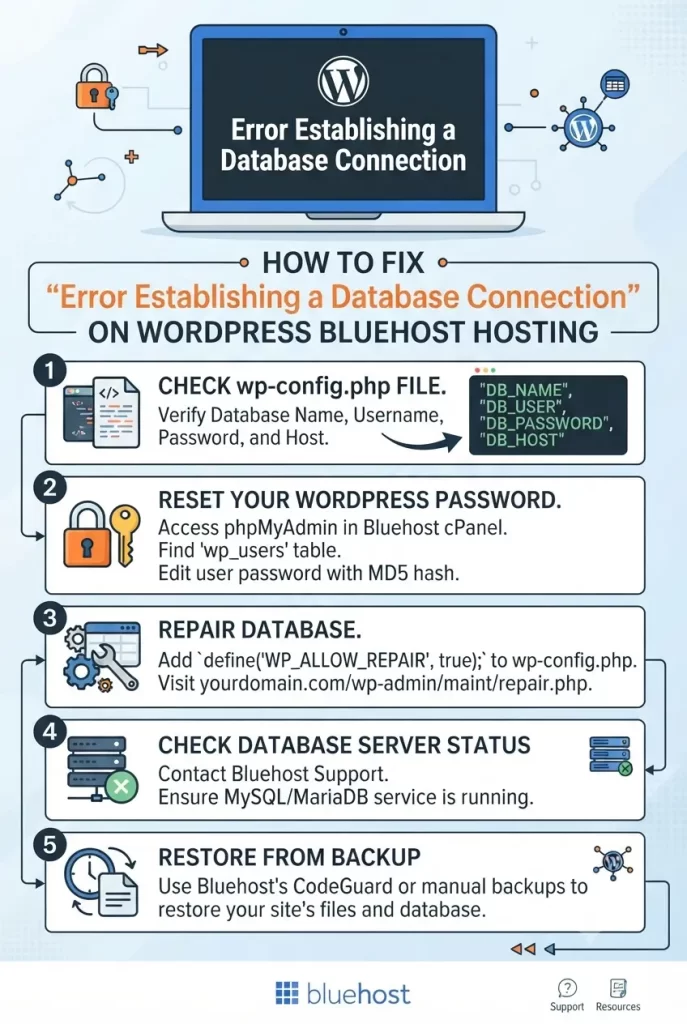
Step-by-Step: How to Fix the Database Connection Error on Bluehost
Work through these steps in order. Most people find their fix within the first three or four steps.
Step 1: Check Your Database Credentials in wp-config.php
You should log into your Bluehost account through cPanel and locate your wp-config.php file using the File Manager. Open it and look for these four lines near the top:
define('DB_NAME', 'your_database_name');
define('DB_USER', 'your_database_username');
define('DB_PASSWORD', 'your_database_password');
define('DB_HOST', 'localhost');
Compare these values against what Bluehost shows under the MySQL Databases section in cPanel, and correct anything that does not match exactly.
Step 2: Confirm Your Database Host Setting
On Bluehost, your database host should almost always be set to localhost. If this line has been changed to anything else, switch it back to localhost and save the file.
Step 3: Reset Your Database Password if Needed
If you recently changed your database password, or you are not fully sure what it currently is, go into cPanel, open MySQL Databases, and reset the password for your database user. Then update the DB_PASSWORD line in wp-config.php to match the new password exactly.
Step 4: Test the Connection Directly
You can create a simple test file to confirm whether your credentials actually work, separate from WordPress itself. Create a file called testdb.php with this content, using your real database details:
<?php
$link = mysqli_connect("localhost", "db_user", "db_password", "db_name");
if (!$link) {
    die('Error: ' . mysqli_connect_error());
}
echo 'Connected successfully!';
?>
Upload it to your site’s root folder and visit yourdomain.com/testdb.php in your browser. A success message confirms your credentials are correct, while an error message will usually tell you exactly what is wrong.
Step 5: Repair Your Database Through phpMyAdmin
If your credentials check out but the error continues, open phpMyAdmin from your Bluehost cPanel, select your database, choose all tables, and select the Repair Table option. This resolves many cases caused by table corruption.
Step 6: Use the Built-In WordPress Repair Tool
You can also add this line to your wp-config.php file, just above the line that says “That’s all, stop editing”:
define('WP_ALLOW_REPAIR', true);Then visit yourdomain.com/wp-admin/maint/repair.php in your browser to access WordPress’s built-in database repair tool. Remove this line again once you are finished, since leaving it active is a security risk.
Step 7: Check for a Traffic or Connection Overload
If your site works sometimes but not others, especially during busy periods, you may be hitting a connection limit common on shared Bluehost plans. Contact Bluehost support directly and ask them to check your database server status, since they can confirm this quickly from their end.
Step 8: Replace Corrupted Core Files
As a last step, download a fresh copy of WordPress from the official website and overwrite your existing core files while leaving your wp-content folder and wp-config.php file untouched. This replaces any damaged core files without affecting your content, themes, or plugins.
When to Contact Bluehost Support Directly
Some causes of this error are entirely on the hosting side and cannot be fixed from your own dashboard.
You should reach out to Bluehost support if:
- Your credentials and database all check out but the error continues
- You suspect the MySQL server itself is down or unresponsive
- The error appeared right after a known Bluehost maintenance window
- You are on a shared plan and suspect a resource limit is being hit
Bluehost support can check server-side logs and MySQL status that are not visible from your own account.
How to Prevent This Error From Happening Again
A little bit of ongoing maintenance makes this error far less likely to show up in the future.
- Keep a written record of your database credentials somewhere secure, separate from your site, so you never lose track after a password reset.
- Update wp-config.php immediately any time you change your database password through cPanel, rather than doing it later.
- Schedule regular backups through Bluehost or a trusted backup plugin, so you always have a safe fallback point.
- Monitor your site’s uptime using a free monitoring tool, so you find out about downtime immediately instead of hours later.
- Avoid installing too many heavy plugins on shared hosting plans, since each one adds additional load to your database connections.
- Consider upgrading your hosting plan if you notice this error repeating frequently during traffic spikes, since it may be a sign your site has outgrown shared hosting resources.
What Actually Worked For Me
When this happened on my own site, the very first thing I checked was the database password, since I remembered resetting it a few days earlier and completely forgetting to update wp-config.php afterward. That one mismatch was the entire problem.
You should always check your credentials first before assuming something more serious is wrong. In my experience, nine times out of ten it really is something this simple, and the scarier-sounding fixes like database repair or core file replacement are rarely needed.
FAQ
1. What does “error establishing a database connection” actually mean? This error means WordPress cannot communicate with its database, so it cannot load any content, settings, or design elements, which is why the page appears completely blank.
2. Is this error common on Bluehost specifically? Yes, it is one of the most frequently reported WordPress errors on Bluehost and other shared hosting providers, often tied to credential mismatches or shared server resource limits.
3. Will I lose my content if I see this error? No, in almost all cases your content is completely safe. This error is about WordPress being unable to reach the database, not about the database or its contents being deleted.
4. How long does it usually take to fix this error? Most cases are resolved within five to fifteen minutes once you identify the correct cause, especially if the issue is simply outdated credentials in wp-config.php.
5. Can a plugin cause this specific error? It is less common than credential issues, but a poorly coded plugin can sometimes corrupt a database table or overload connections, especially on shared hosting.
6. Should I restore a backup right away if I see this error? Not immediately. Try checking your credentials and repairing the database first, since a backup restore should generally be treated as a last resort rather than a first response.
7. What is DB_HOST supposed to be set to on Bluehost? On Bluehost, DB_HOST should almost always be set to localhost, and changing this value without a clear reason is a common cause of this error.
8. Can too much website traffic cause this error? Yes, on shared hosting plans, a sudden spike in traffic can overload available database connections temporarily, which can trigger this same error message until traffic settles down.
Editor’s Opinion
This error looks way scarier then it actualy is, i promise. The white screen makes it feel like everything is gone forever but honestly its almost always just a small mismatch somewhere in your wp-config file. I panicked way to much the first time i saw it, now i just calmly check the database password first and its fixed like 90% of the time. Bluehost support is also pretty quick to help if you get stuck, dont be affraid to just ask them.
