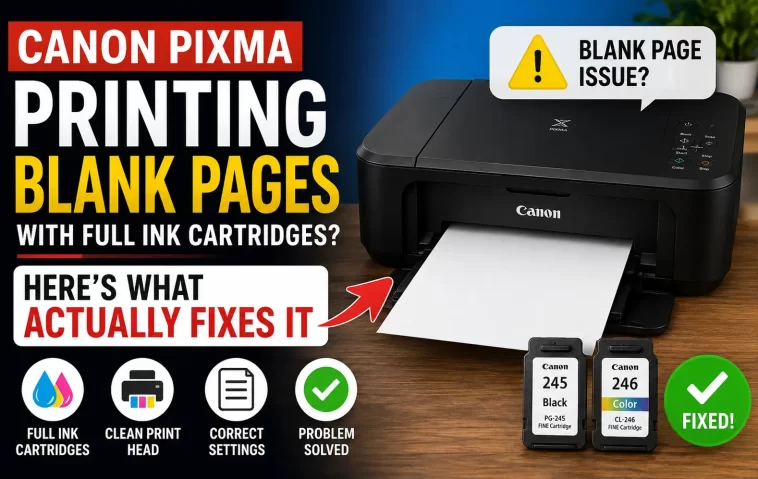
I replaced every single cartridge in my PIXMA G6020 last spring, ran a nozzle check, and got back a page so blank I thought I’d forgotten to load paper. Ink levels showed full on the utility screen. Nothing on the paper. If you’re staring at the same thing right now, the good news is this is almost never a “your printer is dead” situation — a Canon PIXMA printing blank pages with full ink cartridges is usually an ink delivery problem, not an ink supply problem, and those are two very different things to fix.
Quick Answer
- Run a nozzle check first — it tells you whether ink is reaching the print head at all
- If the pattern is faint, broken, or missing colors, run Deep Cleaning (not regular Cleaning) once, then re-test
- Pull each cartridge and check for leftover orange protective tape or an unpeeled air vent sticker
- Reseat cartridges firmly until you hear the click — a cartridge that “looks” installed can still be sitting slightly high
- If none of that works, suspect a driver/spooler issue or a failing print head, not the ink itself
Why It Happens Even When Ink Is Full
“Full ink cartridges” and “ink actually reaching the paper” are not the same thing, and that disconnect is where most people get stuck troubleshooting the wrong part of the system.
Clogged print head nozzles. This is the most common cause by a wide margin. PIXMA printers use microscopic nozzles to spray ink, and if the printer sits idle for even two or three weeks, ink inside those nozzles dries and hardens. The cartridge can be completely full and it won’t matter — nothing’s getting through the nozzle opening.
Leftover protective tape or an unpeeled air vent. New cartridges ship with orange tape over the contact points and sometimes a small sticker over the air intake vent on top. Miss that vent sticker and the cartridge can’t equalize air pressure properly, so ink just… doesn’t flow, even though the reservoir is full.
Cartridge not fully seated. This one’s sneaky. A cartridge can drop into its slot, look correctly positioned, and still not be making a solid electrical connection with the carriage. No connection means the printer can’t confirm ink delivery, and on some PIXMA models it’ll still let the job print — just without ink.
Wrong print settings sending an empty page. So this isn’t always a hardware thing. If your document has a blank first page, or your printer’s set to print a “separator” or cover page, or you accidentally selected the wrong paper size and it’s printing off the visible margin, you’ll get a blank sheet that has nothing to do with the cartridges.
Driver or spooler corruption. Outdated or corrupted drivers can send incomplete print data to the printer. The printer receives a job, spins the rollers, ejects a page — but the actual image data never made it across correctly.
Air bubbles in the ink line after a cartridge swap. Not talked about nearly enough. Right after replacing a cartridge, tiny air pockets can form in the ink delivery line. A single nozzle check right after installation sometimes comes out patchy for this exact reason, and it resolves itself after a cleaning cycle or two.
Common Scenarios
| Scenario | Likely Cause | First Thing to Try |
|---|---|---|
| Blank pages right after installing new cartridges | Protective tape/vent sticker or air bubbles | Recheck tape, run one Deep Cleaning |
| Printer unused for weeks, then blank output | Dried/clogged nozzles | Nozzle check, then cleaning cycle |
| Blank pages only from certain apps, copies print fine | Driver or spooler issue | Reinstall driver, restart spooler |
| Nozzle check pattern is patchy or one color missing | Partial clog or dying print head | Deep Cleaning, then head alignment |
| Error code appears mid-print (like 6002 on some models) | Print head communication fault | Power cycle, reseat print head |
Not every PIXMA model behaves identically here — the MG and TS series tend toward the nozzle-clog problem more, while the G-series MegaTank printers are more prone to air bubble issues after refilling, from what I’ve seen with mine anyway.
Step-by-Step Fixes
Step 1: Run a Nozzle Check
Open the printer utility on your computer (or go through the printer’s own menu: Setup → Maintenance → Print Nozzle Check Pattern). This prints a small grid of lines in each color. A complete, solid pattern means ink is flowing fine and your blank-page issue is somewhere else — settings or drivers. A broken, faint, or missing pattern points straight at the print head.
Step 2: Run Cleaning, Then Deep Cleaning If Needed
Regular Cleaning is the lighter option and it’s what Canon wants you to try first. If the nozzle check still looks bad after that, move to Deep Cleaning. Don’t run Deep Cleaning more than two or three times back to back — it uses a noticeable amount of ink and won’t fix a mechanical clog it already failed to fix twice.
Step 3: Physically Check Each Cartridge
Pop every cartridge out and look at it under decent light.
- Orange tape still on the contacts? Remove it.
- A clear or colored sticker over the small vent hole on top? Peel it off.
- Any dried ink crust around the nozzle area on the cartridge itself (for models with nozzles built into the cartridge, not the print head)? Wipe gently with a lint-free cloth and a little distilled water.
Reinstall firmly until you hear the click on each one. Don’t just set them in — press down.
Step 4: Check Print Settings
Open the document you’re trying to print and actually look at every page, not just page one. Check your printer’s paper size setting matches what’s loaded. And check that “print blank pages” or a cover-page option isn’t enabled somewhere in the print dialog — some office software adds these silently.
Step 5: Update or Reinstall the Driver
Grab the current driver from Canon’s official support site for your exact model number, uninstall the old one completely, restart, then install fresh. A half-updated driver is a surprisingly common cause of jobs that “print” but carry no actual data.
Step 6: Restart the Print Spooler
On Windows, open Services, find Print Spooler, right-click, restart. This clears out any jammed jobs that might be causing corrupted data to reach the printer.
What Actually Worked For Me
Honest answer: cleaning didn’t fix mine. I ran Deep Cleaning twice, watched the ink levels drop, and got the exact same broken nozzle pattern both times. That’s not entirely accurate, actually — the pattern got very slightly better the second time, just not enough to matter.
What fixed it was something I half-remembered from a forum post years ago: pull all the cartridges out completely, leave the printer off and unplugged for about ten minutes, then reinstall everything from scratch. Not a “reset,” just a full physical disconnect. When I plugged it back in, the printer re-initialized the cartridges as if they were new, ran its own internal check, and the next nozzle test came out clean. I have no clean technical explanation for why that worked better than the software cleaning cycles did — my guess is it forced a fresh handshake between the print head and every cartridge contact, clearing whatever bad connection the software-level cleaning couldn’t touch. Your mileage may vary on this one.
Advanced Fixes and Edge Cases
Print head alignment failure loop. If auto alignment keeps failing (sometimes throwing an error like 6002 on certain PIXMA models), the print head itself may be misseated or failing. Power off completely, open the top cover so the carriage moves to the center, and gently but firmly reseat the print head — lift the locking lever, remove it, and click it back into place. This has a real chance of making things worse if you’re not careful, so only go here after the simpler fixes are exhausted.
Checking Event Viewer / print logs (Windows). If pages are blank only from specific applications, check Windows Event Viewer under Print Service logs for job errors. A recurring “spooler timeout” or “data format” error narrows this down to software fast, instead of you burning more ink guessing.
USB vs wireless inconsistency. If blank pages only happen over Wi-Fi but not USB (or vice versa), that’s a connection-specific driver problem, not a hardware one. Try the other connection method as a diagnostic step, not a permanent fix.
Chip-related cartridge rejection. Some third-party or refilled cartridges have chips the printer can’t fully read, so it shows “full” but doesn’t reliably deliver ink data. If you’re using non-Canon cartridges, this is worth ruling out before you chase anything else.
What’s Commonly Recommended But Rarely Works
Running Deep Cleaning five, six, seven times in a row. People do this out of frustration and it mostly just wastes ink at that point — if two cleanings haven’t meaningfully improved the nozzle pattern, a third almost never does either.
Buying a brand new print head immediately. It’s sometimes the right call, but it’s expensive and it’s not the first thing to try. Most “dead” print heads turn out to be clogged, not actually failed.
Prevention Tips
- Print something — anything — at least once a week, even a test page, to keep ink moving through the nozzles
- Don’t leave a printer completely unused for a month or more if you can help it
- Store spare cartridges upright, sealed, and out of direct sunlight or heat
- Keep drivers reasonably current, especially after a Windows feature update
- Avoid cheap refilled cartridges if you’ve had chip-recognition issues before — it’s usually not worth the savings
FAQ
Why does my Canon printer show full ink but print blank? Because “ink level” and “ink actually reaching the page” are tracked separately. The cartridge chip reports what’s left in the reservoir; it has no way of knowing whether the nozzles are clogged.
Will Deep Cleaning damage my printer? No, but running it excessively wastes ink for no benefit. Two or three attempts is a reasonable ceiling before you move to a different fix.
My nozzle check prints fine but documents still come out blank — what’s going on? That’s a software issue, not hardware. Check your document for a stray blank page, verify print settings, and consider reinstalling the driver.
Is it normal for a brand new cartridge to cause blank pages? It happens more than you’d think, usually from leftover tape or a vent sticker, or from air bubbles that clear up after a cleaning cycle or two.
Should I just replace the print head? Only after cleaning, reseating, and driver checks have all failed. It’s the most expensive fix and the least common actual cause.
Editor’s Opinion
honestly this is one of those problems that looks way scarier than it is. full ink, blank page, brain immediately goes to “printer’s dead, guess i’m buying a new one.” but like 90% of the time it’s a clog or a sticker you forgot to peel off. the unplug-and-reseat trick sounds too dumb to work and yet it worked for me when the “real” fixes didn’t. try the cheap stuff first, always.
