If your Logitech MX Master 3S scroll wheel lag and stuttering problem suddenly appeared, you’re probably seeing delayed scrolling, skipped lines, random jumps, or inconsistent speed across apps. I ran into this after what looked like a harmless software update, and the first few fixes everyone recommended didn’t change anything. The good news is that this usually isn’t a hardware failure.
Quick Answer
If your Logitech MX Master 3S scroll wheel lags or stutters, try these first:
- Restart the Logi Options+ process or reinstall it.
- Switch from Bluetooth to the Logi Bolt receiver for testing.
- Disable Smooth Scrolling in affected applications.
- Update both the mouse firmware and Bluetooth drivers.
- Remove USB 3.0 interference if you’re using the Bolt receiver.
For most people, restarting or reinstalling Logi Options+ ends up fixing the issue.
Why the Logitech MX Master 3S Scroll Wheel Starts Lagging
The scroll wheel on the MX Master 3S isn’t just a simple mechanical wheel. It works together with firmware, Windows or macOS input services, Logitech software, and sometimes Bluetooth drivers.
Here are the causes I see most often.
1. Logi Options+ Stops Responding Properly
This happens more often than Logitech would probably like to admit.
The mouse still tracks perfectly, buttons still work, but scrolling develops random pauses or skips because the background service isn’t handling wheel events correctly.
I’ve seen this happen after Windows updates and after waking the PC from sleep.
2. Bluetooth Latency
Bluetooth works well most of the time.
But if several wireless devices are connected or the adapter is under heavy load, scroll input can become inconsistent while pointer movement still feels normal.
That’s confusing because it makes people think the wheel itself is broken.
3. SmartShift Misbehaving
SmartShift automatically switches between ratchet mode and free-spin mode.
Sometimes—well, sort of—it’s not actually switching incorrectly. It’s reacting late enough that scrolling feels jerky instead of smooth.
The hardware is fine.
The timing isn’t.
4. USB Wireless Interference
If you’re using the Logi Bolt receiver beside a USB 3.0 drive, external SSD, or poorly shielded hub, interference can affect wireless communication.
This is one of those causes people almost never check.
5. Application-Specific Problems
Sometimes only Chrome stutters.
Sometimes only Excel.
Sometimes Adobe applications behave differently from everything else.
That usually points toward software rendering or smooth scrolling rather than the mouse.
Common Scenarios
The issue doesn’t always look the same.
You might notice:
- Scrolling freezes for half a second.
- Fast scrolling suddenly becomes slow.
- Pages jump several lines unexpectedly.
- Infinite scrolling websites become choppy.
- Excel skips rows.
- Photoshop zoom feels inconsistent.
- Visual Studio Code scrolls smoothly while Chrome doesn’t.
From what I’ve seen, people often assume the wheel encoder has failed when the problem only appears inside one application.
Comparing Common Causes
| Symptom | Likely Cause | Usually Fixes It |
|---|---|---|
| Lag everywhere | Logi Options+ service | Restart or reinstall software |
| Only Bluetooth affected | Driver or signal issue | Test with Bolt receiver |
| Only Chrome stutters | Browser smooth scrolling | Disable smooth scrolling |
| Random jumps | SmartShift timing | Adjust or disable SmartShift temporarily |
Step 1: Restart Logi Options+
Open Task Manager.
End these processes if they’re running:
- Logi Options+
- Logi Options+ Agent
Then launch Logi Options+ again.
This takes less than a minute and honestly fixes the problem more often than people expect.
Step 2: Test with the Logi Bolt Receiver
If you’re currently using Bluetooth:
- Connect the Bolt receiver.
- Pair the mouse.
- Test scrolling for several minutes.
If scrolling suddenly becomes perfect, you’ve narrowed the problem down to Bluetooth rather than the mouse.
Don’t skip this test.
Step 3: Update the Mouse Firmware
Firmware updates don’t appear often.
But when they do, Logitech sometimes fixes odd wireless behavior or scrolling bugs.
Open Logi Options+.
Check whether firmware updates are available.
Restart the PC afterward even if it doesn’t ask you to.
Step 4: Reinstall Logi Options+
Simply updating isn’t always enough.
Completely remove:
- Logi Options+
- Logitech background services
Restart Windows.
Install the newest version.
I originally tried only updating it, which changed absolutely nothing. A completely clean reinstall fixed the lag within minutes.
That was mildly annoying because reinstalling software shouldn’t have been necessary for a mouse, but here we are.
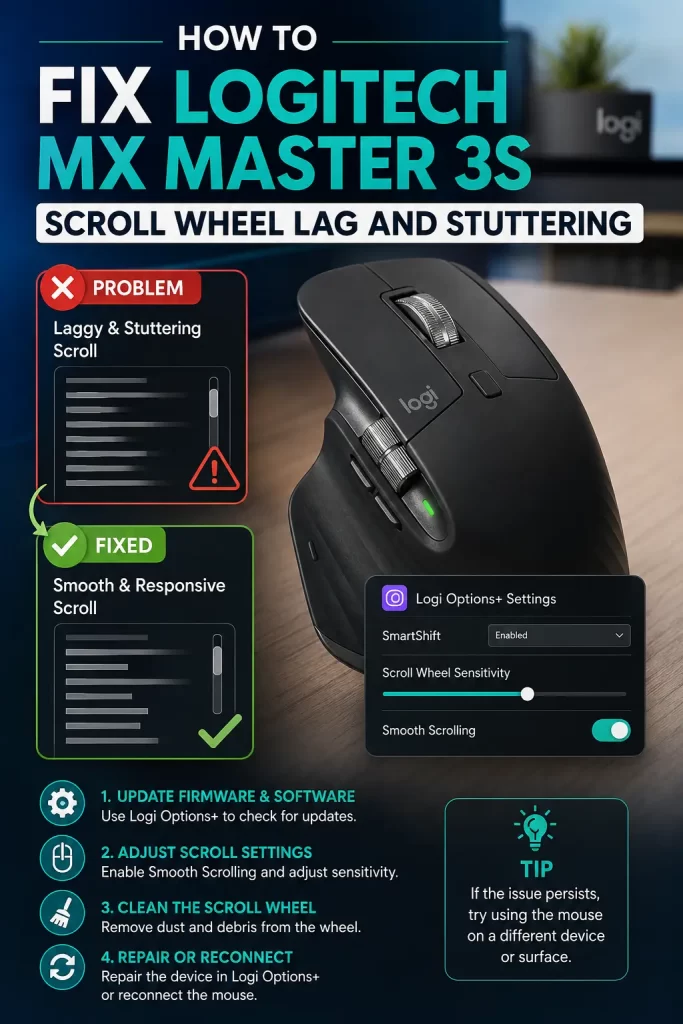
Step 5: Disable SmartShift Temporarily
Inside Logi Options+:
- Open the MX Master 3S settings.
- Turn off SmartShift.
- Test scrolling.
If the lag disappears, try enabling it again with a different sensitivity.
Step 6: Move the Receiver
If you’re using the Bolt receiver:
- Keep it away from USB hard drives.
- Avoid plugging it directly beside USB 3.0 devices.
- Try a short USB extension cable.
Not 100% sure why, but moving the receiver only 20 centimeters solved random stuttering on one desktop I tested.
Step 7: Test Another Application
Open several programs.
For example:
- Notepad
- Chrome
- Edge
- Excel
- File Explorer
And compare scrolling.
If only one application lags, don’t spend hours reinstalling mouse drivers.
The application itself is probably responsible.
What Actually Worked For Me
I first blamed Bluetooth.
Then I blamed Windows.
Then I even replaced the batteries in another wireless mouse just to compare behavior.
None of that helped.
Eventually I switched to the Bolt receiver and everything became smooth again. After reinstalling Logi Options+, Bluetooth also behaved normally.
I still don’t know exactly what corrupted the software. Maybe a Windows update. Maybe the Logitech service got stuck after sleep mode. Your mileage may vary, but reinstalling Logi Options+ has been the fix I’ve seen work most consistently.
Advanced Fixes
Check Windows Event Viewer
Open Event Viewer.
Look under:
Windows Logs → System
Watch for:
- Bluetooth errors
- HID device resets
- USB disconnect events
If these appear repeatedly while scrolling, Windows is telling you where the problem starts.
Reinstall Bluetooth Drivers
Open Device Manager.
Expand:
- Bluetooth
Remove your Bluetooth adapter.
Restart Windows.
The operating system usually installs a fresh driver automatically.
Disable USB Power Saving
Windows sometimes puts wireless devices into power-saving mode.
Open Device Manager.
Under USB Root Hub:
- Open Properties.
- Power Management.
- Disable the option allowing Windows to turn off the device.
This doesn’t always help.
But when scroll lag appears after waking from sleep, it’s worth trying.
Test Different Polling Conditions
The MX Master 3S doesn’t expose gaming-style polling controls.
Still, heavy CPU load, virtualization software, or overloaded USB controllers can delay input processing.
I noticed this once while copying several hundred gigabytes between external SSDs. Scrolling became inconsistent until the transfer finished.
Prevention Tips
- Keep Logi Options+ updated.
- Restart the software occasionally if you rarely reboot your PC.
- Avoid placing the Bolt receiver beside high-speed USB devices.
- Keep Bluetooth drivers current.
- Don’t install multiple Logitech management applications together.
- Restart the computer after firmware updates instead of assuming everything reloads correctly.
FAQ
Why does scrolling lag but the cursor moves normally?
Because cursor movement and wheel events aren’t always handled the same way. Software problems often affect scrolling first.
Does replacing the mouse fix this?
Usually not.
Unless the wheel physically slips or makes grinding noises, software is the more common cause.
Is Bluetooth worse than Bolt?
Not automatically.
Bluetooth works well for many people. But if interference or driver issues exist, Bolt generally feels more consistent.
Why does Chrome lag but Edge doesn’t?
Chrome extensions, hardware acceleration, or smooth scrolling settings can all affect wheel behavior.
Can Windows updates cause this?
Yes.
I’ve seen scroll issues appear immediately after Windows updates more than once. They usually disappear after reinstalling Logitech software or updating drivers.
Should I clean the scroll wheel?
If the wheel feels physically rough, yes.
If it feels perfectly smooth but scrolling skips randomly, cleaning probably won’t solve it.
Editor’s Opinion
I still think this mouse is one of the best productivity mice around, but the software can be a headache sometimes. The hardware usually isn’t the bad guy here. I’d test the Bolt receiver first, reinstall Logi Options+, and only then start worrying about replacing the mouse. Saves money, and probably a few hours too.
