Getting locked out of your database server with ERROR 1040 (HY000): Too many connections while production traffic is actively choking is a absolute nightmare.
I ran into this last month during a traffic spike on a client’s server, and standing there unable to log in via the standard MySQL client while watching web app workers crash one after another was pretty stressful. Restarting mysqld or mariadb is the obvious sledgehammer fix, but on a live production node with uncommitted transactions or heavy memory caching, a restart can cause data corruption, long crash recovery times, or extended downtime.
So, how do you recover access and flush dead client threads without bouncing the service? Let’s fix it.
Why MySQL Throws Error 1040
The error occurs when the number of active and sleeping client connection threads hits the hard cap defined by the max_connections system variable in your MySQL configuration.
When this limit is reached, MySQL drops any incoming socket requests before authentication even happens.
The root causes behind running out of connection slots usually come down to a few distinct issues:
- Unclosed Application Connection Pools: Leaky application code (like unclosed PDO or TypeORM connections) opens database channels without closing them after requests finish.
- High
wait_timeoutDefaults: The default MySQL idle connection timeout is set to 28,800 seconds (8 hours). Sleeping threads just sit there occupying slots forever. - Sudden Traffic Spikes: Your application thread count scales up under load, but
max_connectionswas left at the default setting of 151. - Slow Queries Backing Up Traffic: Long-running queries lock tables or rows, causing incoming requests to queue up rapidly until the connection limit is maxed out.
Quick Fix Checklist
If your app is currently down and you need fast relief without restarting, follow these exact steps:
- Access the server using the dedicated administrative port or the
gdbprocess hack. - Dynamically raise
max_connectionsin runtime memory. - Terminate sleeping or orphaned threads to free up pooled slots.
- Lower
wait_timeouton the fly so inactive connections drop quickly.
Connection Limit Troubleshooting & Impact
| Root Cause | Connection Status in SHOW PROCESSLIST | Impact on Server | Immediate Non-Restart Fix |
| Application Pool Leak | Hundreds of Command: Sleep threads | Hits cap quickly, CPU remains low | Kill idle threads + lower wait_timeout |
| Slow Query Queue | Long-running Command: Query in Locked state | High CPU / Memory pressure | Kill specific blocking thread IDs |
| Low Hard Ceiling | Mix of active and sleeping sessions | Drops new incoming connections | Increase max_connections dynamically |
| Broken Client Timeout | Persistent connection state from dead web servers | Steady accumulation of ghost sessions | Enable Connection_admin / Admin Port |
How to Access MySQL When Fully Locked Out
Before you can run SQL commands to clean up connections, you have to actually log in. But wait — if the server is rejecting connection attempts because it’s full, how do you get in?
Method 1: Use the Administrative Interface (MySQL 8.0+)
By default in MySQL 8.0, the server reserves an extra administrative interface port (usually 33061) or grants an extra connection slot for users with the CONNECTION_ADMIN privilege.
Try connecting over localhost using the dedicated admin interface:
Bash
mysql -u root -p --port=33061 --protocol=tcp
If your configuration has admin_address enabled, this bypasses the standard connection pool completely.
Method 2: Temporary GDB Variable Injection (MySQL 5.7 / MariaDB)
If you’re on an older version or didn’t configure an admin port, standard clients will get rejected. But, well, sort of — you can actually use gdb to attach to the running mysqld process and bump max_connections directly in server memory without touching the service daemon.
Warning: Running
gdbon a live database process pauses execution for a split second. Only do this if you are completely locked out of standard client connections.
- Find the process ID (PID) of your running MySQL daemon:
Bash
pidof mysqld
- Run
gdbto attach to the process and increment themax_connectionsvariable in memory:
Bash
gdb -p $(pidof mysqld) -ex "set max_connections=1000" -ex "detach" -ex "quit"
The moment gdb detaches, MySQL instantly gains hundreds of new connection slots. You can now log in normally using the standard MySQL CLI client:
Bash
mysql -u root -p
Step-by-Step Fixes to Clear the Error
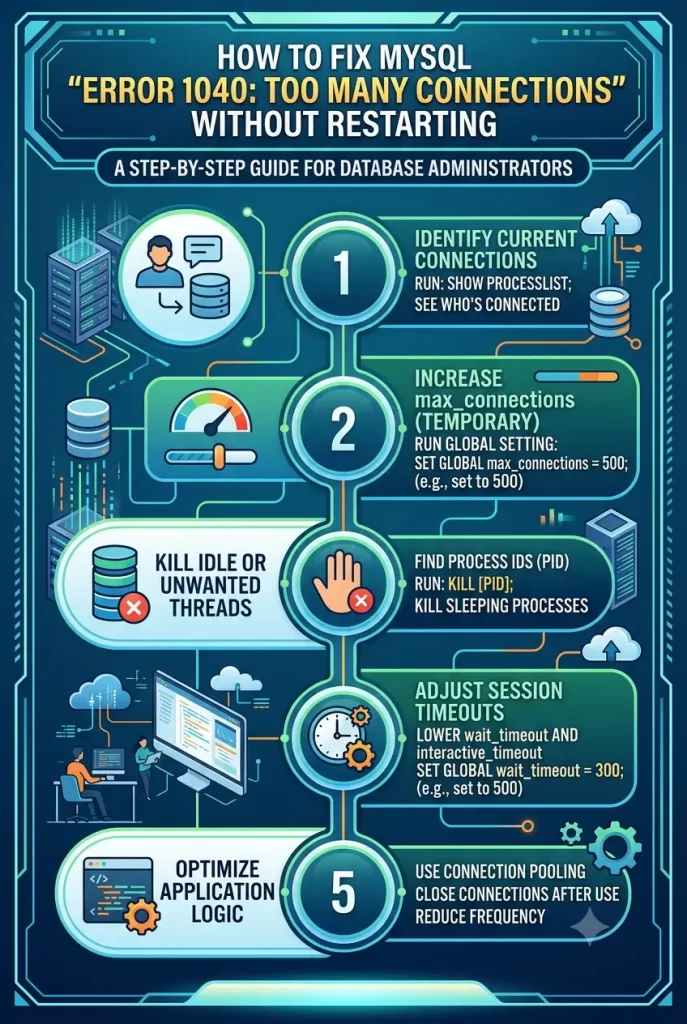
Step 1: Temporarily Raise max_connections
Once you’re inside the MySQL shell, your top priority is giving the server breathing room so your application can operate while you clean up the mess.
Run this query inside the MySQL prompt:
SQL
SET GLOBAL max_connections = 1000;
This updates the setting dynamically in runtime memory. You don’t need to restart the database for this to take effect immediately.
Step 2: Kill Inactive “Sleep” Connections
Application pools often hold onto dead connection handles that sit in a Sleep state for hours.
To view active and idle connections, run:
SQL
SHOW FULL PROCESSLIST;
If you see hundreds of processes listing Sleep under the Command column, you can bulk-kill them.
Instead of typing KILL thread_id; manually fifty times, execute a SQL query to generate a batch-kill script for all idle threads that have been sleeping for more than 60 seconds:
SQL
SELECT CONCAT('KILL ', id, ';')
FROM information_schema.processlist
WHERE command = 'Sleep' AND time > 60;
Copy the generated output list of KILL 1234; lines, paste them straight back into your MySQL client, and execute them.
Step 3: Lower Idle Timeouts Dynamically
To keep web application servers from piling up new sleeping threads while you fix your code, reduce the idle session lifetime dynamically:
SQL
SET GLOBAL wait_timeout = 60;
SET GLOBAL interactive_timeout = 60;
By default, this is set to 28800 seconds. Setting it to 60 seconds forces MySQL to drop any idle thread that stays inactive for over a minute, automatically reclaiming slots.
What Actually Worked For Me
When I ran into this issue on a high-traffic Laravel application host, my initial impulse was to blame a slow database query. I spent twenty minutes sifting through slow query logs trying to find a bad join that was pinning tables, thinking requests were backing up behind a lock.
That wasn’t the issue at all.
Next, I tried killing process IDs one by one using KILL ID, but the application pool kept spawning new connections faster than I could manually terminate them. The connection count hit the limit again almost instantly.
I realized the web application’s persistent connection setting (PDO::ATTR_PERSISTENT) was enabled alongside a high worker count on Nginx, meaning every PHP worker process was grabbing a database slot and holding it forever.
I used gdb to temporarily bump max_connections to 800, logged into MySQL, dropped wait_timeout down to 30 seconds, and watched over 400 dead sleeping sessions instantly evaporate. CPU load dropped back to normal, and the site came back up immediately — no database restart required.
Advanced Troubleshooting & Edge Cases
Diagnostic Method 1: Identifying the Offending Host
If you run a multi-server setup where several application nodes hit a single central database, you need to know which app server is leaking connections.
Run this query to aggregate connection counts by host IP:
SQL
SELECT host, count(*)
FROM information_schema.processlist
GROUP BY host
ORDER BY count(*) DESC;
If one specific IP address is consuming 80% of your maximum slots, that app node has a misconfigured connection pool or a leaking worker process.
Diagnostic Method 2: Inspecting max_user_connections Limits
Sometimes the database server itself hasn’t hit global capacity, but a specific database user account is capped out.
Check if user-level caps are triggering the error by inspecting connection limits per user:
SQL
SELECT user, max_questions, max_updates, max_connections
FROM mysql.user;
If a specific user has max_connections set to something low like 50, you can dynamically remove that limit without touching global settings:
SQL
ALTER USER 'app_user'@'%' WITH MAX_CONNECTIONS 0;
FLUSH PRIVILEGES;
(Setting MAX_CONNECTIONS to 0 removes the per-user restriction).
Prevention & Maintenance Tips
- Persist Runtime Changes to Disk: Remember that
SET GLOBAL max_connectionsonly updates memory. If your server reboots later, it will revert. Edit your/etc/mysql/my.cnfor/etc/my.cnffile to keep the setting permanently:Ini, TOML[mysqld] max_connections = 500 wait_timeout = 300 - Configure Reserved Admin Ports: On MySQL 8.0+, explicitly set
admin_address = 127.0.0.1andadmin_port = 33061in your config so you always have a backdoor emergency entry point. - Audit Application Connection Pooling: Ensure your web framework doesn’t use persistent connections unless your application stack specifically requires it.
Frequently Asked Questions
Does increasing max_connections consume more RAM?
Yes. Every active connection allocated by MySQL consumes thread stack memory and buffer space (controlled by parameters like read_buffer_size and sort_buffer_size). Setting max_connections too high on a low-RAM server can trigger the Linux Out-Of-Memory (OOM) killer.
Will running KILL on a sleeping thread roll back transactions?
If a thread is strictly in a Sleep state, it is between transactions. Killing an idle sleeping session won’t corrupt data, though any active uncommitted transaction in a Query state will be safely rolled back when killed.
Why does SHOW PROCESSLIST still show connections after I lowered wait_timeout?
Existing idle connections retain the old timeout value from when they first connected. The new GLOBAL wait_timeout setting only applies to newly established connections, which is why manual cleanup of older sleeping threads is still required right after changing the value.
Editor’s Opinion
Honestly, MySQL setting the default wait_timeout to 8 hours is one of the worst default configurations in database history. Almost no web application needs an idle connection hanging around for eight hours doing nothing while holding onto RAM and connection slots. If you’re managing production servers, lower that timeout to a few minutes right after installation and save yourself from dealing with Error 1040 at 2 AM.
