
Changing the taskbar size in Windows 11 is something many users search for because the system no longer offers a built-in setting to resize it. That means people who want a smaller, larger, or more customized taskbar have to look for different solutions. In this guide, I will walk you through everything you need to know about how to change the taskbar size in Windows 11, why you might want to adjust it, and what methods actually work today.
This article is long, detailed, and written in a simple, natural way so that anyone can follow along without getting lost. Let’s begin.
Why Windows 11 Removed the Taskbar Size Option
In Windows 10, changing the taskbar size was very easy—drag the border or modify the taskbar settings and you were done. But with Windows 11, Microsoft redesigned the entire taskbar, and many customization features disappeared.
There is no toggle for taskbar height, no resize handle, and no native way to scale the taskbar separately from the rest of the interface.
So if you want to resize the taskbar, you have to use:
- Registry tweaks
- Third-party utilities
- DPI scaling
- or alternative customization tools
Each method has its advantages and limitations, and below I’ll explain them all.
Before You Start: Important Notes
Before you try changing the taskbar size in Windows 11, you should keep a few things in mind:
- Registry edits are not officially supported by Microsoft.
They work, but future updates might overwrite them. - Changing the size too much can break alignment or icon spacing.
- You should always back up your registry before modifying it.
- Some tools like ExplorerPatcher or StartAllBack can modify the taskbar more safely than raw registry edits.
Now let’s go step-by-step.
Method 1: Change Taskbar Size Using Registry Editor
This is the most common method because it works without installing any additional apps. It allows you to set the taskbar to Small, Medium, or Large.
Step 1 — Open the Registry Editor
- Press Win + R
- Type regedit
- Press Enter
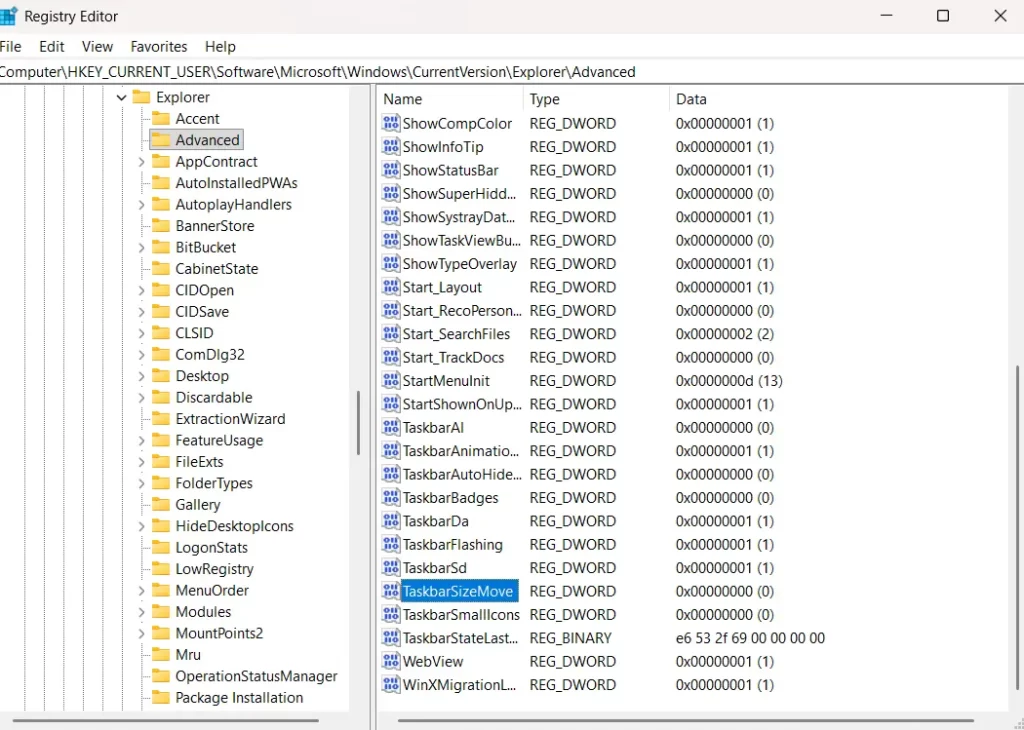
Step 2 — Navigate to This Path
Go to:
HKEY_CURRENT_USER\Software\Microsoft\Windows\CurrentVersion\Explorer\Advanced
Step 3 — Create a New DWORD Value
- Right-click in the right panel
- Choose New > DWORD (32-bit) Value
- Name it:
TaskbarSi
Step 4 — Set the Value
Double-click the new entry and set:
- 0 = Small taskbar
- 1 = Medium (default)
- 2 = Large
Step 5 — Restart Explorer
To apply the change:
- Press Ctrl + Shift + Esc to open Task Manager
- Find Windows Explorer
- Right-click → Restart
Your taskbar will now resize according to the value you selected.
Pros of Registry Method
- No software needed
- Works instantly
- Lets you choose between 3 sizes
Cons
- No fine-tuning
- Can break after Windows updates
- Affects icon spacing system-wide
Method 2: Change Taskbar Size Using Display Scaling
If you don’t want to use the registry, you can still resize the taskbar indirectly using Windows’ built-in scaling.
Steps
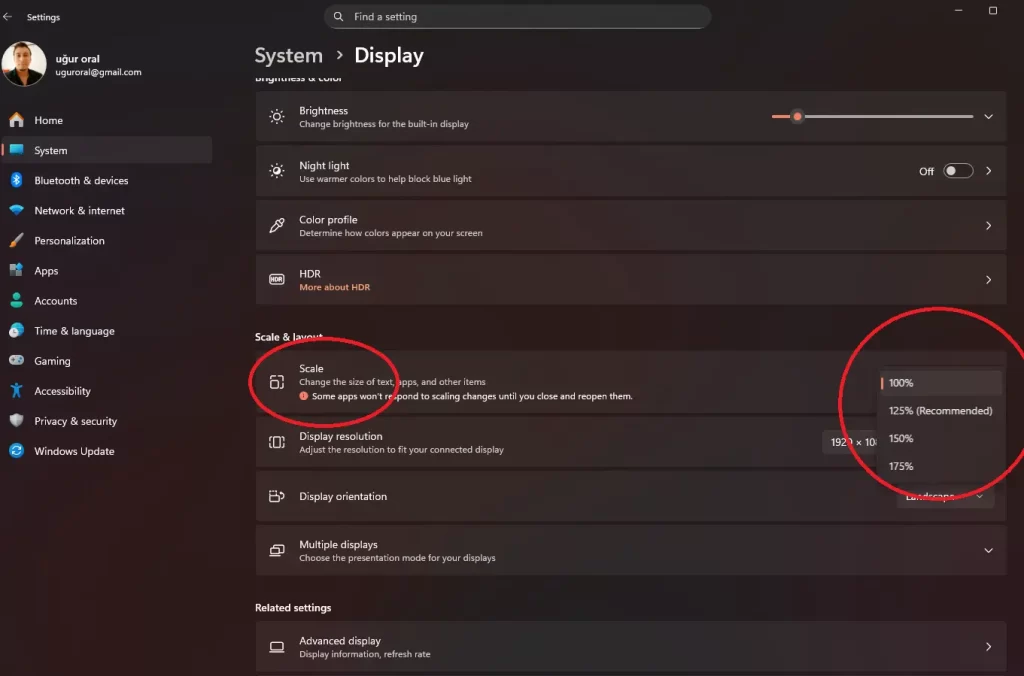
- Right-click desktop
- Select Display settings
- Under Scale, choose:
- 125% or 150% → larger taskbar
- 100% → smaller taskbar
This method technically resizes everything, not just the taskbar. But if your main goal is simply making the taskbar feel larger or smaller, display scaling is the easiest and safest adjustment.
Pros
- No risk
- No registry edits
- Good for accessibility
Cons
- Changes text and window sizes too
- Not precise for taskbar-only customization
Method 3: Use a Third-Party Tool (Safest & Most Flexible)
If you want more customization, third-party apps are the best solution. These programs offer features that Windows 11 does not:
- custom taskbar size
- classic (Windows 10-style) taskbar
- movable taskbar
- vertical taskbar
- classic start menu
Here are the most reliable options.
1. ExplorerPatcher (Free)
A favorite among power users.
Features:
- Restore Windows 10 taskbar
- Custom taskbar size
- Full taskbar control
- Move the taskbar to top
How to Install:
- Download from GitHub
- Install normally
- Open the settings panel
- Go to Taskbar
- Adjust the taskbar height / icon size
ExplorerPatcher is extremely powerful and updated often.
2. StartAllBack (Paid, but very polished)
StartAllBack is known for having the cleanest and most stable experience.
Features:
- Custom taskbar height
- Rounded or classic taskbar styles
- Multiple theme presets
- Better icon spacing
If you want a simple “install and forget” tool, this is the best.
3. Start11 (Paid)
Made by Stardock.
Features:
- Resize taskbar
- Move taskbar
- Customize color, transparency, blur
Start11 is a good option if you like visual customization.
Method 4: Change Taskbar Size with Custom DPI Scaling (Advanced)
If the default scaling options aren’t flexible enough, you can use a hidden advanced scaling option.
Steps
- Settings
- Display
- Advanced scaling settings
- Enter a custom percentage (110%, 115%, 125%, etc.)
This changes everything, including the taskbar. It’s more flexible, but still a global scaling option.
Method 5: Use a Custom Windows Theme
This is a more advanced and less common method, but some people use custom themes or icon packs to visually shrink or enlarge the taskbar. These require tools like:
- UltraUXThemePatcher
- SecureUxTheme
- DeviantArt visual styles
These methods are recommended only if you enjoy deep customization and understand the risks.
Which Method Is Best for You?
It depends on what you want:
| Goal | Best Method |
|---|---|
| Make taskbar small | Registry (TaskbarSi = 0) |
| Make taskbar large | Registry or scaling |
| Control nearly everything | ExplorerPatcher |
| Easiest safe way | Display scaling |
| Professional customization | StartAllBack |
I recommend most users start with the registry method or ExplorerPatcher, depending on comfort level.
Troubleshooting Taskbar Issues After Resizing
Sometimes resizing the taskbar can cause small problems. Here’s how to fix the most common ones.
1. Icons are misaligned
If icons look off-center:
- Set TaskbarSi = 1
- Restart Explorer
- Or switch to a third-party tool for cleaner alignment
2. Taskbar becomes too large after update
Updates sometimes reset the registry:
- Re-apply the TaskbarSi value
- Or use StartAllBack, which updates automatically
3. Taskbar flickering
This usually happens due to ExplorerPatcher or StartAllBack not matching the latest Windows build.
Solution:
- Update the tool
- Restart explorer
Is Changing the Taskbar Size Safe?
Yes, resizing the taskbar in Windows 11 is safe if:
- You back up the registry
- You avoid untrusted apps
- You don’t apply extreme scaling values
Millions of users modify their taskbars daily without issues.
Frequently Asked Questions
1. Does Windows 11 officially support taskbar resizing?
No. There is no built-in option as of today.
2. Will Microsoft add taskbar resizing in the future?
There have been small hints, but nothing official yet.
3. Does resizing the taskbar affect performance?
No. It is purely a visual change.
4. Can I make the taskbar thinner?
Yes, by setting TaskbarSi = 0 in the registry.
5. Can I make the taskbar larger for touch screens?
Set TaskbarSi = 2.
