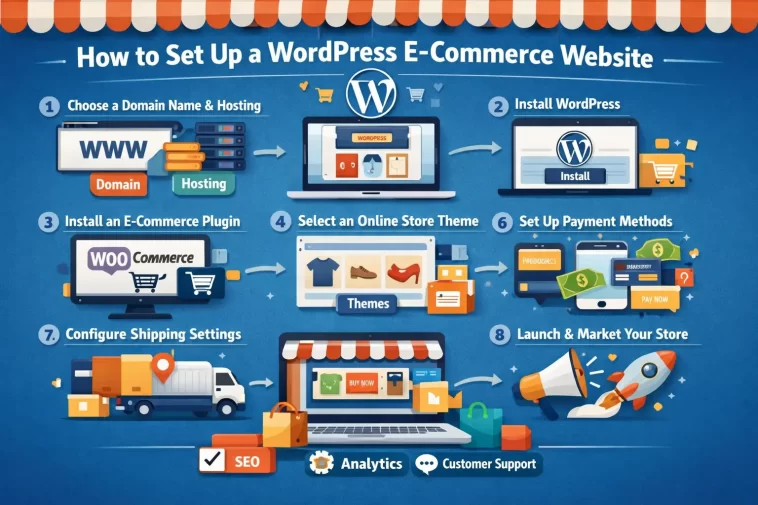
Setting up a WordPress e-commerce website with WooCommerce is one of the smartest moves you can make if you want to sell products online. WooCommerce is free, powerful, and trusted by millions of store owners around the world. Whether you’re selling physical products, digital downloads, or services — this guide walks you through every step from scratch.
By the end of this post, you’ll have a fully functional online store running on WordPress and WooCommerce.
What Is WooCommerce and Why Use It?
WooCommerce is a free WordPress plugin that turns any WordPress site into a complete online store. It handles everything from product listings to payments, shipping, and order management.
Here’s why it’s worth choosing:
- Free to use — The core plugin costs nothing
- Flexible — Works for physical, digital, or subscription products
- Scalable — Suitable for small shops and large stores alike
- Huge ecosystem — Thousands of themes and extensions available
- SEO-friendly — Works seamlessly with plugins like Rank Math
Over 5 million active websites use WooCommerce. It’s the most popular e-commerce solution for WordPress — and for good reason.
Step 1: Get a Domain Name and Hosting
Before anything else, you need a domain name and a hosting plan that supports WordPress.
Recommended hosting providers for WooCommerce:
- Hostinger — Affordable, fast, and beginner-friendly
- SiteGround — Excellent performance and WooCommerce-optimized plans
- Bluehost — Officially recommended by WordPress.org
- Cloudways — Great for scaling when your store grows
When choosing a domain name, keep it short, memorable, and relevant to your business. Avoid hyphens and numbers if possible.
Most hosting providers offer one-click WordPress installation. Use it — it saves time and removes the risk of errors during setup.
Step 2: Install WordPress
Once you have hosting, log into your control panel (cPanel or a custom dashboard) and find the WordPress installer. Most hosts use Softaculous or a similar tool.
To install WordPress:
- Click “Install WordPress” in your hosting panel
- Choose your domain
- Set your admin username and a strong password
- Click Install and wait 1–2 minutes
After installation, go to yourdomain.com/wp-admin and log in with your credentials. You’re now inside the WordPress dashboard.
Step 3: Install the WooCommerce Plugin
Now it’s time to add WooCommerce to your WordPress site. This is the core of your online store.
How to install WooCommerce:
- In your WordPress dashboard, go to Plugins → Add New
- Search for “WooCommerce”
- Click Install Now next to the official WooCommerce plugin
- Click Activate
After activation, WooCommerce will launch a setup wizard. Go through it carefully — it helps you configure your store’s basic settings like currency, location, payment methods, and shipping.
Step 4: Choose and Install a WooCommerce Theme
Your theme controls how your store looks. Not every WordPress theme works well with WooCommerce, so it’s important to choose one that’s designed for e-commerce.
Good free WooCommerce themes:
- Storefront — The official WooCommerce theme, lightweight and fast
- Astra — Extremely popular, fast, and highly customizable
- Kadence — Modern design with great WooCommerce support
- OceanWP — Feature-rich and flexible
To install a theme, go to Appearance → Themes → Add New, search for your chosen theme, and click Install then Activate.
If you’re using a page builder like Elementor, Astra and Kadence both pair very well with it.
Step 5: Configure WooCommerce Settings
Before adding products, take a few minutes to configure the essential WooCommerce settings. Go to WooCommerce → Settings.
General Settings
- Set your store address and country/region
- Choose your currency and currency position
- Enable or disable customer accounts based on your preference
Payment Settings
WooCommerce includes PayPal and Stripe support out of the box. Go to WooCommerce → Settings → Payments and enable the gateways you want to use.
For Turkish stores, you might also want to look into local payment integrations like iyzico or PayTR via third-party plugins.
Shipping Settings
Go to WooCommerce → Settings → Shipping to set up shipping zones and rates. You can offer:
- Free shipping
- Flat rate shipping
- Local pickup
Set up at least one shipping zone before you start selling.
Step 6: Add Your First Products
Now the fun begins — adding products to your store.
Go to Products → Add New in your dashboard.
Fill in the following:
- Product name — Keep it clear and descriptive
- Product description — Write a full description in the main editor
- Short description — Shown near the product image; keep it punchy
- Product data — Set price, SKU, stock status, shipping weight, etc.
- Product category — Organize your products by category
- Product image — Upload a high-quality main image
- Product gallery — Add multiple images to show different angles
When you’re done, click Publish.
Product Types in WooCommerce
WooCommerce supports several product types:
- Simple product — A single item with one price
- Variable product — Products with variations (size, color, etc.)
- Grouped product — A collection of related products
- External/affiliate product — Links to a product sold elsewhere
- Digital/downloadable product — Files the customer downloads after purchase
Choose the right type when you’re setting up each product.
Step 7: Set Up Essential Pages
WooCommerce automatically creates a few essential pages during setup:
- Shop — Your main product listing page
- Cart — Where customers review their order
- Checkout — Where customers enter payment and shipping info
- My Account — Customer account dashboard
Make sure these pages are not deleted. You can check them under WooCommerce → Settings → Advanced.
Also, create a proper Privacy Policy page and a Terms & Conditions page. These are legally required in most countries and can be linked during checkout.
Step 8: Install SEO and Performance Plugins
A WooCommerce store without SEO optimization won’t rank well in search engines. Install these essential plugins:
- Rank Math SEO — Optimize every product page with focus keywords, meta descriptions, and structured data
- WP Rocket or LiteSpeed Cache — Speed up your store with caching
- Smush or ShortPixel — Compress and optimize product images
- Yoast WooCommerce SEO (optional) — Extra SEO features specific to WooCommerce
With Rank Math, you can add a focus keyphrase to every product page and get real-time SEO feedback. This is one of the most effective ways to rank your product pages higher on Google.
Step 9: Secure Your Store
Security is not optional when you’re handling customer data and payments.
Basic security checklist:
- Install an SSL certificate (most hosts provide this free via Let’s Encrypt)
- Use a security plugin like Wordfence or Solid Security
- Keep WordPress, WooCommerce, and all plugins updated regularly
- Use a strong admin password and change it periodically
- Enable two-factor authentication for admin accounts
- Take regular backups using UpdraftPlus or BlogVault
WooCommerce is PCI-compliant when configured correctly, but the responsibility of securing the server and admin access is yours.
Step 10: Test Your Store Before Launch
Before you start driving traffic to your store, run a full test.
Pre-launch checklist:
- Place a test order and complete the full checkout process
- Confirm you receive the order notification email
- Check that the order appears in WooCommerce → Orders
- Test the refund process
- Check your store on mobile devices
- Verify all product pages load correctly
- Make sure your SSL certificate is active (https:// in the URL)
Most payment gateways include a test/sandbox mode. Use it before going live.
Bonus Tips to Grow Your WooCommerce Store
Once your store is live, keep these in mind:
- Write SEO-optimized product descriptions — Don’t copy from the manufacturer
- Use product schema markup — Rank Math does this automatically
- Add customer reviews — Social proof increases conversions
- Run email marketing campaigns — Use Mailchimp or Klaviyo
- Monitor performance with Google Analytics — Install MonsterInsights for easy integration
- Offer discount codes — WooCommerce has a built-in coupon system
FAQ: WordPress E-Commerce with WooCommerce
Is WooCommerce free? Yes, the WooCommerce plugin itself is completely free. You may need to pay for premium themes, certain payment gateways, or extensions, but the core plugin has no cost.
Do I need coding skills to set up WooCommerce? No. WooCommerce is designed for non-developers. The setup wizard and dashboard are user-friendly. If you use a page builder like Elementor, you can design your store visually without touching any code.
How many products can I add to WooCommerce? WooCommerce has no hard product limit. However, as your product catalog grows, you’ll need faster hosting and proper caching to maintain site speed.
Can I sell digital products with WooCommerce? Absolutely. WooCommerce supports downloadable products natively. You can sell ebooks, software, music, images, courses, or any other digital file.
Is WooCommerce good for SEO? Yes. WooCommerce works well with SEO plugins like Rank Math. You can add meta titles, descriptions, focus keyphrases, and product schema to every product and category page.
What payment methods does WooCommerce support? By default, WooCommerce includes PayPal and Stripe. Through free and paid extensions, you can also add bank transfer, cash on delivery, and local payment gateways.
How do I handle shipping in WooCommerce? Go to WooCommerce → Settings → Shipping. You can create shipping zones, set flat rates, offer free shipping based on order value, or integrate with carrier APIs for real-time rates.
Can I use WooCommerce with Elementor? Yes. Elementor Free works with WooCommerce for basic layout customization. For deeper WooCommerce design control (like custom product pages), you’d benefit from Elementor Pro’s WooCommerce Builder.
Final Thoughts
Setting up a WordPress e-commerce website with WooCommerce doesn’t have to be complicated. Follow the steps in this guide and you’ll have a live, functional store faster than you might expect.
Start with a reliable host, configure WooCommerce carefully, add your products with proper descriptions and images, and focus on SEO from day one. The combination of WordPress and WooCommerce gives you full control over your store — without paying monthly fees to a platform like Shopify.
Take it one step at a time, test everything before launch, and you’ll be ready to start selling.
