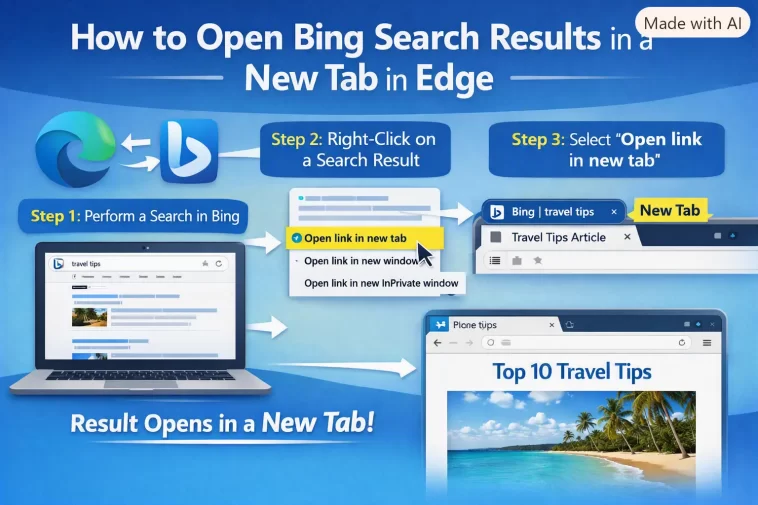
I used to lose my search results every single time I clicked something. I’d search on Bing, click a link, read it, hit back, and somehow I’d land on a completely different scroll position or the tab would just be gone. So I finally sat down and figured out how to open Bing search results in a new tab in Edge instead of the same one, and it turns out the fix isn’t even in Edge’s settings at all.
If you’ve been right-clicking every single result just to “open link in new tab,” you can stop doing that. There’s a setting for this. It’s just hiding somewhere you wouldn’t think to look.
Quick Answer
- The setting isn’t in Microsoft Edge — it’s on Bing’s own settings page.
- Go to Bing.com > menu (☰) > Settings > More, sometimes labeled SafeSearch.
- Under Results, turn ON “Open links from search results in a new tab or window.”
- You need to be signed into your Microsoft account for it to stick.
- If it keeps reverting, cookies or an extension are probably wiping it.
Why This Setting Lives Where It Does (And Why It’s Confusing)
Here’s the thing that trips people up: Edge and Bing are two different products that happen to be glued together by default. Edge is the browser. Bing is the search engine. And whether a link opens in a new tab or the same tab is a Bing decision, not an Edge decision, even though it feels like it should obviously be a browser setting.
There are a few reasons this ends up being more annoying than it should be:
Bing controls it through its own preferences page, not through Edge’s settings menu. So if you go digging around in edge://settings, you won’t find anything called “open search results in new tab.” It’s not there. It never was.
The setting is tied to your Microsoft account, not your device. If you’re not signed in, Bing has nowhere to store your preference, so it just falls back to whatever the default is (and yes, the default has flipped back and forth over the years depending on what Microsoft is testing).
Bing’s results page is partly JavaScript-driven now. That’s a change I noticed sometime last year — it’s not the old-school, plain HTML anchor tags for every result anymore. So Ctrl+clicking a result to force a new tab doesn’t always behave the way it does on a normal webpage. Sometimes it works fine, sometimes the JS intercepts it and does its own thing.
Browser extensions can quietly override tab behavior. Ad blockers and privacy extensions sometimes strip out the scripts Bing uses to manage link targets, which either breaks the “new tab” setting or makes it inconsistent.
Step-by-Step Fix
Step 1: Go to Bing.com and sign in
This part matters more than people think. If you’re not signed into your Microsoft account, whatever you change might not save past the current session.
Step 2: Open the settings menu
Click the hamburger icon (three horizontal lines) in the top-right corner of the Bing homepage or results page. Depending on your region and whatever test group Microsoft has you in, you’ll see either Settings or, on some accounts, it’s labeled SafeSearch directly.
Step 3: Click “More”
If you landed on Settings, click More to expand the full list of options. This is easy to miss because it’s collapsed by default and doesn’t look like it’s hiding anything important.
Step 4: Find the Results section
Scroll down until you see a heading called Results. There are two checkboxes here:
- Open links from search results in a new tab or window
- Open links from news results in a new tab or window
Check both if you want everything — regular results and news results — to open in a fresh tab. Check just the first one if you only care about standard search results.
Step 5: Save it
Scroll to the bottom and click Save. There’s no confirmation popup or anything dramatic, so run a quick test search right after to make sure it actually took.
Step 6 (alternative route): Go straight to the URL
If your Bing menu looks different or you can’t find the option through the hamburger menu, you can jump directly to bing.com/account/general and look for the same Results section there. This has saved me a few minutes more than once when the menu layout changed on me mid-search.
What Actually Worked For Me
Honestly, the first time I tried this, I assumed the setting would be in Edge’s tab settings, under “Start, home, and new tabs.” It’s not. I spent a solid ten minutes clicking through every tab-related toggle in Edge before I gave up and searched for it properly.
Once I found the actual Bing settings page, checking the box worked immediately — no restart, no cache clear, nothing dramatic. That’s not always the story though. A friend of mine (who does IT support, so this isn’t a random guess) told me his setting kept resetting itself every few days, and it turned out his browser was set to clear cookies on exit, which wiped Bing’s memory of the preference along with everything else. So if yours doesn’t stick, that’s the first thing I’d check — not the Bing setting itself, but whether something else is quietly deleting the cookie that remembers it.
Advanced Fixes and Edge Cases
If the setting keeps reverting: Check edge://settings/cookies and make sure “Clear cookies and site data when you close all windows” is off, or at least add an exception for bing.com. Cookie-clearing on exit is, from what I’ve seen, the number one cause of this setting silently undoing itself.
If you’re on a managed work or school device: Group Policy or Intune configurations can lock certain Bing and Edge behaviors, and no amount of clicking Save on the Bing settings page will override an org-level policy. If you’re on a company laptop, this might genuinely not be something you can fix yourself — that one’s on IT.
If Ctrl+click isn’t working even after enabling the setting: Try middle-clicking instead. Because Bing’s results page has gotten more script-heavy, standard modifier-key clicks don’t always fire the same browser event a plain link would. Middle-click tends to be a bit more reliable in my experience, though your mileage may vary depending on which Bing layout you’re currently served.
If an extension is involved: Temporarily disable ad blockers or privacy extensions one at a time and retest. Extensions that strip “unnecessary” scripts occasionally take out the exact script that manages target="_blank" behavior on Bing’s results.
If you use the address bar instead of Bing.com directly: The same Bing setting still applies as long as Bing is your default search engine in Edge, since address bar searches route through Bing’s backend the same way a direct search does. If you’ve switched your default search engine to Google or DuckDuckGo, none of this applies — you’d need to check that engine’s own settings instead, and honestly Google doesn’t offer this same toggle in the same way.
Common Scenarios Where This Comes Up
Real-world example: if you’re doing research and opening ten or fifteen results to skim through, keeping the original search page open in its own tab means you’re not constantly hitting back and losing your scroll position. That’s basically the whole reason this setting exists — it’s a workflow thing, not a bug fix.
It also comes up a lot with people who use Bing for image or shopping searches, where you want to compare multiple product pages side by side instead of tabbing back and forth on a single window.
Prevention Tips
- Stay signed into your Microsoft account on the device you use most, so the setting doesn’t have to be reapplied.
- Don’t set cookies to auto-clear for bing.com specifically if you rely on this preference.
- If you manage multiple devices, the setting is account-based, so signing in on a second device should carry it over — but test it, because sync delays happen.
- Keep an eye on extensions after installing new ones; test your Bing tab behavior again if something changes unexpectedly.
FAQ
Why doesn’t Edge have this setting built in? Because tab behavior for search results is controlled by Bing’s backend, not the browser itself. Edge just displays whatever Bing tells it to do.
Will this affect other search engines too? No. This only applies to Bing. If you switch your default search engine, you’ll need to look for an equivalent setting there, and not all search engines offer one.
Does this work on mobile Edge? Not really, not in the same way. Mobile browsing has different tab-handling behavior overall, and Bing’s mobile results page doesn’t expose the same settings menu.
Why did results start opening in a new tab without me changing anything? Microsoft occasionally tests different default behaviors for different account groups. So it’s possible your account got shifted into a new default without any setting changes on your end. Annoying, but that’s Microsoft’s testing rollout process for you.
Can I make only some results open in new tabs and others not? Not through this setting — it’s all-or-nothing for search results, and separately all-or-nothing for news results.
Editor’s Opinion
ok so this one genuinely shouldn’t be this hidden. its a browser-level thing that everyone expects to live in browser settings and instead its buried in a search engine’s account page that most people never open. not a huge deal once you know where it is, but the first time i went looking i was 100% checking the wrong menu for way too long. anyway it works, it sticks as long as your cookies dont get wiped, and thats really all there is to it.
