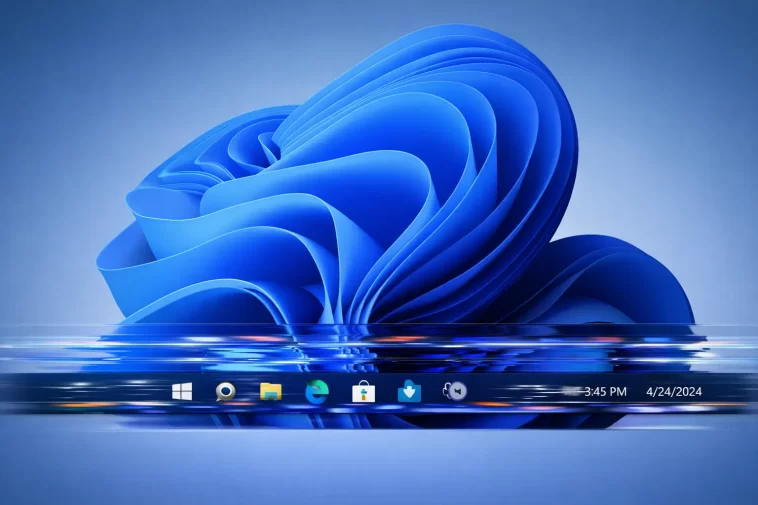
My taskbar started blinking like a busted fluorescent light about two weeks after a Windows 11 update, and no, I hadn’t installed anything weird. Windows 11 taskbar flickering usually comes down to a graphics driver conflict, a corrupted system file, or one specific visual effect setting that nobody thinks to check. The fix isn’t always the same one twice, but there’s a short list of things that actually work.
Quick Answer
- Update or roll back your GPU driver — this fixes it more often than anything else
- Disable Hardware-Accelerated GPU Scheduling in Settings
- Run
sfc /scannowandDISMto repair corrupted system files - Turn off transparency effects under Settings > Personalization > Colors
- Restart Windows Explorer instead of rebooting the whole machine first
Why the Taskbar Flickers in the First Place
So here’s the thing — taskbar flickering isn’t one bug. It’s a symptom that shows up for a handful of unrelated reasons, and that’s exactly why generic advice (“just restart your PC”) doesn’t fix it for most people.
Outdated or mismatched GPU drivers. This is the big one. Windows 11 leans on the GPU to render the taskbar and shell animations, and if your driver is out of sync with a recent Windows update, you get visual glitches — flickering, blinking, sometimes a black flash before the taskbar redraws.
Corrupted system files in the shell. Windows Explorer (explorer.exe) handles the taskbar, Start menu, and File Explorer all at once. If even one system file tied to the shell gets corrupted — from a bad update, an interrupted install, whatever — the taskbar is usually the first thing to show it.
Hardware-Accelerated GPU Scheduling (HAGS). This feature is supposed to help performance. On a chunk of systems, mostly older laptops with integrated graphics, it does the opposite and causes intermittent flickering in the shell.
Third-party apps hooking into the taskbar. Some apps — system monitors, RGB lighting software, certain antivirus suites — inject overlays or icons into the taskbar area. If that injection is buggy, you get flicker.
Transparency and animation effects. Less common, but real. The taskbar’s “acrylic” transparency effect occasionally fights with certain GPU drivers and causes a flicker loop.
Common Scenarios
| Scenario | Likely Cause | Notes |
|---|---|---|
| Flickers right after a Windows Update | Driver mismatch | Most frequent pattern overall |
| Flickers only when a specific app is open | Third-party taskbar injection | Check system tray apps first |
| Flickers on laptop, fine on desktop | HAGS or integrated graphics | More common on laptops with hybrid GPUs |
| Flickers constantly, even on fresh boot | Corrupted shell files | Usually needs SFC/DISM |
Not every case fits neatly into one row — sometimes it’s two of these stacked on top of each other, which is annoying to untangle.
Step-by-Step Fixes
Step 1: Restart Windows Explorer First
Before touching drivers or running scans, just restart the shell process. It’s the fastest test and it costs you nothing.
- Press
Ctrl + Shift + Escto open Task Manager - Find Windows Explorer in the list
- Right-click it and select Restart
If the flickering stops immediately, that tells you it’s a shell-level glitch, not hardware. It might come back though — this is a band-aid, not a cure.
Step 2: Update (or Roll Back) Your GPU Driver
Go to Device Manager, expand Display Adapters, right-click your GPU, and choose Update driver. If you updated recently and the flickering started right after, try rolling back instead — sometimes the newest driver is the problem, not the fix.
For NVIDIA and AMD cards, it’s worth grabbing the driver directly from the manufacturer’s site rather than relying on what Windows Update offers. From what I’ve seen, Windows Update drivers lag behind and aren’t always the most stable build.
Step 3: Turn Off Hardware-Accelerated GPU Scheduling
- Open Settings > System > Display > Graphics
- Click Change default graphics settings
- Toggle Hardware-Accelerated GPU Scheduling off
- Restart your PC
This one’s hit or miss. On some machines it does nothing. On others — especially laptops with integrated Intel graphics — it stops the flicker cold.
Step 4: Run SFC and DISM Scans
Open Command Prompt as admin and run:
sfc /scannowIf that finds issues it can’t fix on its own, follow up with:
DISM /Online /Cleanup-Image /RestoreHealthThis takes a while — don’t panic if it sits at a percentage for several minutes. Let it finish.
Step 5: Disable Transparency Effects
Settings > Personalization > Colors > toggle off Transparency effects. It’s a small thing, but it removes one rendering layer the taskbar has to compute, which sometimes is enough to stop the flicker loop.
Step 6: Check for Taskbar-Injecting Software
Close background apps one at a time — system monitors, RGB control software, some antivirus overlays — and watch if the flickering stops. This is tedious. But it’s the only way to actually isolate the culprit instead of guessing.
What Actually Worked For Me
I went through the usual checklist first — Explorer restart, no change. Disabled transparency, no change. I figured it had to be the driver, so I spent a good chunk of an evening rolling back to an older NVIDIA driver, which actually made it worse, weirdly enough.
The thing that fixed it, eventually, was half-remembered from an old forum thread about RGB software causing shell glitches. I had a lighting control app running in the background that I’d genuinely forgotten was even installed. Closed it, flicker gone instantly. Not exactly a satisfying diagnosis after all that driver fiddling, but that’s how it went.
So if you’re deep into driver rollbacks and getting nowhere, take a minute and check what’s actually running in your system tray. It’s an easy thing to overlook.
Advanced Fixes and Edge Cases
Check Event Viewer for shell crashes. Open Event Viewer > Windows Logs > Application, and look for repeated explorer.exe errors around the time the flickering happens. A pattern of crashes here points to a corrupted profile or shell extension rather than a driver issue.
Clean boot to isolate startup conflicts. Run msconfig, switch to Selective Startup, and disable all non-Microsoft startup items. If the flicker disappears, re-enable items one at a time until it comes back — that’s your culprit.
Reset the icon cache. Corrupted icon cache files occasionally cause taskbar redraw issues that look exactly like flickering. Delete iconcache.db from your user AppData folder (with Explorer closed) and let Windows rebuild it.
Check for a second GPU conflict. Laptops with both integrated and dedicated graphics sometimes get confused about which GPU is rendering the shell. Forcing the shell to use the integrated GPU specifically (via Graphics Settings) has resolved this for some users, though not consistently.
Fixes That Are Commonly Recommended But Rarely Work
Resetting the entire PC is the one people jump to fastest, and it’s almost always overkill — a clean Explorer restart or driver check solves it most of the time without nuking your setup. Clearing the Windows Update cache gets recommended a lot too, but in my experience it rarely touches taskbar rendering specifically; that’s more of a fix for failed update installs.
Prevention Tips
- Keep GPU drivers current, but don’t auto-update blindly — check release notes for known shell bugs first
- Audit your startup apps every few months; tray-resident software accumulates fast
- Avoid installing multiple overlay-style utilities (RGB control, FPS counters, screen recorders) that all hook into the shell simultaneously
- Run SFC scans periodically if you do a lot of manual driver installs or uninstalls
FAQ
Does this happen on Windows 10 too? Less often, but yes — usually for the same driver-related reasons.
Will a clean install of Windows 11 fix it? Probably, but it’s the nuclear option. Try the driver and shell fixes first.
Is this a hardware problem? Rarely. Most cases trace back to software — drivers, shell corruption, or background apps — not failing hardware.
Why does it only happen when I’m gaming or using certain apps? That usually points to a GPU scheduling conflict or HAGS, since those apps push the GPU harder and expose the issue faster.
Can a Windows Update cause this on its own? Yes, especially if it ships alongside a driver compatibility change. It’s one of the more frequent triggers.
Editor’s Opinion
Honestly this bug is annoying mostly because there’s no single cause, so everyone’s “fix” online is just whatever worked for their specific setup. Mine ended up being RGB software I forgot existed, which is kind of embarrassing in hindsight. If your taskbar’s blinking, just go down the list — restart Explorer, check drivers, then go hunting in your tray icons before you do anything drastic like a reset.
