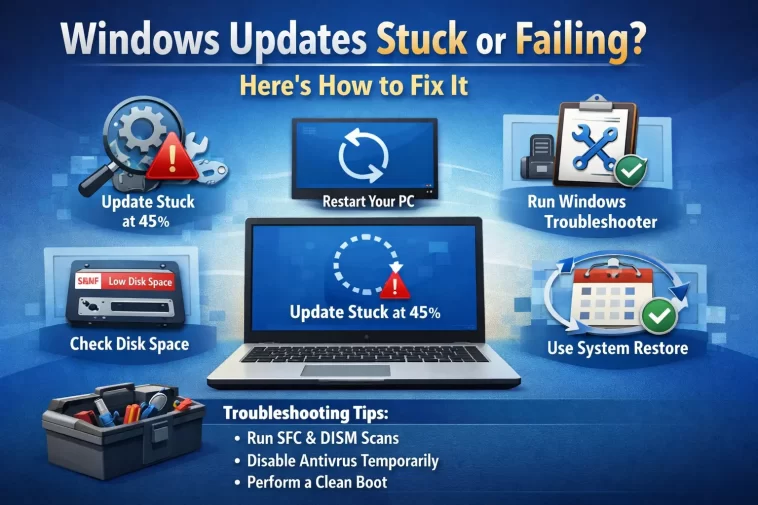
Windows updates getting stuck at 99% — or throwing an error code and quitting — is one of the most common Windows 11 complaints out there. You kick off an update, walk away, come back an hour later, and nothing has changed. Or worse, it fails with a cryptic error code that tells you nothing useful.
This isn’t just annoying. Stuck updates leave your system without important security patches, which is a real problem. The good news: there are several reliable fixes, and you almost certainly won’t need to reinstall Windows.
Work through the steps below in order. Most people are done by Step 3 or 4.
Why Do Windows Updates Get Stuck or Fail?
Updates fail for a handful of predictable reasons. Knowing which one you’re dealing with helps you pick the right fix.
The most common causes are:
- Corrupted update cache — old, broken download files that block new ones
- A stuck Windows Update service — the background process that handles downloads has frozen
- Corrupted system files — damaged Windows components that updates can’t install over
- Not enough disk space — updates need room to extract and install; low space causes silent failures
- Third-party antivirus interference — some security software blocks update processes
- Conflicting software or drivers — especially recently installed programs
The error code (if you have one) is actually helpful. Common ones like 0x80070005, 0x8007000d, 0x80073712, and 0x800705b4 all point to specific issues — mostly corrupted files or permission problems.
Step 1: Wait — But Not Too Long
Before doing anything, give it time. Some updates genuinely take a long time at high percentages because they’re doing intensive work behind the scenes — unpacking files, configuring components, writing to disk.
A fair rule of thumb:
- If it’s been under 2 hours at the same percentage, wait it out
- If it’s been over 2 hours with zero disk activity and no progress, it’s stuck
You can check disk activity in Task Manager (Ctrl + Shift + Esc) under the Performance tab. If disk usage is 0% and nothing is moving, the update process has frozen.
Step 2: Restart Your PC
It sounds too simple, but it works. A restart clears the stuck update process, and Windows will often resume or retry the update automatically on the next boot.
What to do:
- If the update is stuck on a percentage screen, hold the power button for 5 seconds to force a shutdown
- Wait 30 seconds, then power back on
- Let Windows boot fully and check Settings > Windows Update
If the update restarts and gets stuck again at the same point, move to the next step.
Step 3: Run the Windows Update Troubleshooter
Windows 11 has a built-in troubleshooter specifically for update failures. It’s not perfect, but it catches the most common issues automatically — resetting services, clearing bad cache entries, and fixing permission problems.
How to run it:
- Press Win + I to open Settings
- Go to System > Troubleshoot > Other troubleshooters
- Find Windows Update and click Run
- Follow the on-screen instructions and apply any fixes it suggests
- Restart your PC and try updating again
If it finds something and fixes it, great. If it says “no issues found” but the problem persists, keep going.
Step 4: Clear the Windows Update Cache
This is one of the most effective fixes. The update cache stores downloaded update files, and when those files get corrupted, every future update attempt fails against them. Clearing the cache forces Windows to download everything fresh.
How to do it:
- Press Win + R, type
services.msc, and press Enter - Find Windows Update in the list, right-click it, and select Stop
- Also stop Background Intelligent Transfer Service (BITS) the same way
- Open File Explorer and navigate to:
C:\Windows\SoftwareDistribution\Download- Select everything inside the Download folder and delete it
- Go back to services.msc and Start both services again
- Restart your PC and try Windows Update
This clears out all cached update data without touching any of your personal files or installed programs.
Step 5: Reset Windows Update Components Manually
If clearing the cache alone didn’t work, resetting the entire Windows Update stack is the next move. This resets all the update-related services and re-registers the update DLL files from scratch.
How to do it:
- Open Command Prompt as administrator (search for
cmd, right-click, Run as administrator) - Run these commands one at a time, pressing Enter after each:
net stop wuauserv
net stop cryptSvc
net stop bits
net stop msiserver
Then rename the corrupted folders:
ren C:\Windows\SoftwareDistribution SoftwareDistribution.old
ren C:\Windows\System32\catroot2 catroot2.old
Then restart the services:
net start wuauserv
net start cryptSvc
net start bits
net start msiserver- Restart your PC and check Windows Update again
This is the manual version of the troubleshooter — more thorough and more reliable.
Step 6: Run SFC and DISM
Corrupted system files are a major cause of update failures. Two built-in tools — SFC and DISM — scan for and repair them. Run both, in this order.
First, run SFC:
- Open Command Prompt as administrator
- Type:
sfc /scannow- Wait 10–20 minutes for the scan to complete
- Restart your PC
Then, run DISM:
- Open Command Prompt as administrator again
- Run:
DISM /Online /Cleanup-Image /RestoreHealthThis downloads replacement files directly from Microsoft, so keep your internet connection active. It takes 20–30 minutes.
Restart after DISM finishes, then retry Windows Update.
Step 7: Free Up Disk Space
Windows updates need room to work — typically at least 10–15 GB of free space for major updates, sometimes more. If your drive is nearly full, updates will silently fail or get stuck during extraction.
How to check and free up space:
- Open File Explorer and right-click your C: drive > Properties
- If you have less than 15 GB free, run Disk Cleanup:
- Search for Disk Cleanup in the Start Menu
- Run it, then click Clean up system files
- Check boxes for: Temporary files, Windows Update Cleanup, Delivery Optimization Files
- Click OK
You can also move large files to an external drive or use Settings > System > Storage > Cleanup recommendations to find and remove big unused files.
Step 8: Temporarily Disable Third-Party Antivirus
Some antivirus programs — especially older ones not fully optimized for Windows 11 — interfere with update downloads and installations. This is more common than most people realize.
What to do:
- Right-click your antivirus icon in the system tray
- Look for an option like “Disable protection for 15 minutes” or “Pause protection”
- Try running Windows Update immediately while it’s paused
- Re-enable your antivirus afterward regardless of the result
If the update installs successfully with antivirus paused, you’ll need to update or switch your security software.
Step 9: Install the Update Manually
If Windows Update itself keeps failing, bypass it entirely. Microsoft publishes every update on the Microsoft Update Catalog, and you can download and install them directly.
How to do it:
- Note the KB number of the update that’s failing (it looks like KB5034441 — visible in Windows Update)
- Go to: catalog.update.microsoft.com
- Search for the KB number
- Download the version matching your system (x64 for most modern PCs)
- Run the downloaded file and follow the installer
This skips the Windows Update service entirely and installs the update directly. It works in the vast majority of cases where the update service itself is broken.
Step 10: Use the Windows 11 Installation Assistant
For major version updates (like moving from Windows 11 22H2 to 23H2 or 24H2) that are stuck or failing, Microsoft’s official Installation Assistant is the most reliable alternative.
How to use it:
- Search for Windows 11 Installation Assistant on Microsoft’s website
- Download and run it
- It handles the upgrade process independently of Windows Update
- Follow the prompts and let it restart your PC when ready
This is especially useful when a feature update has been stuck for days and nothing else has worked.
Common Error Codes and What They Mean
| Error Code | What It Usually Means |
|---|---|
| 0x80070005 | Permission problem — try running update as administrator |
| 0x8007000d | Corrupted update file — clear the cache (Step 4) |
| 0x80073712 | Missing or damaged system files — run SFC and DISM (Step 6) |
| 0x800705b4 | Update service timed out — reset update components (Step 5) |
| 0x80240034 | Update metadata corrupted — clear cache and retry |
| 0x80070002 | File not found during install — DISM repair usually fixes this |
If you see one of these codes, jump directly to the recommended step rather than starting from the beginning.
FAQ
Why do Windows updates get stuck at 99% specifically?
The 99% stage is where Windows finalizes the installation — applying changes, updating the boot configuration, and cleaning up temporary files. This step is disk-intensive and can take a long time on slower drives. If it’s genuinely stuck (no disk activity for over an hour), it usually means a corrupted file is blocking the final stage. Clearing the update cache and running DISM resolves this in most cases.
Is it safe to force restart when an update is stuck?
Yes, in most situations. Windows is designed to recover from interrupted updates. When you restart, it will either roll back the failed update cleanly or resume from a checkpoint. Forcing a restart during an update is much safer than it used to be in older Windows versions.
How long should a Windows update realistically take?
Small security patches typically take 5–15 minutes. Larger cumulative updates can take 30–60 minutes depending on your hardware. Major version upgrades (like Windows 11 24H2) can take 1–2 hours on older machines. If you’ve exceeded these times with no visible progress and no disk activity, the update is stuck.
Can a bad Windows update brick my PC?
It’s extremely rare, but it has happened. Microsoft now includes automatic rollback — if an update fails to install properly, Windows rolls back to the previous state automatically. You may see a message saying “Undoing changes made to your computer,” which means it’s recovering safely.
Why does the same update keep failing every time?
Repeated failures on the same update usually mean either corrupted system files that haven’t been repaired yet, or a compatibility issue with specific hardware or software on your machine. Running both SFC and DISM (Step 6) and then resetting update components (Step 5) usually breaks the cycle. If not, the manual download method (Step 9) almost always works.
Do I need to install every Windows update?
Security updates — the ones released on Patch Tuesday each month — are important and should be installed. They patch vulnerabilities that are actively exploited. Feature updates (major version upgrades) are optional in the short term but eventually become required. Driver updates through Windows Update are generally safe but can sometimes cause issues; it’s fine to be selective about those.
Will clearing the update cache delete my personal files?
No. The update cache (in C:\Windows\SoftwareDistribution\Download) only contains temporary update download files. Deleting it has no effect on your documents, photos, installed applications, or settings. Windows simply re-downloads whatever it needs on the next update attempt.
Final Thoughts
Windows updates getting stuck or failing is frustrating, but it’s almost always fixable without wiping your PC. The update cache fix (Step 4) and the SFC/DISM combination (Step 6) solve the vast majority of cases.
If you’re still stuck after working through all these steps, the manual download method from the Microsoft Update Catalog (Step 9) is your reliable fallback — it bypasses the entire Windows Update service and installs the patch directly.
Keep your system updated. The inconvenience of fixing a stuck update is far smaller than the risk of running an unpatched system.
