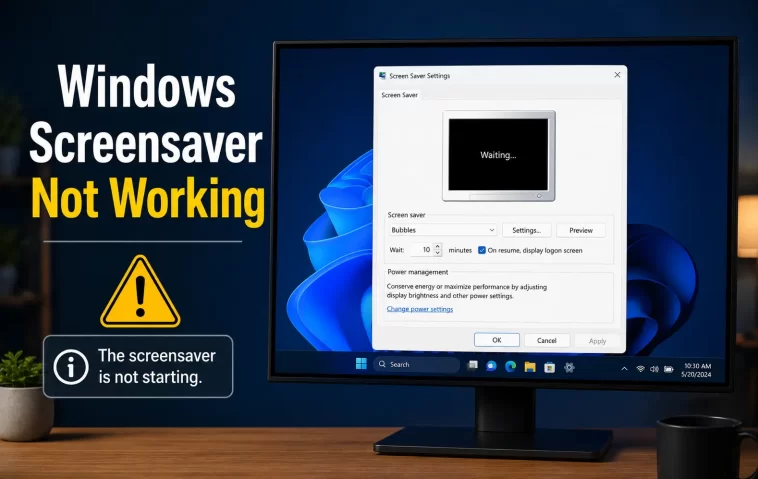
Your Windows screensaver not working is more frustrating than it sounds — especially when you’ve already set it up correctly and it simply refuses to activate.
This guide covers every common reason why the screensaver stops working on Windows 10 and 11, and walks you through each fix step by step.
Why Is My Screensaver Not Turning On?
Before jumping into fixes, it helps to understand what’s actually stopping it.
Windows screensavers rely on a specific chain of conditions: a screensaver must be selected, a wait time must be set, and the system must detect genuine inactivity. If anything in that chain breaks — a background app sending input signals, a power setting overriding behavior, or a corrupted setting — the screensaver never activates.
Here are the most common culprits:
- A mouse, keyboard, or controller sending phantom signals
- A background app or media player preventing idle detection
- Windows power settings bypassing the screensaver
- Group Policy or registry values overriding your settings
- A recent Windows update resetting screensaver preferences
- Hardware drivers sending constant low-level input
Fix 1: Check Your Screensaver Settings First
This sounds obvious, but many people find the screensaver was simply never saved properly.
Right-click your desktop → Personalize → Lock screen → scroll down and click Screen saver.
In the Screen Saver Settings window, confirm:
- A screensaver is selected in the dropdown (not None)
- The Wait time is set to a number — not zero
- You clicked Apply before closing the window last time
If anything looks wrong, fix it, click Apply, then OK, and test again.
Fix 2: Unplug or Check Your Mouse and Keyboard
A faulty or overly sensitive mouse is one of the most common reasons screensavers never kick in.
Even microscopic optical sensor movement — caused by a reflective surface, a dirty mousepad, or a worn-out sensor — registers as user activity. Windows sees constant input and never enters idle mode.
Try this:
- Unplug your mouse temporarily
- Wait for the screensaver wait time to pass
- See if the screensaver activates
If it does, your mouse is the problem. Try placing it on a different surface, cleaning the sensor, or replacing the mousepad. A wireless mouse with a dying battery can also send erratic signals.
The same applies to keyboards — a stuck key or a faulty wireless dongle can prevent idle detection.
Fix 3: Disconnect Game Controllers and Other USB Devices
Game controllers — especially ones with vibration motors or wireless receivers — are a very common hidden cause.
Even when you’re not gaming, a connected controller can send low-level input signals that Windows interprets as activity. This keeps the system from ever going idle.
Disconnect any:
- Xbox, PlayStation, or third-party game controllers
- USB wireless receivers (dongles)
- Drawing tablets
- External numpad or macro keyboards
Then test the screensaver again. If it works, reconnect devices one at a time to find the specific culprit.
Fix 4: Close Background Apps That Prevent Idle Mode
Certain apps actively tell Windows to stay awake — and that blocks the screensaver.
Common offenders include:
- Video players (VLC, Netflix, YouTube in browser)
- Video calling apps (Zoom, Teams, Google Meet)
- Presentation software (PowerPoint in slideshow mode)
- Download managers running in the background
- Remote desktop sessions
Open Task Manager (Ctrl + Shift + Esc) and check what’s running. Close any app you don’t need and test the screensaver again.
If the screensaver only fails when specific software is open, that app is using Windows’ built-in “prevent sleep” API — and it’s working as intended for that app, but blocking your screensaver as a side effect.
Fix 5: Adjust Your Power Settings
Windows power settings and screensaver settings can conflict with each other — and power settings usually win.
Go to Settings → System → Power & sleep.
Check the Screen section. If “Turn off my screen after” is set to a shorter time than your screensaver wait time, Windows will turn off the display before the screensaver even gets a chance to run.
Set the screen turn-off time to be longer than your screensaver wait time, or set it to Never while troubleshooting.
Also check your power plan:
- Open Control Panel → Power Options
- Click Change plan settings next to your active plan
- Click Change advanced power settings
- Look for any settings under Display that might override screensaver behavior
Fix 6: Check Group Policy Settings (Windows 10/11 Pro)
If you’re on Windows 10 or 11 Pro, Group Policy settings can silently override your screensaver preferences.
Press Win + R, type gpedit.msc, and press Enter.
Navigate to: User Configuration → Administrative Templates → Control Panel → Personalization
Look for these policies and make sure they’re set to Not Configured or Enabled (not Disabled):
- Enable screen saver — must be Enabled
- Force specific screen saver — set to Not Configured unless you want a specific one
- Screen saver timeout — set to Not Configured to let local settings control it
- Password protect the screen saver — set as preferred
If any of these were set to Disabled, that’s your problem. Change them, click Apply, and restart your PC.
Fix 7: Edit the Registry (Advanced Fix)
If Group Policy isn’t available (Windows Home) or the issue persists, check the registry directly.
Press Win + R, type regedit, and press Enter.
Navigate to:
HKEY_CURRENT_USER\Software\Policies\Microsoft\Windows\Control Panel\DesktopLook for these values:
- ScreenSaveActive — should be set to
1 - ScreenSaverIsSecure — set to
1if you want password on resume - ScreenSaveTimeOut — the wait time in seconds (e.g.,
300for 5 minutes)
If ScreenSaveActive is set to 0, the screensaver is being actively disabled by a policy. Change it to 1.
Warning: Be careful in the registry. Only edit the values mentioned above. Incorrect changes can cause system issues.
Fix 8: Run the System File Checker
Corrupted Windows system files can cause screensaver behavior to break silently.
Open Command Prompt as Administrator:
- Search for cmd in the Start menu
- Right-click and select Run as administrator
- Type the following and press Enter:
sfc /scannowThis scan checks for and repairs corrupted system files automatically. It takes a few minutes. Once it’s done, restart your PC and test the screensaver.
Fix 9: Update or Roll Back Display Drivers
Outdated or buggy display drivers sometimes interfere with screensaver activation.
Right-click the Start button → Device Manager → expand Display adapters → right-click your GPU → Update driver.
If the screensaver broke right after a driver update, try rolling it back instead:
Right-click your GPU → Properties → Driver tab → Roll Back Driver.
Restart your PC after either action and test again.
Fix 10: Create a New User Account and Test
If nothing else works, the issue might be tied to your specific user profile — not Windows itself.
Go to Settings → Accounts → Family & other users → Add someone else to this PC and create a new local account.
Log in to that account and set up the screensaver. If it works there, your original profile has a corrupted setting or policy conflict. You can migrate your files to the new account or try resetting your profile settings.
Quick Checklist Before You Give Up
Run through this list one more time before trying more drastic steps:
- ✅ Screensaver is selected (not None)
- ✅ Wait time is set and saved with Apply
- ✅ Mouse and keyboard are not sending phantom input
- ✅ No game controllers or unusual USB devices connected
- ✅ No video player or calling app running in background
- ✅ Screen turn-off time is longer than screensaver wait time
- ✅ Group Policy settings are not disabling the screensaver
- ✅ Registry value ScreenSaveActive is set to 1
- ✅ Display drivers are up to date
FAQ: Windows Screensaver Not Working
Why does my screensaver work sometimes but not always?
Inconsistent behavior usually points to a background app or device that’s intermittently active. A download manager, a background sync process, or a wireless device waking up briefly can all reset the idle timer unpredictably.
My screensaver was working fine and suddenly stopped — what happened?
A Windows update is the most likely cause. Updates sometimes reset screensaver preferences or override Group Policy settings. Go back to Screen Saver Settings, reapply your choices, and check Group Policy if you’re on Pro.
Can antivirus software block the screensaver?
In rare cases, yes. Some aggressive antivirus tools run background scans that register as system activity. Try temporarily disabling real-time protection and testing the screensaver. If that fixes it, adjust your antivirus scan schedule.
Does Windows 11 handle screensavers differently than Windows 10?
The core behavior is the same, but Windows 11 has moved some settings deeper into menus. The actual screensaver engine works identically. All the fixes in this guide apply to both versions.
My screensaver activates but the password prompt doesn’t appear — is that a separate issue?
Yes. The screensaver activating and the password-on-resume feature are two separate settings. Go to Screen Saver Settings and make sure “On resume, display logon screen” is checked. Also check Settings → Accounts → Sign-in options and set Require sign-in to Every time.
Will disabling fast startup help fix my screensaver?
It can. Fast Startup sometimes causes Windows to behave unexpectedly with lock screens and screensavers. Disable it via Control Panel → Power Options → Choose what the power buttons do — uncheck Turn on fast startup and restart.
The Windows screensaver not working is almost always fixable once you identify the actual cause. Work through the fixes in order, test after each one, and you’ll have it running again without needing to reinstall anything.
