Windows 11 doesn’t give you a built-in shortcut editor — but these methods let you build your own hotkeys for any app, file, or action in minutes.
I have an app I open about fifty times a day. Every time, I was clicking through the Start menu or hunting for it on the taskbar. One afternoon I finally got tired of it, set up a two-key shortcut, and that was the end of the problem. It took about three minutes to set up and has saved me a noticeable amount of clicking ever since.
Creating custom keyboard shortcuts in Windows 11 is easier than most people assume. The operating system doesn’t advertise it well, and there’s no single dedicated settings panel for it, but there are several solid methods — from a built-in desktop trick to free tools that give you full control over every key on your keyboard.
This guide covers every method, from the simplest to the most powerful. You can follow one or all of them depending on how deep you want to go.
What Can You Actually Customize?
Before jumping in, it helps to know what kind of shortcuts you can create in Windows 11:
- App-launch shortcuts — Press a key combo to open any app, folder, or file
- Key remaps — Make one key behave like another (for example, turn Caps Lock into Ctrl)
- Shortcut remaps — Replace a built-in Windows shortcut with something you prefer
- Text expansion — Press a short combo and have it type out a full phrase or your email address
- System action shortcuts — Trigger things like locking the screen, opening a specific settings page, or running a command
The method you use depends on what you’re trying to do. Let’s go through each one.
Method 1: Use the Built-In Desktop Shortcut Trick (No Extra Software)
Windows 11 has a native way to assign a keyboard shortcut to any app — but only through a desktop shortcut. It’s simple, requires zero downloads, and works fine for basic app-launching needs.
Here’s how you do it:
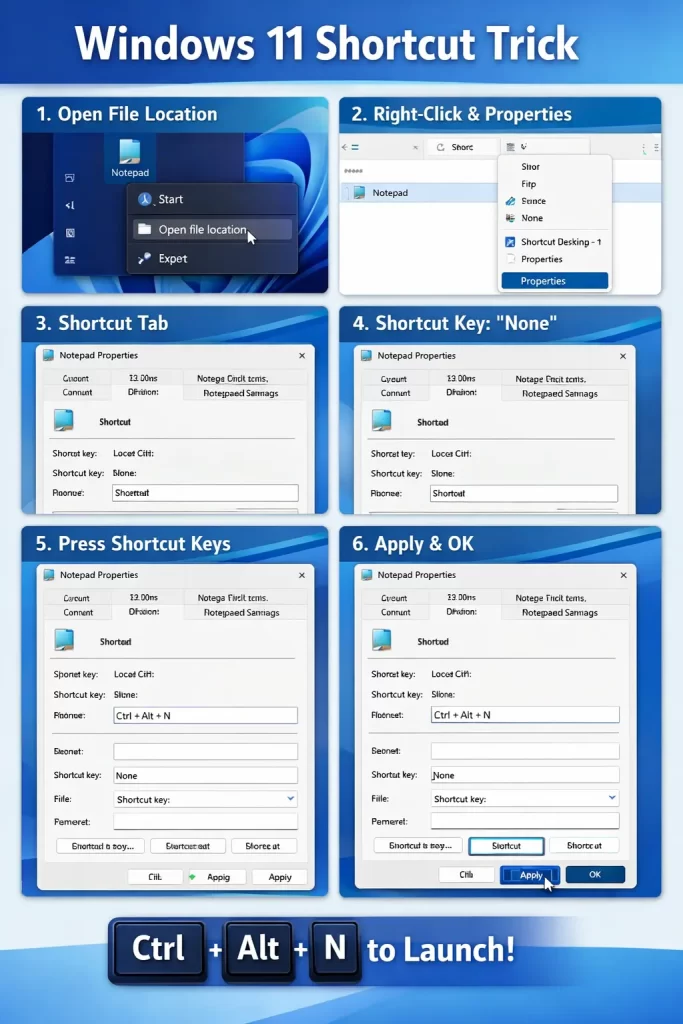
Step 1: Find the app you want to create a shortcut for. Open the Start menu, right-click the app, and select Open file location. This opens the folder where the app shortcut lives.
Step 2: Right-click the app shortcut and select Properties.
Step 3: In the Properties window, click the Shortcut tab.
Step 4: Click inside the Shortcut key field. It will say “None” by default.
Step 5: Press the key you want to use. Windows automatically adds Ctrl + Alt in front of it. So if you press N, your shortcut becomes Ctrl + Alt + N.
Step 6: Click Apply, then OK.
That’s it. From now on, pressing that combination anywhere in Windows will open that app.
Important limitations to know:
- The shortcut key combinations must start with Ctrl + Alt, Ctrl + Shift, or a function key
- This only works for shortcuts that exist in your Start menu’s app folder or on your desktop — not for every installed app
- It won’t work if another app is already using that key combination
- The shortcut stops working if you move or delete the underlying file
This method is best for a handful of frequently-used apps where you want a quick launch key without installing anything.
Method 2: Use Microsoft PowerToys Keyboard Manager (Recommended)
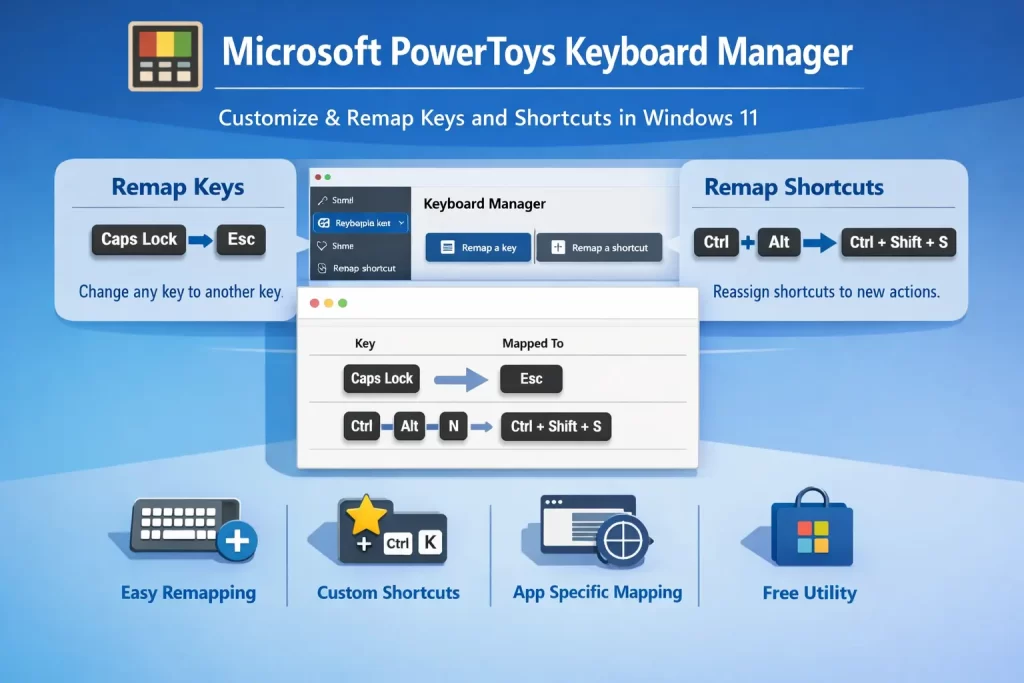
Microsoft PowerToys is a free, official Microsoft utility that adds a layer of customization to Windows that the OS itself doesn’t offer. The Keyboard Manager tool inside PowerToys is the most practical way to create and manage custom shortcuts in Windows 11.
With Keyboard Manager you can:
- Remap any key to any other key
- Create new shortcuts that trigger existing Windows shortcuts
- Set shortcuts that only work in a specific app
- Replace a shortcut you never use with something more useful
Installing PowerToys
Step 1: Open the Microsoft Store app (search for it in the Start menu).
Step 2: Search for Microsoft PowerToys.
Step 3: Click Get or Install. It’s free and made by Microsoft directly.
Step 4: Once installed, open PowerToys from the Start menu.
Remapping a Key
Step 1: In the PowerToys app, click Keyboard Manager in the left sidebar.
Step 2: Toggle Enable Keyboard Manager to on.
Step 3: Click Remap a key.
Step 4: Click the + (Add key remapping) button.
Step 5: In the Select column, click the button and press the key you want to change. For example, press Caps Lock.
Step 6: In the To send column, choose what that key should do instead. You can select another key, a shortcut, or even type a text string.
Step 7: Click OK to save.
From this point on, that key does whatever you assigned until you remove or change the mapping.
Remapping a Shortcut
Step 1: In Keyboard Manager, click Remap a shortcut.
Step 2: Click the + button to add a new mapping.
Step 3: In the Shortcut column, press the key combination you want to reassign (for example, Ctrl + Alt + N).
Step 4: In the To send column, choose what that combination should do. You can map it to a different shortcut, a single key, or a text string.
Step 5: If you want this shortcut to only work in one specific app, set the Target app field at the end of the row. Leave it blank to make it work everywhere.
Step 6: Click OK.
Why PowerToys Is the Best Option for Most People
- It’s free and built by Microsoft
- No scripting or technical knowledge required
- Changes take effect immediately — no restart needed
- You can remove or edit any mapping at any time
- App-specific shortcuts mean you don’t disrupt other programs
The only limitation is that PowerToys needs to be running in the background for the remappings to work. It runs at startup by default after installation, so this usually isn’t an issue.
Method 3: AutoHotkey for Advanced Automation
If you want to go beyond key remapping and into full automation — typing entire text blocks with one key combo, automating repetitive clicks, creating macros, or running scripts — AutoHotkey is the tool for that.
AutoHotkey is free, open-source software that lets you write small scripts to define exactly what happens when you press any key combination. It’s more powerful than PowerToys but requires a little more setup.
As of 2026, new users should download AutoHotkey v2, which has cleaner and more intuitive syntax than the older v1. Many tutorials online are still written for v1, so keep that in mind when reading guides.
Installing AutoHotkey
Step 1: Open your browser and search for AutoHotkey download.
Step 2: Go to the official AutoHotkey website and download the v2 installer.
Step 3: Run the installer and choose the standard installation.
Creating a Basic Script
Step 1: Right-click an empty area on your desktop.
Step 2: Select New, then AutoHotkey Script.
Step 3: Give the script a name (for example, MyShortcuts.ahk).
Step 4: Right-click the new file and choose Edit Script (or open it in Notepad).
Step 5: Type your shortcut code. Here are some practical examples:
Open an app with a shortcut:
^!n::Run "notepad.exe"This runs Notepad when you press Ctrl + Alt + N.
Type out a text phrase:
::addr::123 Main Street, Your City, State 12345Whenever you type “addr” followed by a space or Enter, it automatically expands to your full address.
Type your email address quickly:
::@@::[email protected]Type @@ and it expands to your email address.
Step 6: Save the file and double-click it to run the script. A small green icon appears in the system tray when it’s active.
Running AutoHotkey at Startup
If you want your scripts to run automatically every time Windows starts:
- Press Win + R and type
shell:startup, then press Enter. - This opens the Startup folder.
- Copy a shortcut to your .ahk script file into that folder.
From now on, your AutoHotkey shortcuts will be active as soon as you log in.
AutoHotkey is ideal for power users who want to eliminate repetitive typing, build complex macros, or automate tasks that PowerToys alone can’t handle.
Method 4: Task Scheduler (For Running Programs or Scripts at Startup or on Schedule)
If you want to trigger an action — such as opening an app, running a script, or launching a system command — but don’t need a live keyboard shortcut, Windows Task Scheduler lets you bind actions to events. This is a more advanced method suited for specific automation needs rather than everyday shortcuts.
Step 1: Press Win + S and search for Task Scheduler. Open it.
Step 2: In the right panel, click Create Basic Task.
Step 3: Give the task a name and description, then click Next.
Step 4: Choose a trigger — when to run the action (at log on, on a schedule, when a specific event occurs, etc.).
Step 5: Choose an action — start a program, send an email, or display a message.
Step 6: Set the program path and any arguments, then click Finish.
This isn’t a traditional keyboard shortcut, but it fills a specific gap: running background tasks automatically without needing to press anything at all.
Which Method Should You Use?
Here’s a quick guide to help you choose:
| Your Goal | Best Method |
|---|---|
| Open a specific app with a hotkey | Method 1 (Desktop shortcut) or Method 2 (PowerToys) |
| Remap Caps Lock or a useless key | Method 2 (PowerToys Keyboard Manager) |
| Change how a Windows shortcut works | Method 2 (PowerToys Keyboard Manager) |
| Type your email/address with a short code | Method 3 (AutoHotkey) |
| Create complex macros or automation | Method 3 (AutoHotkey) |
| App-specific shortcuts (different per program) | Method 2 (PowerToys, with target app set) |
| Run a program or script automatically | Method 4 (Task Scheduler) |
For most users, Method 2 with PowerToys covers 90% of what you’d want to do. It’s free, official, requires no scripting, and is easy to manage. Start there unless you have a specific need that pushes you toward AutoHotkey.
Common Mistakes to Avoid
Choosing a combination that’s already taken. Before assigning a shortcut, think about whether that combo is used by your browser, your most-used app, or Windows itself. Ctrl + Alt + letter combinations are usually safe. Ctrl + key alone is often taken by apps.
Forgetting that app-specific shortcuts require the app to be running. If you set a PowerToys shortcut that only applies to a specific app, it only fires when that app is the active window.
Not saving your script file before running it. When editing AutoHotkey scripts, always save the file before double-clicking to run. Running the old version is a common source of confusion.
Moving or renaming the app after setting a desktop shortcut. The built-in desktop shortcut method breaks if the original file path changes. Use PowerToys instead if you want something more stable.
Stacking too many shortcuts too fast. Building twenty shortcuts in one sitting makes it hard to remember any of them. Add a few at a time and let them become muscle memory before adding more.
FAQ: Custom Keyboard Shortcuts in Windows 11
Q: Can I assign a keyboard shortcut to open a website directly? Yes, but you need a workaround. Create a desktop shortcut that links to the website URL (right-click desktop → New → Shortcut, then type the URL). Then assign a hotkey to that shortcut using the desktop shortcut method described in Method 1. Clicking it opens the URL in your default browser.
Q: Can I make a shortcut that only works in one specific app? Yes. In PowerToys Keyboard Manager, when you create a remapped shortcut, there is a Target app field at the end of the row. Type the executable name of the app (for example, chrome.exe for Chrome or code.exe for VS Code) and the shortcut will only fire when that app is in focus.
Q: Why does my custom shortcut stop working after a reboot? For AutoHotkey scripts, make sure the script file is placed in your Startup folder (Win + R, then type shell:startup). For PowerToys mappings, make sure PowerToys is set to launch at startup — check this in PowerToys settings under General.
Q: Can I remap the Windows key or the Fn key? The Windows key can be remapped using PowerToys Keyboard Manager or AutoHotkey, though some combinations are protected by the system. The Fn key is handled by your keyboard firmware, not by Windows, so software tools generally cannot remap it — you’d need a dedicated app from your keyboard manufacturer.
Q: Is it safe to use Microsoft PowerToys? Yes. PowerToys is developed and maintained directly by Microsoft and is available through the official Microsoft Store. It’s widely used by developers and power users and has been a trusted tool for years.
Q: Will my custom shortcuts survive a Windows update? In most cases, yes. PowerToys mappings are stored in its own configuration file and persist through Windows updates. AutoHotkey scripts are just files on your disk and are unaffected by updates. The desktop shortcut method is the most fragile of the three and can occasionally lose its shortcut key after major updates.
Q: Can I set a keyboard shortcut to lock my PC instantly? Windows already has a built-in shortcut for this: Win + L. If you want a different key combo to do the same thing, you can remap it in PowerToys Keyboard Manager by mapping your preferred combo to send Win + L.
Final Thoughts
Windows 11 makes custom keyboard shortcuts more accessible than ever, even if it doesn’t put the feature front and center. The built-in desktop shortcut method handles simple app launches. PowerToys handles everything from key remapping to app-specific shortcuts with no scripting required. And AutoHotkey opens the door to full automation if you’re willing to write a few lines of code.
Start small. Pick one thing you do repeatedly every day — opening an app, typing your email address, switching between two tools — and build a shortcut for that. Once it becomes second nature, you’ll start seeing other places to apply the same idea.
The goal isn’t to memorize a hundred custom hotkeys. It’s to eliminate the five or ten friction points that slow you down every single day.
