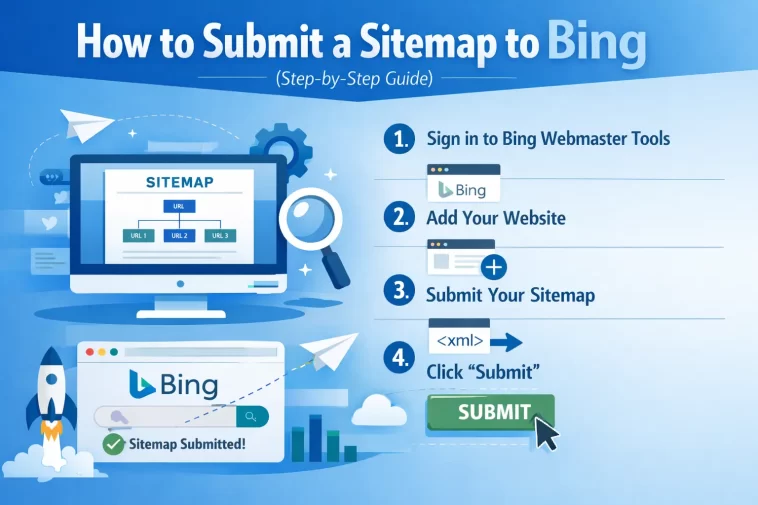
I set up my first website, connected it to Google Search Console, and called it done. Bing felt like an afterthought.
Then I looked at my analytics. A steady stream of visitors was coming from Bing — and I hadn’t even told Bing my site existed. Once I submitted my sitemap properly, that number grew.
Here’s the thing most people miss: Bing holds roughly 5% of global search share and over 1 billion monthly active users. More importantly, ChatGPT Search retrieves results from Bing’s index — so a page Bing hasn’t indexed cannot appear in a ChatGPT answer. That’s a big deal in 2026.
Submitting your sitemap to Bing also shares that data with Yahoo Search, so one submission gets your pages in front of two search engines at once.
Now let’s get into exactly how to do it.
Before You Start: Find Your Sitemap URL
You need to know your sitemap URL before you log into anything.
If you use WordPress with Rank Math or Yoast SEO, your sitemap is almost certainly already generated. It will usually look like this: https://yourdomain.com/sitemap_index.xml. You can confirm by typing that URL into your browser — if the page loads and shows a list of links, you are good to go.
Other common sitemap URLs include:
https://yourdomain.com/sitemap.xmlhttps://yourdomain.com/sitemap_index.xmlhttps://yourdomain.com/news-sitemap.xml(for news sites)
If you’re unsure, check your SEO plugin settings or your website platform’s documentation.
Step 1: Create a Free Bing Webmaster Tools Account
Go to the official Bing Webmaster Tools page and click the “Get Started” button. You can sign in using your Microsoft, Google, or Facebook account.
If you already have a Microsoft account (Outlook, Xbox, Microsoft 365), just use that. It takes about 60 seconds.
Once you’re signed in, you’ll be taken to your dashboard. This is where you manage everything — sitemap submissions, crawl data, SEO analysis, and more. It’s free, and you only need to do this setup once.
Step 2: Add and Verify Your Website
After logging in, Bing will offer you two ways to add your site.
Option A: Import from Google Search Console (Fastest)
This is the easiest route if your site is already set up in Google Search Console.
Select the “Import from Google Search Console” option, click “Continue,” sign in to the Google account that has access to your GSC property, and grant Bing permission to access your data. From the list, choose the site you want to import and click “Import.”
Bing will automatically pull your verified sites and existing sitemap data. Once imported, go to the Sitemaps section in Bing to confirm the sitemap appears in the list.
Option B: Add Your Site Manually
If you don’t use Google Search Console, you can add your site directly.
You can verify a site in Bing Webmaster Tools by uploading an XML file to your web server, adding an HTML meta tag to your site’s homepage, adding a CNAME record to your DNS, or connecting an existing Google Search Console account.
The HTML meta tag method is the most beginner-friendly:
- Copy the meta tag snippet Bing gives you
- Paste it into the
<head>section of your homepage - Save and publish your site
- Return to Bing Webmaster Tools and click “Verify”
The XML file method works well if you have direct server access:
- Download the XML file Bing provides
- Upload it to the root folder of your website (so it’s at
yourdomain.com/BingSiteAuth.xml) - Click “Verify” in Bing Webmaster Tools
The CNAME record method is more technical. You’ll need to log into your domain registrar’s control panel, create a new CNAME record with the name provided by Bing, and set verify.bing.com as the target value. DNS updates can take anywhere from a few minutes to 48 hours.
Step 3: Submit Your Sitemap to Bing
Once your site is verified, sitemap submission takes about 30 seconds.
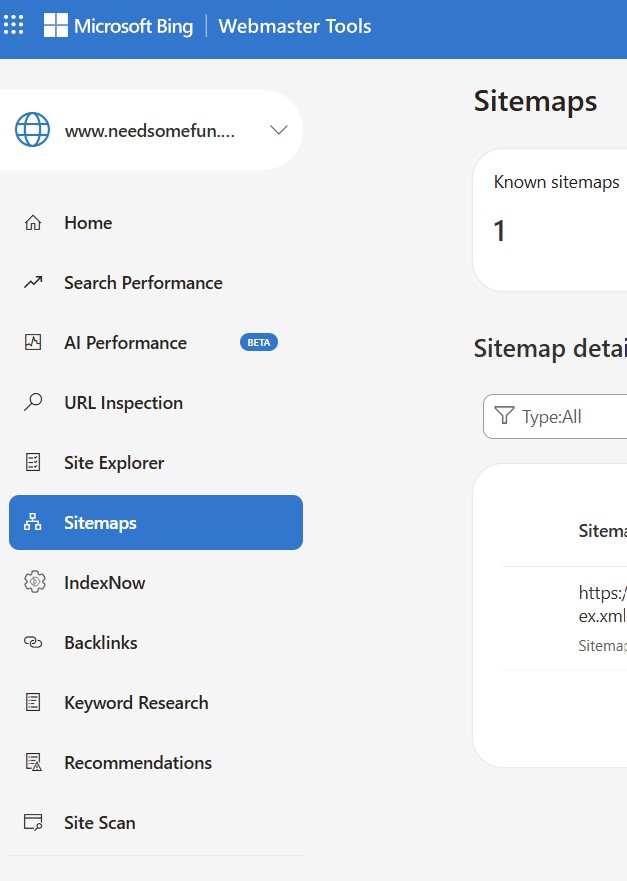
After logging in, locate the dashboard menu on the left side of your screen and select “Sitemaps” from the Configure My Site dropdown.
To submit a sitemap, click the blue “Submit sitemap” icon at the top right of the interface.
Type your sitemap URL into the input field. Ensure you enter the complete path to your XML file, typically formatted as https://yourdomain.com/sitemap.xml. Avoid including unnecessary parameters or typos to prevent submission errors. Click the Submit button once you verify the URL accuracy.
If it says “Success,” you are done. Bing has your sitemap and will start crawling your pages.
What Sitemap Formats Does Bing Accept?
The accepted formats are XML, RSS 2.0, mRSS (Media RSS), Atom 0.3 & 1.0, and text files — another point of difference from Google Search Console, which only takes XML.
For most websites, a standard XML sitemap is the right choice.
Step 4: Submit Individual URLs (Optional but Useful)
Submitting a sitemap tells Bing your pages exist. But if you just published something new and want it indexed faster, use the URL Submission feature.
Sign in to Bing Webmaster Tools, select your verified site, go to Submit URLs, enter one URL per line, and click Submit.
Unlike Google Search Console, Bing Webmaster Tools allows you to submit a handful of URLs for indexing at once. By default, your site gets up to 10,000 URL submissions each day.
This is great for:
- New blog posts you just published
- Updated product pages
- Landing pages you want indexed quickly
Step 5: Set Up IndexNow for Instant Indexing (Bonus Step)
This step is optional, but it’s one of the most powerful things you can do for your Bing presence.
IndexNow is an open protocol that notifies Bing of content changes in real time instead of waiting for the next crawl cycle.
When you publish or update a page, IndexNow automatically pings Bing — no manual submission needed. Bing Webmaster Tools provides IndexNow configuration as part of its free toolset.
If you use WordPress, both Rank Math and Yoast SEO have built-in IndexNow support. Just enable it in your plugin settings and you’re done. For other platforms, check your CMS documentation or the official IndexNow website for setup instructions.
How to Check If Your Sitemap Was Accepted
After submitting, you don’t just have to guess. Bing shows you the status right in the dashboard.
Go back to the Sitemaps section. You’ll see a table with your submitted sitemap URL, the submission date, and the status. If it shows “Success,” Bing has received and processed it.
The Sitemaps page contains a list of all the sitemaps, sitemap indexes, and feeds known to Bing for a particular site — including ones submitted by users, those imported from Google Search Console, and ones discovered organically by Bing.
If you see an error, double-check:
- That the sitemap URL is correct and accessible in a browser
- That your sitemap is in a supported format
- That your site ownership is fully verified
Common Mistakes to Avoid
Submitting the wrong URL. Always test your sitemap URL in a browser before pasting it into Bing. If the page doesn’t load, Bing can’t read it either.
Forgetting to verify ownership first. You must verify your site before Bing will accept a sitemap submission. Skipping this step leads to errors.
Only submitting once and never checking back. Revisit your Bing Webmaster Tools dashboard occasionally. If you’ve significantly changed your site structure, resubmit your sitemap.
Ignoring the error messages. Bing tells you if something went wrong. Read the status message and fix the issue rather than resubmitting the same broken URL repeatedly.
FAQ: Submitting a Sitemap to Bing
Do I need to submit my sitemap to Bing if I already submitted it to Google?
Yes. Google and Bing are separate search engines with separate indexes. Submitting to one does not notify the other. You need to submit your sitemap in both places to get full coverage.
How long does it take for Bing to index my pages after sitemap submission?
It varies. Some pages get crawled within a few days, others take a week or two. Sitemaps are typically read once per day and help Bing discover new or updated content. If you need faster indexing, use the URL Submission tool or set up IndexNow.
What if my sitemap URL ends in something different than sitemap.xml?
That’s fine. Paste whatever your actual sitemap URL is. If you use a WordPress SEO plugin like Yoast SEO or Rank Math, your sitemap is almost certainly already generated. Check your plugin settings if you’re unsure of the URL.
Can I submit multiple sitemaps to Bing?
Yes. If you have separate sitemaps for posts, pages, products, and images, you can submit each one individually. Just click “Submit sitemap” for each URL.
Is Bing Webmaster Tools free?
Completely free. Bing Webmaster Tools takes about 10 minutes to set up and costs nothing. There are no paid tiers — every feature is available to all users.
Does submitting to Bing help with Yahoo too?
Yes. Bing automatically shares sitemap data with Yahoo Search, so submitting to Bing covers Yahoo without any extra steps.
What’s IndexNow and should I use it?
IndexNow is an open protocol that notifies Bing of content changes in real time. It’s worth setting up if you publish content regularly. It removes the need to manually resubmit URLs every time you update your site.
Editor’s Opinion
honestly this is one of those things i put off for way too long. bing isnt google but its not nothing either, especially now that chatgpt uses bings index. the whole setup took me maybe 15 min and its done forever basically. if u already have google search console just use the import option, its so much quicker. dont overthink it just submit the sitemap and move on to better things. small task, real benefits.
