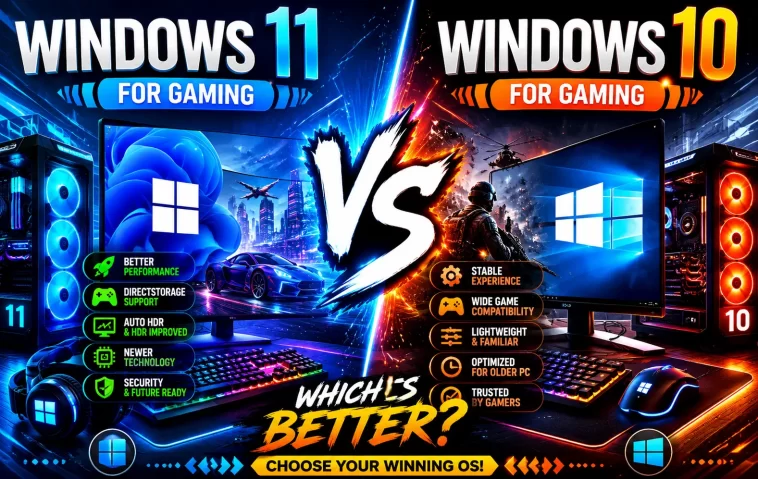
I spent about six weeks running the same gaming rig on both Windows 10 and Windows 11 before I’d let myself answer the windows 11 vs windows 10 gaming question for real. Short version: it’s closer than the YouTube thumbnails make it look, and the “winner” depends heavily on your hardware and which games you actually play. So let’s get into what actually changes when you switch.
Quick Answer
- Raw FPS difference: usually within 1-3%, often within margin of error on modern CPUs
- Older CPUs (pre-8th gen Intel, pre-Zen 2 AMD): Windows 11’s core scheduler and VBS overhead can cost more, sometimes 5-10%
- DirectStorage and Auto HDR: Windows 11 exclusive, but only matter for specific titles
- Driver and anti-cheat compatibility: still the most common source of actual problems, not raw performance
- Best pick: Windows 11 on hardware from the last 4-5 years, Windows 10 if you’re running older silicon and don’t need the new features
Why People Get Different Results
This is where it gets messy, and it’s part of why you’ll see wildly different benchmark videos claiming opposite things.
There are at least four real variables at play. The CPU generation matters more than people expect — Windows 11’s thread director and core parking logic was built with Intel’s hybrid (P-core/E-core) architecture in mind, which means older non-hybrid CPUs sometimes get scheduling decisions that don’t help them. Virtualization-Based Security (VBS) and Memory Integrity (HVCI) ship enabled by default on a lot of fresh Windows 11 installs now, and that alone can eat several percent off your frame rate in CPU-bound titles. Driver maturity is the other big one — GPU vendors optimize for whichever OS has the install base, and early Windows 11 driver branches were noticeably rougher than what you get now in 2026.
And then there’s just plain background noise. Telemetry services, Widgets, the new Start menu indexing — none of these are huge individually, but they stack.
Common Scenarios Where It Actually Matters
Competitive shooters (CS2, Valorant): these are the games where every millisecond counts, so the VBS overhead and scheduler quirks show up most. If you’re chasing every last frame on a budget rig, this is where Windows 10 sometimes still wins.
Modern AAA titles with DirectStorage support: Windows 11 has a real edge here for load times, not frame rate. Forspoken and a handful of newer titles show this clearly.
Older or budget laptops: this is honestly the category with the most complaints. TPM 2.0 requirements pushed a lot of older but still-capable gaming laptops into awkward unsupported territory, and even when people force the upgrade, driver support is hit or miss.
High refresh rate monitors (144Hz+): Auto HDR and the improved compositor in Windows 11 genuinely help here, from what I’ve seen testing on a 165Hz panel. It’s one of the few areas where the upgrade feels like an actual visual upgrade, not just a number on a benchmark chart.
Technical Comparison
| Factor | Windows 10 | Windows 11 |
|---|---|---|
| Raw FPS (modern hardware) | Baseline | Roughly equal, occasionally +1-2% |
| Raw FPS (pre-2019 CPUs) | Baseline | Can be 3-8% lower without tuning |
| DirectStorage support | No | Yes |
| Auto HDR | No | Yes |
| VBS/HVCI default state | Off by default (older installs) | Often on by default |
| Anti-cheat compatibility | Mature, stable | Improved a lot since 2023, occasional new-build hiccups |
| Support lifecycle | Ended mainstream support Oct 2025 | Active |
Step-by-Step: Getting the Best Gaming Performance on Either OS
If you’re staying on Windows 10 or already moved to Windows 11, the tuning steps overlap more than you’d think.
Step 1: Check your VBS/HVCI status (Windows 11 specifically)
Open Core Isolation settings (Windows Security → Device Security → Core Isolation Details) and check whether Memory Integrity is on.
If you don’t need it for work compliance reasons, turning it off and rebooting can recover a noticeable chunk of frame rate in CPU-heavy games. Your mileage may vary depending on title — some show almost nothing, others show a real bump.
Step 2: Update GPU drivers directly from the vendor, not Windows Update
Windows Update drivers lag behind. Grab the latest from NVIDIA, AMD, or Intel’s own site instead.
Step 3: Set your power plan to High Performance or Balanced (not Power Saver)
This one sounds obvious but I’ve seen it cause real problems on laptops that default to balanced/eco modes out of the box.
Step 4: Disable unnecessary background apps and Widgets (Windows 11)
Settings → Apps → Startup, and separately disable the Widgets panel if you don’t use it.
Step 5: Check your scheduler priority settings if you’re on an older CPU
This one’s a bit more advanced and not something everyone needs to touch — but if you’re on a pre-hybrid Intel chip or older AMD part, manually setting game process priority in Task Manager can help offset some of the scheduler quirks I mentioned earlier.
What Actually Worked For Me
Honestly my first instinct was to blame the upgrade entirely. I dual-booted both OSes on the same drive setup and ran CS2 and a couple of AAA titles back to back, and the Windows 11 numbers came in consistently a few frames lower. So I assumed it was just “Windows 11 is worse for gaming,” closed the laptop, called it a day.
That’s not entirely accurate though — turns out HVCI was enabled on the Windows 11 install (it had been turned on automatically during setup, I hadn’t touched it) and wasn’t on the Windows 10 side at all. Once I disabled it and rebooted, most of the gap closed up. Not all of it, but most.
The fix that didn’t help much: clean-reinstalling GPU drivers. I tried that first because it’s the classic advice, and it made basically no difference in my case — the drivers were already current.
The thing that actually mattered: checking Core Isolation settings, which is something almost nobody mentions first when this topic comes up online.
Advanced Fixes and Edge Cases
Event Viewer check for driver timeout errors (Display TDR): if you’re seeing stutters rather than a flat FPS drop, check Event Viewer under Windows Logs → System for Display events. Repeated TDR (Timeout Detection and Recovery) entries point to a driver crash-and-recover cycle, not a CPU bottleneck, and the fix there is usually a clean driver reinstall using DDU in safe mode rather than just updating.
Game Mode conflicts with certain overlays: Windows 11’s Game Mode occasionally fights with third-party overlay software (some recording tools, some older anti-cheat injectors) in ways that weren’t as common on Windows 10. If you’re getting random frame drops specifically when an overlay is active, try disabling Game Mode entirely as a test rather than assuming it’s helping.
BIOS-level settings that get overlooked: XMP/EXPO memory profiles sometimes get reset during a clean Windows 11 install if you also updated your BIOS at the same time. This one’s an unexpected cause that trips people up a lot — they blame the OS upgrade when really their RAM dropped back to JEDEC default speeds.
Prevention Tips
- Check Core Isolation status right after any fresh Windows 11 install, don’t assume it’s off
- Keep GPU drivers updated from the vendor site on a regular schedule, not just when something breaks
- Re-verify XMP/EXPO settings after any BIOS update, especially around an OS reinstall
- Don’t install Windows 11 on hardware your motherboard manufacturer hasn’t released chipset drivers for yet
FAQ
Does Windows 11 reduce FPS compared to Windows 10? On modern hardware, basically no, the difference is within normal benchmark variance. On older CPUs without hybrid architecture support, you might see a measurable drop unless you tune VBS settings.
Is it worth upgrading to Windows 11 just for gaming? Not on its own, no. If you’re already due for an upgrade for other reasons (support lifecycle, app compatibility), the gaming side won’t hold you back on reasonably current hardware.
Will my old games still run on Windows 11? Mostly yes. Some older anti-cheat-protected multiplayer games had rocky compatibility right after Windows 11’s initial release, but that’s largely settled by now.
Should I disable Memory Integrity for gaming? If security compliance isn’t a requirement for you (work laptop policies, for example), it’s a reasonable trade for CPU-bound games. Test before and after on your specific setup since the impact varies.
Does Windows 10 still get security updates? Mainstream support ended in October 2025. Extended Security Updates are available for a fee for those who need more time.
Editor’s Opinion
People treat this like a religious war and it’s really not that dramatic. I run both at different times and honestly can’t tell the difference blind in most games anymore — the VBS thing was the real culprit in my testing, not some fundamental flaw in either OS. If your hardware’s recent, just go with whichever gets you the features you want. If it’s old, Windows 10 with ESU might genuinely buy you time without losing much. Not a hill worth dying on either way, in my opinion.
