I started using Copilot in Outlook because I had 1,400 unread emails and a deadline I’d already missed once. Copilot in Outlook can summarize threads, draft replies, and triage your inbox in a fraction of the time it takes to do it by hand. It’s not magic, but once you know which features actually save time and which ones just look impressive in a demo, it changes how you work.
This isn’t a “here’s every button” rundown. It’s what I actually use, what broke the first few times, and what I’d tell a coworker before they wasted an afternoon fighting with it.
Quick Answer
- Copilot in Outlook needs a Microsoft 365 Copilot license — it’s not bundled into a regular M365 subscription
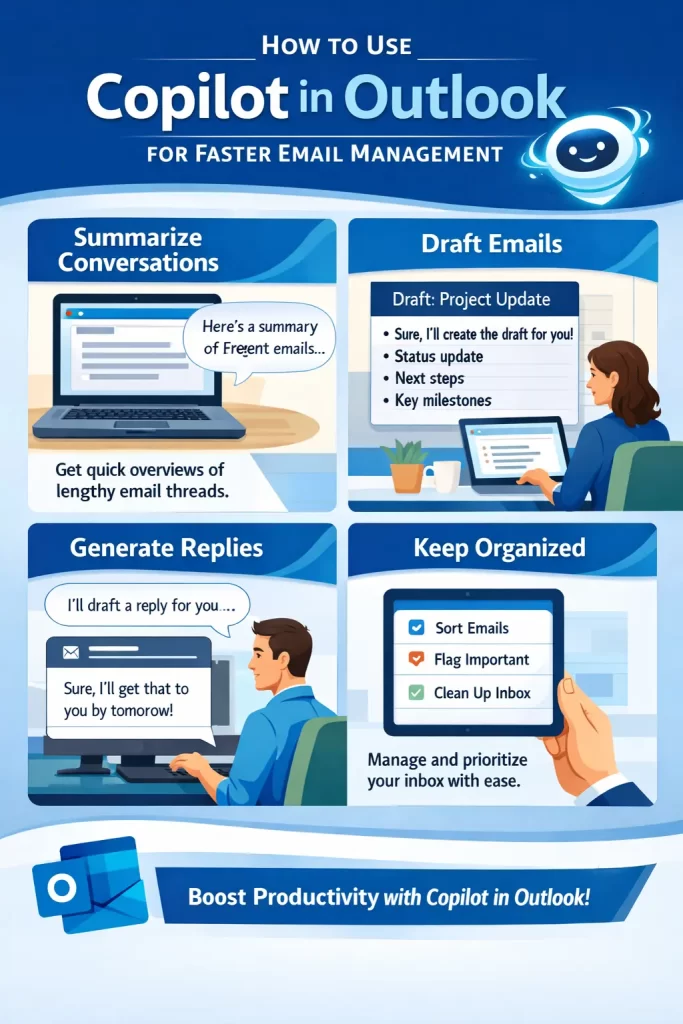
- The fastest win is thread summarization: open a long email chain, click Copilot, get the gist in seconds
- “Draft with Copilot” works best when you give it bullet points first, not a vague prompt
- Coaching by Copilot (tone and clarity suggestions) is hit-or-miss and slows you down on short emails
- If Copilot isn’t showing up, it’s almost always a licensing or app-version issue, not a bug
Why People Struggle to Get Value From It
Most of the frustration I’ve seen — and felt — comes down to a few things.
The license isn’t what people think it is. A lot of users assume Copilot ships with Microsoft 365 Business Standard or E3. It doesn’t. You need the Microsoft 365 Copilot add-on license, which your IT admin has to assign. I’ve watched people click around for ten minutes looking for a button that was never going to appear for them.
The prompts people write are too vague. Typing “write a follow-up email” gives you something generic and a little robotic. Copilot needs context the same way a new assistant would — what’s the relationship, what’s the ask, what tone fits.
Outlook version matters more than people expect. Classic Outlook (the old desktop app) and New Outlook handle Copilot differently, and some features are web-only for a while before they roll out to desktop. So if a feature works for your coworker on the web but not for you on desktop, that’s probably why.
Org-level settings can quietly disable features. Admins can restrict Copilot to certain groups, certain mailboxes, or turn off specific capabilities like “Coaching by Copilot.” If something used to work and now doesn’t, check with IT before assuming it’s broken on your end.
Where This Actually Comes Up
I see this play out differently depending on the setup:
- Shared or delegated mailboxes — Copilot behaves inconsistently here. From what I’ve seen, summarization works fine, but drafting replies on someone else’s behalf is spotty depending on permission levels.
- Outlook on the web vs. desktop — new features land on web first, almost every time. If you’re on desktop and a teammate on web has something you don’t, wait a release cycle before filing a ticket.
- Mac vs. Windows — mostly parity now, but I’ve had Copilot panels render oddly on Mac after an update, requiring a full app restart (not just closing the window).
- Large enterprise tenants with custom policies — Copilot can be selectively enabled, so two people in the same company can have wildly different experiences.
Step-by-Step: Setting Up and Using Copilot in Outlook
Step 1: Confirm You Actually Have the License
Go to outlook.com or open desktop Outlook and look for the Copilot icon in the ribbon (usually top-right, a small swirly icon). No icon, no license — that’s step one, full stop. Ask IT to confirm the Microsoft 365 Copilot add-on is assigned to your account, not just a general M365 license.
Step 2: Use Summarize on a Long Thread
Open any email with a long back-and-forth (10+ replies works well as a test case). Click the Copilot icon, choose Summarize. You’ll get a few bullet points covering decisions made, open questions, and who said what. This is, by far, the feature that saves the most real time day to day.
A small note here: summaries skip nuance. If someone was being sarcastic or hedging carefully, Copilot will often flatten that into a flat statement. Don’t forward a summary to your boss without skimming the original first.
Step 3: Draft a Reply With Context, Not Vibes
Instead of “draft a reply,” try something like: “Draft a reply confirming I can meet Thursday at 2pm, but I need the budget numbers beforehand. Keep it short and professional.” That’s the difference between a usable draft and one you’ll rewrite anyway.
And here’s something that took me a while to figure out — feeding it 3-4 bullet points of what you want covered produces a noticeably better draft than one long sentence. Treat it like briefing a junior employee, not searching a database.
Step 4: Try Coaching by Copilot, Sparingly
This feature flags tone — too harsh, too passive, unclear asks. It’s genuinely useful before sending something sensitive, like a pushback email to a client. But using it on every routine email slows you down for no real benefit. I turned it off as a default and trigger it manually now, only when something feels off.
Step 5: Use Copilot for Calendar-Adjacent Email Tasks
If an email contains scheduling language (“does Tuesday work?”), Copilot can sometimes suggest calendar actions inline. This is newer and, your mileage may vary, depending on your tenant’s rollout stage.
What Actually Worked For Me
Honestly, my first attempts were pretty rough. I assumed Copilot would just “know” what I wanted from minimal prompts, the same way I’d talk to a search engine. It doesn’t work that way — too-short prompts gave me bland, generic drafts that I ended up rewriting from scratch, which kind of defeated the purpose.
I tried adjusting tone settings first, thinking that was the missing piece. That’s not entirely accurate, actually — the tone settings barely mattered. What actually fixed things was writing my prompts almost like a checklist: who the email’s for, what I need from them, and the deadline if there is one. Once I did that, the drafts went from “needs a full rewrite” to “needs two tweaks.” That was the actual fix, and it took me embarrassingly long to land on something so simple.
Advanced Fixes and Edge Cases
Copilot icon missing after a license was confirmed assigned. Licensing changes can take up to 24 hours to propagate, and Outlook caches your license state. Sign out completely, clear the Outlook cache (on desktop: close Outlook, then clear the %localappdata%\Microsoft\Outlook cache folder — back up first), and sign back in.
Summaries failing on encrypted or protected emails. Copilot can’t read content protected by Information Rights Management (IRM) or sensitivity labels with restricted permissions. This trips people up constantly because the error message doesn’t always say why — it just fails silently or gives a generic error. Check the sensitivity label on the email before assuming Copilot is broken.
Inconsistent behavior across shared mailboxes. This one’s an edge case but worth knowing: Copilot’s access to a shared mailbox depends on whether you’re using “Open another mailbox” versus having it added as a full account in your profile. The latter tends to work more reliably for Copilot features.
Admin center diagnostics. If you’re an admin troubleshooting this for a team, the Microsoft 365 admin center has a Copilot usage report under Reports > Usage. It won’t tell you why a specific feature failed, but it’ll confirm whether the license is active and being used at all — useful for ruling out licensing as the cause before going deeper.
Fixes That Sound Right But Rarely Help
Reinstalling Outlook entirely is the one people jump to first, and it almost never fixes a Copilot issue. So unless you’re dealing with a corrupted install causing crashes, skip it — it wastes 20 minutes for basically no payoff.
Toggling Copilot settings in the Outlook options menu also gets recommended a lot in forum threads, but in my experience those toggles mostly control visual preferences, not the underlying licensing or permission issues that cause most problems.
Prevention Tips
- Keep Outlook updated — Copilot features change frequently, and an outdated build will quietly miss new capabilities
- Write prompts with structure (who, what, tone, deadline) instead of single vague sentences
- Don’t rely on summaries for emails involving nuance, sarcasm, or sensitive negotiation — read the original
- If you manage a team, document which Copilot features are enabled at the org level so people aren’t troubleshooting a setting that’s intentionally off
- Periodically check the admin usage report if you’re responsible for the rollout — adoption tends to drop off after the first couple weeks without anyone noticing
FAQ
Does Copilot in Outlook cost extra on top of my Microsoft 365 subscription? Yes. It requires the Microsoft 365 Copilot add-on license, which is separate and priced on top of your existing plan.
Why can’t I see the Copilot button even though my coworker has it? Almost always a licensing assignment difference, sometimes an app version difference. Check both before assuming it’s a bug.
Can Copilot read and summarize emails with attachments? It can reference attachment content in some cases, but support is inconsistent depending on file type — PDFs and Word docs tend to work better than scanned images or unusual formats.
Is my email data used to train the AI model? No — Microsoft has stated Copilot doesn’t use your organizational data to train the underlying foundation models. Worth confirming current policy with your IT/compliance team since this is the kind of thing that gets scrutinized and occasionally updated.
Does Copilot work in Outlook for iOS or Android? Limited support, rolling out gradually. Don’t expect full feature parity with desktop or web yet.
Why did Coaching by Copilot disappear from my ribbon? Likely an admin-level toggle. It’s one of the features org admins can disable separately from the rest of Copilot.
Editor’s Opinion
Copilot in Outlook is actually decent once you stop expecting it to read your mind. The summarize feature alone is worth the hassle if your inbox looks anything like mine did. But the drafting feature needs real input to be useful — garbage prompt in, garbage draft out, same as anything else. I’d skip Coaching by Copilot for daily use though, it’s more of a “before you hit send on something risky” tool than an everyday thing.
