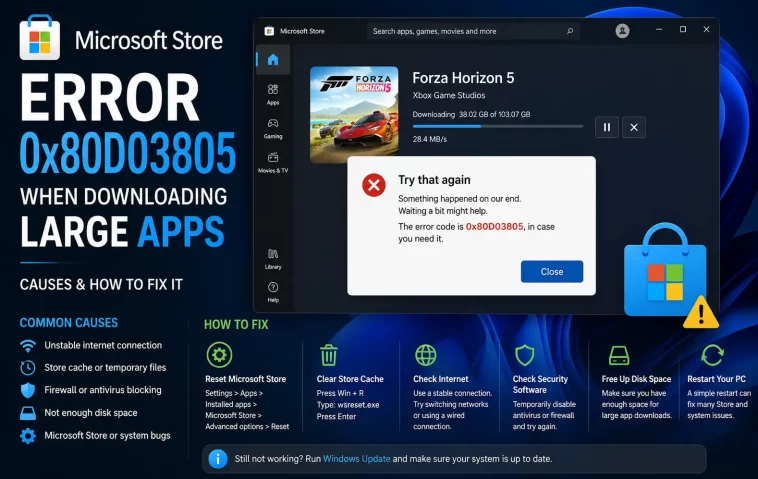
So I was trying to pull down a big install — one of those 20+ GB game packages — and about four minutes into the download, Microsoft Store just stops and throws error 0x80D03805. Small apps downloaded fine right before that. If you’re seeing this specifically on bigger downloads while tiny apps work without a hitch, here’s what’s actually causing it and what fixed it for me.
Quick Answer
- 0x80D03805 usually means something interrupted the download mid-transfer — corrupted Store cache, a stuck Windows Update service, or a network path issue specific to how Store traffic routes.
- Run
wsreset.exefirst, it’s the quickest fix and solves it a decent chunk of the time. - If it only happens on large downloads, check your network path — Store uses a different connection method than your browser, so a browser working fine doesn’t rule out a Store-specific network problem.
- Restart Microsoft Store Install Service and Windows Update-related services manually if wsreset doesn’t help.
- Re-registering the Store app package is the next step if cache resets don’t fix it.
Why It Happens
This one’s frustrating because Microsoft’s own error description is basically “something unexpected happened,” which tells you nothing. From what I’ve dug through across a bunch of user reports and my own case, there are a handful of actual causes, and they’re not all equally likely depending on whether it’s happening on small downloads too or just big ones.
Corrupted Microsoft Store cache. This is the most common cause across the board, regardless of file size. The Store keeps local cache files to track download state, and if those get corrupted — from an interrupted previous download, a crash, or a bad shutdown — new downloads can fail partway through.
A stuck or misconfigured Windows Update–related service. Microsoft Store downloads lean on some of the same underlying services as Windows Update, including the Windows Update Medic Service and the Microsoft Store Install Service. If one of these is stopped, stuck in a weird state, or set to manual and never actually started, downloads can fail — and this tends to show up more noticeably on large files because there’s more time for the service to hiccup mid-transfer.
Network path specific to Store traffic. This one doesn’t get mentioned nearly as often as it should. Microsoft Store and some of its installers route through WinHTTP and Microsoft’s CDN endpoints — not the same path your browser uses. So it’s entirely possible for your browser to download a 20 GB file from some other site just fine while Store downloads fail, because the two aren’t using the same connection stack at all. A flaky router, an overzealous firewall rule, or a VPN that mishandles long-lived connections can all break this path specifically, and it tends to surface on large downloads because they take long enough for an intermittent connection issue to actually get hit.
System file corruption. Less common, but real — if core Windows system files tied to the app installation pipeline are damaged, downloads can fail regardless of size, though large files sometimes fail faster simply because there’s more data moving through the broken component.
An overlooked cause a lot of people miss: available disk space getting checked incorrectly during extraction. Large apps sometimes need double their final install size temporarily (compressed package plus extracted files), and if you’re right at the edge on free space, the download can appear to fail with a generic error instead of an explicit “not enough space” message.
Step-by-Step Fixes
Step 1: Reset the Microsoft Store cache
Open an elevated Command Prompt and run:
wsreset.exeNo visible window will appear right away — it runs quietly and then opens the Store once it’s done. This alone resolves the issue for a lot of people, and it’s worth doing first since it takes under a minute.
Step 2: Restart the relevant services
Open services.msc and check these three:
- Microsoft Store Install Service
- Windows Update Medic Service
- Windows Installer
If any are stopped, right-click and start them. And if they’re set to Manual, that’s normal — you don’t need to change the startup type, just make sure they’re actually running before you retry the download.
Step 3: Restart the Windows Update service directly
net stop wuauserv
net start wuauserv
Run this from an elevated Command Prompt. So even though this is technically a Windows Update service and not a “Store” service, Store downloads depend on it more than the name suggests.
Step 4: Re-register the Microsoft Store app
If the cache reset and service restarts don’t fix it, re-register the Store package from an elevated PowerShell window:
Get-AppxPackage *WindowsStore* -AllUsers | Foreach {Add-AppxPackage -DisableDevelopmentMode -Register "$($_.InstallLocation)\AppXManifest.xml"}This forces Windows to rebuild the Store app’s registration from scratch. It’s a bit of a bigger hammer than wsreset, but it’s non-destructive to your other apps.
Step 5: Check your network path if it’s only large downloads that fail
If small apps consistently succeed and only large ones die partway through, temporarily disable your VPN if you’re using one, and check whether a firewall or third-party antivirus is doing deep packet inspection on outbound HTTPS traffic — that’s a known culprit for connections that work for browsers but choke on Store’s WinHTTP-based transfers. Not saying disable your antivirus permanently, just isolate whether it’s the cause.
Step 6: Run DISM and SFC
DISM /Online /Cleanup-Image /RestoreHealth
sfc /scannow
The DISM command needs an active internet connection to pull replacement files, so run it before, not after, you’ve unplugged anything trying to troubleshoot network issues. This step takes a while — DISM in particular can sit at the same percentage for several minutes before it looks like it’s doing anything. That’s normal, don’t cancel it.
What Actually Worked For Me
I went through the cache reset and service restarts first, like most guides tell you to, and neither one touched the problem. The error kept coming back at almost the exact same point in the download every time, which in hindsight should’ve told me it wasn’t a random corruption issue — a consistent failure point usually points somewhere more specific.
Turned out I had a VPN client running that was silently dropping long-lived connections after a few minutes, which browsers handled fine because of how they reconnect, but Store’s download mechanism didn’t recover from at all. Disabled the VPN, retried the same large download, and it went through without a single hiccup. Kind of an obvious thing in retrospect, but it wasn’t the first thing I suspected — I was convinced for a while it was disk corruption and nearly ran a full chkdsk before thinking to check the VPN.
Advanced Fixes and Edge Cases
Check Event Viewer for the actual failure point. Open Event Viewer and look under Applications and Services Logs > Microsoft > Windows > Store around the timestamp of the failed download. So it’s not always conclusive, but sometimes there’s a more specific sub-error logged there than what the Store UI shows you.
Reset the Catroot2 folder. This is more associated with Windows Update failures generally, but since Store downloads share some update infrastructure, a corrupted Catroot2 folder (which handles update signature verification) can occasionally be the actual cause. Don’t delete the Catroot folder itself, only Catroot2 — Windows regenerates it automatically, but deleting the wrong one can cause bigger problems.
Check Group Policy if you’re on a managed or work device. The RemoveWindowsStore policy or restrictive proxy configurations pushed by IT can produce this exact error, and it’ll look identical to a consumer-side cache issue even though the actual fix is on the network/policy side, not your local machine.
Fixes That Get Recommended But Rarely Help
Reinstalling Windows entirely gets suggested constantly for this error, and it’s usually overkill — most people who eventually fix it do so with one of the service or cache-related steps above, not a full reinstall. Similarly, running the built-in Windows Store Apps Troubleshooter gets recommended as a first step everywhere, but in practice it tends to report “no problems found” even when there clearly is one, so don’t be surprised if it doesn’t catch anything.
Prevention Tips
- Keep at least 2x the app’s listed download size free on your drive before starting a large download, to account for temporary extraction space.
- If you use a VPN, test large Store downloads with it briefly disabled at least once so you know whether it’s a factor before it becomes a recurring problem.
- Don’t interrupt large downloads by putting your PC to sleep — resuming from sleep mid-download is a common trigger for cache corruption on the next attempt.
- Run Windows Update fully current before attempting very large downloads; a pending update sometimes leaves update-related services in an inconsistent state.
FAQ
Does this error mean my download is corrupted, or is it safe to just retry? It’s safe to retry — the error happens before the app is actually installed, so there’s nothing corrupted on your system from the failed attempt itself, just a cache entry that resets when you retry.
Why do small apps work fine but large ones fail? Usually because larger downloads take long enough to expose intermittent issues (network drops, service hiccups) that a quick small download never triggers.
Does this affect Xbox app downloads too? Yes, since Xbox app and Microsoft Store share underlying download infrastructure on Windows.
Is this Windows 11 specific or does it happen on Windows 10 too? Both. It’s been reported across Windows 10 and Windows 11 builds, though specific causes have varied by version and update history.
Editor’s Opinion
turned out to be my vpn the whole time, which is annoying cause it’s not even the first ten things anyone suggests online. if your download dies at basically the same spot every single time, don’t just keep resetting cache over and over, that’s not gonna fix a connection issue. check the boring network stuff before you nuke your install.
