I tried to plug my old USB flash drive into my MacBook Pro and just stared at the side of the laptop for a second. No slot. Nowhere for it to go. If you’ve had the same moment of confusion, you’re not alone, and the fix takes about thirty seconds once you know what to buy.
Quick Answer
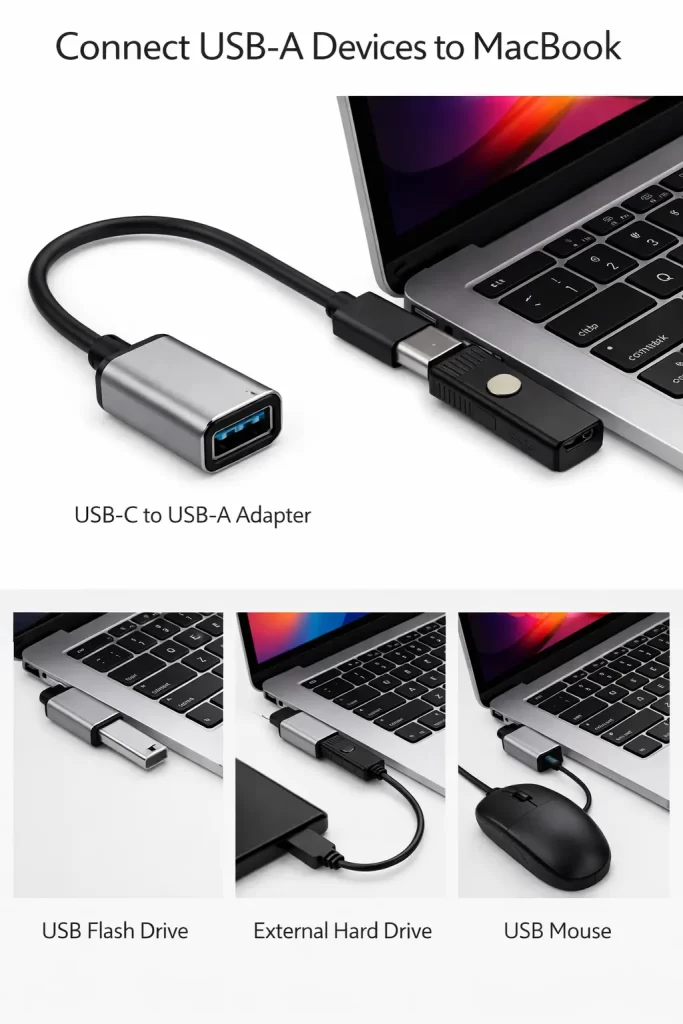
To connect USB-A devices to MacBook, you need a USB-C to USB-A adapter or hub, since modern MacBooks only have USB-C or Thunderbolt ports. Plug the adapter into your MacBook’s USB-C port, insert your USB-A device into the adapter, and macOS will recognize it automatically within a few seconds.
Why Your MacBook Doesn’t Have a USB-A Port
Apple removed the classic rectangular USB-A port from MacBooks starting around 2016. Every MacBook Air and MacBook Pro released since then uses USB-C or Thunderbolt ports exclusively.
The reasoning was speed and simplicity. USB-C ports are faster, reversible so you can’t plug them in wrong, and they handle charging, data, and video all through the same connector.
The tradeoff is that older accessories, flash drives, mice, printers, and card readers, still use the older USB-A shape. That’s where an adapter comes in.
Which MacBooks Have USB-A vs Which Need an Adapter
Here’s a simple breakdown so you know exactly what your MacBook needs.
| MacBook Model | Built-In USB-A Port? | What You Need |
|---|---|---|
| MacBook Air (2016 or later, all M-series) | No | USB-C to USB-A adapter or hub |
| MacBook Pro (2016 or later, all M-series) | No | USB-C to USB-A adapter or hub |
| MacBook Pro (2012–2015, pre-Retina and Retina) | Yes | Plug in directly |
| MacBook (12-inch, 2015–2017) | No | USB-C to USB-A adapter or hub |
If your MacBook only has identical oval-shaped ports on each side, you’re dealing with USB-C exclusively and you’ll need an adapter.
How to Connect USB-A Devices to MacBook: Step by Step
The process is quick once you have the right accessory in hand.
Step 1: Get a USB-C to USB-A Adapter or Hub
Buy a simple USB-C to USB-A adapter if you only need to connect one device at a time, like a flash drive. If you regularly connect several accessories, such as a mouse, external drive, and printer, a multiport USB-C hub is a better long-term choice.
Step 2: Plug the Adapter Into Your MacBook
Insert the USB-C end into any available USB-C or Thunderbolt port on your MacBook. All the ports work the same way, so it doesn’t matter which one you pick.
Step 3: Connect Your USB-A Device
Plug your flash drive, mouse, keyboard, or other USB-A accessory into the adapter’s USB-A port. Push it in firmly since USB-A connectors only fit one way.
Step 4: Let macOS Detect the Device
Your MacBook should recognize the device within a few seconds. For storage devices like flash drives or external hard drives, an icon will appear on your desktop or in Finder under Locations.
Step 5: Access or Eject the Device Properly
Open Finder and click on the device name under Locations to view its files. When you’re done, always drag the device icon to the Trash or click the eject symbol next to its name before physically unplugging it.
What Actually Worked For Me
I first bought a single-port adapter thinking it would cover everything, and it worked fine until I needed to use a mouse and a flash drive at the same time. I ended up swapping cables back and forth, which got old fast.
Switching to a small multiport hub with three USB-A slots solved that completely. Now everything just stays plugged in, and I only touch the hub itself instead of juggling adapters.
Fixing Common USB-A Connection Problems
Occasionally a device won’t show up right away. These are the fixes that usually solve it.
- Device isn’t detected at all: Unplug and reinsert the adapter into a different USB-C port on your MacBook.
- Flash drive shows up but won’t open: Check if the drive is formatted in a file system macOS supports, like exFAT or FAT32.
- Mouse or keyboard is unresponsive: Some hubs need their own external power for accessories that draw more current, especially wireless dongles with multiple connected devices.
- MacBook says “disk not ejected properly”: Always eject storage devices through Finder before unplugging, never pull the cable directly.
- Slow transfer speeds: Cheaper hubs sometimes bottleneck data speed. A hub rated for USB 3.0 or higher avoids this issue.
Prevention Tips
A few habits keep this from becoming a recurring headache.
- Buy a multiport hub instead of a single adapter if you use more than one USB-A device regularly.
- Choose a hub with pass-through charging so you don’t lose power delivery while it’s plugged in.
- Always eject external drives through Finder to avoid file corruption.
- Keep a spare adapter in your bag, since these are easy to misplace.
FAQ
Do all MacBooks need a USB-A adapter?
Any MacBook Air or MacBook Pro released in 2016 or later needs an adapter or hub, since these models only have USB-C or Thunderbolt ports. Only much older Mac laptops from before 2016 have USB-A ports built in.
Can I charge my MacBook while using a USB-A adapter?
Yes, if you choose a multiport hub that includes a USB-C pass-through port for charging. A basic single-purpose USB-A adapter usually won’t let you charge at the same time.
Why isn’t my flash drive showing up on my MacBook?
This is usually caused by a loose connection, an unsupported file format, or a faulty adapter. Try a different USB-C port, confirm the drive is formatted correctly, and test the flash drive on another computer if the issue continues.
Can I connect multiple USB-A devices to a MacBook at once?
Yes, as long as you use a multiport USB-C hub with several USB-A slots. A single adapter only supports one device at a time.
Is it safe to use cheap third-party USB-C to USB-A adapters?
Generally yes, as long as they come from a reputable brand. Very low-quality adapters can cause slow transfer speeds or unstable connections, so it’s worth spending a little more for a reliable one.
Editor’s Opinion
this one annoys ppl even more than the hdmi thing tbh, cause everyone still has like 5 old usb sticks lying around lol. apple went full usb-c and just expects us to buy adapters for basically everything now. but real talk, a cheap hub fixes it in like 2 mins and u forget its even an issue after that. just get one with a few ports so u dont keep swapping stuff in and out.
