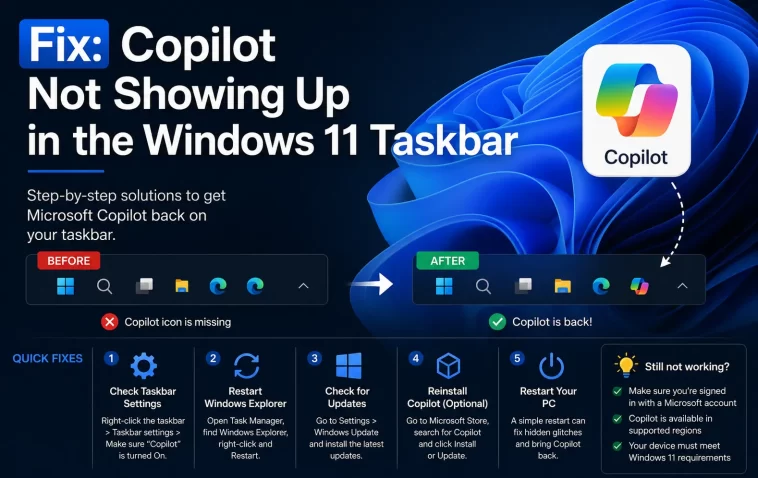
I updated a client’s laptop last month and the Copilot icon just… vanished. No error, no warning, it was there Tuesday and gone Wednesday. If Copilot not showing up in the taskbar is what brought you here, you’re not imagining things — this happens a lot more than Microsoft‘s support docs let on.
So before you start reinstalling Windows or panicking about a broken system, let’s go through why this actually happens and what fixes tend to work.
Quick Answer
- Toggle Copilot back on in Settings > Personalization > Taskbar
- If the toggle is missing entirely (common on 24H2), search for Copilot and pin it manually
- Check
ShowCopilotButtonandIsCopilotAvailableregistry values underHKCU\Software\Microsoft\Windows\... - Confirm your account, region, and Windows edition are actually eligible
- Restart
explorer.exeafter any registry or policy change — this step gets skipped constantly
Why Copilot Disappears From the Taskbar
There isn’t one single cause here, and that’s honestly the annoying part. From what I’ve seen, it usually comes down to one of these:
1. The taskbar setting got flipped off. Sometimes by a Windows update, sometimes by a script, sometimes by nobody at all — it just reverts.
2. Windows 11 24H2 changed the rules. In earlier builds you could add or remove the Copilot icon straight from taskbar settings. On 24H2, that toggle got pulled for a lot of users, so the icon has to be pinned manually through search instead. This trips up a surprising number of people who swear they “didn’t change anything.”
3. Regional or account restrictions. Copilot rolls out unevenly. Your account type, region, and even whether you’re signed in with a work/school account versus a personal Microsoft account all affect whether the feature shows up at all.
4. Group Policy or MDM restrictions. If this is a work laptop, an admin may have disabled Copilot outright through policy. No amount of registry poking fixes that — you need the policy changed on their end.
5. A registry value silently resets. This one’s weird and I still don’t fully understand why it happens. Values like AllowCopilotRuntime and IsUserEligible can reset to 0 on reboot even after you’ve set them manually. Not 100% sure why, but it seems tied to certain update cycles more than user behavior.
An overlooked cause worth mentioning: sometimes Copilot isn’t missing at all — it’s just been replaced by the standalone Copilot app rather than the old taskbar pane, and people go looking for something that technically doesn’t exist anymore in that form.
Common Scenarios Where This Shows Up
- After a feature update (23H2 to 24H2 especially)
- On managed work devices where IT has locked things down
- On fresh installs where Copilot simply hasn’t rolled out to that region yet
- After using a debloat script or “Windows tweaker” tool — these love disabling Copilot along with a dozen other things you didn’t ask about
Causes vs. Fixes at a Glance
| Cause | How to Tell | Fix |
|---|---|---|
| Setting toggled off | Toggle exists in Settings but is off | Turn it back on |
| 24H2 toggle removed | No Copilot option in taskbar settings at all | Pin manually via search |
| Policy restriction | Works on your personal PC, not on work laptop | Contact IT / check Group Policy |
| Registry value reset | Icon disappears again after reboot | Re-apply registry fix + explorer restart |
Step-by-Step Fixes
Step 1: Check the basic taskbar setting first
Go to Settings > Personalization > Taskbar and look for the Copilot toggle under taskbar items. If it’s there and off, flip it on and give it a second — sometimes the icon doesn’t render until you click elsewhere on the desktop.
Step 2: Pin it manually if the toggle is gone
On 24H2 machines, search “Copilot” from the Start menu, right-click the result, and choose Pin to taskbar. This works even when the old settings toggle has disappeared entirely. It’s a workaround, not a real fix, but it does the job.
Step 3: Check the registry values
Open PowerShell and run:
New-ItemProperty -Path "HKCU:\Software\Microsoft\Windows\CurrentVersion\Explorer\Advanced" -Name "TaskbarCopilot" -Value 1 -PropertyType DWORD -Force
Stop-Process -Name explorer -Force
That second line matters more than people give it credit for. And yeah, your desktop will flicker for a second while Explorer restarts — that’s normal, not a crash.
Step 4: Verify eligibility
Check your Windows edition, region, and whether you’re signed into a personal or work account. Copilot behaves differently depending on all three, and there’s no single settings page that tells you “you’re not eligible” — it just quietly doesn’t show up.
Step 5: Check for Group Policy restrictions (work/school PCs)
Run gpedit.msc and look under Computer Configuration > Administrative Templates > Windows Components > Windows Copilot. If “Turn off Windows Copilot” is enabled, that’s your answer, and you’ll need an admin to change it.
What Actually Worked For Me
Okay so on that client laptop I mentioned, I did the obvious stuff first — toggled the taskbar setting, restarted, nothing. Tried the registry fix, restarted Explorer, nothing. At that point I was fairly sure it was a policy restriction since the machine was domain-joined, but gpedit showed Copilot wasn’t restricted either.
Turns out — and I only found this because a coworker mentioned it offhand — the machine’s region setting under Time & Language had gotten changed during a language pack install a few weeks earlier. Switched it back to the correct region, rebooted, and the icon came back within a minute. That’s not entirely the explanation I expected going in, but it lined up with what I’d read about regional rollout gating.
The registry fix and the manual pin get all the attention online, but in my experience the region and account eligibility checks catch more real cases than people expect. Your mileage may vary though — I’ve also seen the plain old toggle-off issue be the whole story more times than I can count.
Advanced Fixes and Edge Cases
Event Viewer check: If Copilot crashes rather than just being hidden, check Event Viewer under Windows Logs > Application for errors tied to Microsoft.Windows.Copilot. A crash loop points to a corrupted app package rather than a settings issue.
Reinstall the Copilot app: Via PowerShell:
Get-AppxPackage *Microsoft.Copilot* | Remove-AppxPackageThen reinstall from the Microsoft Store. This clears out corrupted app data that a simple toggle won’t touch.
Check for conflicting third-party shell tools: Taskbar customization apps (StartAllBack, ExplorerPatcher, and similar) frequently break Copilot’s taskbar integration entirely, since they’re modifying the same shell components Copilot depends on. If you’re running one of these, that’s worth ruling out before anything else.
DISM/SFC scan: Worth running sfc /scannow and DISM /Online /Cleanup-Image /RestoreHealth if nothing else works — not because Copilot is commonly the cause of system file corruption, but because it can be a symptom of it.
Prevention Tips
- Avoid aggressive debloat scripts unless you know exactly what they disable
- After major feature updates, recheck your taskbar and Copilot settings — don’t assume nothing changed
- If you’re on a managed device, ask IT before spending an hour troubleshooting something they control
- Keep Windows and Microsoft Store apps updated; a lot of Copilot bugs get patched quietly
FAQ
Does Copilot cost extra to use in Windows 11? No, the built-in taskbar version is free. Microsoft 365 Copilot (the one integrated into Office apps) is a separate paid product.
Why did Copilot disappear after I updated to 24H2? Most likely the old taskbar toggle got removed in that update. Pin the app manually through search instead.
Can I get Copilot back if my region doesn’t support it? Not reliably, and I wouldn’t recommend messing with VPN tricks to force it — it tends to break other Microsoft account features.
Is disabling Copilot through Group Policy reversible? Yes, an admin can just flip the policy back. Nothing destructive happens either way.
Will this eventually be replaced by something else? Microsoft has talked about folding more AI features directly into the taskbar search experience going forward, so the current setup may keep shifting. Worth checking Microsoft’s own release notes if the icon keeps moving around on you.
Editor’s Opinion
honestly this whole feature feels like its still being figured out by microsoft themselves, not just us. the toggle moves, the icon disappears, the app gets renamed — its a moving target. if it vanishes on you, dont assume you broke something. check region and account first, that catches more cases than the registry stuff everyone posts about. and if none of it works, sometimes just leaving it a day and rebooting again fixes it for no good reason. not satisfying but thats been my experience more than once.
