Every time I launched Edge for a while there, I’d get this weather card and a scrolling news feed shoved in my face before I could even type in the address bar. So I went looking for a way to stop Edge from opening Bing widgets on startup, and it turns out the fix is actually three separate settings pretending to be one problem. Once I untangled which setting did what, it took about two minutes to actually fix.
If you’ve already tried changing your homepage and the weather-and-news thing is still showing up, that’s not you doing anything wrong — it’s just not the setting that controls this.
Quick Answer
- Edge’s weather and news feed lives on the New Tab Page, not the homepage or startup page setting.
- Open a new tab, click the gear icon top-right, and switch the layout to Focused or Custom.
- If you use Custom, scroll down and turn Content or My Feed off.
- Separately, Windows Taskbar Widgets (the weather icon) is a different feature entirely — turn that off from Taskbar settings if it’s also bothering you.
- On managed/work PCs, a Group Policy can override all of this, and no local setting will stick.
Why This Keeps Coming Back (Even After You “Fix” It)
There isn’t one Bing widget setting. There are at least three things that look like the same feature but live in completely different places, and Microsoft doesn’t do a great job of explaining that they’re separate.
The New Tab Page (NTP) content feed is not the same as your startup page. This is the one that trips up almost everyone. You can set Edge to open to a blank page or Google.com on launch, and you’ll still see the news-and-weather feed the second you open a new tab, because that’s a different setting entirely.
Windows Widgets (the taskbar weather icon) is a Windows feature, not an Edge feature. It just happens to open links in Edge when you click something in it, which makes people assume Edge is the source of the problem. It isn’t — Windows is.
Sign-in sync can silently restore old preferences. If you’ve ever had the feed enabled on another device and you sign into Edge with the same Microsoft account, that older preference can come back with you, even if you specifically turned it off on this machine before.
Feature resets after Edge updates. From what I’ve seen, this isn’t really a bug so much as an intentional re-nudge — Microsoft occasionally resets the New Tab Page layout back to “Informational” (their default, feed-heavy view) after a version update, hoping people just leave it that way.
Where These Settings Actually Live
| Setting | What It Controls | Where To Find It |
|---|---|---|
| New Tab Page layout | Weather, news feed, trending cards on every new tab | New tab > gear icon (top-right) |
| Startup page | What loads when Edge first launches | Settings > Start, home, and new tabs |
| Home button | What loads when you click the house icon | Settings > Start, home, and new tabs |
| Windows Widgets | Taskbar weather icon and its feed panel | Taskbar right-click > Widgets, or Settings > Personalization > Taskbar |
Not every row needs the same fix, and that’s kind of the point — people usually only touch one of these and wonder why the widgets are still there.
Step-by-Step Fixes
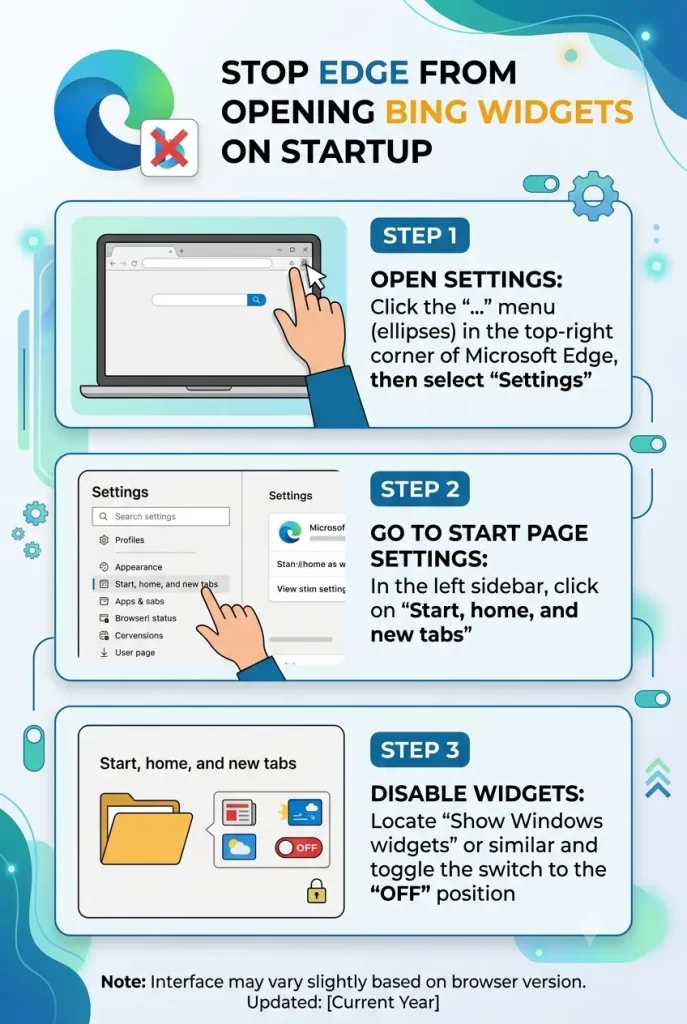
Step 1: Open a new tab and click the gear icon
It’s in the top-right corner of the New Tab Page, usually near your profile picture. This is the control center for the feed, and it’s easy to overlook because it blends into the page background.
Step 2: Pick your layout
You’ll see a few options:
- Inspirational — full background image, minimal content, but the feed can still show below the fold.
- Informational — the default, feed-heavy layout with news, weather, and trending stories.
- Focused — strips almost everything down, no feed.
- Custom — lets you pick and choose.
If you want the whole thing gone with the least effort, choose Focused.
Step 3: If you picked Custom, turn off Content
Custom gives you toggles for things like greeting, search box, quick links, background, and — the important one — Content (sometimes labeled My Feed). Turn that off and the news cards disappear while you keep the rest of the layout you like.
Step 4: Check your startup page separately
Go to Settings > Start, home, and new tabs. Under “When Edge starts,” pick either “Open the New Tab page” (now clean, since you just fixed it) or “Open a specific page or pages” and type in whatever you actually want.
Step 5: Handle Windows Widgets on its own
This one’s outside Edge entirely. Right-click an empty spot on the taskbar, select Widgets, and turn it off. Or go to Settings > Personalization > Taskbar and toggle Widgets off from there. Either way works — I don’t think one method sticks better than the other, they’re the same setting exposed two different ways.
What Actually Worked For Me
I’ll be honest, my first attempt was just changing the startup page and calling it done. Didn’t work — the feed came right back the moment I opened a new tab, which, in hindsight, makes total sense since I was fixing the wrong thing.
The second attempt, I went into the gear icon on the New Tab Page and switched to Focused. That worked immediately, no restart needed. But then about a week later the feed came back on its own, and I couldn’t figure out why until I remembered I’d signed into a work laptop with the same Microsoft account the day before — and that laptop still had the default Informational layout. Sync did exactly what it’s supposed to do; I just didn’t expect it to drag an old preference back over.
So now when I set this up on a new machine, I check the layout again after the first sign-in, just to be safe.
Advanced Fixes and Edge Cases
If you’re on a managed device and nothing sticks, check with your IT department before spending more time on it. Group Policy objects like NewTabPageContentEnabled or similar Microsoft Start policies can force the feed on regardless of what you click. You can sometimes confirm this yourself by going to edge://policy and checking if any New Tab Page or Microsoft Start policies show up as “Set” rather than blank.
If the gear icon disappears or the layout options look different than described here, you may be on an older or newer Edge build than what’s covered in most guides — Microsoft has shuffled this menu a few times. Try edge://settings/help to confirm your version, and check for pending updates.
If disabling the feed doesn’t reduce memory usage the way you expected, that’s a separate issue tied to WebView2 background processes used by Windows Widgets specifically, not the Edge New Tab Page. Turning off Widgets at the Windows level (not just the Edge feed) is what actually frees that memory up.
Prevention Tips
- Set the New Tab Page layout to Focused or Custom before you start using a fresh Edge install, rather than after the feed’s already annoyed you for a week.
- If you use the same Microsoft account across multiple devices, check the layout again after each new sign-in.
- On work devices, ask IT whether a policy governs this before assuming your personal settings will hold.
- Keep Edge updated — some layout resets are tied to specific version rollouts rather than random chance.
FAQ
Does turning off the New Tab Page feed also remove Bing search suggestions? No. Those are separate. Turning off the content feed only removes news/weather cards, not the search box or suggestions.
Why does my weather widget disappear but news stays, or vice versa? Microsoft occasionally rolls out granular controls (weather-only vs full feed) to some accounts before others. Not everyone sees identical toggle options at the same time.
Will this affect Copilot or the sidebar in Edge? No, those are unrelated features with their own settings.
Can I keep just the weather and drop the news cards? Sometimes, depending on your account’s current rollout. Use the Custom layout and check what individual toggles you’re given — not every version breaks weather and news apart.
Editor’s Opinion
honestly the most annoying part of this whole thing isnt the widgets, its that theres no single “off” switch and three separate menus all pretending to be the one you need. once you know its NTP layout + startup page + windows widgets as three different things it stops being confusing, but nobody tells you that up front. anyway focused layout fixed it for me in like 30 seconds once i was looking in the right spot.
