If Razer Synapse not detecting your mouse or keyboard has stopped your RGB lighting, macros, or DPI settings from working, you’re not alone. I ran into this after plugging a Razer mouse into a different USB port, and Synapse acted like the device didn’t exist even though Windows recognized it just fine. Thankfully, this usually comes down to software, drivers, or Windows services rather than a broken device.
Quick Answer
If Razer Synapse isn’t detecting your mouse or keyboard, try these fixes first:
- Restart all Razer services.
- Reconnect the device to a different USB port.
- Update or reinstall Razer Synapse.
- Remove corrupted device drivers from Device Manager.
- Install the latest firmware if one is available.
From what I’ve seen, reinstalling Synapse after removing leftover files fixes the problem more often than simply updating it.
Why Razer Synapse Doesn’t Detect Your Device
Windows may detect your mouse or keyboard while Synapse doesn’t. That’s because Windows only needs a generic HID driver to make basic input work, while Synapse relies on several background services and device communication layers.
Here are the most common causes.
Corrupted Synapse Installation
Updates don’t always go smoothly.
Sometimes one service fails to update while another succeeds, leaving Synapse running but unable to communicate with connected hardware.
I’ve seen this happen after Windows Feature Updates more than once.
Razer Services Aren’t Running
Synapse depends on multiple Windows services.
If one crashes during startup, your device may disappear from Synapse even though it’s still working normally.
USB Communication Problems
Loose USB connections aren’t the only issue.
USB hubs, docking stations, overloaded controllers, and certain front-panel ports can interrupt communication just enough for Synapse to lose the device.
Driver Conflicts
Windows occasionally installs a generic HID driver after an update.
That’s not entirely accurate, let me explain.
The generic driver itself isn’t bad—it allows the keyboard or mouse to work—but Synapse sometimes expects additional device information that isn’t being exposed correctly.
Firmware Problems
Older firmware can occasionally create compatibility problems with newer Synapse releases.
It doesn’t happen often, but it’s worth checking.
Common Situations
Users usually notice this after one of these events:
- Installing a Windows update
- Updating Synapse
- Moving the mouse to another USB port
- Using a USB hub
- Connecting through a docking station
- Switching between desktop and laptop
- Restoring Windows from a backup
And sometimes it simply happens after waking the PC from sleep, which is honestly pretty frustrating.
Common Causes Compared
| Situation | Likely Cause | Usually Fixes It |
|---|---|---|
| Windows detects device but Synapse doesn’t | Synapse service issue | Restart or reinstall Synapse |
| Device disappears randomly | USB communication | Try another USB port |
| Only one Razer device missing | Firmware or driver | Update firmware |
| All Razer devices missing | Synapse installation | Clean reinstall |
Step 1: Confirm Windows Detects the Device
Before touching Synapse, check whether Windows actually sees the hardware.
Open Device Manager.
Expand:
- Mice and other pointing devices
- Keyboards
- Human Interface Devices
If your device appears here, the hardware is probably fine.
If it doesn’t appear anywhere, the problem is likely outside Synapse.
Step 2: Restart Razer Services
Press Win + R.
Type:
services.mscRestart services such as:
- Razer Synapse Service
- Razer Central Service
- Razer Game Manager
After restarting them, launch Synapse again.
This is one of those fixes that sounds too simple, but I’ve had it work twice.
Step 3: Try Another USB Port
Connect the device directly to the motherboard if possible.
Avoid:
- USB hubs
- Keyboard pass-through ports
- Cheap extension cables
But don’t just unplug and reconnect to the same port. Windows may reuse the same communication state.
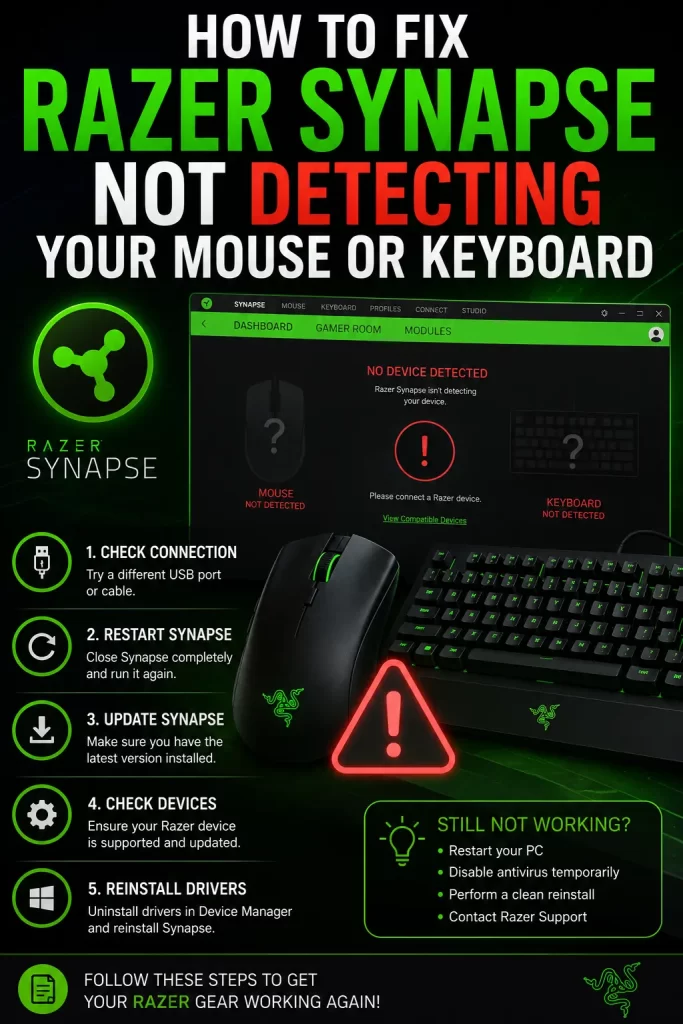
Step 4: Remove the Device Driver
Open Device Manager.
Right-click the Razer device.
Choose:
Uninstall Device
Disconnect the mouse or keyboard.
Restart Windows.
Reconnect it afterward.
Windows usually installs a fresh driver automatically.
Step 5: Perform a Clean Reinstall of Synapse
Simply installing over the existing copy rarely fixes detection issues.
Instead:
- Uninstall Synapse.
- Remove Razer Central.
- Restart Windows.
- Delete leftover Razer folders from Program Files and AppData if they’re still there.
- Install the latest version.
This takes longer, but it’s also the fix I’ve seen work most often.
Step 6: Update Firmware
Open Synapse if it recognizes the device intermittently.
Check for firmware updates.
If Synapse can’t detect the device at all, download the correct firmware updater for your exact model from Razer and run it if applicable.
Be careful here.
Installing firmware intended for another model can create bigger problems.
Step 7: Disable Fast Startup
Fast Startup sometimes reloads old hardware states after shutdown.
Open:
Control Panel → Power Options
Turn off Fast Startup temporarily.
Restart the PC.
Then test Synapse again.
What Actually Worked For Me
I first assumed Windows had broken the USB drivers.
So I updated chipset drivers.
Nothing.
Then I swapped USB ports.
Still nothing.
Eventually I completely removed Synapse, deleted the leftover folders, restarted the PC, and installed a fresh copy. The mouse showed up immediately after signing back into Synapse.
Not 100% sure why, but the old installation had clearly left something behind that the updater didn’t replace.
Advanced Fixes
Check Device Manager for Hidden Devices
Open Device Manager.
Enable:
View → Show Hidden Devices
Look for old Razer entries.
If several greyed-out copies exist, uninstall them before reconnecting the device.
I’ve had old HID entries confuse software before, even though Windows kept working normally.
Watch Event Viewer
Open Event Viewer.
Go to:
Windows Logs → System
Watch for:
- USB disconnects
- HID errors
- Driver initialization failures
These can point toward hardware communication problems instead of Synapse itself.
Disable USB Selective Suspend
Open Power Options.
Disable USB Selective Suspend.
Some laptops become overly aggressive with USB power saving, especially after battery optimization updates.
Test with a New Windows User Profile
This gets overlooked.
Create a temporary Windows account.
Install Synapse there.
If the device appears immediately, the original user profile may contain corrupted Synapse settings.
Prevention Tips
- Keep Synapse updated, but restart Windows after major updates.
- Connect the device directly instead of through hubs whenever possible.
- Avoid unplugging the device while Synapse is updating firmware.
- Don’t run multiple RGB management programs if they try to control the same hardware.
- Restart the PC occasionally instead of relying only on sleep mode.
FAQ
Why does Windows detect my mouse but Synapse doesn’t?
Windows only needs basic HID drivers. Synapse depends on its own services and software components.
Can antivirus software block Synapse?
Yes.
Some security software blocks background services or device communication until they’re allowed.
Should I reinstall Windows?
Probably not.
I’d exhaust the software and driver fixes first because Windows itself isn’t usually the root of this issue.
Does Bluetooth affect Synapse detection?
If you’re using a supported wireless Razer device, wireless communication problems can stop Synapse from seeing it even though the device still works.
Why did this happen after updating Synapse?
Updates occasionally leave behind damaged components or settings. A clean reinstall often fixes what a normal update doesn’t.
Is my mouse or keyboard broken?
Usually not.
If Windows detects it and basic input works, the hardware is probably fine.
Editor’s Opinion
I think the biggest mistake people make is assuming the hardware died. Most of the time it’s Synapse getting confused after an update or Windows changing something in the background. I’d start with a clean reinstall before buying a replacement. It solved it for me, and I’ve seen it fix plenty of similar cases too.
