My VMs were fine right up until I closed the lid on my laptop for twenty minutes. The second I opened it back up, every single one lost network access, and Hyper-V virtual switch lost connectivity became the exact error I was staring at in Event Viewer. Turns out this isn’t some rare edge case — it’s one of the more common Hyper-V complaints once you’re running on a laptop that actually sleeps instead of a server that never does.
If you’ve already tried restarting the VMs and it didn’t help, that’s normal. Restarting the guest doesn’t fix this one, because the problem isn’t inside the VM at all.
Quick Answer
- The virtual switch’s binding to your physical NIC doesn’t always survive a sleep/wake cycle, especially on Wi-Fi.
- Fastest fix: disable and re-enable the physical network adapter tied to the switch (Device Manager or PowerShell).
- Turn off “Allow the computer to turn off this device to save power” on that adapter.
- Restarting the Hyper-V Virtual Switch Management service sometimes reapplies the binding without a reboot.
- If it happens every single time, a scheduled task that runs on wake will save you from doing this manually forever.
Why This Actually Happens
Hyper-V’s virtual switch is basically a software bridge sitting on top of your real network adapter. When your laptop sleeps, the physical NIC gets torn down at a driver level, and when it wakes back up, the driver has to rebuild its state from scratch. The virtual switch’s binding to that adapter is supposed to survive the round trip. From what I’ve seen, it doesn’t always.
Wi-Fi adapters are the worst offenders, and there’s a reason. External virtual switches bound to Wi-Fi have always been a bit of a stretch for Hyper-V — Microsoft’s own switch architecture was designed with wired NICs in mind. Wireless drivers re-associate with the access point on wake, sometimes with a new channel or a slightly different negotiated state, and the virtual switch binding doesn’t always reattach cleanly to that refreshed connection.
Power management settings on the adapter make this worse. If “Allow the computer to turn off this device to save power” is checked, Windows may partially power down the NIC during sleep in a way that doesn’t play nice with whatever Hyper-V’s switch extension expects to find when it wakes up.
The Host Network Service (hns) and Hyper-V Virtual Switch Management service don’t always reinitialize bindings automatically. These are the background services actually responsible for keeping the software switch wired to the physical adapter. They’re supposed to reattach on resume. Sometimes they just don’t, and there’s no error dialog telling you that — you just quietly lose connectivity and have to go find out why yourself.
VMQ (Virtual Machine Queue) issues on certain NIC chipsets add instability. This is more of a legacy problem tied to specific Broadcom and Realtek drivers, but if you’re on affected hardware, VMQ can make the switch flaky in general, and a sleep/wake cycle is often just the trigger that finally exposes it.
Modern Standby complicates things further. Newer laptops use S0 low-power idle instead of the older S3 sleep state, and network behavior during that connected-standby period is different — some background connectivity is technically maintained, which confuses things even more when Hyper-V’s switch doesn’t get a clean “adapter is fully gone, now it’s fully back” signal to react to.
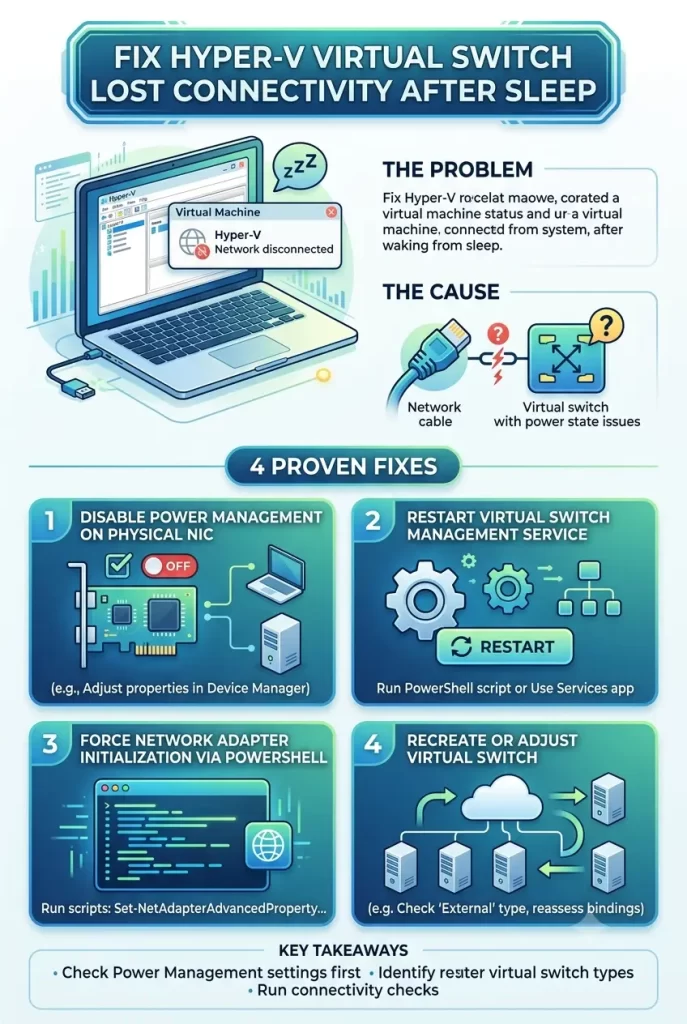
Common Scenarios
This shows up differently depending on your setup, and it’s worth knowing which one you’re in before you start troubleshooting:
Laptop with an external switch bound to Wi-Fi — this is the setup most likely to break on every single sleep cycle. If this is you, honestly, expect to need one of the automated fixes below rather than a one-time manual fix.
Desktop with an external switch bound to Ethernet — more stable, but still not immune, especially after Windows Updates that touch NIC drivers.
Default Switch (NAT-based, no manual binding) — generally the most resume-friendly option, because it doesn’t depend on a specific physical adapter binding the same way an external switch does. If you don’t strictly need bridged networking, this is worth switching to.
Technical Comparison
| Switch Type | Resume Reliability | Typical Fix Needed |
|---|---|---|
| External switch on Wi-Fi | Poor | Adapter disable/enable, scheduled task |
| External switch on Ethernet | Moderate | Service restart, power settings |
| Default Switch (NAT) | Good | Rarely needs manual fixing |
| Internal switch | Good | Not affected (no physical NIC binding) |
Step-by-Step Fixes
Step 1: Check Event Viewer first
Open Event Viewer and look under Applications and Services Logs > Microsoft > Windows > Hyper-V-VmSwitch. If you see binding or extension errors right around your last wake timestamp, that confirms this is the switch losing its binding, not something inside the VM.
Step 2: Disable and re-enable the physical adapter
Open Device Manager, find the NIC your switch is bound to, right-click, and select Disable, wait a few seconds, then Enable again. This forces Windows to rebuild the driver state, and the virtual switch usually reattaches cleanly right after.
PowerShell version, if you’d rather script it:
powershell
Disable-NetAdapter -Name "Wi-Fi" -Confirm:$false
Start-Sleep -Seconds 5
Enable-NetAdapter -Name "Wi-Fi" -Confirm:$false
Swap “Wi-Fi” for whatever your adapter’s actually named — check with Get-NetAdapter first.
Step 3: Turn off power-saving on the adapter
Device Manager > your adapter > Properties > Power Management tab > uncheck Allow the computer to turn off this device to save power. This one’s easy to overlook because it’s not obviously related to Hyper-V at all.
Step 4: Restart the Hyper-V networking services
Open Services (services.msc) and restart Hyper-V Virtual Switch Management. On some builds this is bundled differently, so if you don’t see it by that exact name, look for Host Network Service instead and restart that.
Step 5: If nothing else works, recreate the switch
As a last resort, delete the virtual switch in Hyper-V Manager and recreate it. This is disruptive since VMs attached to it will need to be reassigned, so treat it as the step you take when 1 through 4 genuinely didn’t fix it, not the first thing you try.
What Actually Worked For Me
I went through the disable/enable adapter trick probably a dozen times over a couple weeks before I got tired of doing it manually every time I closed my laptop lid. What actually worked long-term wasn’t a setting at all — it was a Task Scheduler task set to trigger on the “System wake” event, running the same disable/enable PowerShell command automatically.
That’s not the elegant fix I wanted. I really thought there’d be a proper toggle somewhere buried in Hyper-V settings that would just handle this cleanly, and I spent way too long looking for one before I gave up and just automated the workaround instead. So, not glamorous, but it’s been solid for months now and I haven’t had to think about it since.
Advanced Fixes and Edge Cases
Set up the wake-triggered scheduled task properly. In Task Scheduler, create a task with the trigger “On an event” pointed at the System log, Event ID 1 (source: Power-Troubleshooter), or alternatively “On workstation unlock” if wake events aren’t firing reliably for you. Have it run the disable/enable PowerShell snippet from Step 2 with highest privileges.
Check for VMQ-related driver issues. Run Get-NetAdapterVmq to see if VMQ is enabled on the adapter. If you’re on known-flaky hardware (older Broadcom or Realtek chipsets come up a lot in this context), disabling VMQ with Disable-NetAdapterVmq -Name "YourAdapter" has fixed connectivity for people even outside the sleep/wake scenario specifically.
Rule out Fast Startup. Fast Startup creates a hybrid shutdown state that isn’t quite a full power-off, and it can interact strangely with driver reinitialization on some systems. Turning it off (Control Panel > Power Options > Choose what the power buttons do > uncheck Fast Startup) is worth testing if the other fixes aren’t holding.
If you’re bridging Wi-Fi specifically, consider whether you actually need to. Wi-Fi-bound external switches have never been fully first-class citizens in Hyper-V’s architecture. If your VMs don’t need to appear as separate devices on your physical network, switching to the Default Switch avoids this whole category of problem entirely.
Prevention Tips
- Avoid binding an external switch to Wi-Fi unless you specifically need it — use Default Switch or an internal switch when bridged access isn’t required.
- Disable power-saving on any adapter a Hyper-V switch depends on.
- Keep NIC drivers current, particularly if you’re on Broadcom or Realtek hardware with known VMQ quirks.
- If this happens every single sleep cycle on a laptop you use daily, set up the wake-triggered scheduled task early rather than manually fixing it each time.
FAQ
Does this happen on desktops too, or just laptops? Mostly laptops, since they’re the ones actually sleeping regularly. Desktops can hit it too if they’re configured to sleep, but it’s rarer in practice.
Will switching to the Default Switch fix this for good? Usually, yes, for most home-lab and dev use cases. You lose the ability for VMs to appear as independent devices on your physical LAN, though, so it’s a tradeoff depending on what you actually need.
Is this a bug Microsoft is going to fix? Not that I’ve seen confirmed anywhere specific. It’s been a recurring theme across Hyper-V versions for years, tied mostly to how wireless drivers and power states behave rather than one clean bug Microsoft can just patch.
Do I need to restart the VM after fixing the host-side switch? Not usually — restarting the adapter or service on the host side is generally enough. Give it a minute after re-enabling the adapter before assuming the VM still isn’t getting a connection.
Editor’s Opinion
this is one of those bugs that makes you feel crazy the first time it happens because nothing in the vm itself is broken, its purely a host-side networking thing that looks like a vm problem. the scheduled task workaround feels hacky and honestly it is hacky, but it beats manually toggling an adapter every time you close your laptop. wish there was a real fix baked in somewhere but ive stopped expecting one at this point.
