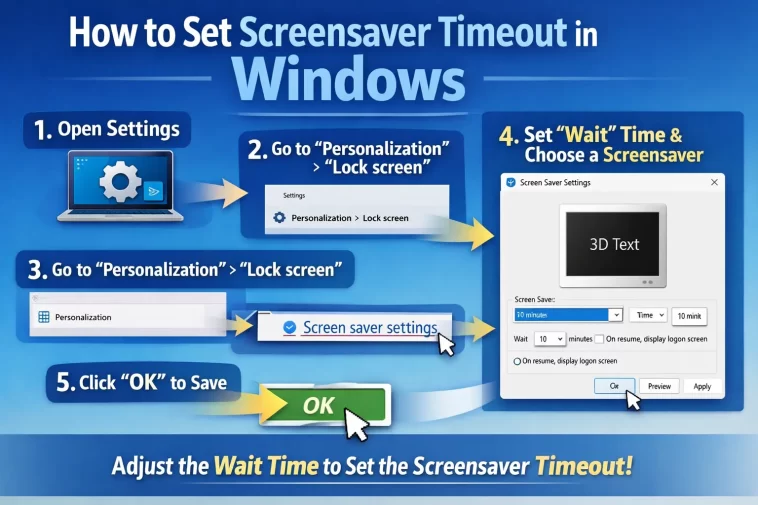
Your screensaver kicks in after two minutes every single time you stop to think. Or maybe it never turns on, no matter how long you step away. Either way, the fix is simpler than you’d expect — and there’s more than one way to handle it.
This guide covers both: how to set the exact screensaver timeout you want in Windows 11, and how to stop the screensaver from activating when you haven’t touched the mouse.
What Is Screensaver Timeout?
The screensaver timeout defines how long your system must remain idle before the screensaver animation starts. Idle means no keyboard input, mouse movement, touch, or active input device — not simply that an app is open. GeekChamp
Once that timer runs out, Windows launches whatever screensaver you’ve selected. If you haven’t picked one, nothing happens at all — which is why some people think their screensaver is broken.
If your display changes too quickly, never starts the screensaver, or asks for a password at the wrong time, adjusting the timeout is usually a quick fix. TechBloat
Part 1: How to Change the Screensaver Timeout in Windows 11
Step 1: Open Windows Settings
Press Windows + I to open Settings directly. This is the fastest way — no need to dig through the Start menu.
Step 2: Go to Personalization → Lock Screen
In the left sidebar, click Personalization, then select Lock screen from the list of options.
Microsoft moved screensaver settings here in Windows 11. It feels like the wrong place, but this is where they live now.
Step 3: Click “Screen saver” at the Bottom
Scroll to the very bottom of the Lock screen page. You’ll see a clickable link labeled Screen saver. Click it.
This opens the classic Screen Saver Settings dialog — a window that’s been in Windows for decades and still works the same way.
Step 4: Make Sure a Screensaver Is Selected
Before changing the timeout, first confirm that Windows 11 is actually using a screensaver. If no screensaver is selected, the timeout value may still appear in the classic dialog, but nothing will start after that number of minutes. TechBloat
Click the dropdown under Screen saver and pick anything other than None — Blank, Bubbles, Mystify, Photos, or Ribbons all work fine.
Step 5: Set the Wait Time
Click inside the Wait box and enter your desired timeout. Common values include 1 to 5 minutes for security-focused environments and 10 to 20 minutes for personal systems. GeekChamp
There’s no perfect number — it depends entirely on your habits. If you frequently step away from your desk, 10 minutes is a reasonable balance. If you work in a public space and want faster protection, try 3–5 minutes.
Step 6: Enable Password on Resume (Optional but Recommended)
Just below the Wait field, you’ll see a checkbox: On resume, display logon screen.
Enabling this ensures that when the screensaver is dismissed, Windows requires authentication. This setting is critical for security because it determines whether the screensaver actually protects the system. Without it, the screensaver is purely cosmetic and does not prevent unauthorized access. GeekChamp
Check this box if you’re on a shared or work computer.
Step 7: Apply and Test
Click Apply, then OK. Leave your computer idle and watch — the screensaver should kick in after exactly the number of minutes you set.
After selecting a timeout, always test it by leaving the system idle without touching the mouse or keyboard. Observe whether the screensaver appears, whether the session locks, and how long it takes for the display to turn off. GeekChamp
Advanced Method: Change Timeout via Registry Editor
If your screensaver settings keep reverting, or you want to lock in a specific timeout that doesn’t change, the Registry Editor gives you direct control.
Warning: Always back up your registry before making changes. A wrong edit can cause system issues.
How to Do It:
- Press Windows + R, type
regedit, and press Enter - Navigate to:
Computer\HKEY_CURRENT_USER\Software\Policies\Microsoft\Windows - Right-click Windows and select New → Key. Name it Control Panel. Right-click on this new key and select New → Key again. Name it Desktop. The Windows Club
- Click the Desktop key to highlight it. In the right pane, right-click empty space → New → String Value → type
ScreenSaveTimeOut→ press Enter. The Windows Club - Right-click
ScreenSaveTimeOut→ Modify → enter the value in seconds (e.g.,600for 10 minutes) - Click OK and restart your PC
This method is especially useful on managed or work devices where the Settings app doesn’t always save your changes.
Advanced Method: Change Timeout via Group Policy Editor
This option is for Windows 11 Pro and Enterprise users only. Home edition doesn’t include Group Policy Editor.
- Press Windows + R, type
gpedit.msc, and press Enter - Navigate to Computer Configuration → Administrative Templates → Control Panel → Personalization Tech2Geek
- Double-click Screen saver timeout
- Set it to Enabled and enter your desired time in seconds
- Click Apply and OK
Group Policy settings override whatever you set in the regular Settings app, so this is a reliable way to enforce a consistent timeout.
Part 2: How to Stop the Screensaver from Activating (Without Moving the Mouse)
Sometimes you don’t want the screensaver to come on at all — but you don’t want to disable it permanently either. Maybe you’re watching something, giving a presentation, or monitoring a process.
Here are the most practical ways to keep the screen active without constantly nudging your mouse.
Method 1: Set Screensaver to “None”
The simplest approach. Go back to the Screen Saver Settings dialog and select None from the dropdown.
Click Apply and OK. No screensaver will activate regardless of how long you’re idle. Your power settings will still control when the display turns off or the PC sleeps — but the screensaver itself won’t appear.
This is fine for home users who just want the screen to stay on during a movie or long task.
Method 2: Increase the Wait Time to a Very High Number
If you want to keep the screensaver enabled but delay it enough that it never practically kicks in, set the Wait time to something like 9999 minutes.
This keeps the feature technically active (so password-on-resume still works if needed) while making sure it almost never triggers in real usage.
Method 3: Use Caffeine for Windows (Free Software)
Caffeine for Windows works by simulating a keypress once every 59 seconds, so your machine thinks you’re still working at the keyboard and won’t lock the screen or activate the screensaver. alternativeto
It runs silently in the system tray. You click it once to enable it, click again to disable. No installation required in most versions — just run the executable.
This is a great option for remote workers, presentations, and anyone who can’t change system settings on a work PC.
Method 4: Use Mouse Jiggler
Mouse Jiggler simply jiggles your mouse pointer to prevent the computer from going to sleep. This has the added benefit of preventing screensavers from taking over the display, which is the original purpose of the app. Help Desk Geek
If you find the movement of the mouse annoying, you can enable the Zen Jiggle mode, which makes the pointer invisible and keeps the movement limited to the background. This tool doesn’t need a setup or configuration. TechNorms
The application does not require installation, so you can keep it on a pen drive and carry it with you. Help Desk Geek
Method 5: Enable Windows Presentation Mode
If you’re doing a presentation or watching a video full-screen, Windows has a built-in mode designed for this.
Press Windows + P to open the projection menu, or search for Presentation Mode in the Start menu. Turning this on temporarily disables the screensaver and keeps the display active.
This is the cleanest solution because it’s built into Windows and requires no third-party tools.
Why Is My Screensaver Turning On Too Quickly?
A few things can cause this:
- Wait time is set too low — Check your Screen Saver Settings and increase the Wait time
- Power settings conflict — If your PC goes to sleep before the screensaver starts, the screensaver may never appear. Go to Settings → System → Power & battery → Screen and sleep, then make sure your monitor-off timer is longer than your screensaver wait time. TechBloat
- Group Policy override — On work computers, your IT department may enforce a screensaver timeout. If your screensaver settings don’t stick or the timeout reverts to a default value, check whether Group Policy or Local Security Policy settings are overriding your choices. Tech2Geek
- Settings not saving — Make sure you actually have a screensaver selected (not “None”) before trying to save a timeout value
Why Is My Screensaver NOT Turning On?
- You have None selected as your screensaver
- A full-screen application is running (games, video players, and some productivity apps block screensavers)
- Your display goes to sleep before the screensaver timer finishes
- Outdated or incompatible graphics drivers can sometimes cause display-related issues — update your GPU drivers and try again Microsoft Learn
- A background application is simulating mouse input without your knowledge
FAQ
How do I set the screensaver timeout in Windows 11? Go to Settings → Personalization → Lock screen → Screen saver. Make sure a screensaver is selected from the dropdown, then set your desired Wait time in minutes. Click Apply to save.
What is the minimum screensaver timeout in Windows? The minimum is 1 minute. You can’t set it to activate in seconds through the standard Settings dialog. For sub-minute control, you’d need to edit the registry directly.
Can I stop the screensaver without disabling it permanently? Yes. Use tools like Caffeine or Mouse Jiggler to temporarily keep Windows active without changing your screensaver settings. You can turn them on and off as needed.
Why does my screensaver timeout keep resetting? This usually happens on managed work or school computers where Group Policy enforces a specific timeout. Your IT department controls these settings. On personal PCs, it can happen if the Settings app conflicts with a registry value — close Settings before making registry edits.
Does the screensaver timeout affect sleep mode? No — these are separate settings. The screensaver timeout controls when the animation starts. Sleep mode is controlled separately under Settings → System → Power & battery. If sleep kicks in before the screensaver timeout, the screensaver won’t appear at all.
Does increasing the screensaver timeout affect battery life? Yes, slightly. If your screensaver keeps the display on longer before sleep kicks in, your battery drains faster. For laptops, it’s better to use a short sleep timer and skip the screensaver entirely.
Is Caffeine for Windows safe to use? Yes — it’s a well-known, widely used utility that’s been around for years. It doesn’t require admin rights and simply simulates a keypress to keep Windows from going idle. Just download it from a reputable source.
Can I use these methods on a work computer? For changing system settings, probably not — your IT department may have locked them. But software tools like Caffeine that don’t require installation or admin rights often work fine. Check your company’s software policy to be sure.
Final Thoughts
Getting the screensaver timeout right takes about two minutes in the Screen Saver Settings dialog. Set your Wait time, pick a screensaver, and optionally enable password-on-resume for security. Done.
If you need to prevent the screensaver from ever activating — without fully disabling it — Caffeine or Mouse Jiggler are reliable free solutions that work even on locked-down computers.
The registry and Group Policy methods are there if you need precise control or need to apply the same setting across multiple machines.
