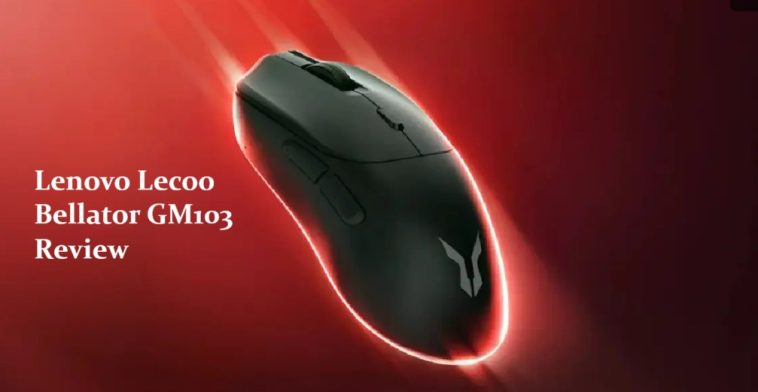
I picked up the Lenovo Lecoo Bellator GM103 mostly out of curiosity, since it’s cheap and I wanted to see if a $36 mouse could actually keep up with pricier competitive options. Short answer: mostly yes, but there are a few setup quirks that tripped me up in the first week. This review covers what worked, what didn’t, and the fixes for the annoying parts.
Quick Answer
- Sensor is the PixArt PAW3395, same chip used in mice costing three times as much
- Weighs 59g, which puts it solidly in the lightweight competitive category
- 8,000Hz polling rate works over wired USB-C and 2.4GHz wireless, but not over Bluetooth
- Shape is built around Asian hand sizes, so larger hands may feel cramped
- Most common issue is wireless click latency, and it’s almost always a dongle placement problem, not a hardware fault
What’s Actually Inside the GM103
The GM103 uses the PixArt PAW3395 sensor. That’s not a budget sensor cutting corners — it’s the same one you’ll find in a lot of mid-range and even some high-end gaming mice right now. On paper it does 26,000 DPI, 650 IPS tracking, and 50G of acceleration.
In practice, nobody’s actually running 26,000 DPI. I tested it around 800-1600 DPI like most people would, and tracking felt clean with no obvious jitter or spin-out during fast flicks.
The main switches are mechanical, rated for 80 million clicks, with about 60gf actuation force. That’s a fairly light click, closer to what competitive shooter players tend to prefer over a heavier, mushier switch.
Why Some Users Run Into Problems
There isn’t one single issue with this mouse. From what I’ve seen across a few forum threads and my own testing, there are three separate things that cause most of the complaints:
- 2.4GHz dongle interference — USB 3.0 ports and nearby wireless devices can cause dropped input or stutter, and this is the most common complaint by far
- Bluetooth mode confusion — the 8,000Hz polling rate does not carry over to Bluetooth, and some users expect full performance regardless of connection type
- Firmware inconsistency out of the box — a handful of early units shipped with outdated firmware that caused DPI switching to behave oddly
None of these are dealbreakers, but they’re annoying if you don’t know what’s causing them, and Lenovo’s documentation doesn’t really call any of this out clearly.
A Cause People Tend to Overlook
Here’s one that’s easy to miss: USB-C cable quality. The GM103 charges and can run in wired mode over USB-C, but if you’re using a cheap third-party cable instead of the one in the box, you can get inconsistent polling rates in wired mode. I didn’t think this would matter until it actually happened to me, and swapping back to the stock cable fixed it instantly.
GM103 vs Typical Budget Gaming Mice
| Feature | GM103 | Typical $30-40 Competitor |
|---|---|---|
| Sensor | PAW3395 (flagship-tier) | Often older PAW3327 or similar |
| Weight | 59g | Usually 70-90g |
| Polling Rate | 8,000Hz (wired/2.4GHz) | Usually 1,000Hz max |
| Switch Rating | 80 million clicks | Often 20-50 million |
| Bluetooth Support | Yes, dual-device | Rare at this price |
The sensor and polling rate are genuinely ahead of most mice in this price bracket. That part isn’t marketing fluff.
Setting It Up: Step by Step
Step 1: Charge it fully before first use. Plug it in via USB-C for at least an hour before pairing wirelessly. Skipping this step is a common reason people think the battery indicator is broken.
Step 2: Choose your connection mode carefully. Wired USB-C and 2.4GHz dongle both support the full 8,000Hz polling rate. Bluetooth does not. If you’re buying this specifically for competitive gaming, don’t use Bluetooth as your primary mode.
Step 3: Plug the dongle into a USB 2.0 port if possible. Sounds backwards, but USB 3.0 ports on some laptops generate interference that affects 2.4GHz wireless devices. This single change solves most of the “random stutter” complaints I’ve seen.
Step 4: Update the firmware through Lecoo’s software. This isn’t optional if you got an early unit. So check for updates before assuming the mouse itself is defective.
Step 5: Adjust DPI and button mapping to taste. The software is fairly bare-bones compared to bigger brands, but it covers the basics fine.
What Actually Worked For Me
My unit had the wireless stutter issue on day one, and I went through the usual troubleshooting motions — reinstalling drivers, switching USB ports, restarting the whole system. None of it fixed anything.
What actually solved it was moving the dongle away from my USB hub entirely and plugging it directly into the laptop, on a USB 2.0 port specifically. I stumbled onto this from an old habit — I remembered dealing with the same issue years ago on a different wireless mouse, and it turned out to be the same root cause here. Not exactly a scientific process, but it worked, and the stutter never came back after that.
Advanced Fixes and Edge Cases
If the basic fixes don’t help, there are a couple of deeper things worth checking.
Check for USB power management conflicts. On Windows, USB selective suspend can cause a dongle to briefly disconnect and reconnect, which feels like input lag or dropped clicks. Go into Device Manager, find the USB root hub, open Power Management, and disable “allow the computer to turn off this device to save power.”
Look at 2.4GHz channel congestion. If you’ve got a lot of other wireless devices nearby — Wi-Fi routers, other 2.4GHz mice, Bluetooth speakers — that’s a realistic source of interference that’s easy to overlook. Moving the dongle to a USB extension cable a few inches closer to the mouse itself can help more than people expect.
DPI stuck after firmware update. A few users reported DPI settings reverting after a firmware flash. The fix that seems to actually work is a full factory reset through the software rather than just reinstalling the driver, which rarely does anything on its own despite being the first thing most guides suggest.
Prevention Tips
- Keep the original USB-C cable instead of swapping in random ones you have lying around
- Check firmware within the first week of ownership, don’t wait until something breaks
- Avoid plugging the dongle into a USB hub if you can help it
- Don’t rely on Bluetooth mode if consistent high polling rate matters for what you’re doing
Frequently Asked Questions
Is the GM103 good for FPS games specifically?
Yeah, the sensor and polling rate hold up fine for fast-paced shooters. The lightweight body also helps with quick flicks.
Does it work well for larger hands?
Not really ideal. The shape is built around smaller hand sizes, so if you’ve got large hands, you might find it cramped during long sessions.
Why does my mouse feel laggy over Bluetooth but fine over the dongle?
Because Bluetooth mode doesn’t run the 8,000Hz polling rate. That’s expected behavior, not a defect.
Can I use third-party mouse software with it?
Not officially supported. Stick with Lecoo’s own software for DPI and button configuration.
Is 59 grams actually noticeable compared to a heavier mouse?
For most people, yes, especially if you’re coming from something in the 90-100g range. Your mileage may vary depending on grip style.
Does the battery actually last as advertised?
From what I’ve tested, real-world battery life runs a bit shorter than the marketed number, but not dramatically so. Heavy RGB use, if enabled, will drain it faster.
Editor’s Opinion
honestly for the price this mouse punches way above its weight class, the sensor alone is kinda wild for $36. the wireless stutter thing annoyed me at first but once i figured out the usb port trick it just worked fine after that. wouldnt recommend it if you got big hands tho, felt a bit small for my liking after long sessions. still, good budget pick if your hands fit it and you dont mind fiddling with usb ports once.
