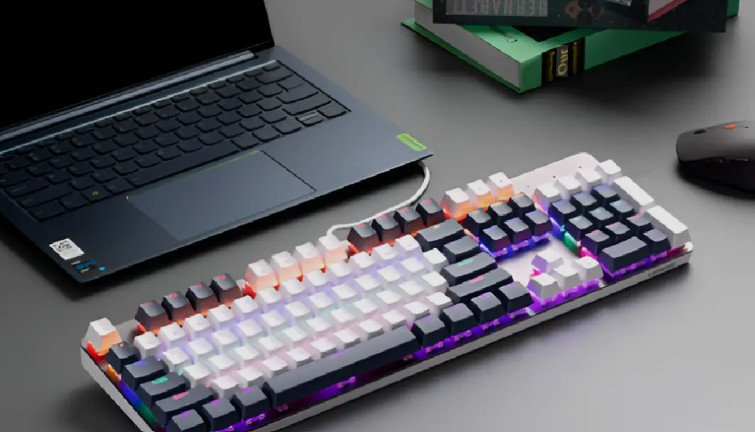
I almost didn’t bother testing the Lenovo Legion MK2 because, come on, a full-size gaming keyboard for $14 sounds like a joke. But I ordered one anyway, mostly to see how bad it actually was, and it turned out to be more useful than I expected once I got past a couple of setup annoyances. This review covers what works, what doesn’t, and the fixes for the stuff that tripped me up.
Quick Answer
- It’s a membrane keyboard, not mechanical, tuned to mimic tactile brown switches
- 104-key full-size layout with number pad and function row
- 19-key anti-ghosting, which covers a normal WASD cluster fine but not much beyond that
- 10-zone RGB with static, rainbow, wave, and breathing effects
- Most common complaint is keys feeling “stuck” or unresponsive, and it’s almost always a driver or Windows key-repeat setting, not a hardware fault
What You’re Actually Getting for $14
Lenovo built the Legion MK2 as a membrane keyboard. That’s the first thing to get straight, because a lot of people see “gaming keyboard” and assume mechanical switches, and that’s not entirely accurate here — this is a membrane layer designed to feel like a mechanical brown switch, not an actual mechanical switch.
And honestly, the tactile bump is more convincing than I thought it’d be. There’s a noticeable point of resistance on each keystroke, without the loud click you’d get from a real mechanical board. If you share a room with someone, that’s a real upside.
The layout is a standard full-size 104-key board with a number pad intact. Keycaps are ABS plastic with laser-engraved lettering rather than printed legends, so the characters won’t wear off after a few months the way cheap printed keycaps sometimes do.
Why Some Users Run Into Problems
So there are a handful of recurring complaints with this keyboard, and most of them trace back to a small number of causes:
- Key-repeat settings in Windows — membrane keyboards can feel “laggy” on repeated key presses if your OS repeat delay is set high, and people mistake this for a hardware issue
- Anti-ghosting limits — 19-key anti-ghosting sounds impressive, but it only guarantees clean input across specific key zones, not the entire board at once
- RGB software conflicts — if you’ve got another RGB peripheral app running (Corsair iCUE, Razer Synapse, etc.), it can fight with Lenovo’s lighting controls and cause flickering or stuck colors
None of these are really the keyboard’s fault, but they show up often enough in early reviews that it’s worth calling out before you assume you got a defective unit.
A Cause People Tend to Overlook
Here’s one that caught me off guard: the dual-stage tilt feet. They’re a nice feature on paper, but if you don’t seat them fully, the keyboard can rock slightly under heavy typing, which throws off key travel just enough to feel like missed inputs. I genuinely thought a key was failing before I noticed the feet weren’t locked in flush.
Legion MK2 vs Typical Budget Gaming Keyboards
| Feature | Legion MK2 | Typical $15-25 Competitor |
|---|---|---|
| Switch Type | Membrane, tactile-tuned | Usually plain membrane, no tactile tuning |
| Anti-Ghosting | 19-key | Often unspecified or absent |
| RGB Zones | 10-zone | Usually single-zone or none |
| Keycap Material | ABS, laser-engraved | ABS, printed (wears faster) |
| Number Pad | Full-size, included | Varies, sometimes tenkeyless |
The tactile tuning and laser-engraved keycaps are the two things that actually separate this from the usual bottom-shelf keyboard pile.
Setting It Up: Step by Step
Step 1: Plug it in directly, skip the hub if you can. Cheap USB hubs sometimes don’t supply enough power for the full RGB lighting setup, which can cause dim or flickering zones.
Step 2: Check your Windows key-repeat delay before judging responsiveness. Go to Control Panel, then Keyboard settings, and adjust the repeat delay and rate. A lot of “sluggish” complaints disappear right here.
Step 3: Set the tilt feet fully, not halfway. Push them until they click into place on both sides. Don’t leave one side seated and the other loose — that’s the rocking issue I mentioned earlier.
Step 4: Close other RGB software before using Lenovo’s lighting controls. So if you’ve got Synapse or iCUE running in the background, shut it down first. Running two RGB control apps at once is a common cause of lighting glitches.
Step 5: Cycle through the lighting modes with the function-key combos. The effects are all accessible without installing extra software, which is a nice touch for a board this cheap.
What Actually Worked For Me
My unit had an issue where a few keys felt like they were double-registering during fast typing. I went through the obvious stuff first — reseated the USB cable, tried a different port, even swapped it to a different computer entirely. Nothing changed.
The actual fix, and I’ll admit this one felt a little lucky, was disabling a background macro tool I had running for an unrelated app. It was intercepting keystrokes and re-sending them, which looked exactly like a hardware double-press problem but had nothing to do with the keyboard itself. Once I closed that program, the issue vanished completely and never came back.
Advanced Fixes and Edge Cases
If the basic stuff doesn’t help, a couple of deeper checks are worth trying.
Check Device Manager for driver conflicts. Under “Keyboards,” look for duplicate or generic HID entries alongside the Lenovo driver. Removing the duplicate and letting Windows reinstall it clean has fixed odd input issues on similar budget boards before.
Test for USB power management interference. Same deal as with a lot of budget peripherals — Windows sometimes suspends USB devices to save power, which can cause brief unresponsiveness. Disable “allow the computer to turn off this device to save power” under the USB root hub’s power settings.
RGB profile not saving after restart. A few early units apparently reset lighting settings after a full shutdown rather than sleep. The workaround that seems to actually help is saving the profile through Lenovo’s software rather than relying on the function-key shortcuts alone, since those don’t always persist a full power cycle.
Prevention Tips
- Don’t run multiple RGB control apps at the same time
- Fully seat the tilt feet on both sides before typing sessions
- Adjust Windows key-repeat settings before assuming the board is defective
- Plug directly into the motherboard’s USB port instead of a hub when possible
Frequently Asked Questions
Is the Legion MK2 actually mechanical?
No. It’s a membrane keyboard tuned to feel like a tactile mechanical switch, but the internals are membrane.
Can it handle competitive gaming?
For casual and mid-level competitive play, sure. For serious esports-level use, a real mechanical board with full anti-ghosting will hold up better over time.
Why do some keys feel unresponsive during fast combos?
Usually it’s the 19-key anti-ghosting limit, not a defect. Certain key combinations outside that coverage can behave inconsistently.
Does it work outside China?
Right now it’s only sold through JD.com in China, with no confirmed US or UK release.
How long will the membrane switches last?
Membrane switches typically top out around 5-10 million keystrokes, compared to 50-100 million on real mechanical switches. Fine for normal use, not built for heavy competitive grinding.
Does the RGB drain more power than expected?
Not really, since it’s wired. Your mileage may vary slightly depending on which lighting mode you leave running, but it’s not a meaningful concern for a wired board.
Editor’s Opinion
for $14 this thing is kinda impressive ngl, i went in expecting garbage and got a decent tactile feel keyboard with rgb that actually looks nice. the double registering thing scared me at first but turned out to be some unrelated software messing with it, not the keyboard. wouldnt replace a real mechanical board for serious gaming but for casual use and typing its honestly a steal if you can even get one shipped outside china.
