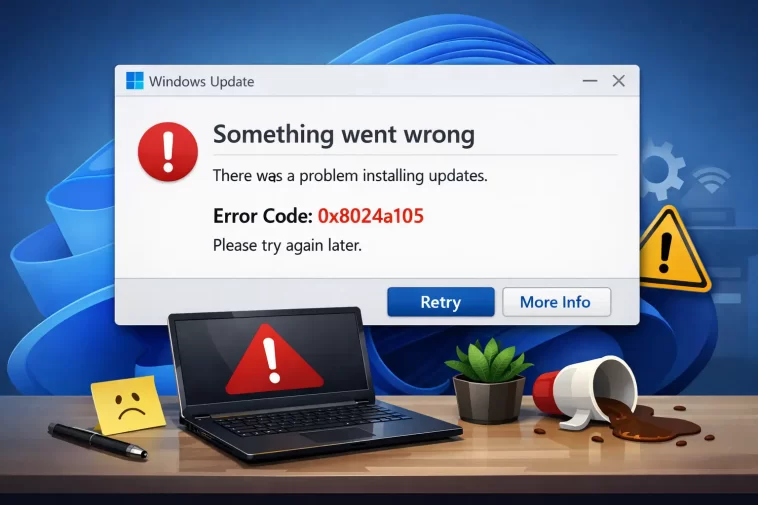
I had this one pop up on a client’s machine three days in a row, same spot, same retry button doing nothing. Windows 11 error code 0x8024a105 shows up when Windows Update fails to download or install a patch, and it’s usually tied to a stuck update component, a network hiccup, or corrupted cache files — not something seriously wrong with the OS itself. The annoying part is Microsoft’s own error message gives you almost nothing to go on.
Quick Answer
- Restart the PC and retry — sounds dumb, fixes it more than you’d expect
- Stop the Windows Update and BITS services, then restart and try again
- Delete the contents of the SoftwareDistribution folder
- Reset the Catroot2 folder via Command Prompt
- Run the Windows Update Troubleshooter
- If none of that works, switch networks temporarily (Wi-Fi to wired or vice versa)
Why 0x8024a105 Happens
So this error code isn’t documented in any real detail by Microsoft, which is part of why there’s so much scattered advice about it online. From what I’ve pieced together across a bunch of cases, it traces back to a handful of recurring causes.
A stuck or corrupted Windows Update component. The update client itself — the background service that handles downloading and staging patches — gets into a bad state. This is by far the most common root cause, and it’s the one most of the fixes below are aimed at.
Corrupted cache in the SoftwareDistribution or Catroot2 folders. These folders store temporary update files and digital signature data. If a download gets interrupted (power loss, network drop, forced shutdown mid-update), the cached files can end up partially written or mismatched, and Windows just throws this error rather than figuring out how to recover on its own.
Network or DNS issues reaching Microsoft’s update servers. Less common than people assume, but real — especially on networks with aggressive firewalls, certain VPNs, or ISPs that have routing issues to Microsoft’s CDN.
Antivirus or firewall software blocking the update process. Not always, but it happens, particularly with third-party security suites that are aggressive about blocking background network activity.
Missing or disabled Windows services that updates depend on. The Windows Modules Installer service, BITS (Background Intelligent Transfer Service), and the Windows Update service itself all need to be running and configured correctly. If one of these has been disabled — sometimes by a “Windows debloat” script someone ran ages ago and forgot about — updates will fail with vague codes like this one.
Step-by-Step Fixes
Step 1: Just Restart First
I know it’s the most basic advice possible. But restarting genuinely resolves this for a chunk of people, because a pending update sometimes completes during the reboot process even though it threw the error beforehand. Try it before anything else.
Step 2: Restart the Windows Update and BITS Services
- Press
Win + R, typeservices.msc, hit Enter - Find Background Intelligent Transfer Service, right-click, select Stop
- Find Windows Update, right-click, select Stop
- Restart your PC
- After it boots back up, go to Settings > Windows Update and check for updates again
This forces both services to start clean instead of picking up wherever they got stuck.
Step 3: Clear the SoftwareDistribution Folder
This folder holds temporary update files, and a corrupted file here is a frequent cause of this exact error.
- Open Command Prompt as admin
- Run:
net stop wuauserv
net stop bits- Navigate to
C:\Windows\SoftwareDistribution - Delete everything inside the folder — don’t delete the folder itself
- Restart the services:
net start wuauserv
net start bits- Try Windows Update again
A heads up here — sometimes Windows won’t let you delete certain files because they’re still locked. If that happens, double check the services actually stopped in step 2 before trying again.
Step 4: Reset the Catroot2 Folder
Catroot2 stores update signature data, and it’s a less obvious but legitimate cause of this error.
- Open Command Prompt as admin
- Run:
net stop cryptsvc- Navigate to
C:\Windows\System32\catroot2 - Rename the folder (don’t delete it outright) to something like
catroot2.old - Restart the cryptsvc service:
net start cryptsvc- Reboot and check for updates
Windows will rebuild a fresh Catroot2 folder automatically. This one’s a bit more obscure, but it’s worth doing if Step 3 didn’t fix it.
Step 5: Run the Windows Update Troubleshooter
Settings > System > Troubleshoot > Other troubleshooters > Windows Update > Run. It’s not always thorough, but it catches some of the more common configuration issues automatically, and it’s a fast thing to try before going deeper.
Step 6: Check Your Network Connection
If you’re on Wi-Fi, try a wired connection temporarily, and vice versa. Some ISPs and certain VPN configurations have routing problems specifically with Microsoft’s update servers, and switching networks bypasses that entirely without you needing to diagnose the actual network issue.
Advanced Fixes and Edge Cases
Check if Windows Modules Installer is disabled. Open services.msc, find Windows Modules Installer, and confirm it’s set to Manual (not Disabled) and currently running. If it’s been disabled — sometimes by an old optimization tool — set it back and restart.
Temporarily disable third-party antivirus. Not Windows Defender, just third-party suites. Disable it, attempt the update, and re-enable it afterward. If the update goes through with it off, you’ve found your cause, and you’ll want to check that software’s update-related exclusions going forward.
Run DISM and SFC together.
DISM /Online /Cleanup-Image /RestoreHealth
sfc /scannow
This repairs underlying system file corruption that can sit beneath update failures, even ones that look network-related on the surface.
Check Event Viewer for the actual failing component. Windows Logs > System, filtered around the time of the failed update, sometimes shows which specific update package or service triggered the failure — more detail than the generic error code gives you on its own.
Download the update manually from the Microsoft Update Catalog. If it’s one specific update causing the failure rather than the whole update pipeline, grabbing the .msu file directly and installing it offline sidesteps the broken automatic process entirely.
What Actually Worked For Me
On the machine I mentioned earlier, I did the obvious stuff first — restart, troubleshooter, nothing. Cleared SoftwareDistribution, restarted, ran the update again, same error. At that point I was fairly annoyed, not gonna pretend otherwise, because I’d already burned half an hour on something that’s supposed to be routine maintenance.
What actually fixed it was the Catroot2 reset, which I almost skipped because it felt like a long shot. Renamed the folder, restarted cryptsvc, rebooted, and the update went through clean on the first try after that. Not 100% sure why Catroot2 was the actual problem and not SoftwareDistribution, but that’s how it played out on this one.
So if you’re going down the list in order and Software Distribution didn’t fix it, don’t skip Catroot2 just because it sounds more obscure. In this case it was the actual cause.
Fixes That Are Commonly Recommended But Rarely Work
Running antivirus scans gets suggested constantly for this error, and in most of the cases I’ve come across, malware just isn’t the actual cause — it’s almost always update-component corruption or cache issues instead. A full Windows reinstall also gets thrown around as an option pretty quickly in forum threads, and it’s massive overkill for what’s usually fixable with a service restart and a folder reset.
Prevention Tips
- Avoid forcing shutdowns mid-update; let Windows finish installing before powering off
- Don’t run aggressive “debloat” or optimization scripts that disable Windows services without understanding what they touch
- Keep your antivirus update-related exclusions current if you’ve had update conflicts before
- Periodically clear out the SoftwareDistribution folder’s old cached files even before you hit an error — it doesn’t hurt anything
FAQ
Is 0x8024a105 dangerous or a sign of malware? Almost never. It’s a Windows Update component issue, not a security threat.
Will this error eventually fix itself if I just keep retrying? Sometimes, but it can also keep failing indefinitely until the underlying cache or service issue is addressed.
Does this happen on Windows 10 too? Yes, it’s actually been around longer on Windows 10 and just carried over to Windows 11.
Why does the error give so little information? Not entirely clear — it’s one of the more sparsely documented Windows Update codes, even on Microsoft’s own support pages.
Can a VPN cause this error specifically? It can, particularly if the VPN routes traffic in a way that disrupts the connection to Microsoft’s update servers. Worth testing with it off.
Editor’s Opinion
This error’s annoying mainly because there’s basically no official explanation for it, so you’re stuck working through a checklist instead of knowing exactly what broke. Catroot2 reset was the one that actually did it for me, even though SoftwareDistribution gets recommended more often. Worth trying both rather than stopping after the first one fails.
